Share Only Chosen Photos
That photo app asked for gallery access and you tapped Allow — now it can browse every photo you have ever taken, including the ones you would rather keep private. You do not have to choose between using the app and exposing everything: both iPhone and Android let you hand over only the specific photos you pick. This guide shows the exact taps on each system, plus how to claw back full access you already granted. For the bigger picture of what apps have been accessing, check your permission history too.
TL;DR / Quick Fix
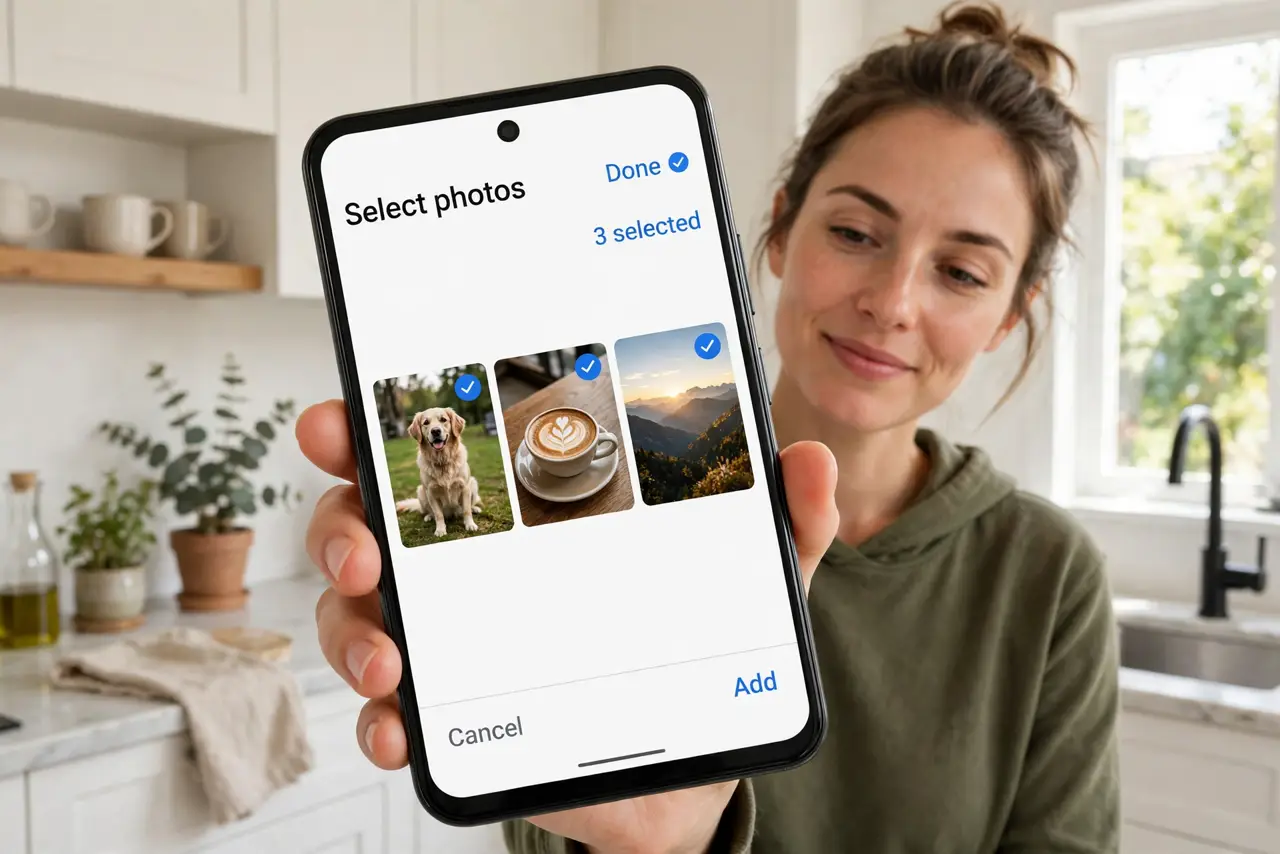
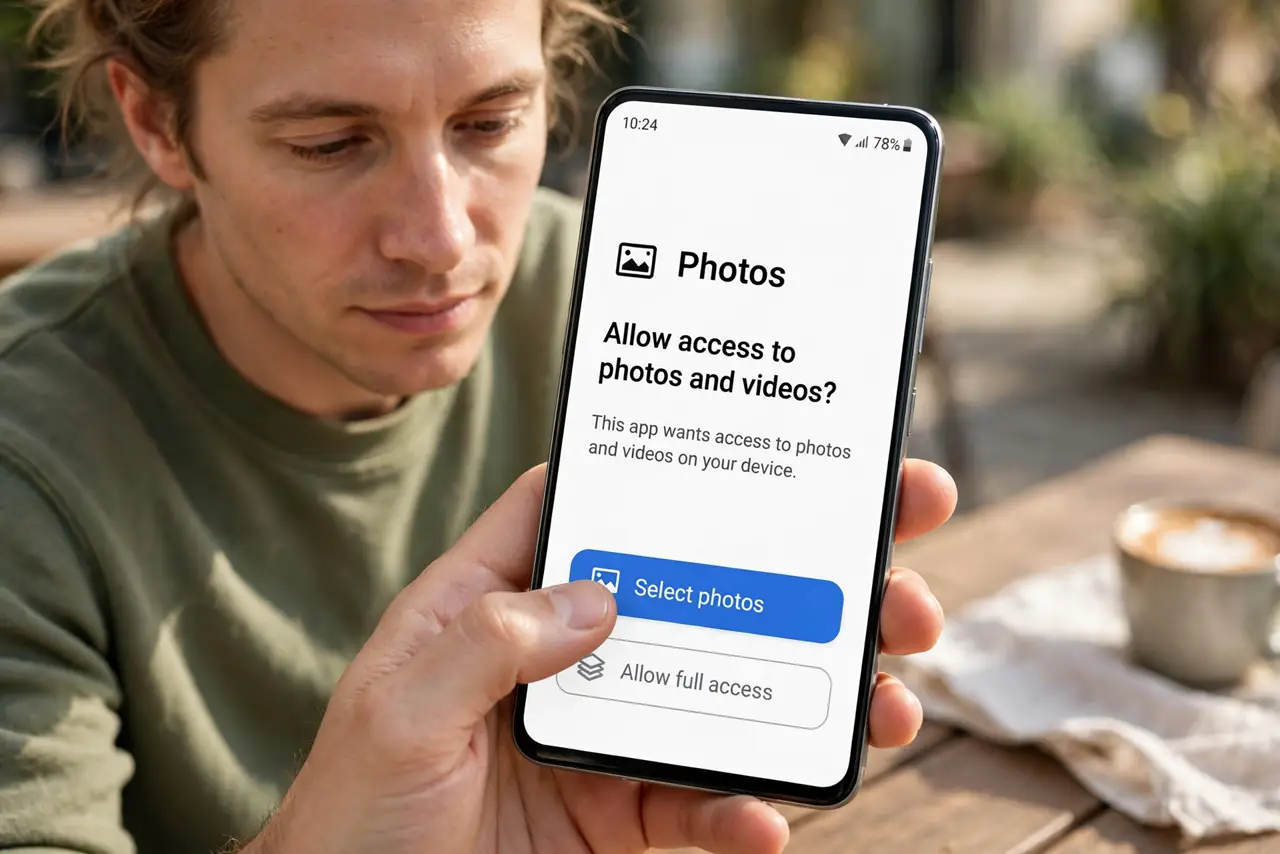
Quick fix: both iPhone and Android let you share only selected photos with an app instead of your whole gallery — on iPhone choose 'Selected Photos' when the permission prompt appears, on Android use the system photo picker that shares your picks. Change it later in the app's Privacy settings.
Follow these steps
- Choose 'Selected Photos' on iPhone. When an app first asks for photo access, tap 'Select Photos' instead of 'Allow Full Access'. Pick just the images it needs — the app literally cannot see the rest of your library.
- Use Android's system photo picker. On modern Android, apps should use the system picker: you tap the exact photos to share, and the app receives only those files. No gallery permission needed at all — prefer apps that work this way.
- Downgrade apps you already approved. On iPhone: Settings, then Privacy and Security, then Photos — tap each app and switch Full Access to Selected Photos. On Android: Settings, then Privacy, then Permission Manager, then Photos and videos — switch 'Allow all' to 'Allow selected' where offered.
- Pick the photos after downgrading. After switching to limited access, open the app and use it normally — it will prompt you to select which photos it may see. Choose only what the task needs, nothing more.
- Watch for apps that demand full access. Some apps refuse to work with limited access. Ask whether the feature truly needs your whole gallery — a collage maker needs your picks, not your entire camera roll. Consider alternatives for greedy ones.
- Recheck after major updates. System updates occasionally reset or re-prompt permissions. After a big OS upgrade, spend two minutes re-verifying photo permissions — it is the cheapest privacy audit there is.
What NOT to do
- Do not grant full gallery access 'just to get past the prompt.' The prompt is exactly the moment to choose Selected Photos — it takes five extra seconds.
- Do not assume deleting the app deletes its access. Revoke the permission first, then delete — order matters for peace of mind.
- Do not hand full access to apps that only need one photo. A profile-picture upload needs one image, not ten years of memories.
- Do not forget shared albums and cloud sync. Limited on-device access still does not cover photos the app reaches through a linked cloud account — check those connections too.
Frequently asked questions
Can the app see photos I pick later?
On iPhone with Selected Photos, the app sees only what you selected — new photos stay invisible until you add them. Android's picker shares per session, so each share is a fresh choice.
What if the app breaks with limited access?
Then it genuinely needs broader access for its core job (like a backup app). Grant it consciously — the point is choosing, not blocking everything.
Does this stop screenshots or screen recording?
No — this controls gallery access, not what an app displays. An app showing your photo on screen could still screenshot it; limited access shrinks what it can reach, not what it can display.