See What Apps Accessed
That little location arrow on your phone is a clue — something used your location recently, and you deserve to know what. Both iPhone and Android keep a history of which apps accessed your location, camera, and microphone, buried a few taps deep in Settings. This guide shows you exactly where to look on each system, so you can name the app instead of guessing. Once you know the culprit, you can limit photo access for nosy apps or revoke the permission entirely.
TL;DR / Quick Fix
Quick fix: on iPhone, open Settings, then Privacy and Security, then Location Services, where a small arrow shows which apps used your location recently. On Android, open Settings, then Privacy, then the Privacy Dashboard for a 24-hour timeline of location, camera, and microphone access by app.
Follow these steps
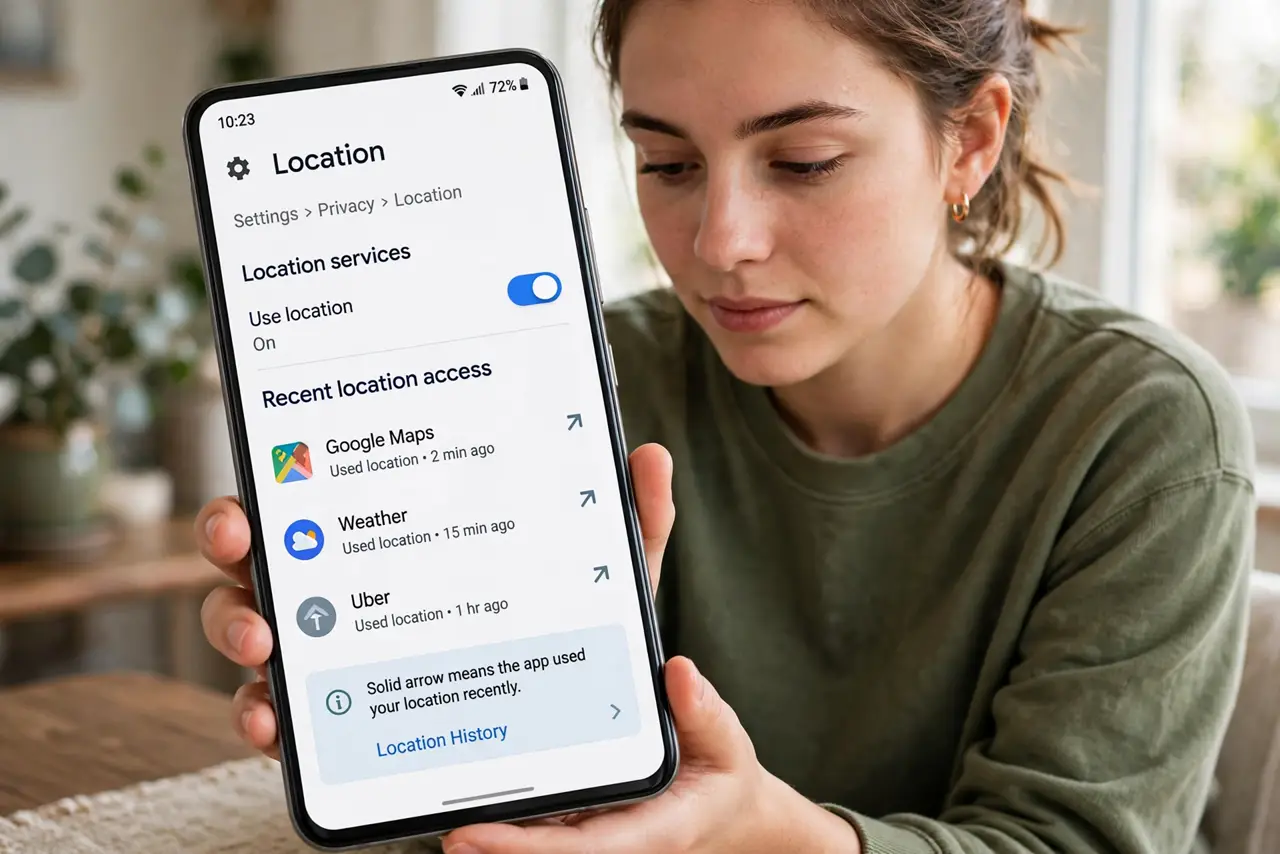
- Check location history on iPhone. Open Settings, then Privacy and Security, then Location Services. Apps show a small arrow: a solid arrow means the app used your location very recently, an outlined arrow means within the last 24 hours. Tap any app to see exactly when and change its permission.
- Check camera and microphone use on iPhone. Watch for the green dot (camera) and orange dot (microphone) at the top of the screen — they light up the moment an app uses them. Open Control Center right after to see which app triggered the dot.
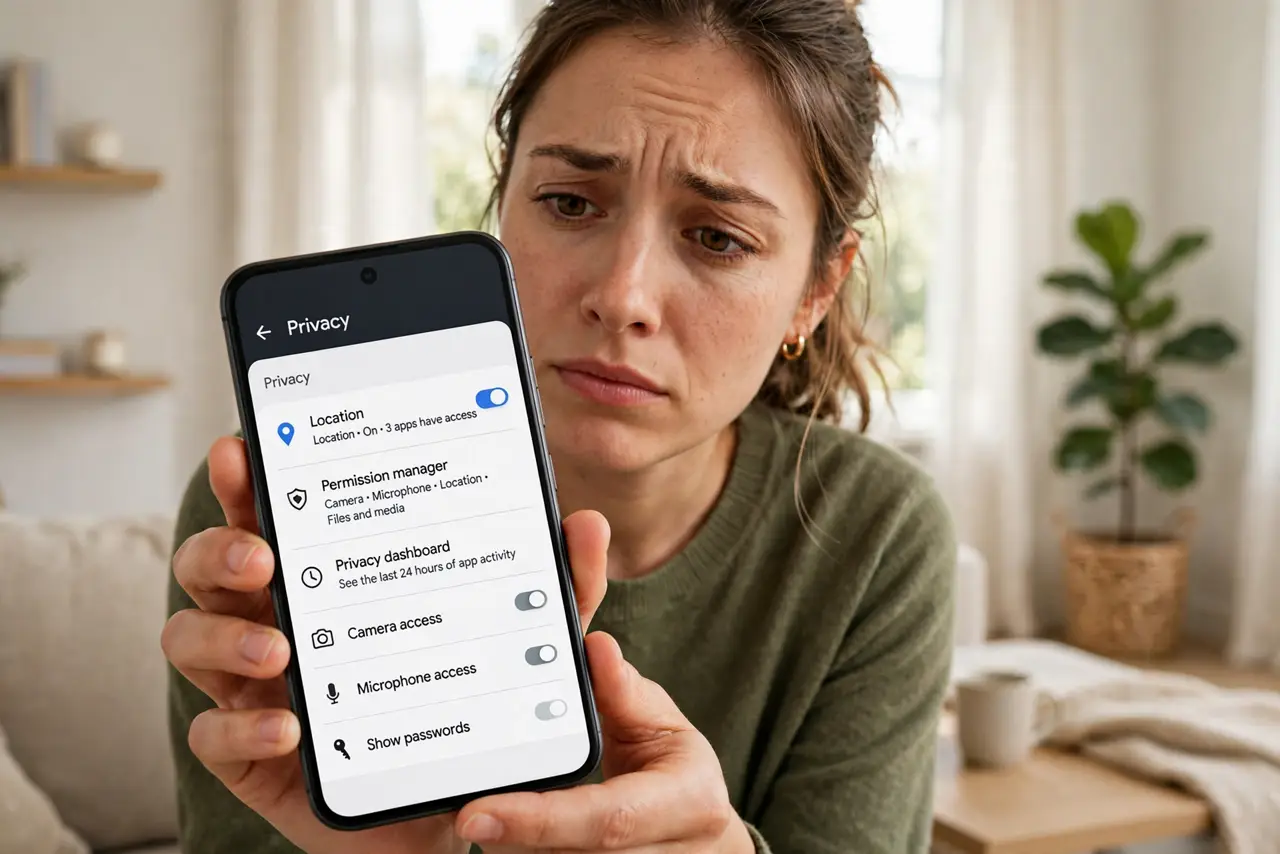
- Open the Privacy Dashboard on Android. Go to Settings, then Privacy, then Privacy Dashboard. You get a 24-hour timeline showing which apps used location, camera, and microphone, and when. Tap any item for the full list of apps behind it.
- Use Android's permission manager for details. In Settings, then Privacy, then Permission Manager, tap a permission like Location to see every app holding it and when each last used it. This is the fastest way to spot an app with background access it does not need.
- Read what the access patterns mean. An app using location once while open is normal. An app pinging location all night in the background is not — that pattern is worth revoking or switching to 'only while using the app.'
- Revoke or downgrade the permission. On either system, tap the app in the permission list and change it: location to 'While Using', camera and microphone to off, or remove access entirely. The app keeps working for everything else — it just loses the data it was quietly taking.
What NOT to do
- Do not delete an app just to stop the tracking. Revoking the single permission is faster, safer, and keeps your data and logins.
- Do not grant 'Always' location to apps that only need it while open. Maps needs it on the road, not at 3 a.m. while you sleep.
- Do not ignore the camera and microphone dots. A dot appearing with no obvious reason deserves a look at which app caused it.
- Do not assume a preinstalled app is trustworthy. System and carrier apps show up in these same histories — check their permissions too.
Frequently asked questions
How far back does the history go?
iPhone shows roughly the last 24 hours via the arrows; Android's Privacy Dashboard covers the last 24 hours in detail. Neither keeps a month-long log — check when something feels off, not archaeologically.
Can apps track me with location off?
No — with location services off, apps cannot get GPS data. They can still guess roughly from Wi-Fi networks and IP addresses, but that is far less precise.
Will revoking permissions break the app?
Almost never. The app simply loses that one data feed and usually asks again politely if it truly needs it. If something stops working, you can re-grant it in seconds.