Photos Stuck on 'Waiting for Wi-Fi'? Fix It
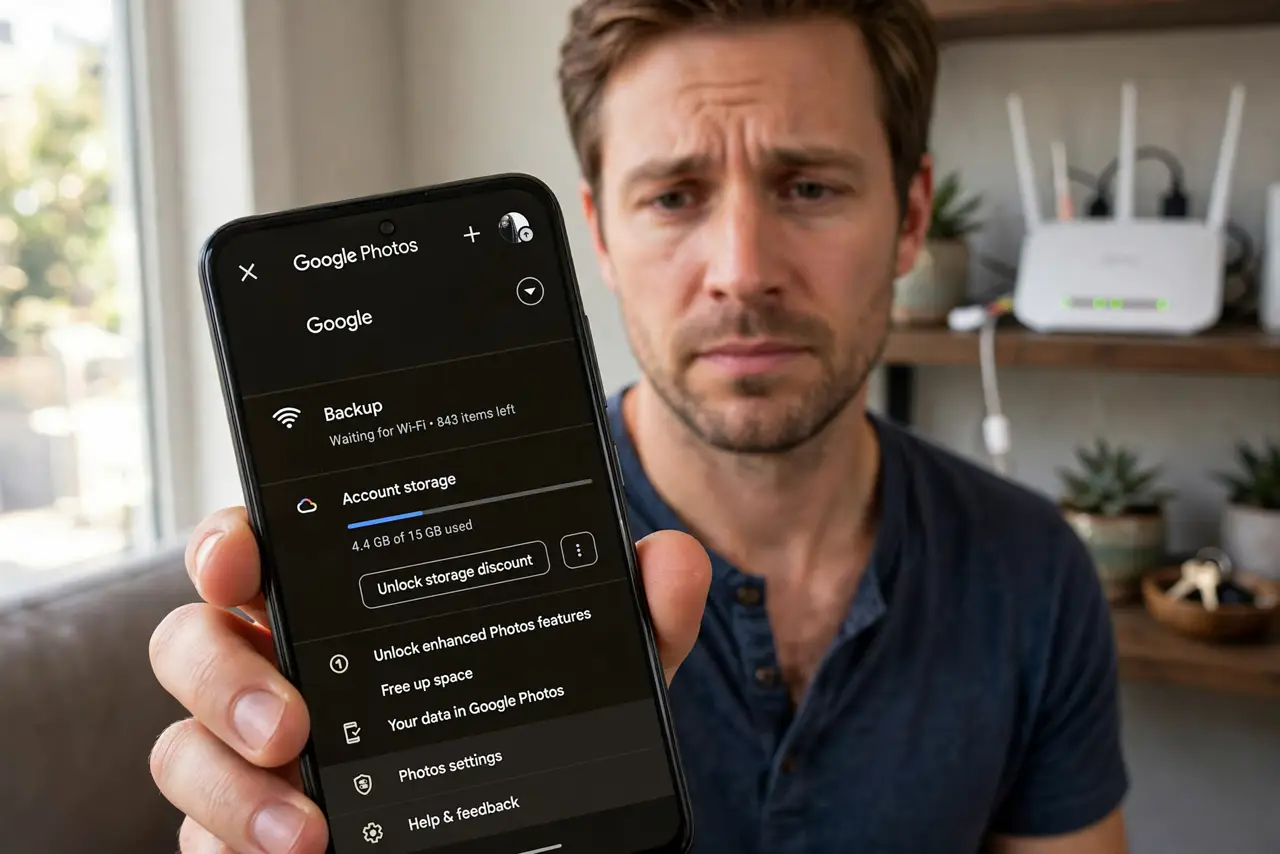
Your photos app says it is waiting for Wi-Fi even though your Wi-Fi is clearly on. This usually means the backup setting is stricter than your connection — it wants an unmetered network, a charged battery, or background permission it does not have. This guide works through the real causes, without deleting anything, so your stuck photo uploads can finish.
TL;DR / Quick Fix
Quick fix: connect to stable Wi-Fi, then check the photos app backup setting and allow uploads over Wi-Fi. Turn off data saver and low power mode, restart the phone, and leave it charging overnight. Most stuck uploads resume within a few hours once the block is gone.
Follow these steps
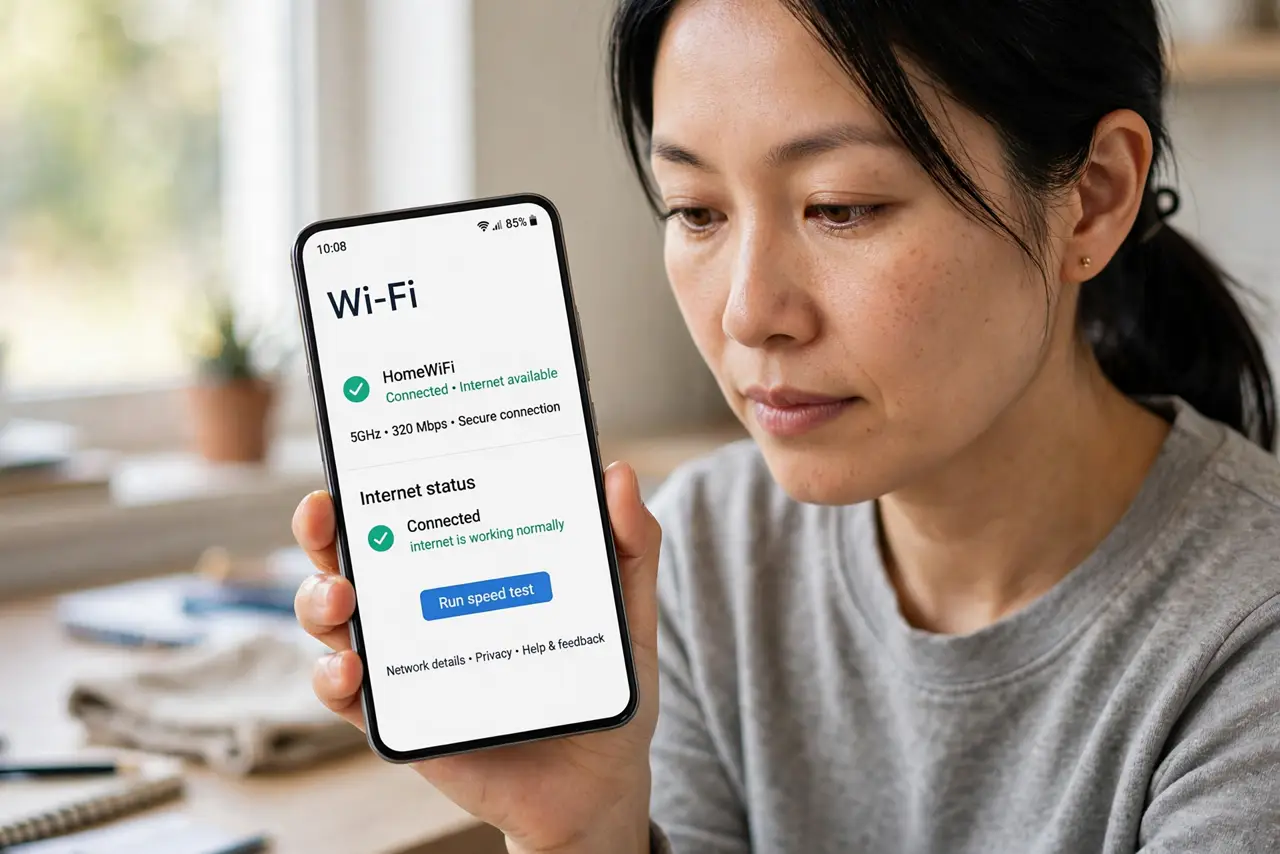
- Confirm Wi-Fi is really working. Open a web page to prove the connection is live. A Wi-Fi icon with no working internet makes the photos app wait forever, so rule out a dead connection first.
- Check the backup network setting. In the photos app backup settings, see whether it is set to Wi-Fi only, and whether your current network is marked as metered. A metered network looks like Wi-Fi but counts as data — see the data saver guide for why that blocks uploads.
- Turn off data saver and low power mode. Data saver and low power or battery saver modes both pause background uploads. Switch them off while you troubleshoot, then decide later if you want them back.
- Allow background activity for the photos app. On Android, check that the photos app is allowed unrestricted background usage; on iPhone, make sure Background App Refresh is on for it. An app that cannot run in the background cannot upload.
- Restart the phone and retry on the charger. Restart, reconnect to Wi-Fi, and plug the phone in. Many backup systems only run when the battery is charging and the screen has been off for a while.
- Leave it overnight and check the count. Give it several quiet hours on Wi-Fi and power. If the backed-up count moves, the system is healthy — it just needed the right conditions.
What NOT to do
- Do not delete photos to 'make room' for the backup. Deleting is not needed to fix a waiting status, and you risk losing the only copy.
- Do not reinstall the photos app as a first step. A reinstall can log you out of the backup account and complicate things.
- Do not assume the backup is broken after ten minutes. Large libraries take hours on the first pass, even on good Wi-Fi.
- Do not turn off backup to stop the message. That only hides the symptom while your photos stay unprotected.
Frequently asked questions
Why does it say waiting for Wi-Fi when Wi-Fi is on?
Because the app needs an unmetered Wi-Fi connection with internet access, plus background permission and often a charged battery. Any one of those missing keeps the status stuck.
Will my photos upload on mobile data instead?
Only if you allow it in the backup settings. Full-quality photo libraries can eat a data plan fast, so Wi-Fi-only is the safer default.
How do I know the backup is actually working?
Open the backup screen and watch the photo count. If the number of backed-up photos rises over an hour on Wi-Fi and power, it is working.