Play Store Stuck on 'Pending'? Fix It
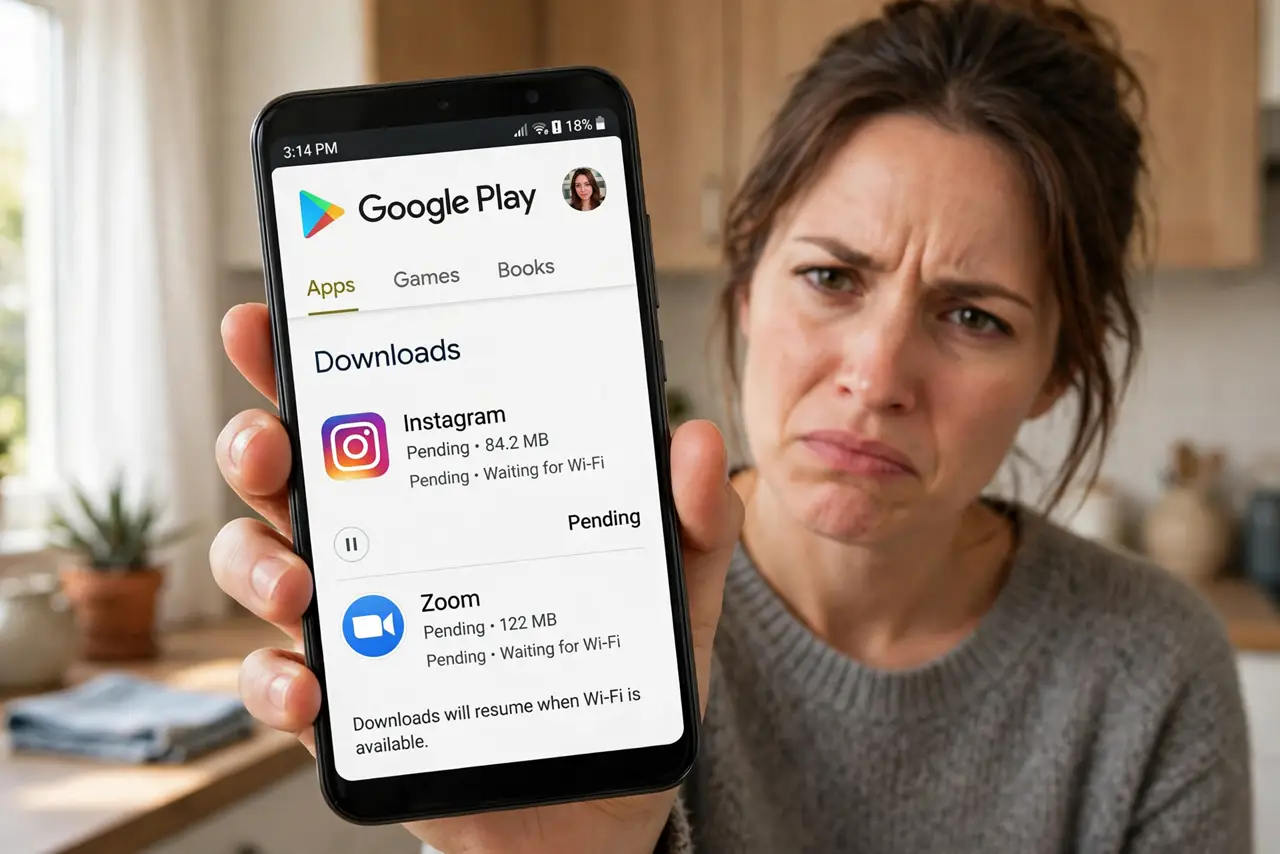
Play Store downloads sit on 'Pending' forever — never starting, never failing, just waiting. The queue is usually jammed by an update, a data restriction, or a tired Play Store cache. This guide unclogs it, whether it is one app or every download stuck at once.
TL;DR / Quick Fix
Quick fix: open the Play Store, cancel all pending downloads, then retry one app on Wi-Fi. Clear the Play Store's cache in app settings and restart the phone. Check that you have free storage — downloads silently wait when space runs out.
Follow these steps
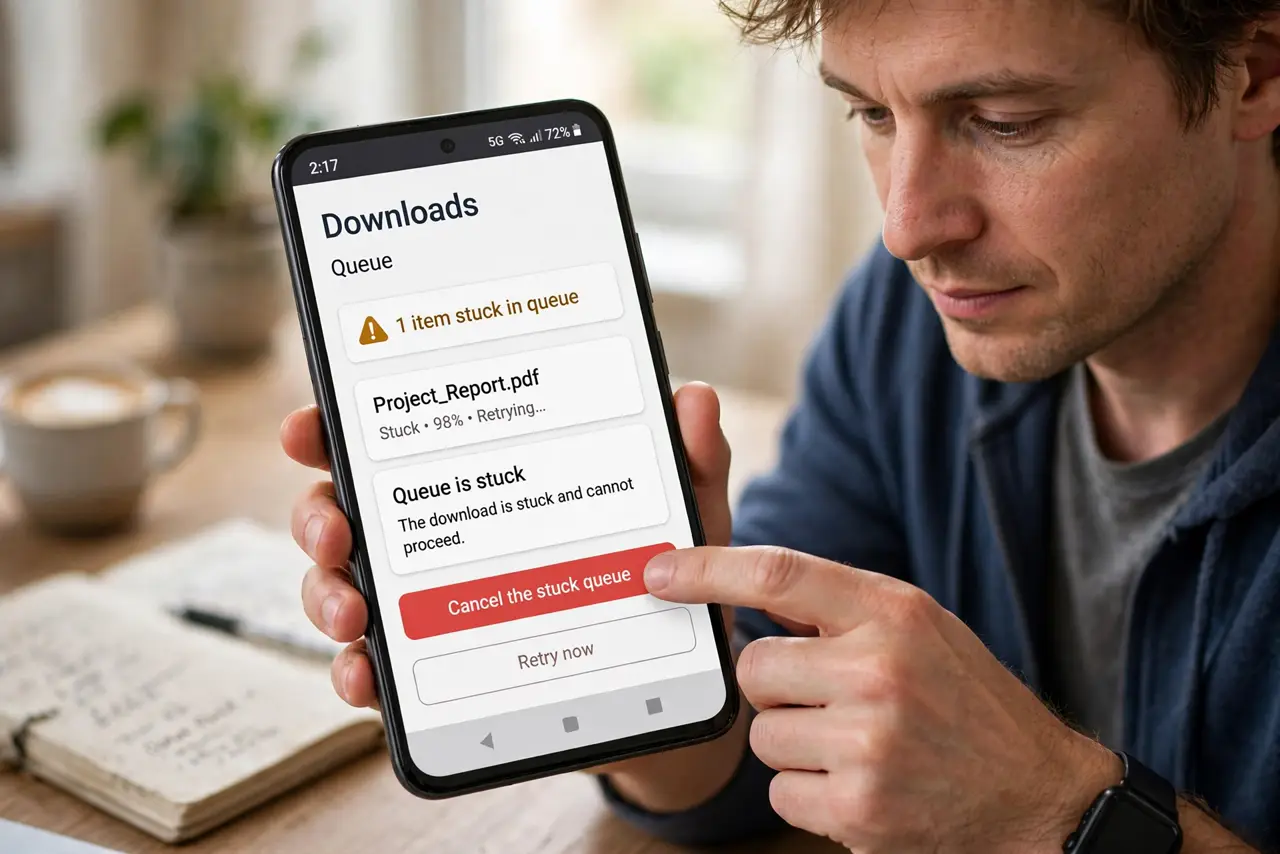
- Cancel the stuck queue. In the Play Store, open your downloads and cancel everything pending. A jammed queue blocks new downloads behind it — clearing it is step one.
- Retry a single download on Wi-Fi. Try one app on stable Wi-Fi. If it starts, the queue was the problem; if not, keep going.
- Clear the Play Store cache. In app settings, clear the Play Store's cache — not its data. A corrupted cache is the classic cause of permanent 'Pending.'
- Check free storage. Downloads wait silently when storage is full. Free up space until you have comfortably more than the app's size.
- Check the download preferences. In Play Store settings, confirm app downloads are allowed on your current connection. A 'Wi-Fi only' setting on mobile data explains a permanent pending state.
- Restart and retry. Restart the phone and try the download again. If it still pends, remove and re-add your Google account as a last resort.
What NOT to do
- Do not clear the Play Store's data as a first step. Cache is the safe fix; data wipes your Play Store settings and history.
- Do not keep tapping retry on a jammed queue. Cancel everything first — retrying behind a stuck download changes nothing.
- Do not download huge games on a weak connection and blame the store. Some 'pending' states are just very slow starts.
- Do not sideload APKs to dodge a stuck store. Fix the store instead — sideloaded apps miss updates and security checks.
Frequently asked questions
Why are my Play Store downloads stuck on pending?
A jammed download queue, corrupted Play Store cache, no free storage, or a connection restriction in the store's settings.
Will clearing the Play Store cache delete my apps?
No. Cache is temporary data only — your installed apps and purchases are untouched.
One app won't download but others will — why?
That app's own download is corrupted in the queue. Cancel it specifically and retry it alone.