Move to a New Android? Basics
New phone day is exciting until you realize your life is on the old one — photos, chats, authenticator codes, Wi-Fi passwords. Android's transfer tools move most of it over a cable or Wi-Fi in under an hour, but the things they miss are exactly the things that hurt. Here is the complete move, including the gotchas.
TL;DR / Quick Fix
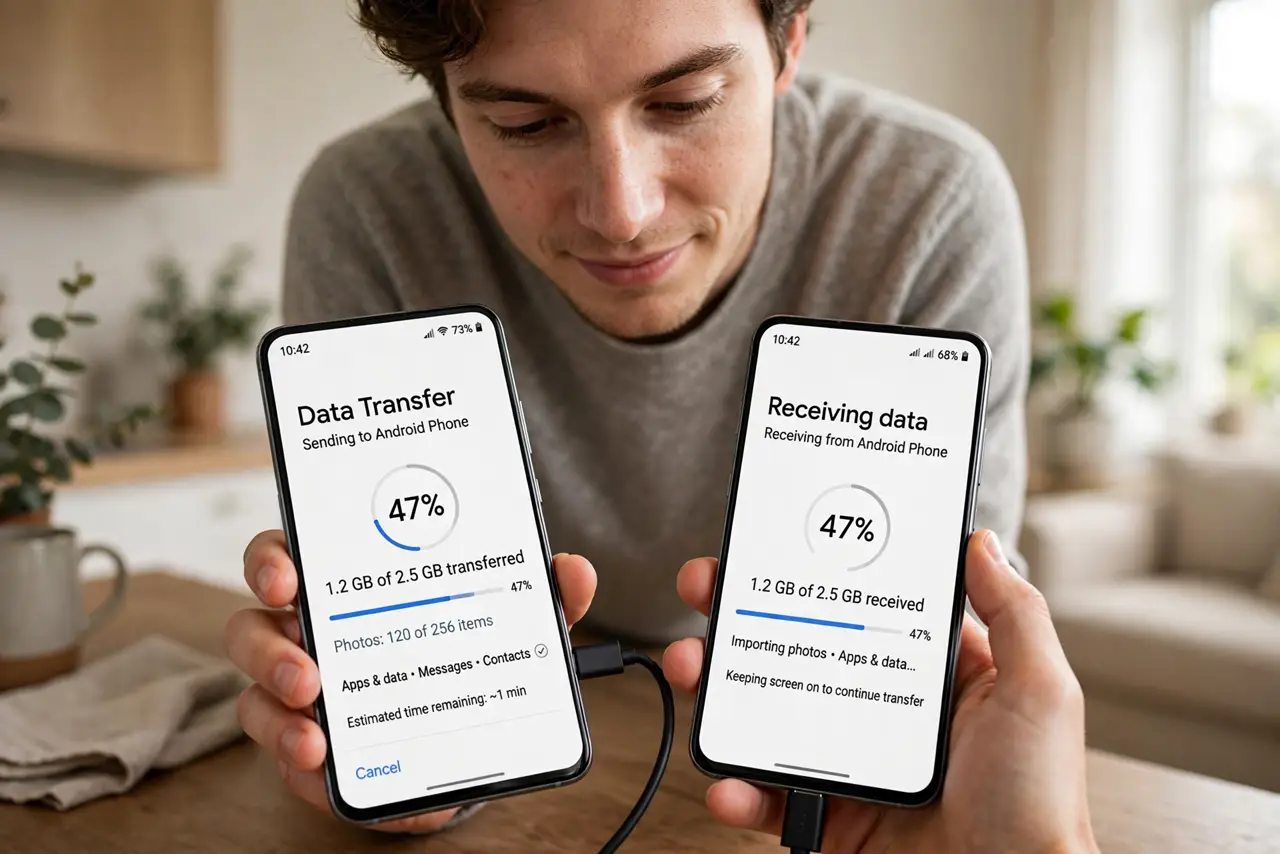
Quick fix: connect the old and new Android phones with a cable during setup and follow the transfer prompts — apps, settings, photos, and messages move over. Then manually move WhatsApp chats, authenticator codes, and check banking apps. Keep the old phone for a week as backup.
Follow these steps
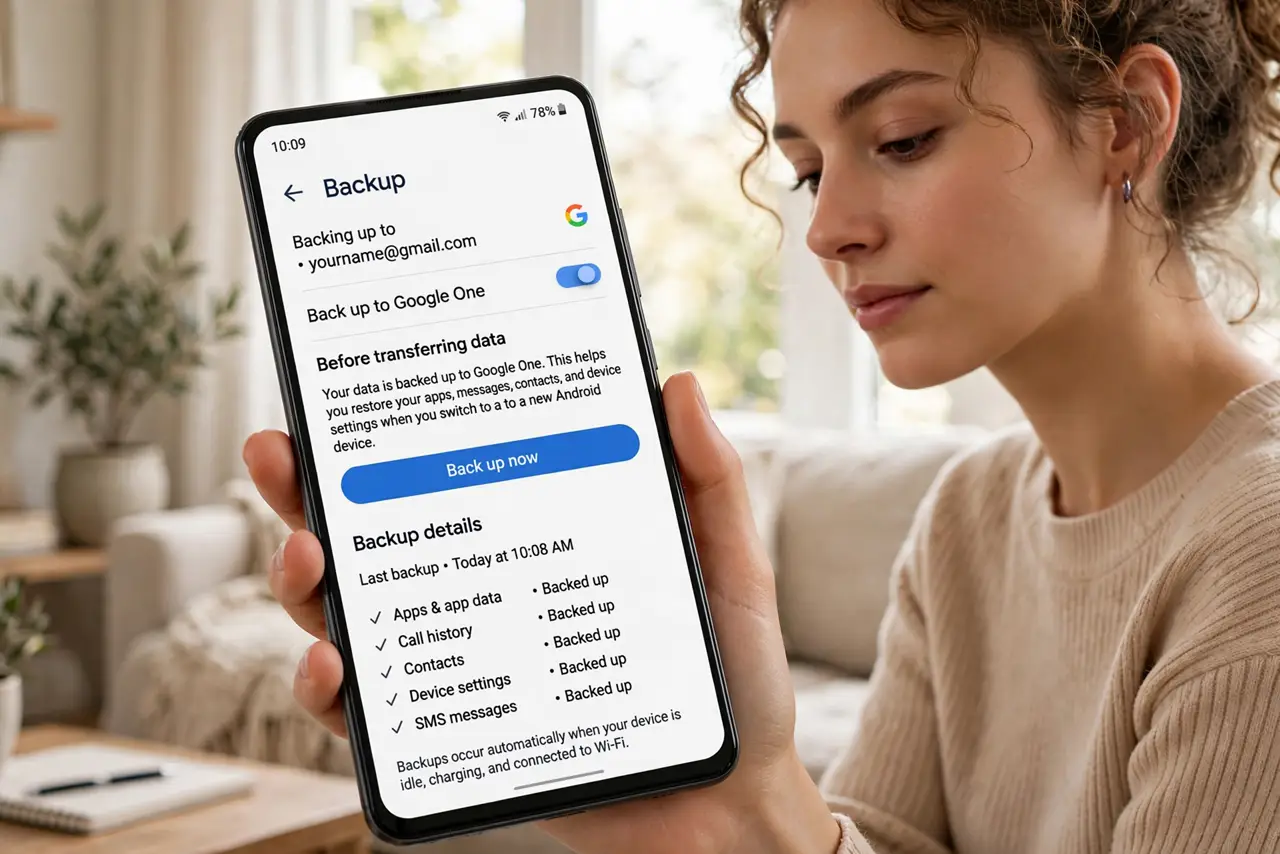
- Back up the old phone first. Run a manual backup on the old phone before starting — Settings > System > Backup > Back up now. If the transfer hiccups, the backup is your safety net. See the Android backup guide for the full checklist.
- Use a cable during setup. When the new phone asks, connect the old phone with a USB-C cable and tap through the copy prompts. Cable transfers are faster and more complete than Wi-Fi — apps, settings, call history, and messages come across.
- Move WhatsApp separately. WhatsApp chats need their own transfer — use the in-app Move Chats feature with both phones nearby. The system transfer does not reliably carry chat history.
- Transfer authenticator codes. Authenticator apps need explicit transfer or cloud sync enabled — they deliberately do not move with the system backup for security. See the authenticator transfer guide before wiping the old phone.
- Re-verify banking and payment apps. Banks, payment apps, and some work apps require fresh login or re-verification on the new device by design. Do this while the old phone still works, in case you need codes from it.
- Keep the old phone a week. Do not factory-reset the old phone immediately. Live on the new one for a week, confirm everything works — then wipe the old. The old phone is free insurance.
What NOT to do
- Do not wipe the old phone on day one. A week of overlap catches every missed login and unmoved code.
- Do not forget authenticator apps. They do not transfer with the system backup — move them explicitly or get locked out.
- Do not skip the WhatsApp transfer. Chat history needs the in-app move; assume nothing otherwise.
- Do not do the transfer on a dying battery. A mid-transfer shutdown corrupts the process — charge both phones first.
Frequently asked questions
How long does the transfer take?
Usually 30-60 minutes over cable for a typical phone. Large photo libraries extend it — patience beats a rushed, half-moved phone.
What does NOT transfer?
Authenticator codes, some banking logins, WhatsApp chats (separate step), and anything in apps that forbid backups. Check each critical app manually.
Can I transfer from iPhone to Android?
Yes — Android's setup offers an iPhone transfer path, usually via cable or Google One. iMessage history is the known casualty; everything else mostly moves.