Move to a New Android
Switching to a new Android phone should be exciting — instead it is the fear of losing years of photos, chats, and logins in the move. Modern Android transfers handle the heavy lifting: cable or wireless, your apps, messages, and settings flow across in under an hour. The failures come from skipping the preparation, not from the transfer itself.
TL;DR / Quick Fix
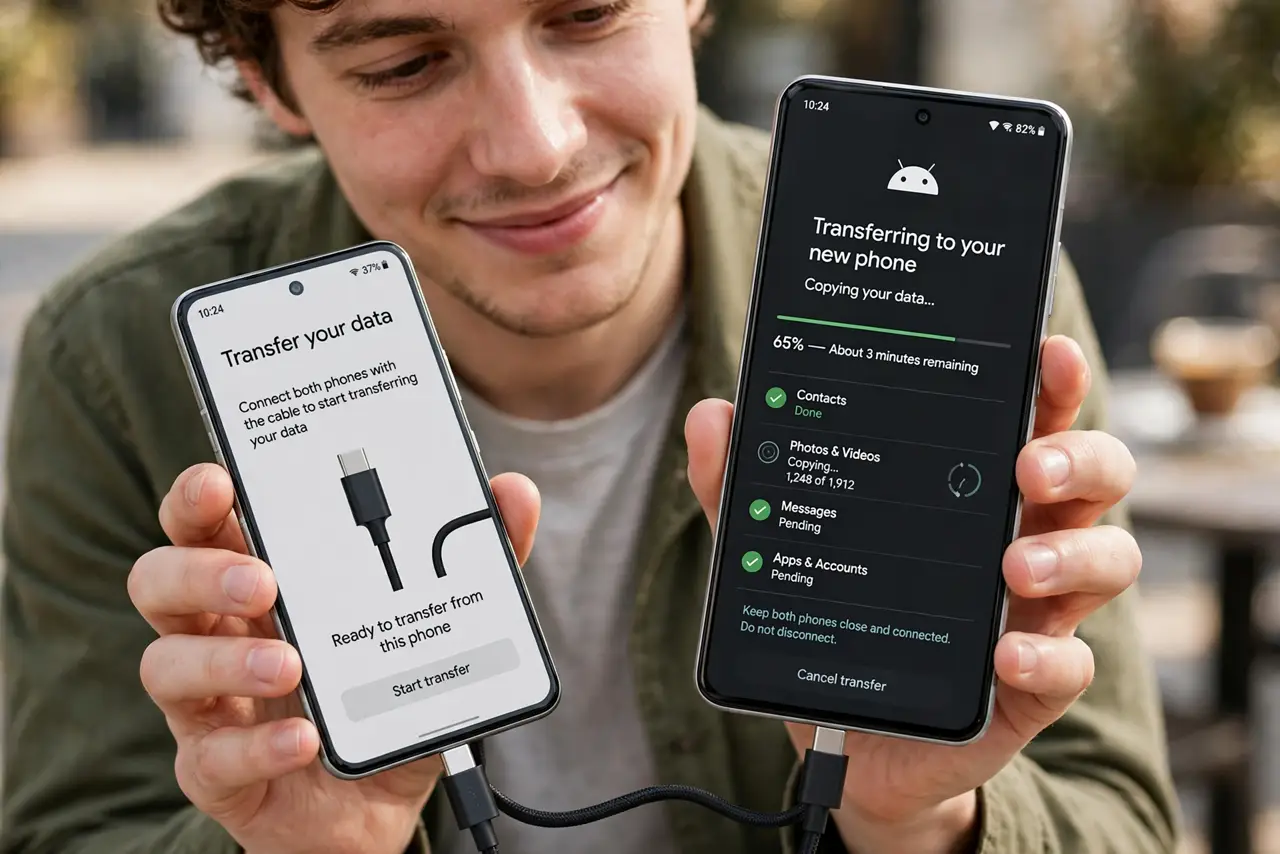
Quick fix: charge both phones, connect them with a cable during the new phone's setup, and choose to copy apps and data from the old phone. Keep them close and plugged in until it finishes. Verify photos, messages, and authenticator apps before wiping the old phone.
Follow these steps
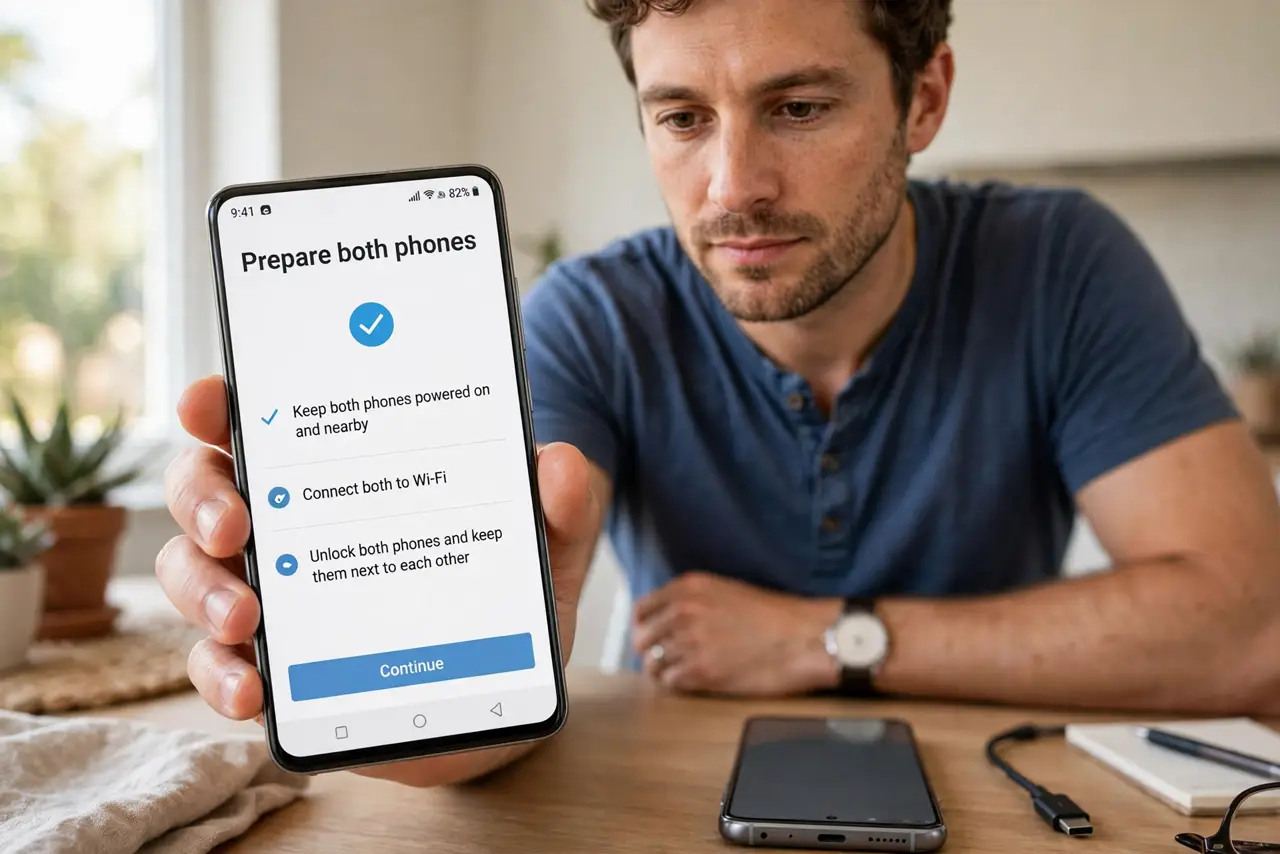
- Prepare both phones. Charge both past halfway, update the old phone's system, and run a fresh Google backup first. Preparation prevents the only real failure mode: an interrupted transfer.
- Start the transfer during setup. On the new phone's setup screens, choose to copy from the old phone — cable is fastest and most reliable. The option appears early in setup; do not skip past it.
- Keep the phones close and powered. Leave both phones plugged in and near each other until the transfer completes. Walking away with one phone mid-transfer is how partial moves happen.
- Let apps reinstall over Wi-Fi. Apps download fresh from the Play Store during the transfer — this takes a while on big libraries. Stay on Wi-Fi; this is not a mobile-data job.
- Verify the irreplaceable. Check photos, messages, and contacts on the new phone. Move authenticator and banking apps separately — they deliberately do not transfer credentials.
- Wipe the old phone last. Only factory-reset the old phone after everything critical is confirmed on the new one. The old phone is your backup until the new one proves itself.
What NOT to do
- Do not wipe the old phone before verifying. The transfer is a copy, not a move — but only if you let it finish and check.
- Do not transfer over mobile data. App downloads and photo syncs will devour a data cap in minutes — Wi-Fi only.
- Do not assume 2FA codes moved. Authenticator apps need separate migration — losing them locks you out of accounts.
- Do not rush the cable step. A loose cable mid-transfer corrupts the move — seat it firmly and leave the phones alone.
Frequently asked questions
Cable or wireless — which is better?
Cable: faster and more reliable. Wireless: convenient when no cable fits. For a full move, cable wins.
How long does it take?
Usually 30 to 90 minutes depending on how much you have. Photo libraries are the long pole — patience.
What doesn't transfer?
Some app logins, authenticator secrets, and DRM content stay behind by design. Re-sign into banking and 2FA apps fresh.