What Is USB Debugging?
You plugged your Android phone into your PC and nothing useful happened — no file access, no backup tool recognizing it, just charging. USB debugging is the deeper communication channel between phone and computer: it lets PCs run backups, transfer data, and issue commands the normal USB modes do not allow. Powerful, occasionally necessary — and worth understanding before you switch it on.
TL;DR / Quick Fix
Quick fix: enable Developer Options by tapping Build number seven times, then turn on USB debugging inside it. When you plug into a computer, authorize that specific computer on the phone's prompt. Turn debugging off when the task is done.
Follow these steps
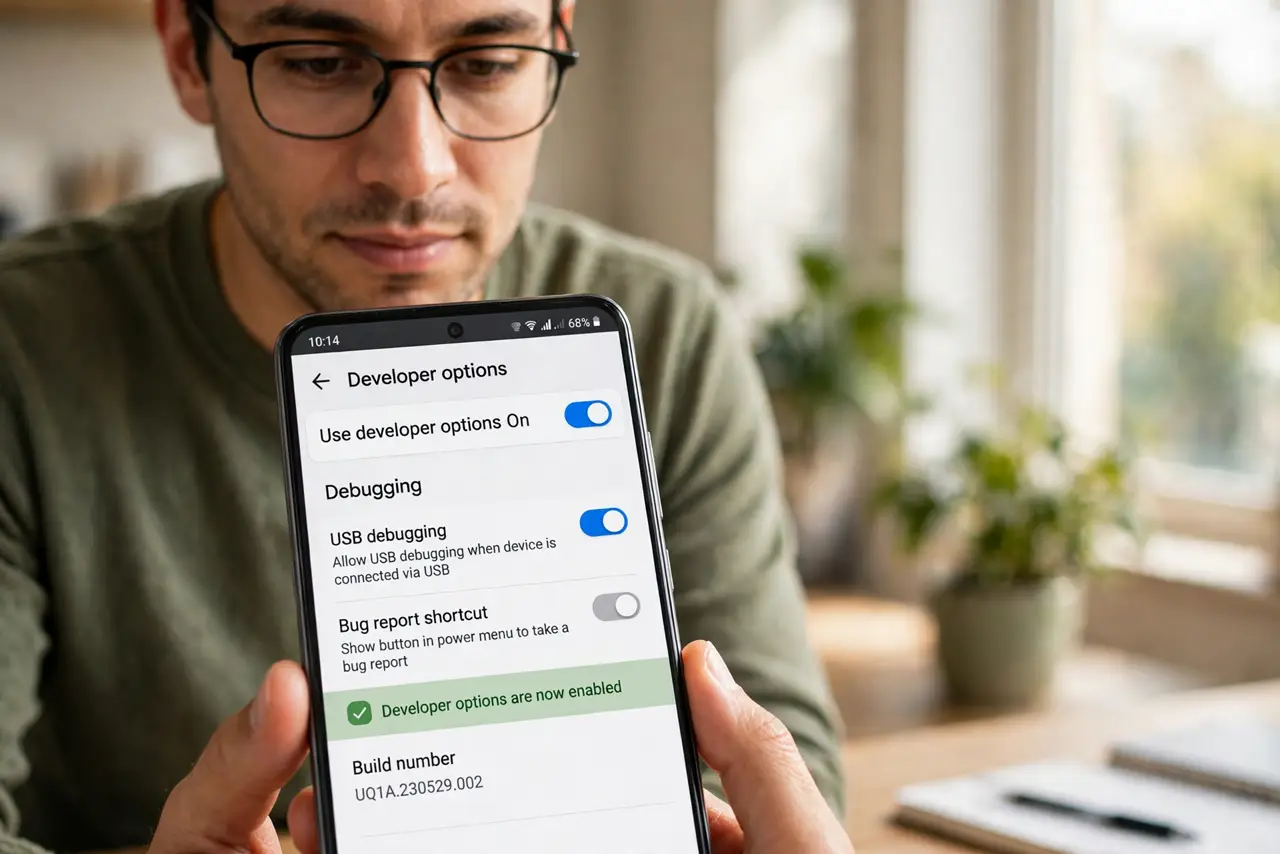
- Unlock Developer Options first. USB debugging lives inside Developer Options — tap Build number seven times in About phone to reveal the menu. See unlocking the menu for the full walkthrough.
- Turn on USB debugging. In Developer Options, toggle USB debugging on. Android warns you what it allows — read the warning, because it is accurate.
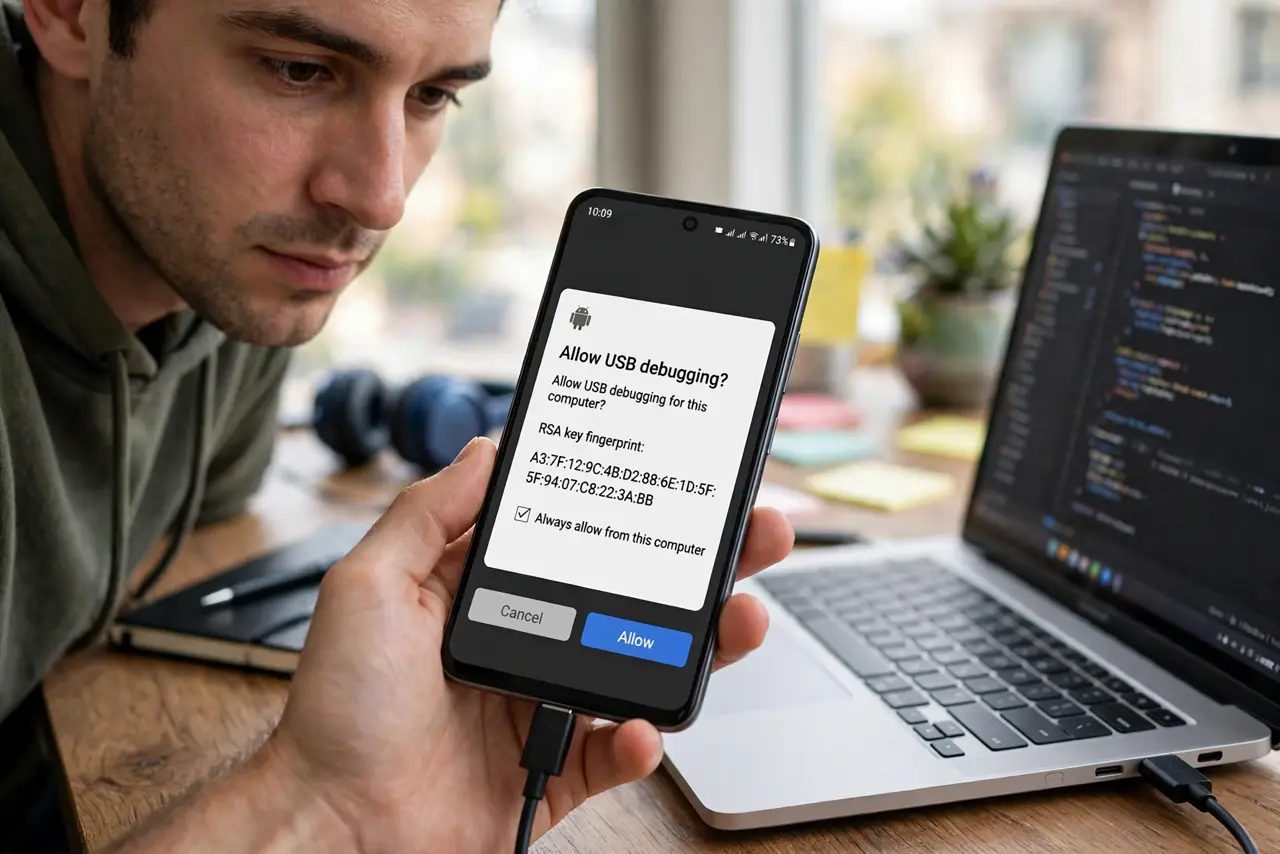
- Connect and authorize the computer. Plug the phone into the PC. A prompt asks whether to allow USB debugging for this computer — check the fingerprint if shown, and allow. Each new computer must be authorized separately.
- Use it for the task at hand. Backups, file transfers, screen mirroring tools, and repair utilities all use this channel. Do the job you came for — debugging is a means, not a mode to live in.
- Revoke authorizations periodically. In Developer Options, Revoke USB debugging authorizations clears all trusted computers. Do this if you have plugged into machines you no longer use.
- Turn it off when done. Toggle USB debugging off after the task. A phone with debugging permanently enabled is far more exposed if lost or plugged into a hostile port.
What NOT to do
- Do not authorize unknown computers. A charging station asking for debugging authorization is not a charging station — unplug immediately.
- Do not leave USB debugging on forever. Enable for the task, disable after — permanent debugging is permanent exposure.
- Do not ignore the RSA fingerprint prompt. If the fingerprint does not match the computer you expect, deny it.
- Do not confuse it with file transfer mode. The normal USB notification offers File Transfer without debugging — try that first for simple copies.
Frequently asked questions
Is USB debugging dangerous?
It grants deep access to whoever holds the authorized computer — safe with your own PC, risky with strangers' machines. The danger is the computer, not the toggle.
Why isn't my PC recognizing the phone?
Try a different cable (many are charge-only), a different port, and confirm the authorization prompt appeared on the phone.
Does it drain battery?
Negligibly — but the real cost of leaving it on is security, not power. Turn it off when done.