Share Internet via USB Cable
Your laptop needs internet, the Wi-Fi is dead, and your phone's hotspot would drain its battery in an hour. USB tethering shares the phone's data connection over a cable — faster, more stable, and it charges the phone at the same time. It takes about a minute to set up on Android or iPhone.
TL;DR / Quick Fix
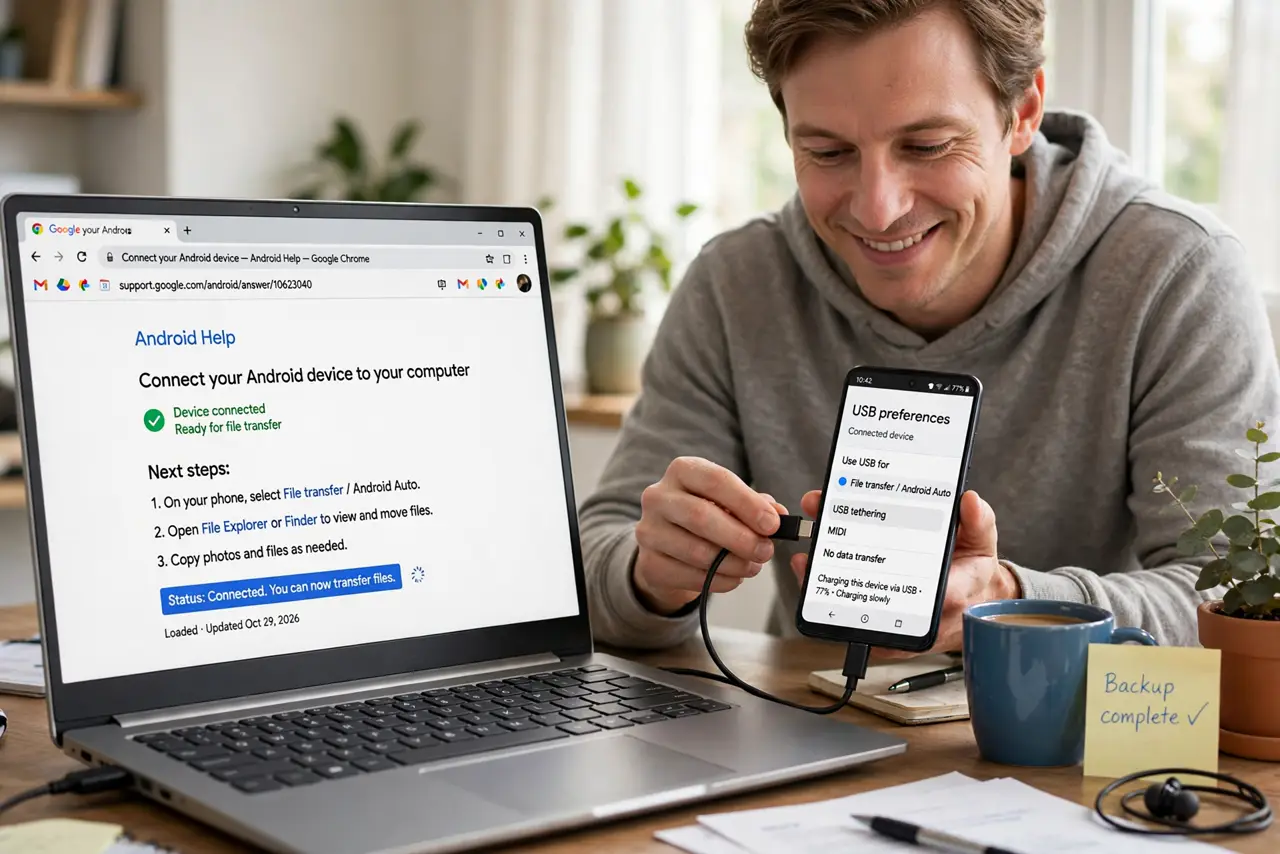
USB tethering shares your phone's mobile data with a laptop over a cable — steadier than Wi-Fi hotspot, and it charges the phone while you work. On Android enable USB tethering in network settings; on iPhone enable Personal Hotspot and plug in. The battery comparison explains the advantage.
Follow these steps
- Connect the phone to the laptop with a USB cable. Use a data-capable cable, not a charge-only one. If nothing happens, try a different cable first — charge-only cables are the most common silent failure.
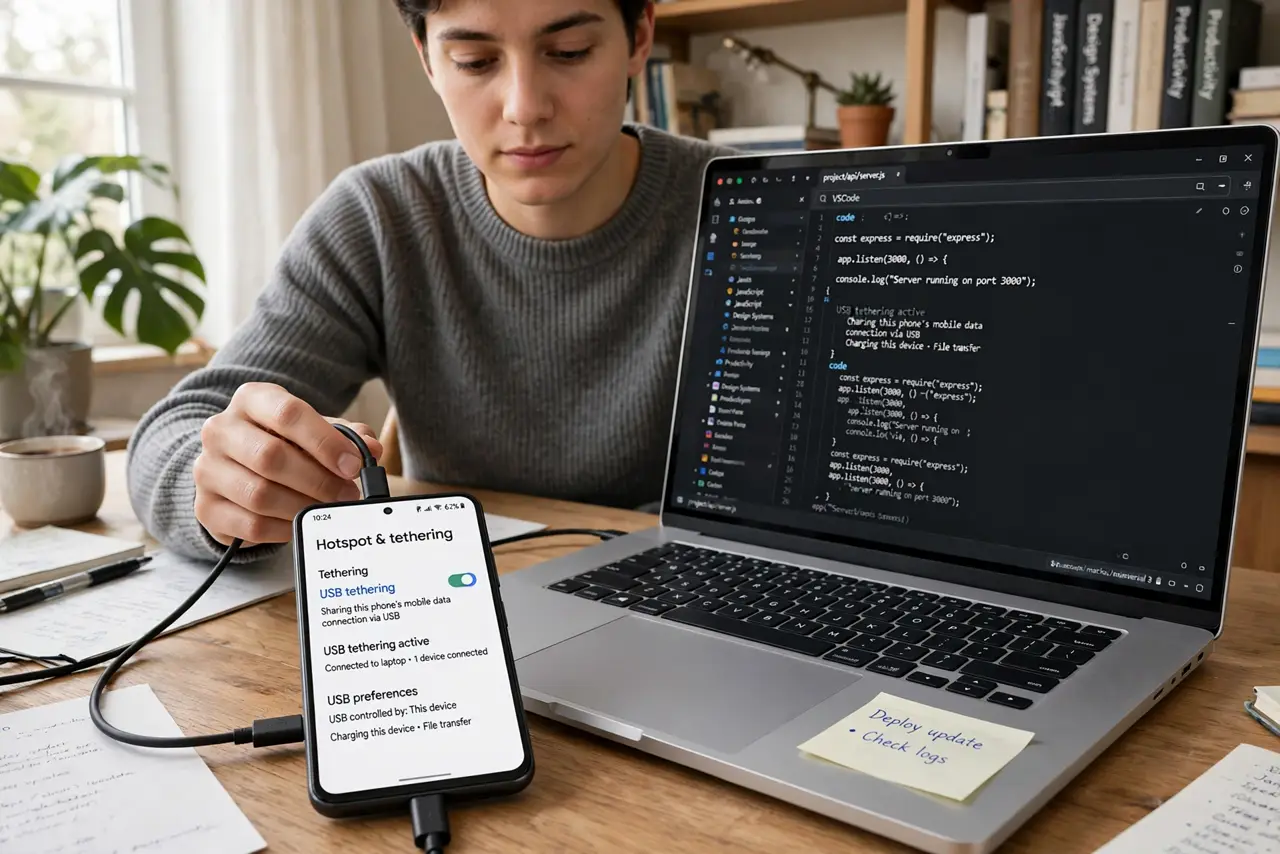
- Enable USB tethering on Android. Go to Settings, then Network or Connections, then Hotspot and tethering, and turn on USB tethering. The option only appears while the cable is connected.
- Enable Personal Hotspot on iPhone, then plug in. Turn on Personal Hotspot in Settings, then connect the cable and choose the iPhone in the laptop's network list. The iPhone USB tethering steps cover Apple's quirks.
- Confirm the laptop sees the new connection. The phone should appear as a wired network adapter. Open a browser and load a page — if it works, you are tethered.
- Watch your mobile data usage. Laptops burn data fast with background updates and cloud syncs. Pause big downloads and updates while tethered, or one afternoon can eat a month's data allowance.
- Disconnect cleanly when done. Turn tethering off on the phone before unplugging. Some carriers count tethering against a separate allowance — check your plan so the bill holds no surprises.
What NOT to do
- Do not use a charge-only USB cable and wonder why nothing happens. If the laptop charges the phone but offers no network, the cable is the culprit.
- Do not leave cloud backups and OS updates running while tethered. A laptop can silently download gigabytes in the background.
- Do not assume tethering is included in your plan. Some carriers charge extra or throttle tethered data — check before a heavy session.
- Do not tether in a moving car as the driver. Obvious, but worth saying: set it up parked, or let a passenger handle it.
Frequently asked questions
Is USB tethering faster than Wi-Fi hotspot?
Usually yes — the wired link avoids Wi-Fi interference and congestion. The internet speed itself is still limited by your cellular signal.
Does USB tethering drain the phone battery?
Far less than Wi-Fi hotspot, because the cable charges the phone simultaneously. Net battery usually stays flat or climbs slowly.
Why is USB tethering greyed out?
The cable is not connected, it is charge-only, or the carrier disabled tethering on your plan. Check in that order.