Blur Your Background on Video Calls
The laundry mountain behind you does not need to attend the meeting. Background blur — or a full virtual background — keeps the focus on your face across Meet, WhatsApp, and most Android video apps. It is usually one tap, but lighting decides whether the edges look clean or glitchy.

TL;DR / Quick Fix
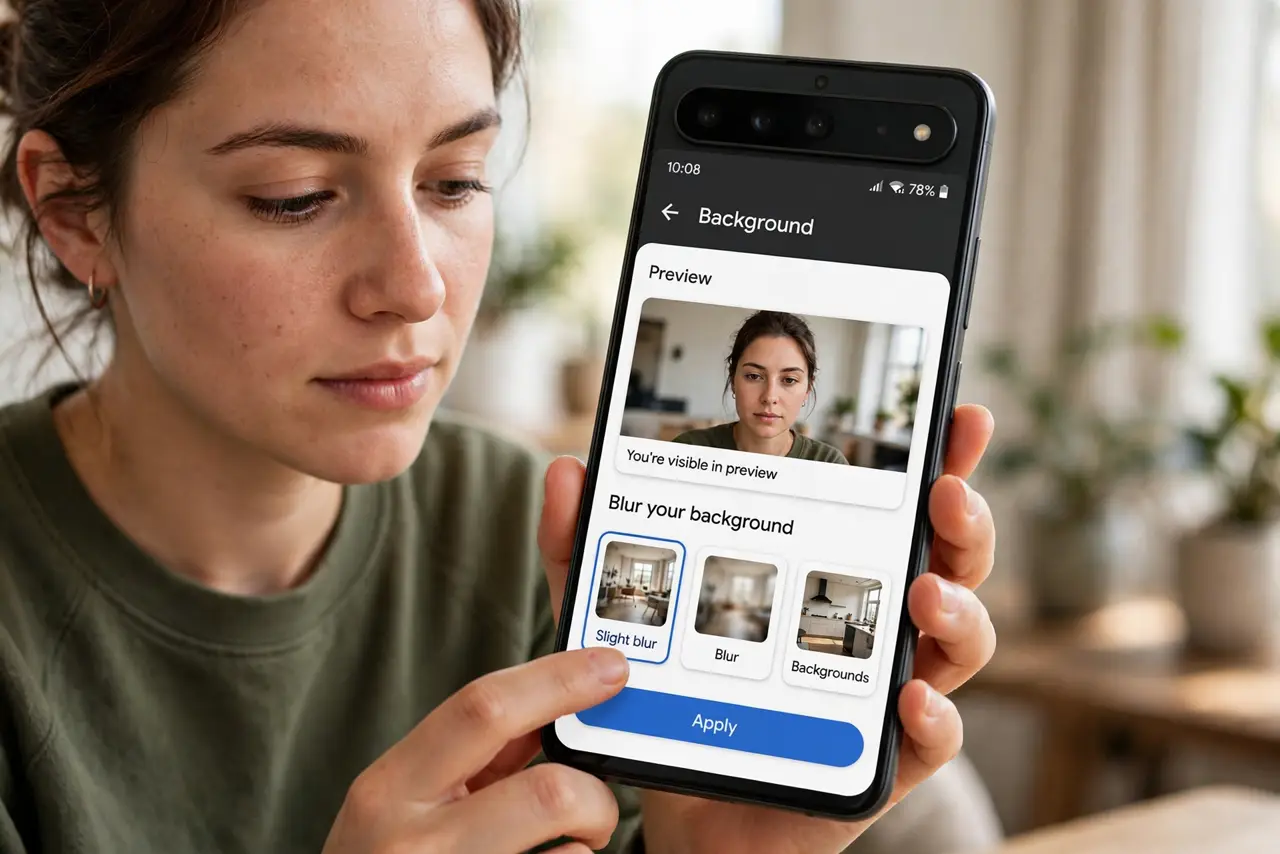
Quick fix: in Google Meet, tap your self-view and choose the background blur or replace option before joining. In WhatsApp video calls, look for the effects button during the call. Blur hides a messy room but needs decent light — dark rooms make the edges glitchy.
Follow these steps
- Blur in Google Meet. Before joining, tap your preview and pick Slight blur, Blur, or a background image. During a call, the same control lives in the effects panel.
- Blur in WhatsApp calls. During a video call, tap the effects (sparkle) button and choose a background effect. Availability varies by phone model.
- Check Samsung and Pixel extras. Samsung's video call effects and Pixel's camera effects add blur system-wide in supported apps — look in Settings > Advanced features.
- Light your face first. Blur edge detection needs light. Face a window or lamp; backlit callers get halo artifacts no blur can fix.
- Test before the important call. Preview with a friend. Some phone-and-app combos blur aggressively, cropping ears — better to learn that privately.
- Know when to skip it. Job interviews on shaky hotel Wi-Fi: blur adds processing load. A tidy corner of the room beats a glitching virtual beach.
What NOT to do
- Do not use heavy virtual backgrounds on weak connections. The extra processing stutters the whole call.
- Do not sit with bright windows behind you. Backlighting breaks edge detection — the blur flickers around your silhouette.
- Do not assume blur hides everything. Text on a whiteboard behind you can stay readable through heavy blur — check the preview.
- Do not forget it is per-app. Enabling blur in Meet does not enable it in WhatsApp — set it everywhere you call.
Frequently asked questions
Why does the blur flicker around my hair?
Low light or backlighting confuses edge detection. Add frontal light and the edges stabilize.
Does background blur drain the battery?
Somewhat — it is real-time image processing. On long calls, expect the phone to warm up and drain faster.
Can people still see my screen name or surroundings?
Blur softens, not erases. Sensitive items — documents, screens — should be physically out of frame.