Transit Cards in Google Wallet
Fumbling for a transit card while the gate beeps impatiently is a universal commuter ritual — and an avoidable one. Google Wallet holds transit cards for supported cities: buy the pass in the app, then tap the phone at the gate like a card. Here is the setup and the gate etiquette.
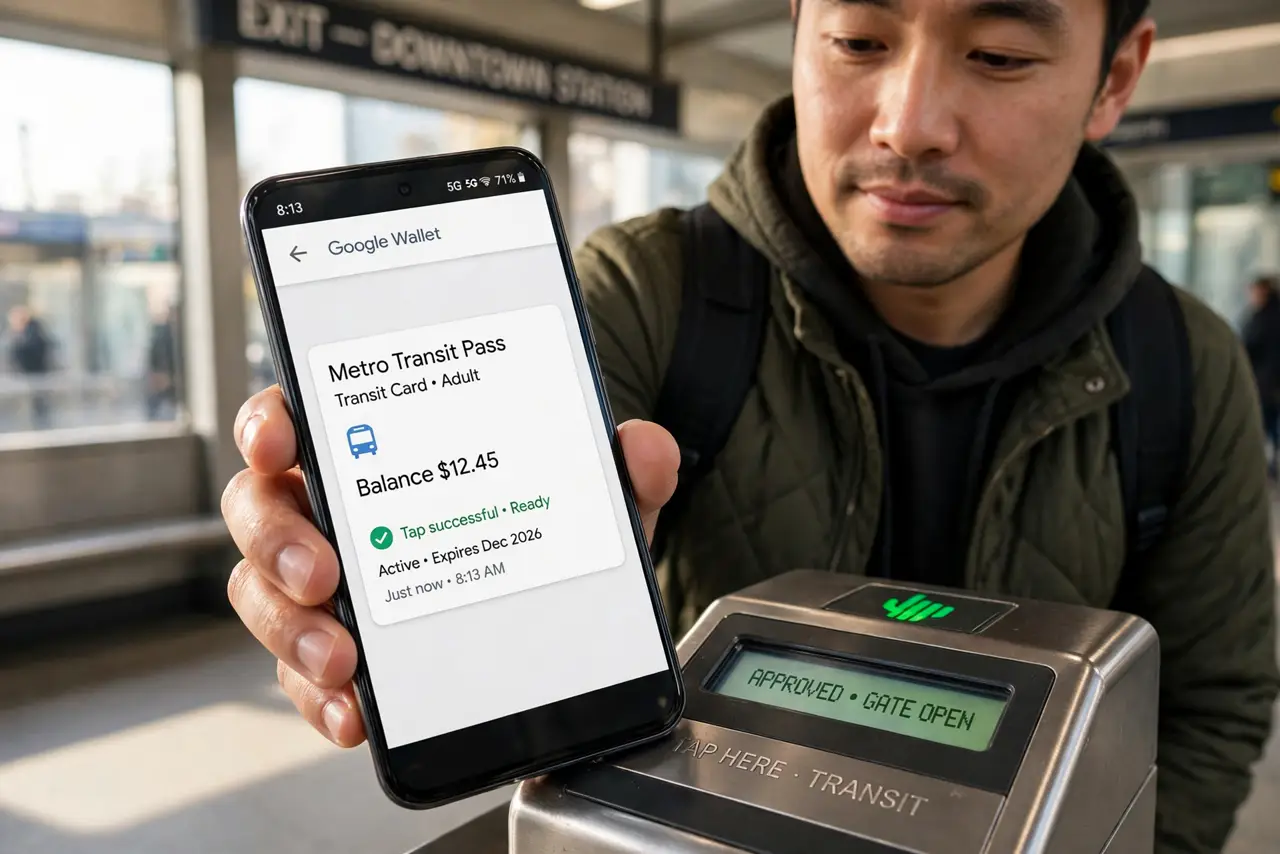
TL;DR / Quick Fix
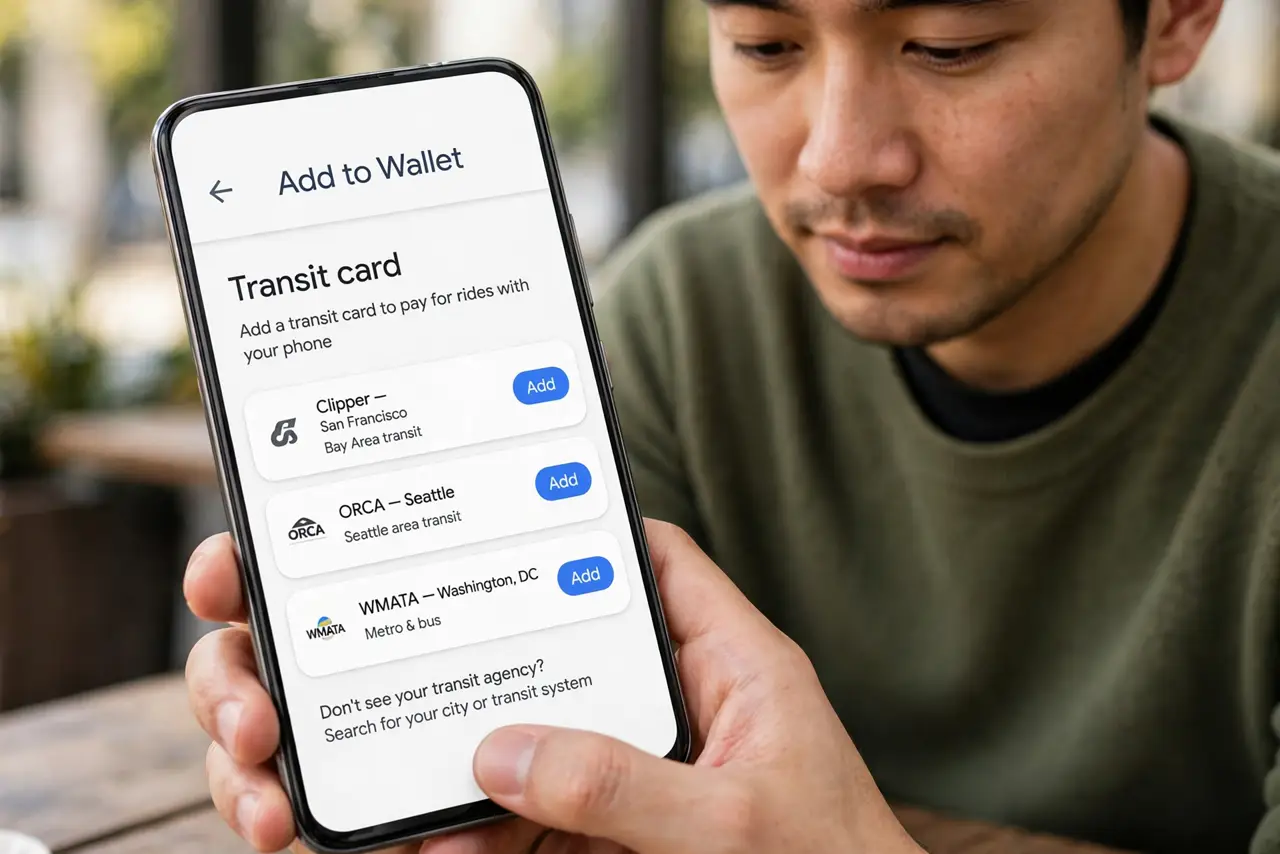
Quick fix: open Google Wallet, tap Add to Wallet, choose Transit card, and pick your city's card — then buy or transfer a pass. At the gate, hold the unlocked phone near the reader; no need to open the app. Keep a backup payment card in Wallet too.
Follow these steps
- Add your city's transit card. Open Google Wallet > Add to Wallet > Transit card and find your city. Not every system participates — check the list first.
- Buy or transfer a pass. Purchase the fare in the Wallet app, or transfer a physical card's balance where supported. The pass activates immediately.
- Tap at the gate. Hold the unlocked phone near the reader — no need to open Wallet. The transit card presents itself automatically.
- Know about express transit. Some systems allow taps with the screen off. Enable it in the card's settings for true card-like speed.
- Keep a backup payment card. If the transit balance runs dry mid-commute, a regular card in Wallet pays the fare — set one as backup before you need it.
- Check balance before rush hour. Open the card in Wallet to see remaining value. Topping up at 8:55 a.m. at the gate is the stress you are avoiding.
What NOT to do
- Do not assume your city is supported. Check Wallet's transit list before promising yourself a card-free commute.
- Do not let the balance hit zero unnoticed. A declined tap at the gate during rush hour is a special misery — check weekly.
- Do not rely on a nearly dead battery. A phone at 1% may die mid-gate — carry the physical card as backup on long days.
- Do not forget the phone must be unlocked (usually). Screen-off taps need express mode enabled — verify yours.
Frequently asked questions
Which cities support transit in Google Wallet?
A growing list of major systems worldwide. Check Add to Wallet > Transit card for the current roster — it expands regularly.
Can I transfer my physical card?
In supported systems, yes — the balance moves to the phone and the physical card deactivates. One card, one place.
What if my phone dies at the gate?
You are stuck without a physical backup. Keep the old card in your bag until you trust the phone routine.