Wi-Fi Calling on Android?
Wi-Fi Calling routes your calls and texts over Wi-Fi instead of the cellular network -- a lifesaver in buildings where the signal dies but the Wi-Fi is strong. Most Android phones support it, but carriers hide the toggle in different places and some plans exclude it. Here is how to find it, turn it on, and know when it is actually working.
TL;DR / Quick Fix
Quick fix: Wi-Fi Calling lets calls and texts use Wi-Fi where cellular signal is weak -- enable it in the Phone app settings or under Settings, then Network, then Wi-Fi Calling. Your carrier must support it on your plan. A Wi-Fi icon in the call status confirms it is active.
Follow these steps
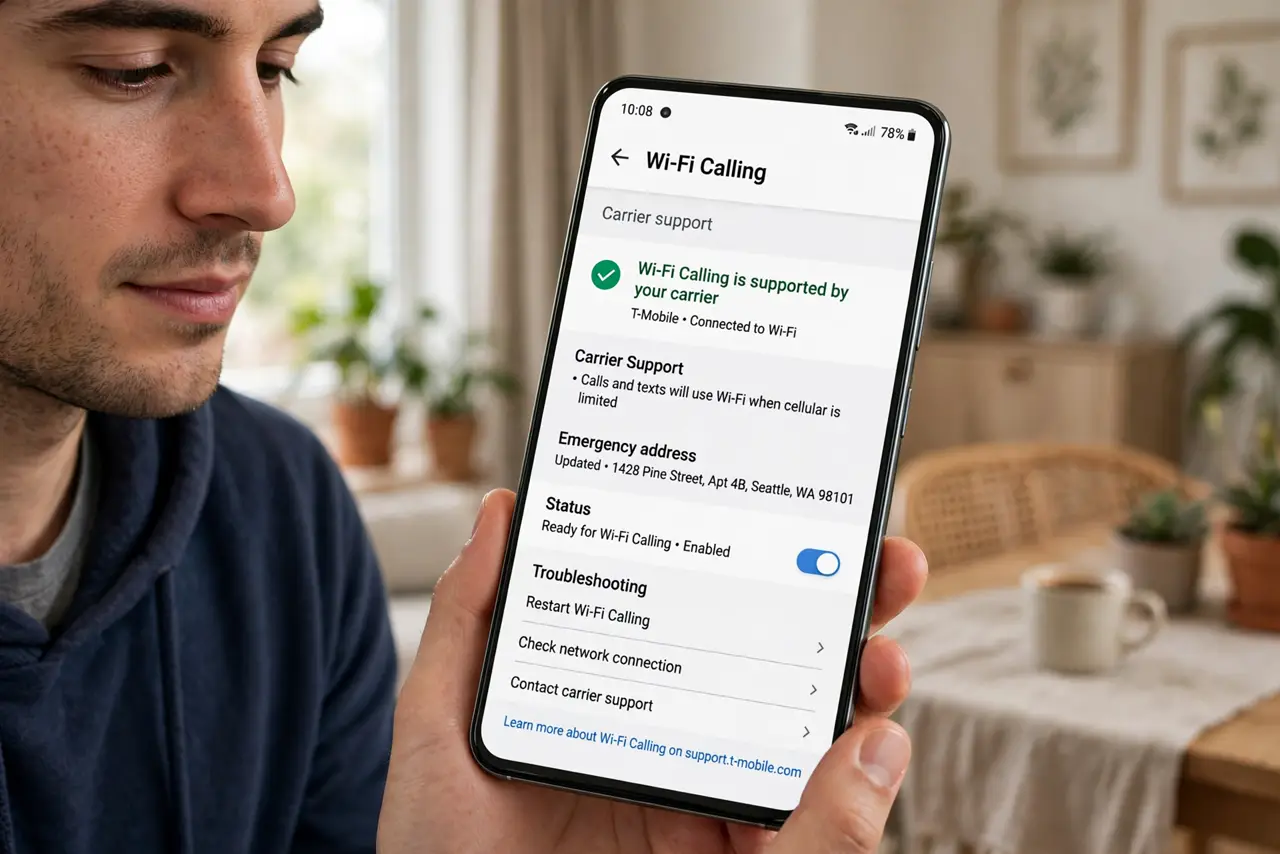
- Confirm carrier support first. Wi-Fi Calling needs your carrier's backing -- most major carriers offer it, but some prepaid and MVNO plans exclude it. Check your carrier's site or ask support before hunting for the toggle.
- Find the toggle. Common paths: Phone app, then Settings, then Wi-Fi Calling; or Settings, then Network and internet, then Calls and SMS. Samsung, Pixel, and others each place it slightly differently -- search Settings for 'Wi-Fi calling' to jump straight there.
- Enable it and set preferences. Turn it on and choose the calling preference: Wi-Fi preferred (use Wi-Fi whenever available) or cellular preferred (Wi-Fi only as backup). Weak-signal homes want Wi-Fi preferred.
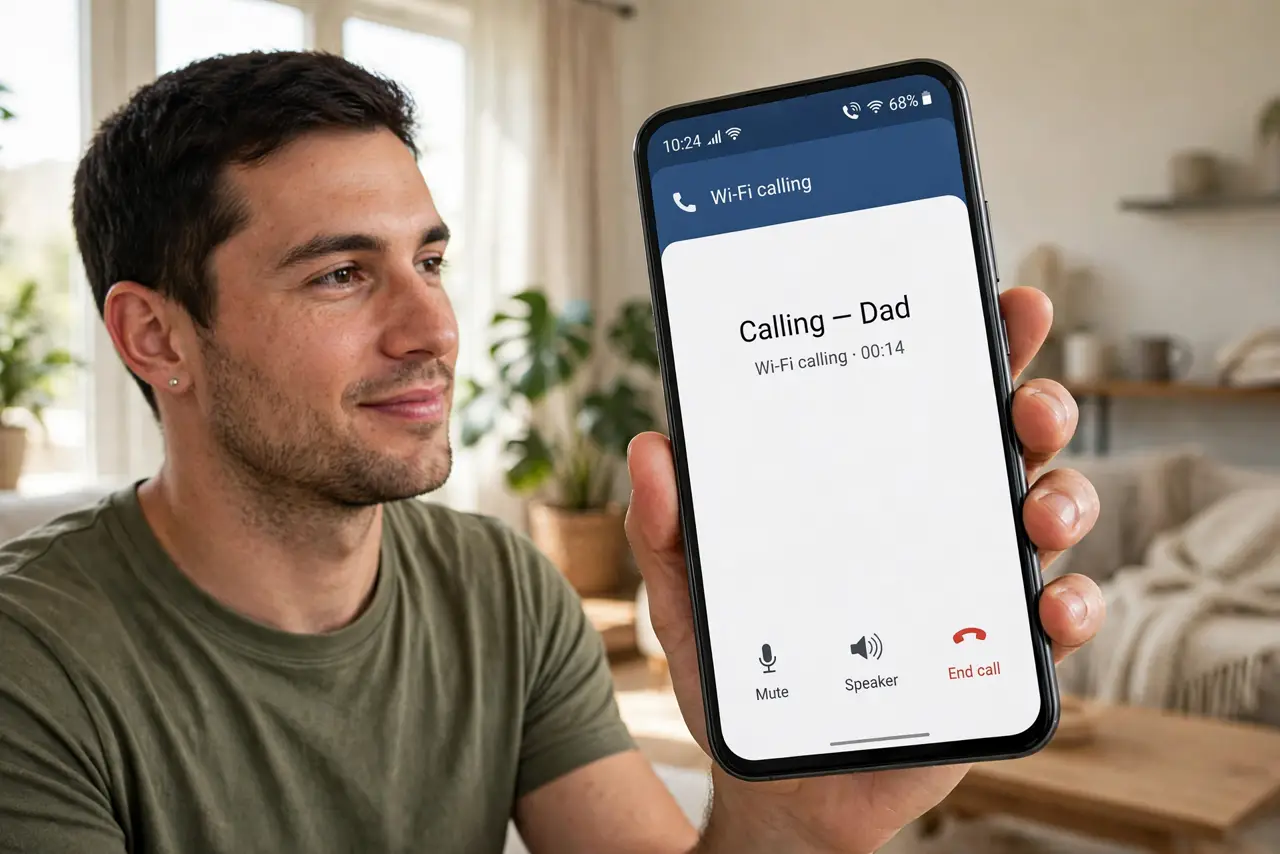
- Verify it is actually working. Make a call and look for a Wi-Fi calling icon or label in the call screen or status bar. No indicator, no Wi-Fi calling -- the toggle being on is not proof.
- Know the 911 address requirement. Carriers ask for an emergency address for Wi-Fi calls, since Wi-Fi has no tower location. Enter your home address when prompted -- it matters if you ever call emergency services over Wi-Fi.
- Troubleshoot the common failures. If it will not enable, update the phone and the carrier settings, then restart. The enable-failure guide covers the stubborn cases step by step.
What NOT to do
- Do not assume it is on because the toggle exists. Carrier support, plan eligibility, and the toggle must all align -- verify with a test call.
- Do not use it on public Wi-Fi for sensitive calls. Wi-Fi calling is encrypted, but hostile hotspots are still hostile -- prefer trusted networks.
- Do not forget the emergency address. Without it, emergency calls over Wi-Fi may lack location data -- fill it in during setup.
- Do not expect it to fix bad Wi-Fi. Wi-Fi calling is only as good as the Wi-Fi -- a congested network gives choppy calls.
Frequently asked questions
Does Wi-Fi Calling cost extra?
Usually not -- carriers typically treat it like normal calls under your plan. Confirm with your carrier, especially on prepaid plans.
Why won't Wi-Fi Calling turn on?
Most often carrier or plan ineligibility, outdated carrier settings, or a needed restart. Check support pages for your specific carrier.
Can I text over Wi-Fi Calling?
Yes -- SMS and MMS go over the Wi-Fi connection too when Wi-Fi Calling is active. It covers calls and texts together.