Stop an App Asking for Admin Every Time
An app that asks for administrator approval on every launch usually has a leftover compatibility setting or was installed in a way that needs higher rights. You can often fix it without lowering your computer's security. Check the app's own settings first.
TL;DR / Quick Fix
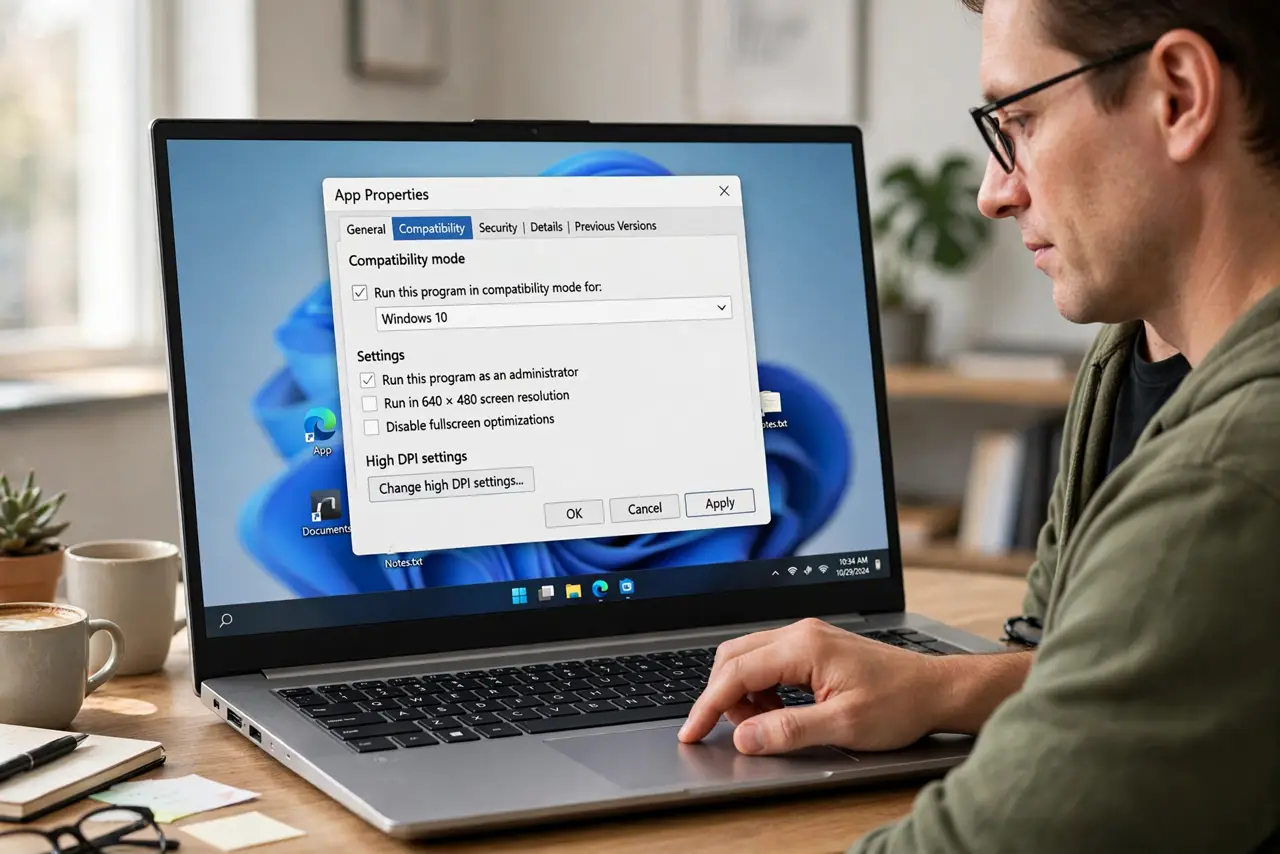
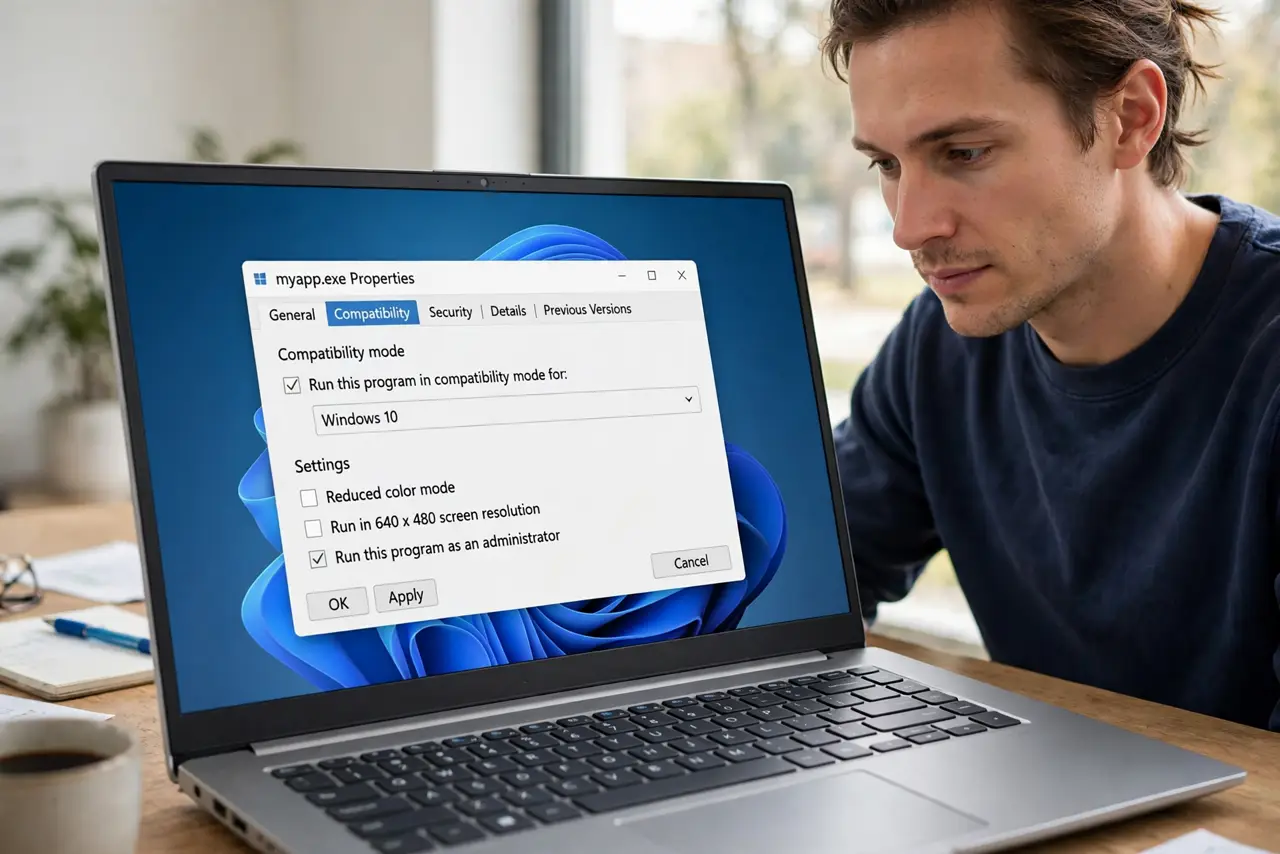
Quick fix: right-click the app shortcut, open Properties, then Compatibility, and turn off Run this program as an administrator. Then launch the app from its normal shortcut, not from an installer or an old administrator shortcut, and test whether the prompt is gone.
Follow these steps
- Check the compatibility setting. Right-click the app's shortcut, choose Properties, then Compatibility, and turn off Run this program as an administrator if it is on. Click Apply, then launch the app normally.
- Launch from the normal shortcut. Open the app from the Start menu or its desktop shortcut, not from a setup file or a shortcut you created while running as administrator. Old shortcuts can carry the administrator request with them.
- Check where the app is installed. Apps installed for all users in a protected folder may ask for approval more often. If you installed it yourself, reinstalling it for just your user account can stop the repeated prompt.
- Remove an old administrator task or schedule. If the app launches at startup with a prompt, check Task Scheduler and Startup apps for an entry that runs it with highest privileges, and change it to run normally.
- Update the app. Install the app's latest update from its own update check or official site. Older versions sometimes request administrator rights that newer versions no longer need.
- Keep User Account Control on. Leave User Account Control at its normal level in Windows security settings. Turning it off to silence one prompt removes a useful protection for the whole computer.
What NOT to do
- Do not turn User Account Control off to silence the prompt. That removes a protection for every app, not just the one annoying you.
- Do not click Yes on every prompt without reading it. Check which app is asking and why before you approve, especially if the prompt appears unexpectedly.
- Do not run everyday apps as administrator by habit. Administrator apps can change system files, so run them normally unless the app truly needs higher rights.
- Do not delete system folders or change permissions to stop the prompt. That can break the app or Windows itself and is hard to undo.
Frequently asked questions
Why does only one app ask for admin every time?
That app usually has a compatibility setting, an old shortcut, or an install location that requires higher rights, while your other apps do not.
Is it safe to approve the prompt?
If you opened the app yourself and trust it, approving once is normal. Repeated unexpected prompts deserve a check of the shortcut and compatibility settings.
Should I reinstall the app for my user account only?
Yes, if you installed it for all users and do not need that. A per-user install often removes the repeated administrator request.