Fix Installer Saying App Is Already Installed
An installer that insists an app is already installed usually finds a leftover entry from an earlier install, even if the app itself is gone. You do not need to hunt through system folders to fix this. Check what Windows still lists, then clean up in order.
TL;DR / Quick Fix
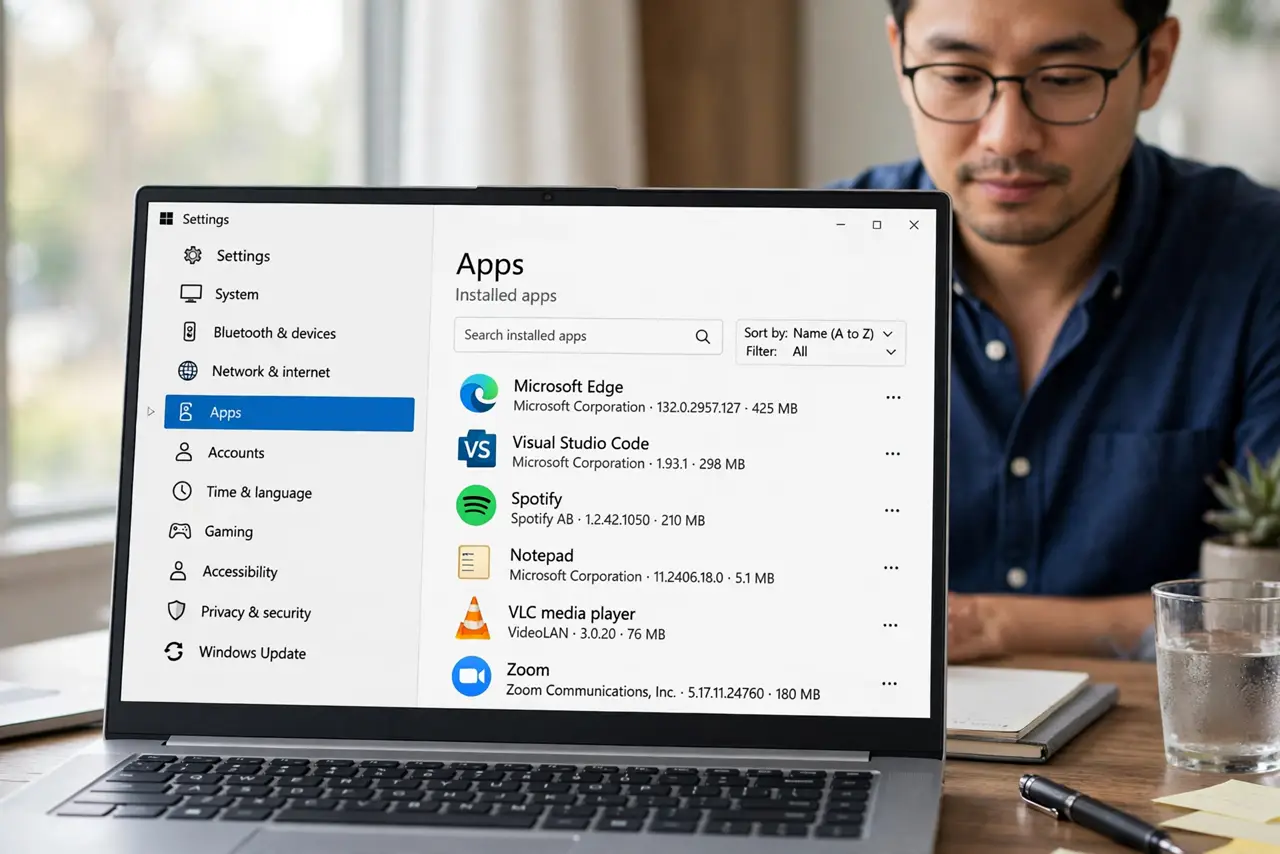
Quick fix: open Settings, then Apps, then Installed apps, and search for the app name. If it is listed, uninstall it properly and restart. If it is not listed, restart the computer and run the installer again before trying any deeper cleanup.
Follow these steps
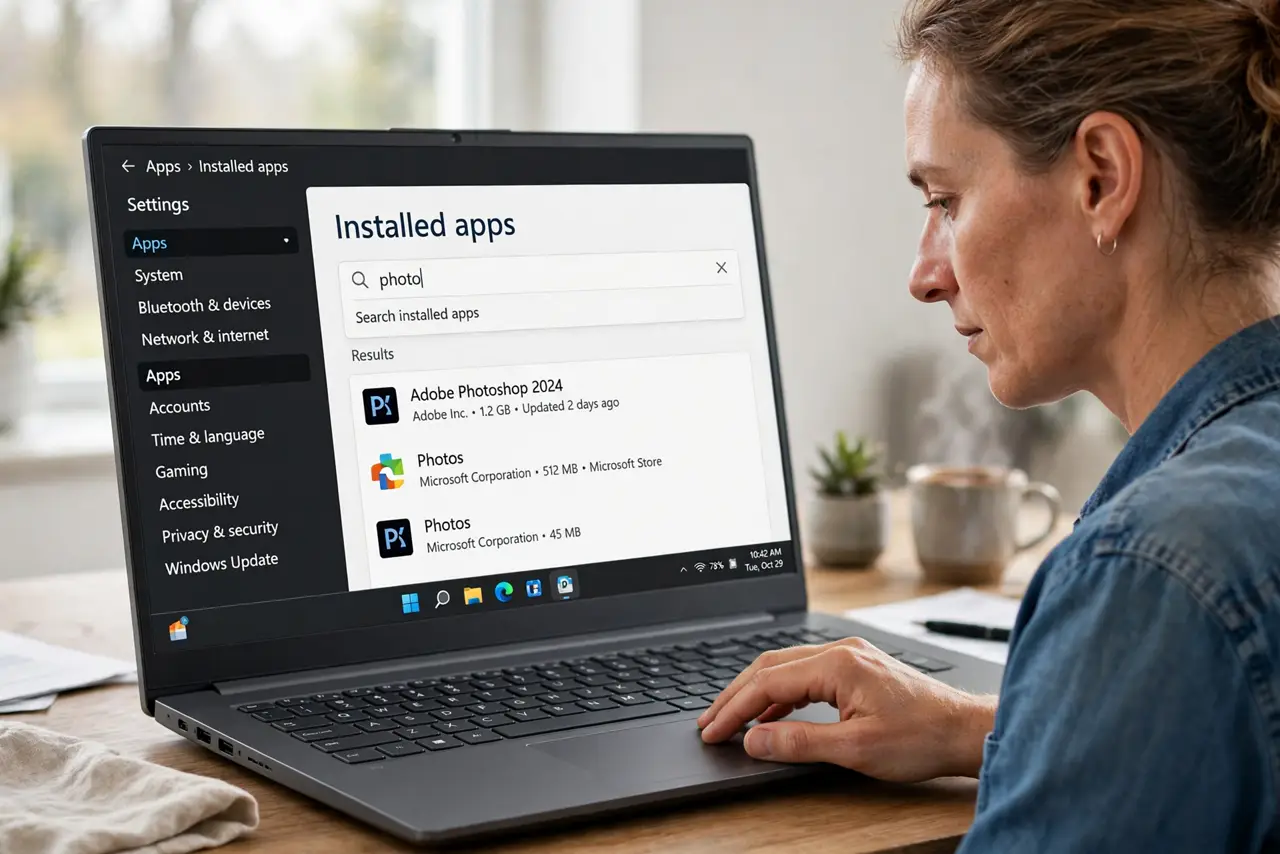
- Search Installed apps for the app. Open Settings, then Apps, then Installed apps, and search for the app name and the publisher name. Leftovers often hide under a slightly different name.
- Uninstall the leftover entry properly. If the app is listed, choose Uninstall and follow the prompts. A proper uninstall removes the entry the new installer is finding, even if the program files were already deleted.
- Restart the computer. Restart before running the installer again. A restart clears locked files and unfinished uninstall steps that can make an installer think the app is still present.
- Run the installer again. After the restart, run the installer from its normal file and follow the prompts. If it still reports the app as installed, note the exact message before trying anything else.
- Check for a second version of the app. Look for a trial, a beta, or an older version with a similar name in Installed apps. Installers sometimes detect a related edition and refuse to install over it.
- Use the app's own cleanup or support page. If the app maker offers an official removal tool or support article for this message, use that. Avoid generic uninstaller tools that promise to force-remove anything.
What NOT to do
- Do not delete program folders by hand to force the install. Leftover registry and install entries remain, and the installer may still refuse or install badly.
- Do not install a random registry cleaner. These tools can delete entries other programs need and rarely fix an installer detection problem safely.
- Do not install the app twice under different names. Two half-installed copies cause update and uninstall problems later.
- Do not ignore the exact installer message. The wording tells you whether it found a version, a component, or a conflicting edition, and that changes the fix.
Frequently asked questions
Why does the installer think the app is installed?
A previous install usually left an entry in Installed apps or an unfinished uninstall, even if the program files are gone.
What if the app is not listed in Installed apps?
Restart first, then run the installer again. If it still refuses, look for a related edition or use the app maker's official removal guidance.
Is it safe to use a third-party uninstaller?
Prefer the app's own uninstaller and official tools. Generic force-removal tools can delete shared files other apps need.