App Microphone Permission Always On? Fix It
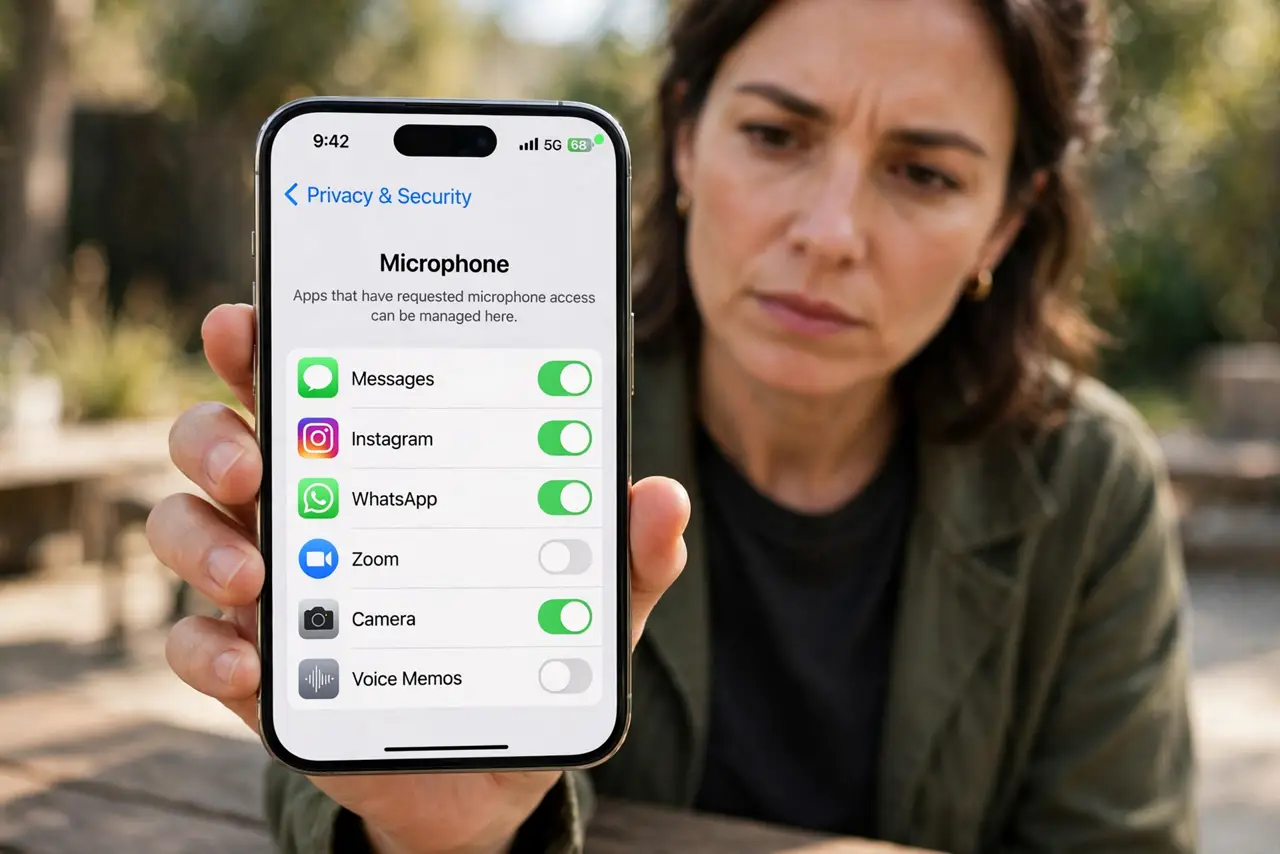
A microphone permission set to Always, or left on for an app that rarely needs it, is worth tightening. Most apps only need the microphone while you are recording or calling, and the indicator on your phone shows when it is in use.
TL;DR / Quick Fix
Quick fix: open microphone permission for the app and change it to While Using Only, or to Never if it never needs to record. Check the microphone indicator after a day, and remove the app if it still accesses the microphone unexpectedly.
Follow these steps
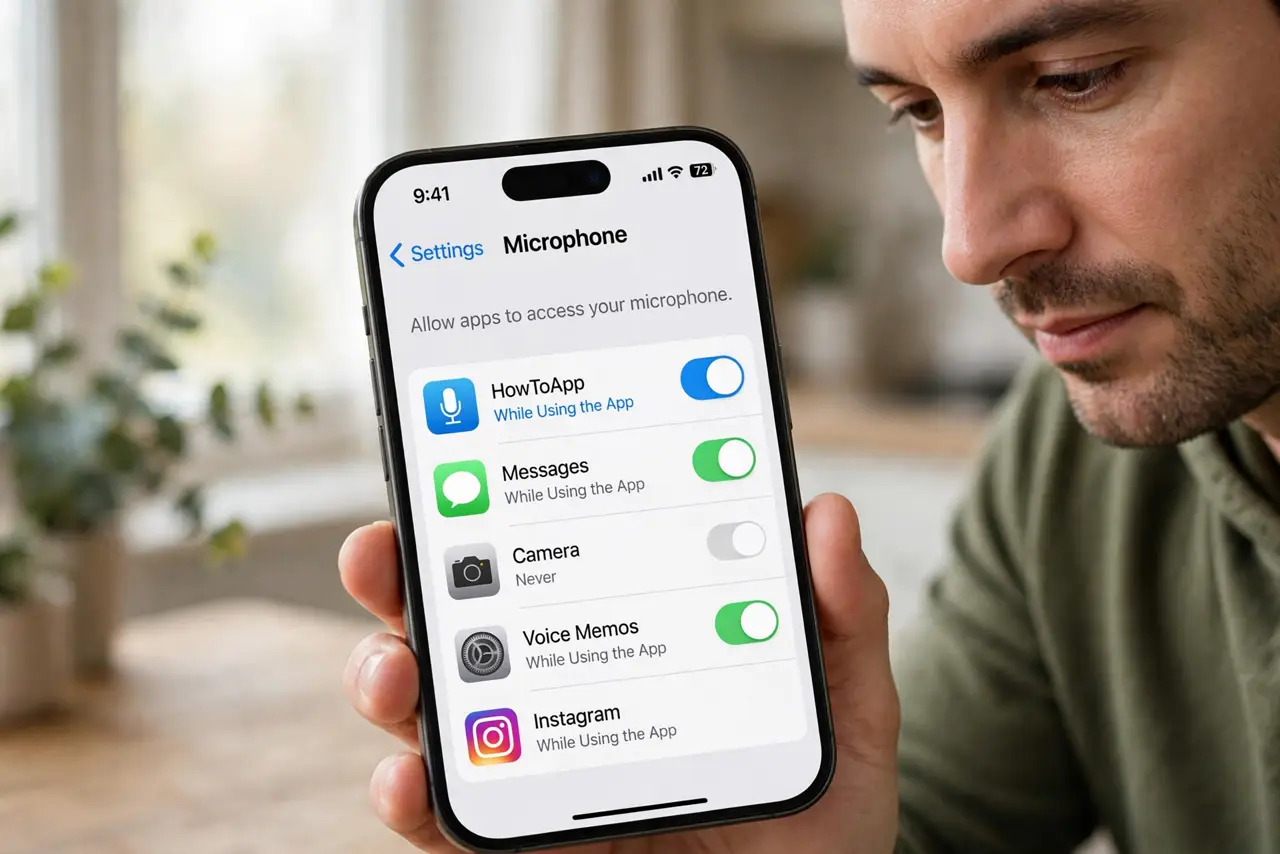
- Open microphone permission for the app. In device settings, open privacy, then microphone, and find the app. Check whether it can use the microphone always, while using, or not at all.
- Change it to While Using Only. Choose While Using Only for messaging, recording, or calling apps. They can record when open, but cannot listen in the background after you close them.
- Set Never for apps that do not record. Choose Never for apps with no recording feature, such as shopping or news apps. If you later need a voice feature, the app will ask again.
- Watch the microphone indicator. Learn what your phone microphone indicator looks like, and note which app is named when it appears. An indicator with no app open is a reason to check permissions at once.
- Remove apps that abuse the permission. If an app accesses the microphone at odd times, or after you set it to Never, remove the app and report it through the app store if that option is offered.
- Recheck after updates. Recheck microphone permission after major updates. Updates can request the permission again, so a quick review keeps the setting as you left it.
What NOT to do
- Do not grant microphone access to every app that asks during setup. Grant it only when you first use a recording feature.
- Do not ignore a microphone indicator that appears for no reason. Check permissions immediately instead of assuming it is a glitch.
- Do not keep an app that records without a clear reason, even if you like its other features.
- Do not cover the indicator or mute the phone as a fix. The permission setting, not the indicator, is what stops access.
Frequently asked questions
Will calls still work on While Using Only?
Yes. Calling and recording apps get the microphone while open, which covers calls and voice messages. Background listening stops.
What if an app refuses to work without Always?
That is unusual for a normal app. Use While Using Only, and if it truly will not work, consider whether you need that app at all.
Can an app record when the phone is locked?
Only if its permission allows background use. While Using Only and Never both prevent that, which is why the setting matters.