App Tracks Location in Background? Stop It
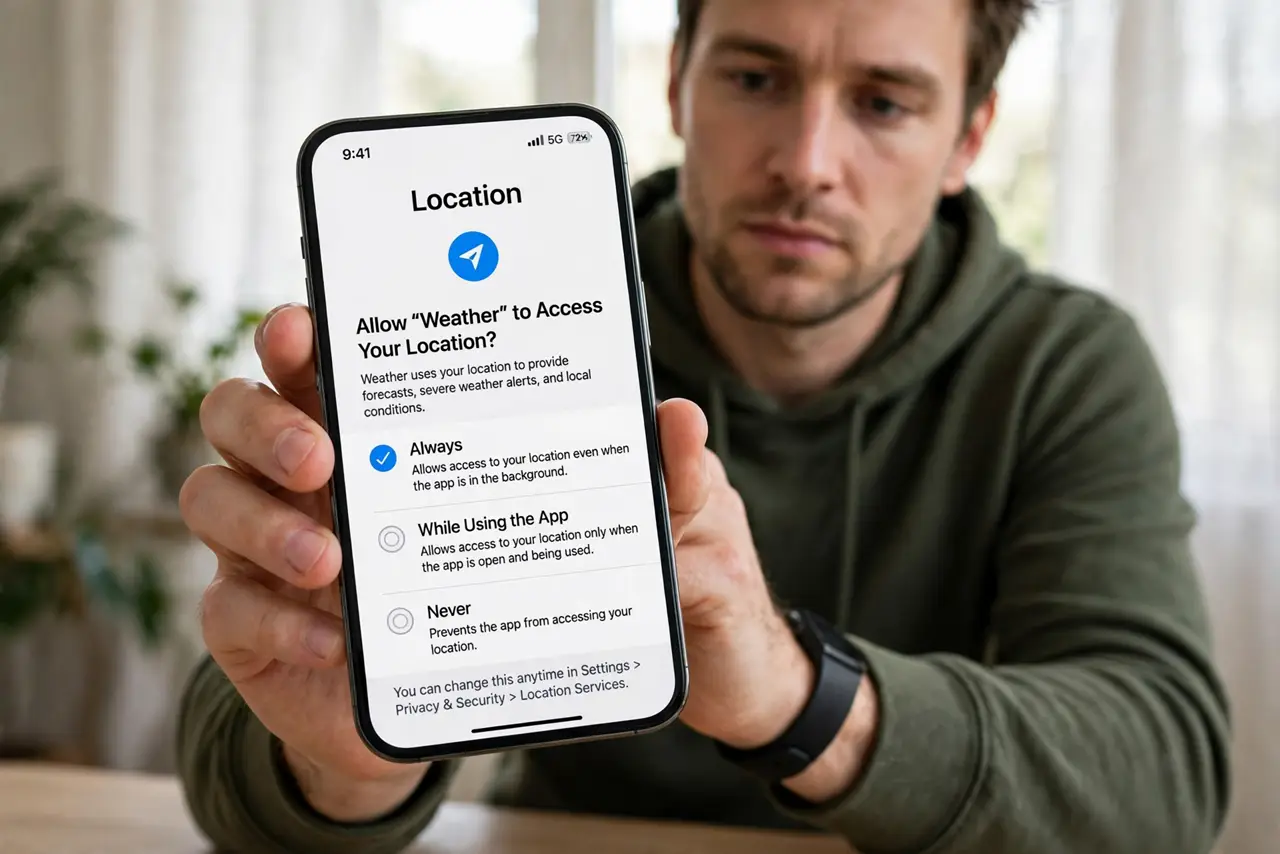
Background location means an app can follow where you go even when you are not using it. Most apps work fine without it. Change the permission to While Using Only or Never, and check which apps still ask for more.
TL;DR / Quick Fix
Quick fix: open location permission for the app and change it from Always to While Using Only, or to Never if it does not need location at all. Then check battery and location usage after a day to confirm the tracking stopped.
Follow these steps
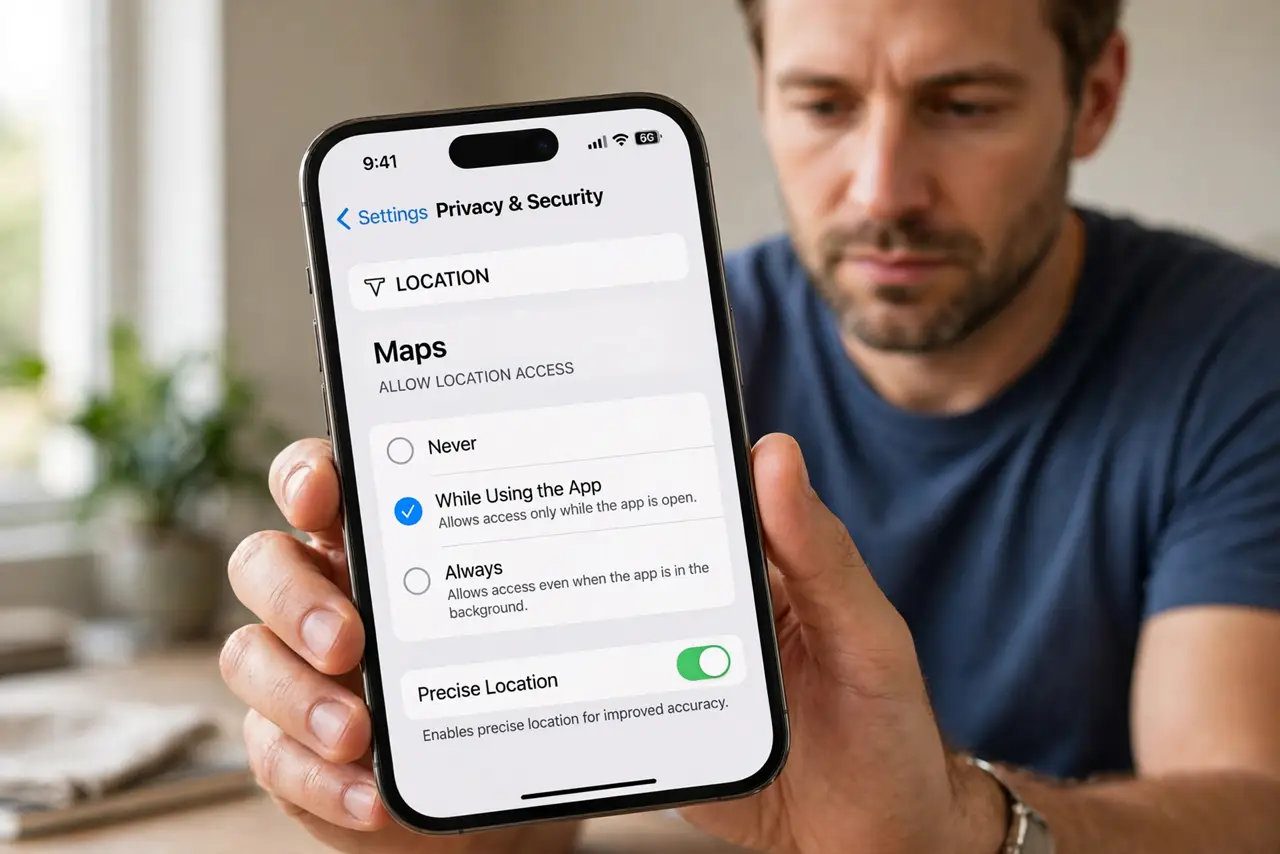
- Open location permission for the app. In device settings, open privacy, then location, and find the app. The current setting shows whether it can track you always, while using, or never.
- Change Always to While Using Only. Choose While Using Only for apps like maps or ride services that need location only when open. They keep working, but stop tracking when you close them.
- Set Never for apps that do not need location. Choose Never for games, shopping, or news apps that work without knowing where you are. If a feature stops working, you can loosen the setting later.
- Check which apps use location most. Look at recent location usage in the same settings page. An app with heavy background use, that you rarely open, is the first one to tighten.
- Turn off precise location where approximate is enough. If the app offers a precise location switch, turn it off for apps that only need a general area, such as weather. Approximate location is enough for those.
- Recheck after the app updates. Recheck the permission after major updates. Updates can ask for location again, and a quick check keeps background tracking from quietly returning.
What NOT to do
- Do not leave every app on Always because setup suggested it. Always is the widest choice, not the default you must accept.
- Do not grant location to an app just to dismiss a prompt. Close the prompt, and grant it later only if a feature truly needs it.
- Do not assume closing an app stops Always tracking. Only a permission change stops background location.
- Do not ignore a location arrow that stays visible. It means tracking is active right now, so check which app is responsible.
Frequently asked questions
Will maps still work on While Using Only?
Yes. Maps get your location while the app is open, which is when you need directions. Only background tracking stops.
What if the app keeps asking for Always?
Decline and use While Using Only. If the app refuses to work at all, decide whether that feature is worth constant tracking, or find an alternative.
Does Never break anything else?
Only features that need location. The rest of the app keeps working, and you can change the setting back at any time.