Read Apple's Privacy Report
Your apps access your location, photos, microphone, and contacts — but which ones, how often, and who else gets the data? Apple's App Privacy Report is the receipt: a per-app log of sensor access and network contacts, built into every iPhone. Most people turn it on once, glance, and forget it. Here is how to actually use it.
TL;DR / Quick Fix
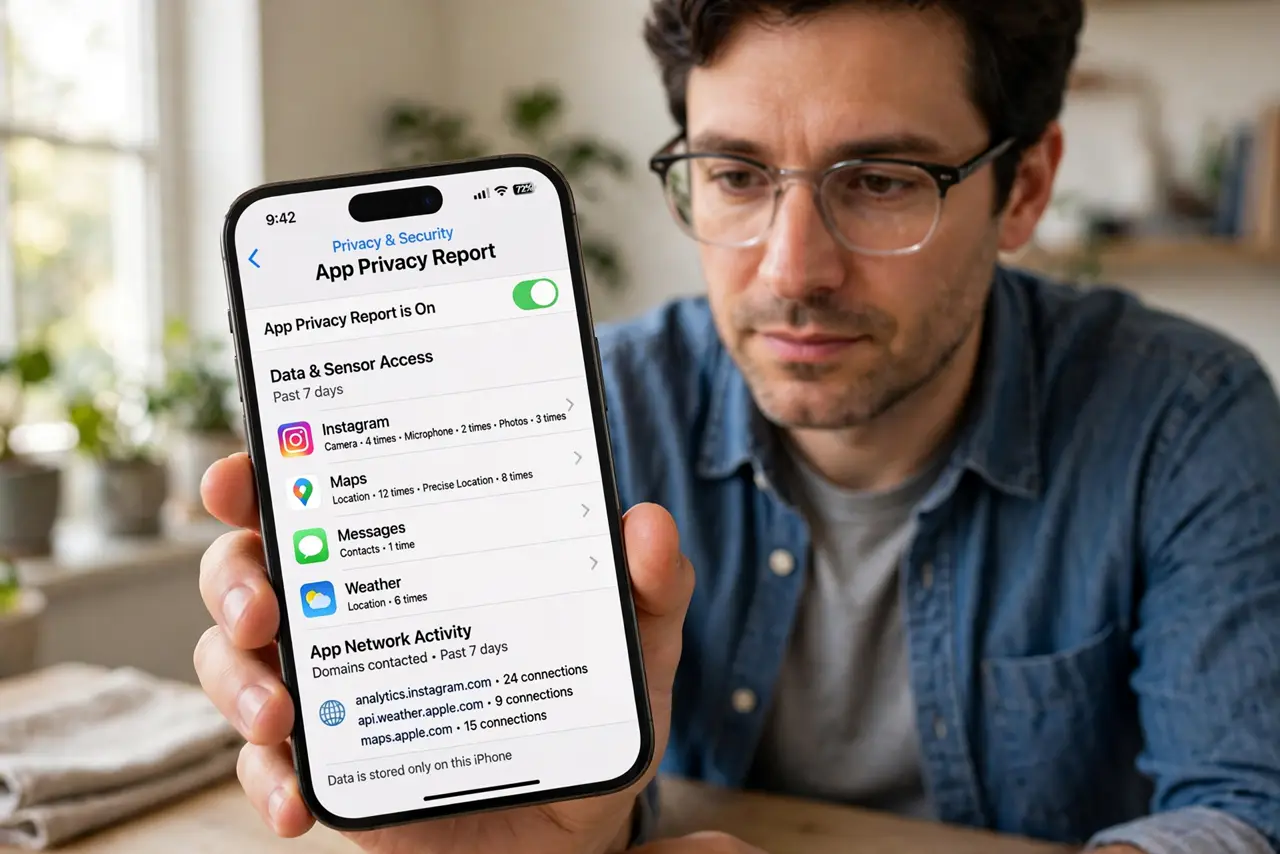
Quick fix: Apple's App Privacy Report shows which apps access your location, photos, camera, and microphone — and which trackers they contact. It is at Settings > Privacy & Security > App Privacy Report; enable it and wait a few days for data. Review monthly; revoke access from overreaching apps.
Follow these steps
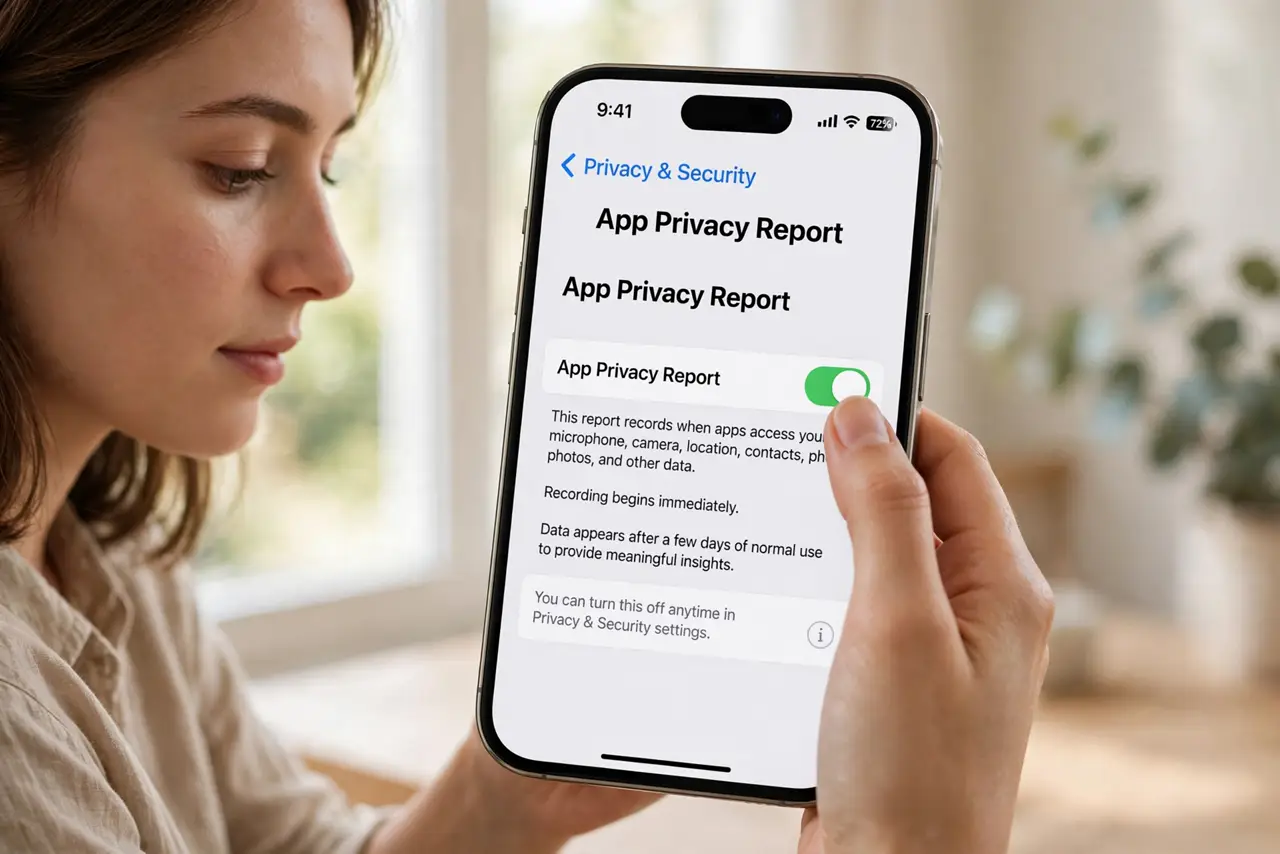
- Turn it on. iPhone: Settings > Privacy & Security > App Privacy Report > Turn On. It starts recording immediately but needs a few days of normal use before the data means anything.
- Wait, then read the sensor section. After several days, open the report: the top section shows which apps accessed location, photos, camera, microphone, and contacts — with timestamps. This is the who was watching list.
- Check the network activity. The lower section lists domains apps contacted — including third-party trackers. An innocent flashlight app phoning five ad networks is the classic discovery.
- Revoke the overreach. For each offender: Settings > Privacy & Security > (the sensor, e.g. Location Services) > the app > Never or Ask Next Time. The report tells you where to look; the toggles do the work.
- Delete the worst offenders. An app that needs your location, contacts, and microphone to show you recipes does not need to exist on your phone. The nuclear option is also the simplest.
- Make it a monthly habit. New apps, new updates, new trackers. A two-minute monthly skim keeps the list honest — set a recurring reminder.
What NOT to do
- Do not panic at every entry. A maps app accessing location is normal — the report shows access, not abuse. Judge by whether the access fits the app's job.
- Do not ignore the tracker domains. Sensor access is visible; background tracker calls are the sneakier half — scroll down to the network section.
- Do not expect Android to have the same report. Android's privacy dashboard is similar but different — this guide is iPhone-specific.
- Do not turn it on and never look. An unread report changes nothing — the value is entirely in the monthly review.
Frequently asked questions
Does the report slow down my iPhone?
No — it is passive logging with negligible impact. You will not notice it running.
Can apps detect the report and hide?
No. It logs at the system level; apps cannot see or evade it. What you see is what happened.
How far back does the data go?
Seven days, rolling. It is a recent-activity window, not an archive — check it regularly or the evidence scrolls away.