Set Up Apple's Legacy Contact? How To
Apple's Legacy Contact lets someone you choose access your Apple ID data — photos, messages, files — after you die, without a court order. Without it, your family may never get in. Setup takes five minutes on your iPhone or Mac, and this guide walks through it plus the matching Google option.
TL;DR / Quick Fix
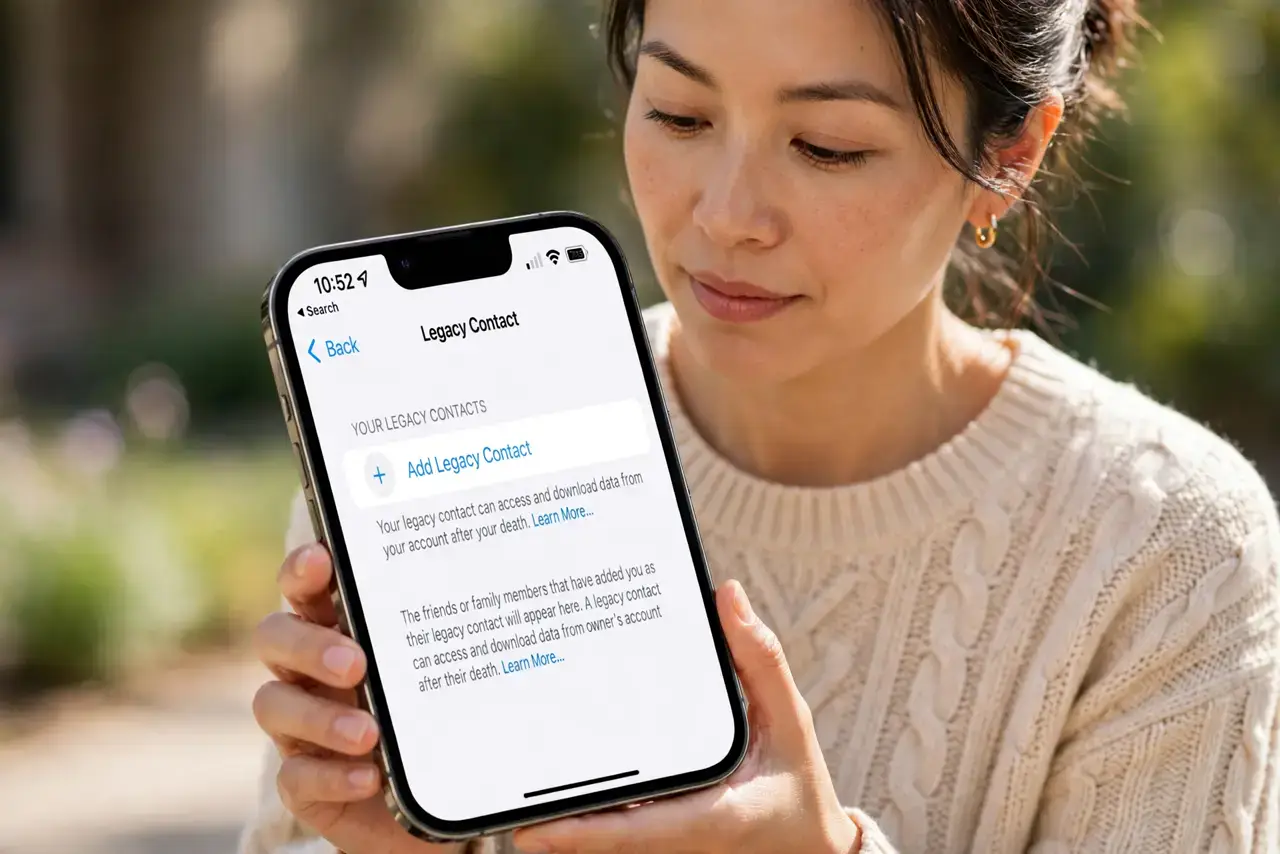
Quick fix: on your iPhone, go to Settings, tap your name, then Sign-In and Security, then Legacy Contact, and add one trusted person. Apple gives them an access key — they should save it somewhere safe. Tell them you have named them, and review the choice whenever life changes.
Follow these steps
- Open your Apple ID settings. On iPhone go to Settings, tap your name at the top, then Sign-In and Security. On Mac it is System Settings, then your name, then Sign-In and Security.
- Tap Legacy Contact and add someone. Choose Add Legacy Contact and pick a trusted person from your contacts. Apple will ask them to accept — this is not a surprise you spring later.
- Share the access key safely. Apple generates an access key your contact will need along with your death certificate. Have them print it or save it somewhere they will find in an emergency.
- Tell the person you chose them. A Legacy Contact who does not know they were chosen cannot act. Have the conversation now, while it is just planning.
- Set up Google's equivalent too. If you use Gmail, Photos, or Drive, configure Inactive Account Manager as well — Apple only covers Apple data.
- Review after big life changes. Marriage, divorce, a falling-out: revisit your Legacy Contact the way you would revisit a will. An outdated choice helps no one.
What NOT to do
- Do not skip this because your family 'knows your passcode.' A passcode does not survive a wiped or replaced device, and Apple will not hand over data without the proper setup.
- Do not name someone without telling them. An unclaimed Legacy Contact designation is useless if the person never saves the access key.
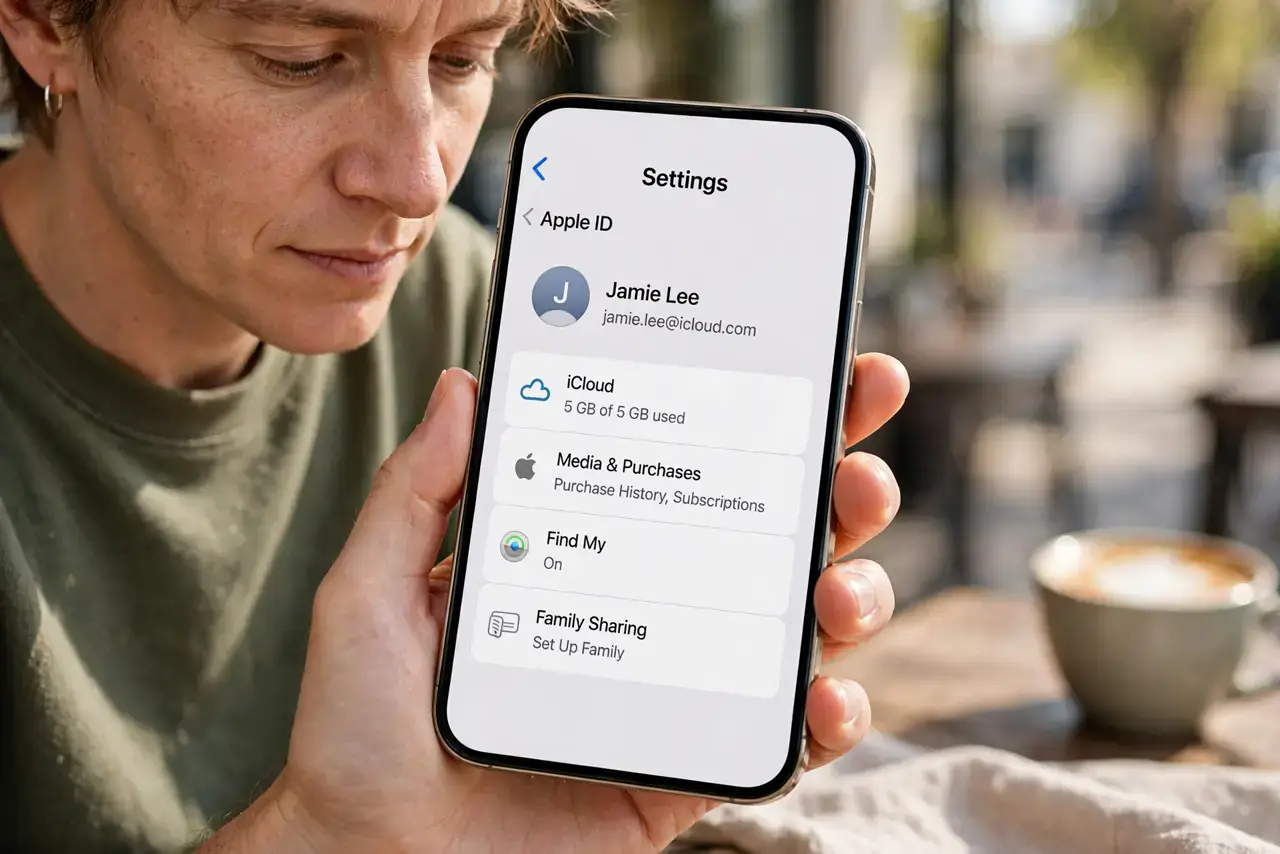
- Do not confuse it with Family Sharing. Family Sharing shares purchases and storage while you are alive; Legacy Contact is specifically for access after death.
- Do not store the access key only on the person's phone. If their phone is lost in the same emergency, print a copy and keep it with other important papers.
Frequently asked questions
What data can my Legacy Contact access?
Nearly all your iCloud data: photos, messages, notes, files, and backups. Payment information and some licensed media are excluded.
Can I name more than one Legacy Contact?
Yes. You can add several, which is wise — the whole point is redundancy if one person is unavailable.
Does this work if I only have a Mac?
Yes. The setting lives in your Apple ID, so you can configure it from iPhone, iPad, or Mac.