Set Up Apple TV
Apple TV setup is smooth until it is not — the usual trap is the Apple ID sign-in loop, where it asks for credentials over and over. The reliable path: update first, sign in with the iPhone nearby (it offers to transfer everything), then add apps. The iPhone-nearby trick alone prevents most loops.
TL;DR / Quick Fix
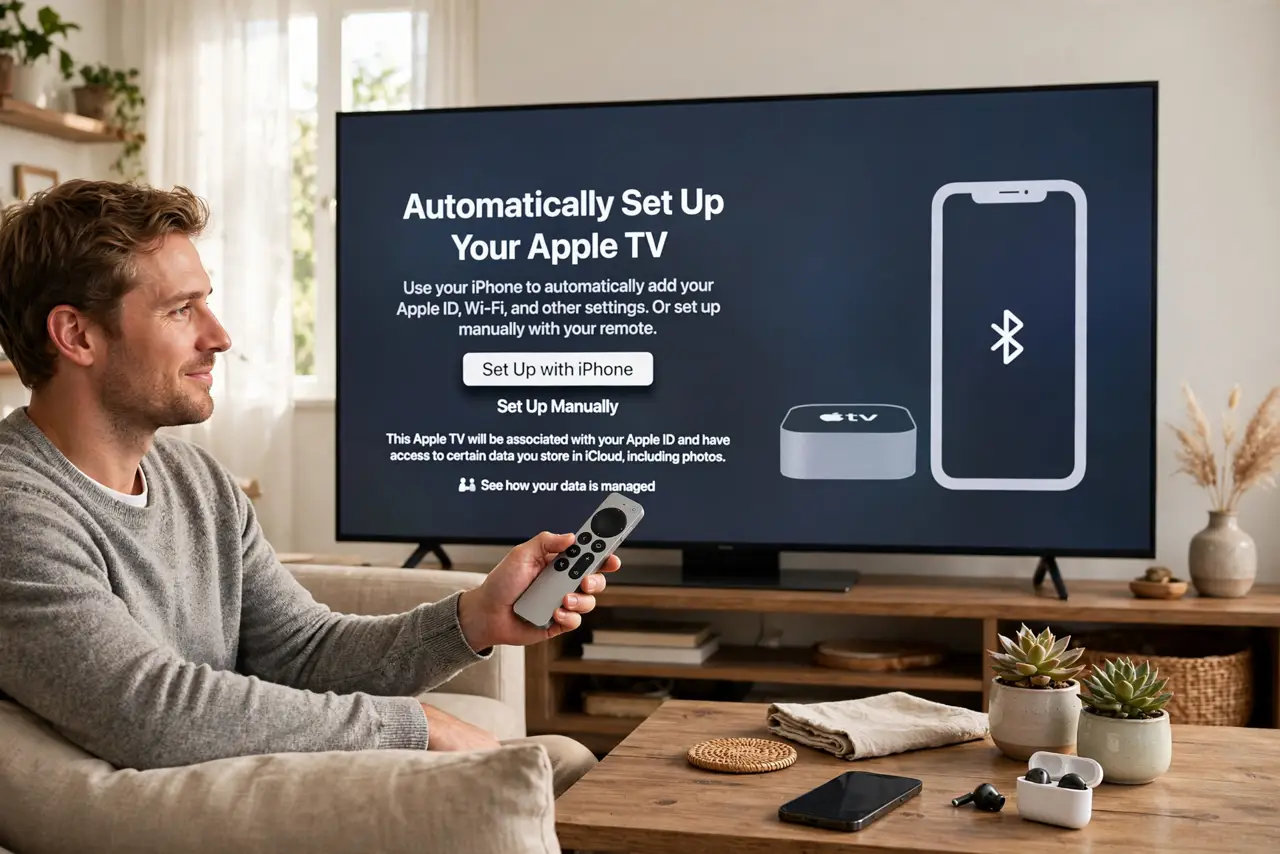
Connect the Apple TV to HDMI and power, then keep your iPhone nearby — it transfers Wi-Fi, Apple ID, and settings automatically, dodging the sign-in loop. Accept the tvOS update before installing apps, then sign into streaming services one by one. The Fire TV setup guide is Amazon's equivalent.
Follow these steps
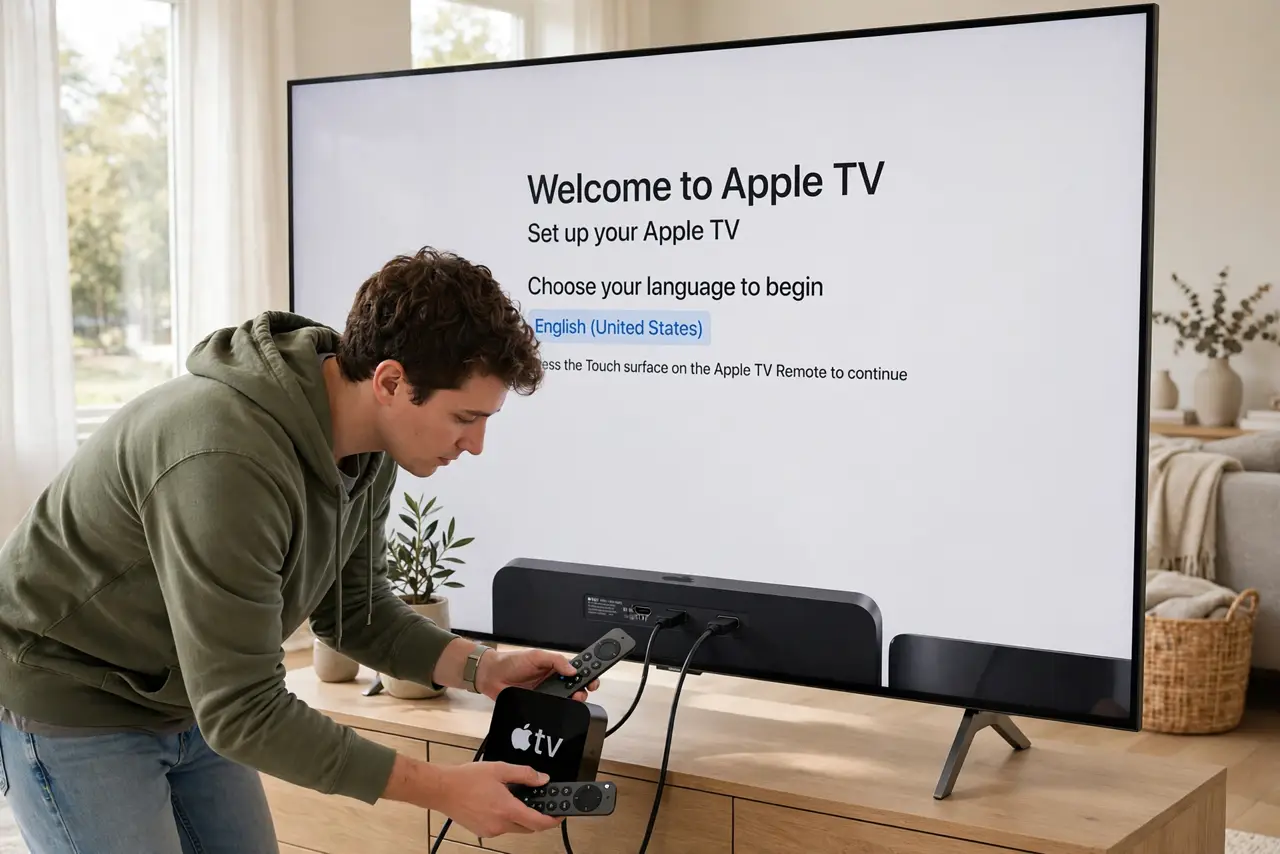
- Connect HDMI and power. Plug into the TV's HDMI port and connect power. Switch the TV to that input — the setup screen should appear within a minute.
- Keep your iPhone nearby. When prompted, hold your iPhone near the Apple TV. It transfers Wi-Fi credentials, Apple ID sign-in, and settings automatically — this single step prevents most setup headaches.
- Sign in with your Apple ID. Use the iPhone transfer or enter credentials manually. If it loops asking repeatedly, restart the Apple TV and try the iPhone method — manual entry during a loop rarely works.
- Install the tvOS update. Check Settings, System, Software Updates and install. An outdated tvOS causes the app crashes people blame on individual streaming apps.
- Add your streaming apps. Download your services from the App Store and sign into each. The TV app can unify 'up next' tracking across many of them.
- Set up users and restrictions if needed. Add family members as users for separate recommendations, and set content restrictions before handing the remote to kids.
What NOT to do
- Do not type the Apple ID password repeatedly in a loop. Looping means the method is failing — restart and use the iPhone-nearby transfer instead.
- Do not skip the tvOS update. Launch-day software bugs cause exactly the app crashes new owners report.
- Do not sign into streaming apps on a sketchy network first. Hotel or public Wi-Fi portals can interrupt sign-ins — finish setup at home when possible.
- Do not ignore the remote's charging. The Siri Remote charges over Lightning/USB-C — a 'dead' remote is usually just an uncharged one.
Frequently asked questions
Why does Apple ID sign-in keep looping?
Usually a network hiccup or an outdated tvOS during first setup. Restart, update, and use the iPhone transfer method — it bypasses the fragile manual flow.
Can I use Apple TV without an iPhone?
Yes — manual setup works fine, just slower. Any Apple ID works; the iPhone is a convenience, not a requirement.
Apple TV 4K or HD — which?
4K for any modern TV; the HD model only makes sense for an old 1080p set you plan to keep. The 4K box is also faster.