Move Authenticator Without a Cloud Backup
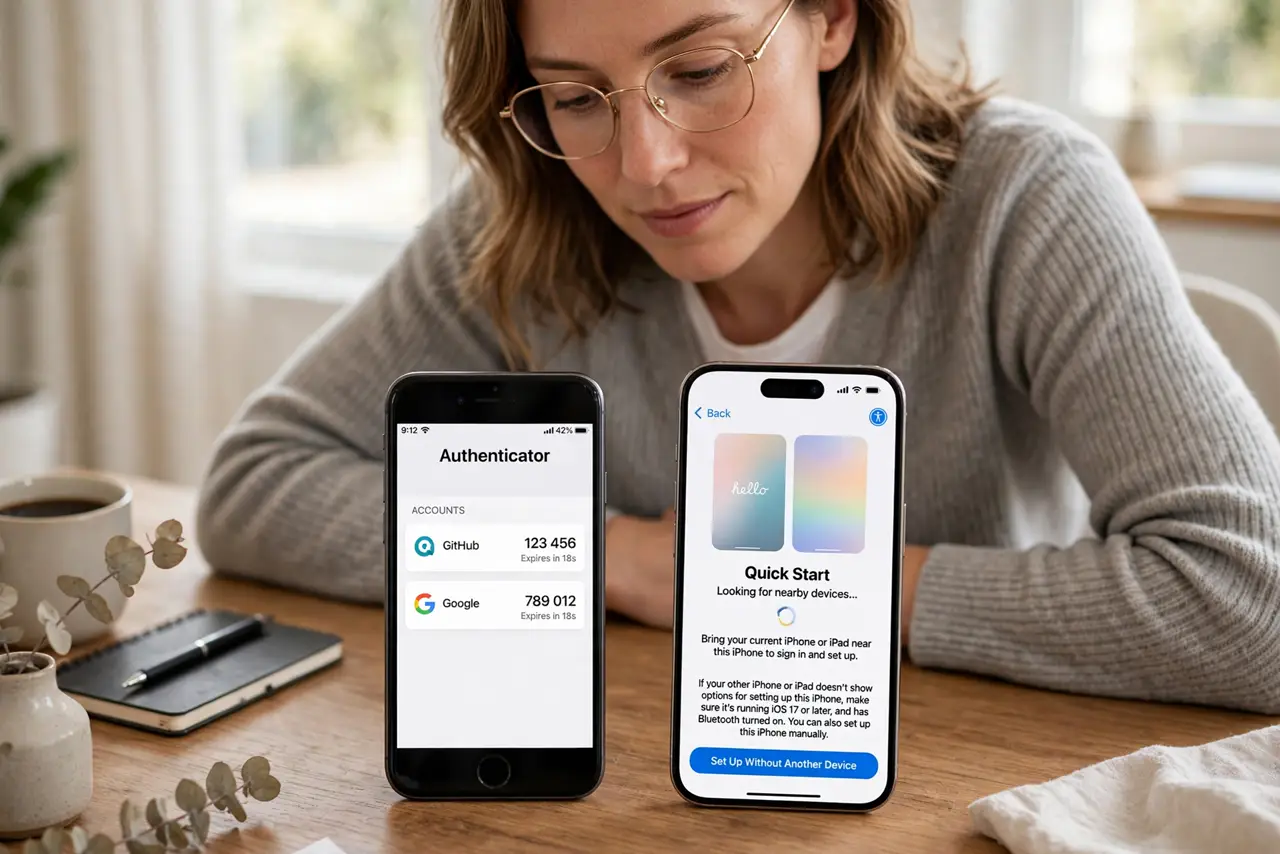
Your authenticator codes live on the old phone, there is no cloud backup, and the new phone shows an empty app. The codes do not transfer by themselves: each account must enroll the new phone before the old one is wiped.
TL;DR / Quick Fix
Quick fix: keep the old phone working until the move is done — open each account's two-factor settings on a computer and enroll the new phone with the QR code. Save every backup code in a safe place, then wipe the old phone only after testing logins.
Follow these steps
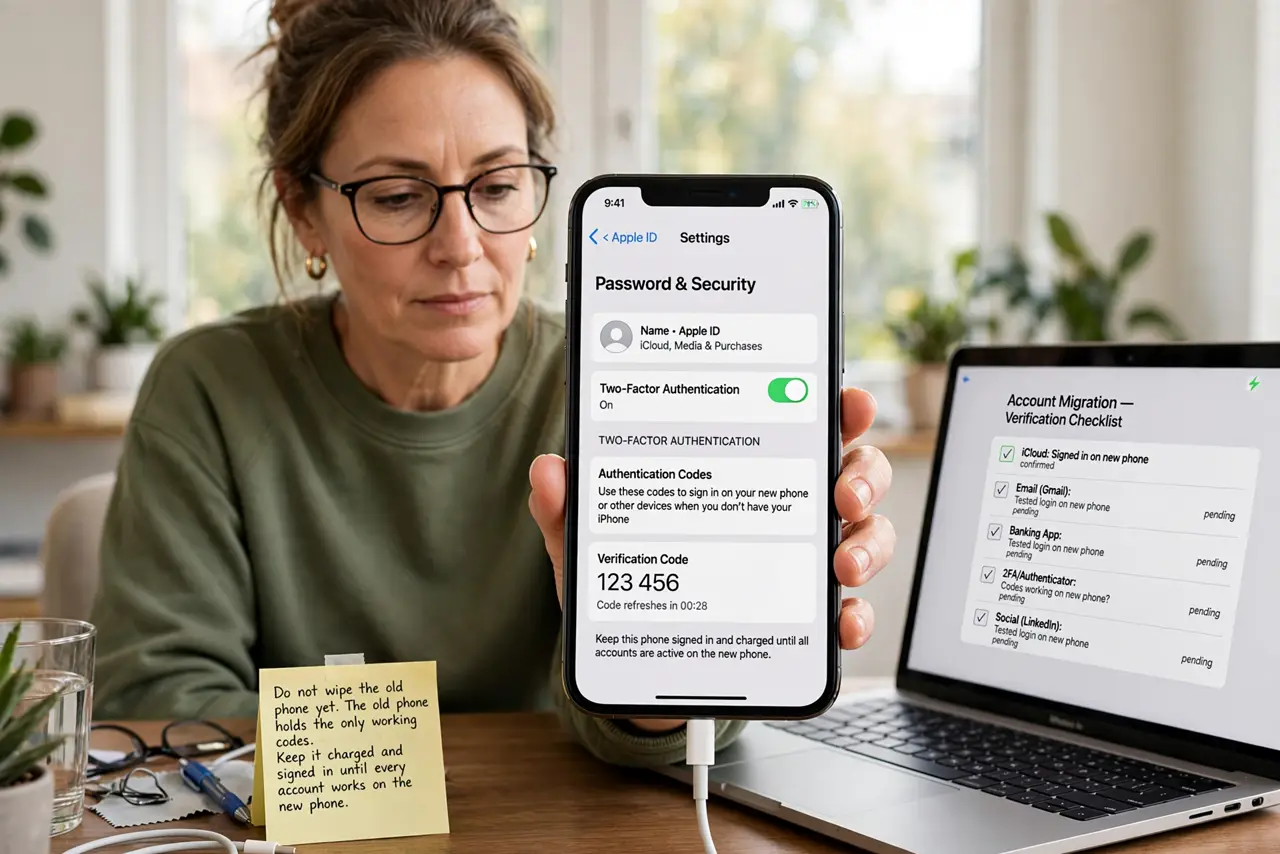
- Do not wipe the old phone yet. The old phone holds the only working codes. Keep it charged and signed in until every account works on the new phone.
- List every account with two-factor. Go through email, banking, social, and work accounts and note which use the authenticator. A forgotten account surfaces at the worst moment, usually during travel.
- Enroll the new phone account by account. On a computer, open each account's security settings and add the new phone with its QR code. Tedious, but each enrollment takes about a minute.
- Test a login on the new phone. Sign out and back in somewhere unimportant first. A tested code beats an assumed one when the old phone is gone.
- Save every backup code. Store the codes each setup shows you, outside both phones. Backup codes are the net under this whole trapeze act.
- Wipe the old phone only when done. After all accounts work on the new phone, then reset the old one. Wiping early strands any account you forgot, with no codes to get back in.
What NOT to do
- Do not factory-reset the old phone first. The reset destroys the only working codes, and recovery without them is slow and painful.
- Do not assume the codes moved with a phone backup. Authenticator secrets deliberately do not travel in normal backups, so check rather than assume.
- Do not enroll the new phone over public Wi-Fi. Use your home network or mobile data when handling security codes and QR setups.
- Do not skip the backup codes to save time. They are the cheapest insurance in this whole process.
Frequently asked questions
Why didn't my codes move to the new phone?
Because authenticator secrets are stored on the device and excluded from normal backups by design, so each account needs fresh enrollment.
What if I already wiped the old phone?
Use backup codes or account recovery for each service, then enroll the new phone fresh. It is slower, but it works.
How do I avoid this next time?
Enable the authenticator's own encrypted backup if offered, and store backup codes outside the phone.