Automate Tasks in Asana
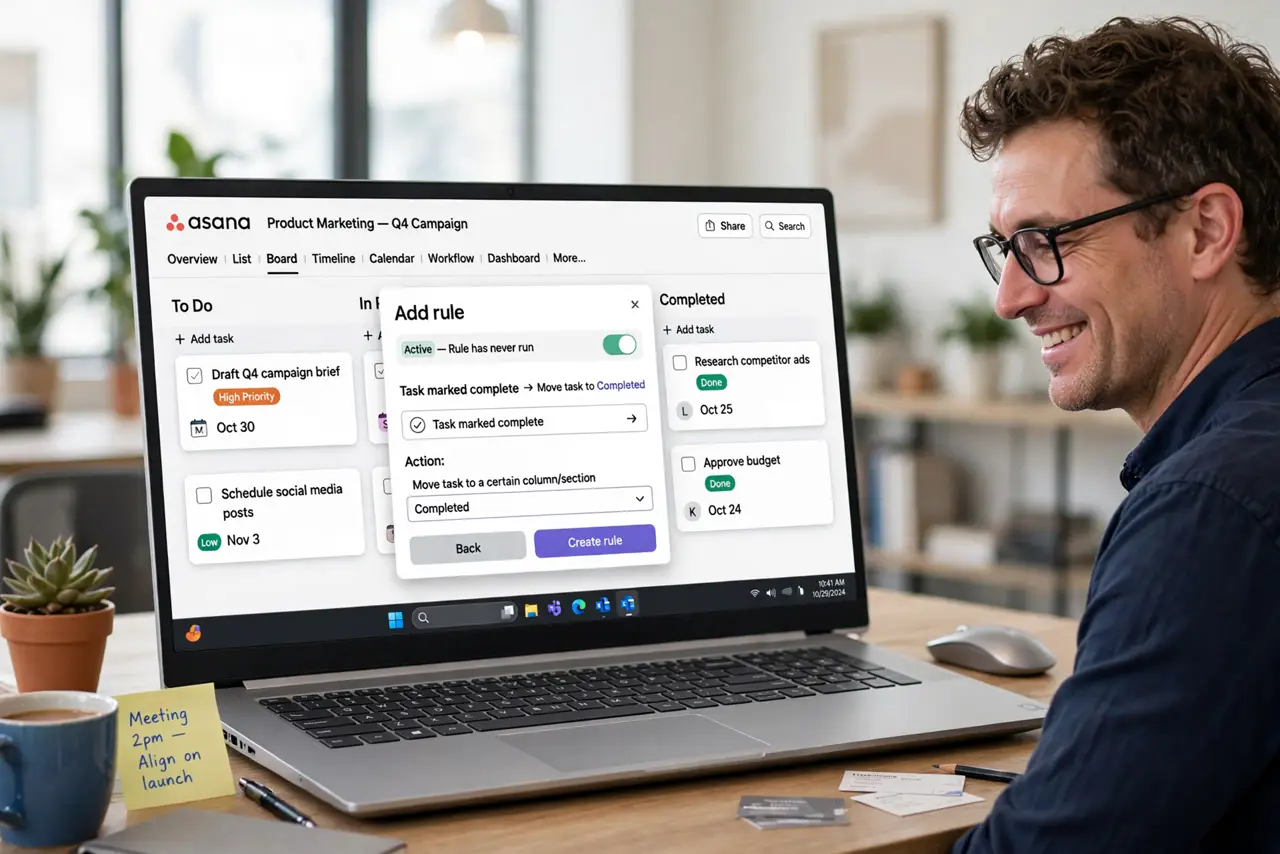
Your team updates the same Asana fields on every task — status, assignee, due date — by hand, hundreds of times. Asana's built-in Rules automate all of it: when a task moves sections, fields update themselves. No code, no integrations needed for the core wins. One rule usually proves the concept in a day.
TL;DR / Quick Fix
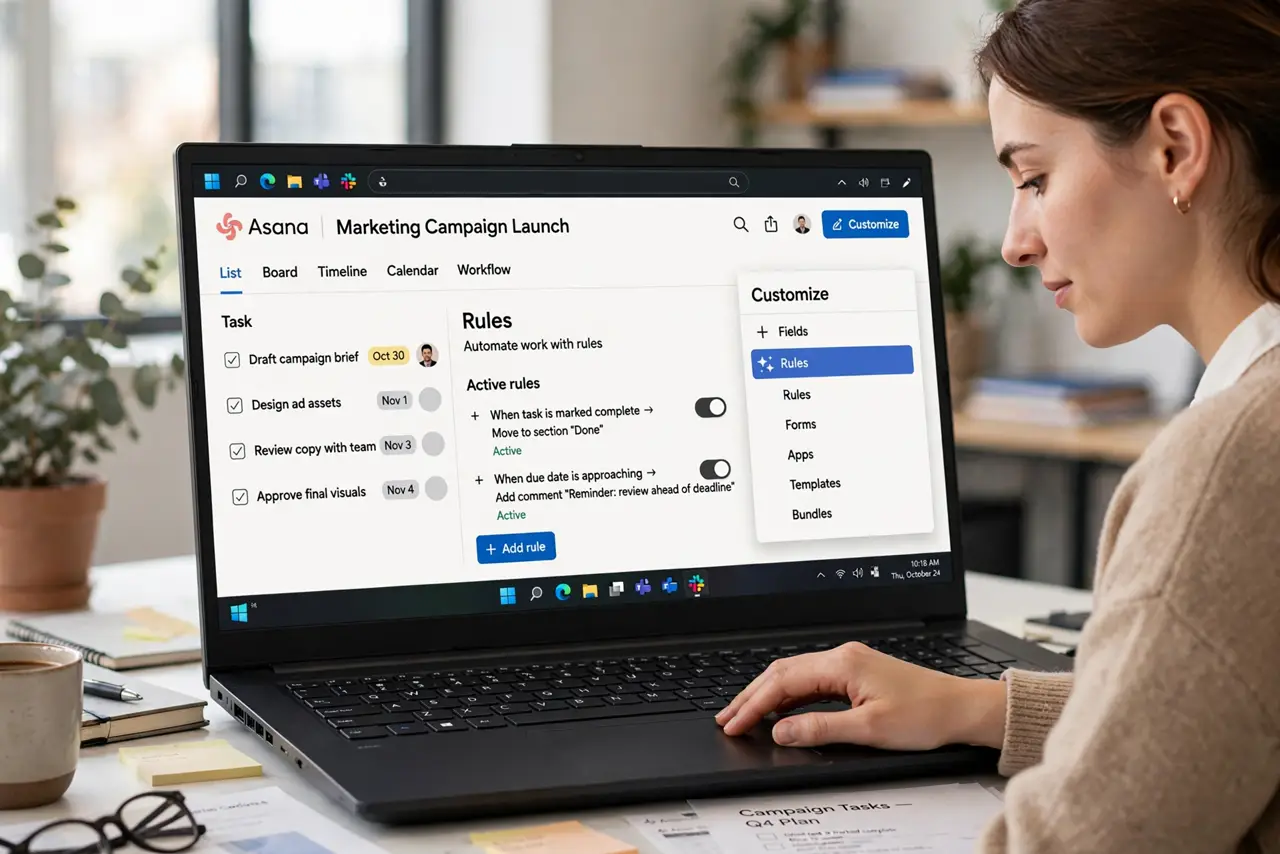
Asana's Rules automate repetitive task updates: moving sections, setting custom fields, assigning teammates, adding subtasks. Open a project, click Customize, then Rules, and build 'when a task moves to In Progress, assign it.' Test with a spare task first. The Asana basics covers project setup.
Follow these steps
- Open Rules in your project. Click Customize at the top of the project, then Rules. Rules live per-project — automations you build here affect only this project.
- Choose a trigger. Pick what starts the rule: task moved to a section, custom field changed, due date approaching. 'Task moved to a section' is the workhorse trigger.
- Add the automatic actions. Stack what happens: set assignee, update custom field, add collaborators, create subtasks. The rule runs these instantly on every trigger.
- Test with a spare task. Create a throwaway task and trigger the rule. Watch the fields update, then delete the test task. Rules execute confidently — verify before trusting.
- Roll out to the team with a note. Tell the team what the rule does so nobody fights it. 'Moving to Review auto-assigns the lead' prevents confusion and duplicate manual updates.
- Review rules quarterly. Projects evolve and rules go stale. A rule assigning someone who left the team is worse than no rule — audit them when the workflow changes.
What NOT to do
- Do not build rules for a broken process. Automating a confusing workflow just produces confusion faster — fix the process first.
- Do not create rules that fight each other. Two rules updating the same field on the same trigger cause unpredictable results.
- Do not skip the team announcement. Silent automation surprises people; a one-line note keeps everyone aligned.
- Do not automate every tiny step at once. Start with the single most repetitive chore, prove it works, then expand gradually.
Frequently asked questions
Are Asana rules free?
Basic rules are included on paid plans; the free tier has limited automation. Check your plan's rule allowance before building a large system.
Can rules work across projects?
Rules are per-project, but multi-homing tasks (adding one task to several projects) lets rules in each project act on it.
What is the difference from Trello Butler?
Same idea, different home. The Trello automation guide covers the equivalent if your team lives there instead.