Baby Monitor Interferes With Wi-Fi? Fix It
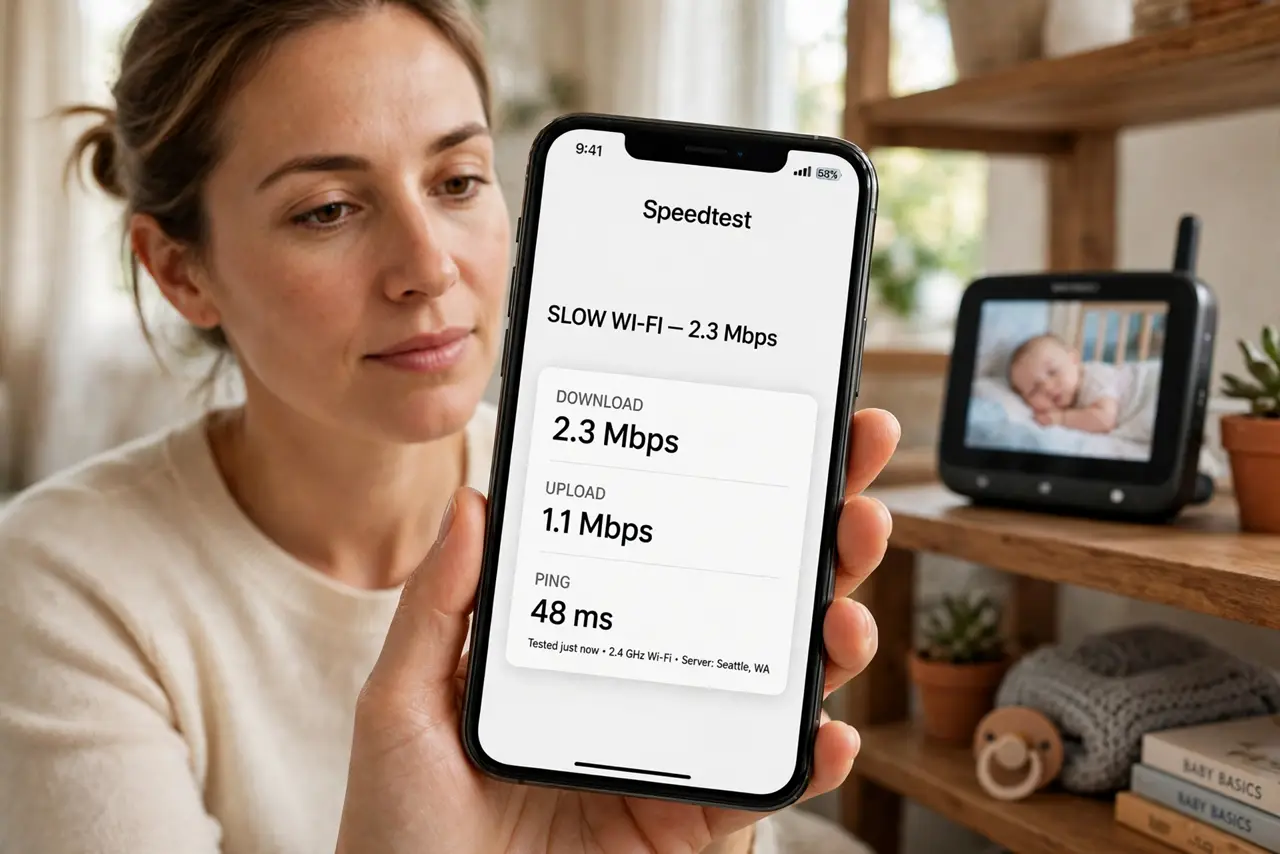
Ever since the video baby monitor arrived, the Wi-Fi near the nursery crawls. Older monitors blast the same 2.4 GHz airspace your Wi-Fi uses, and they do not share politely. The good news: separation and a channel change usually end the war.
TL;DR / Quick Fix
Quick fix: move the baby monitor's base away from the router and switch your Wi-Fi to a clear channel — monitors often camp on channel 6. If the monitor supports it, move your devices to the [[5 GHz band|wifi-2-4-vs-5-ghz]] where the monitor cannot follow.
Follow these steps
- Confirm the monitor is the culprit. Turn the monitor off for ten minutes and test the Wi-Fi. If speed jumps back, you have found the interferer — just like the microwave test.
- Move the two devices apart. Put the monitor base and the router in different rooms if you can. A few meters of separation drops interference dramatically.
- Change your Wi-Fi channel. Use a Wi-Fi analyzer app to find the emptiest channel, then set it in the router. See how to change the channel — avoid whatever the monitor is sitting on.
- Shift devices to 5 GHz. Phones and laptops on the 5 GHz band escape the 2.4 GHz noise entirely. Leave only low-bandwidth gadgets on 2.4.
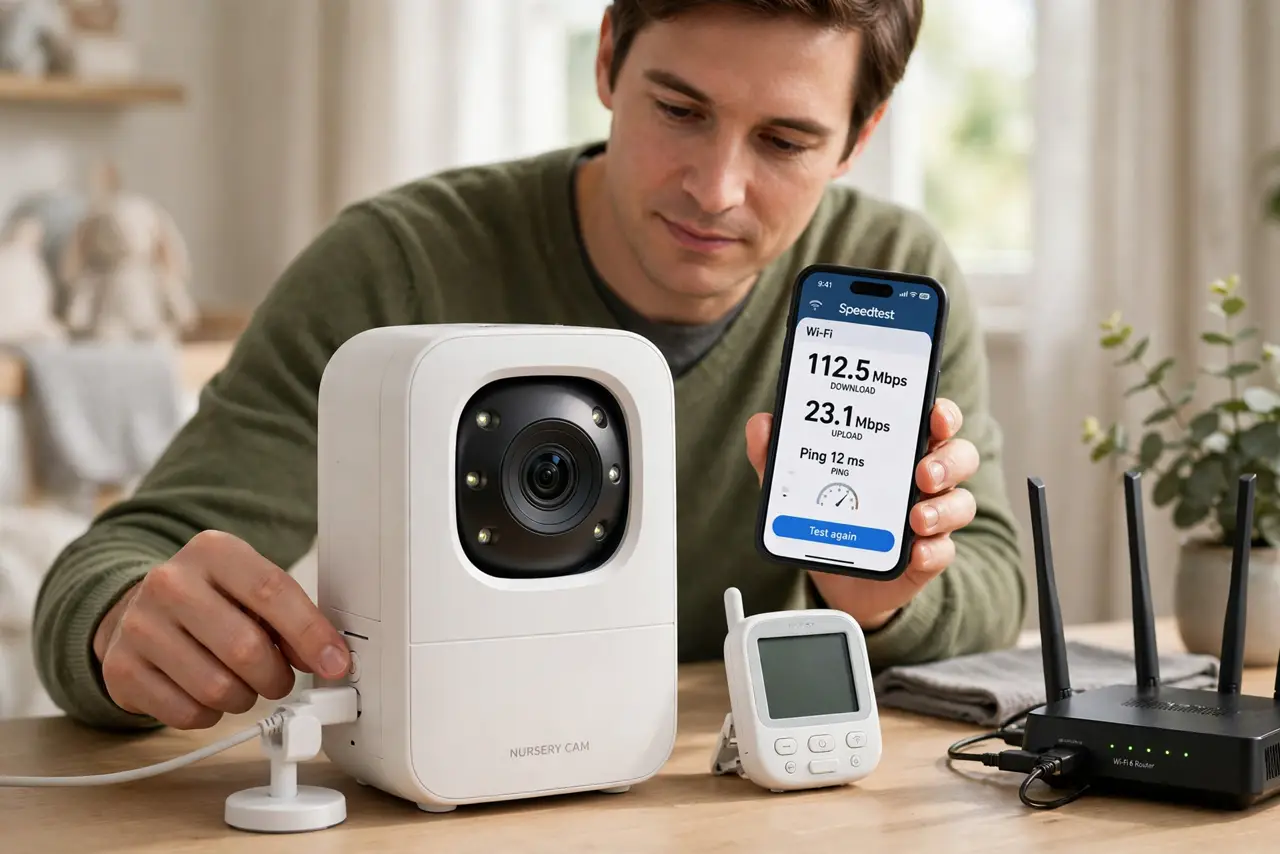
- Consider a DECT or Wi-Fi monitor. Modern DECT audio monitors use a different frequency, and Wi-Fi-based camera monitors join your network instead of fighting it.
- Keep the monitor's firmware updated. Some monitors let you update firmware that improves their radio behavior. Check the manufacturer's app once.
What NOT to do
- Do not put the monitor base next to the router. Stacking two 2.4 GHz radios together is the worst possible arrangement.
- Do not buy a Wi-Fi booster to 'overpower' the monitor. More Wi-Fi power does not fix interference — it just shouts louder in the same noisy room.
- Do not use the monitor's 'high power' mode near the router. Extra transmit power means extra interference for everything else on 2.4 GHz.
- Do not ignore a monitor that kills Wi-Fi house-wide. A faulty monitor can spew noise across the whole band; replacing it can fix the entire network.
Frequently asked questions
Can a baby monitor really slow my Wi-Fi?
Yes. Analog and older digital video monitors transmit constantly on 2.4 GHz, which is the same band most Wi-Fi uses.
Which is better near Wi-Fi: DECT or Wi-Fi monitors?
DECT audio monitors avoid Wi-Fi frequencies entirely. Wi-Fi camera monitors share the network properly instead of jamming it.
Will 5 GHz Wi-Fi solve it completely?
For devices that support 5 GHz, yes. Older 2.4-only gadgets still share airspace with the monitor.