Back Up Phone Photos
A lost or broken phone is replaceable; the ten thousand photos on it are not. Phone photo backup is the single backup habit that matters most to most people, and both iPhone and Android make it nearly automatic. Here is how to turn it on, verify it works, and avoid the storage traps.
TL;DR / Quick Fix
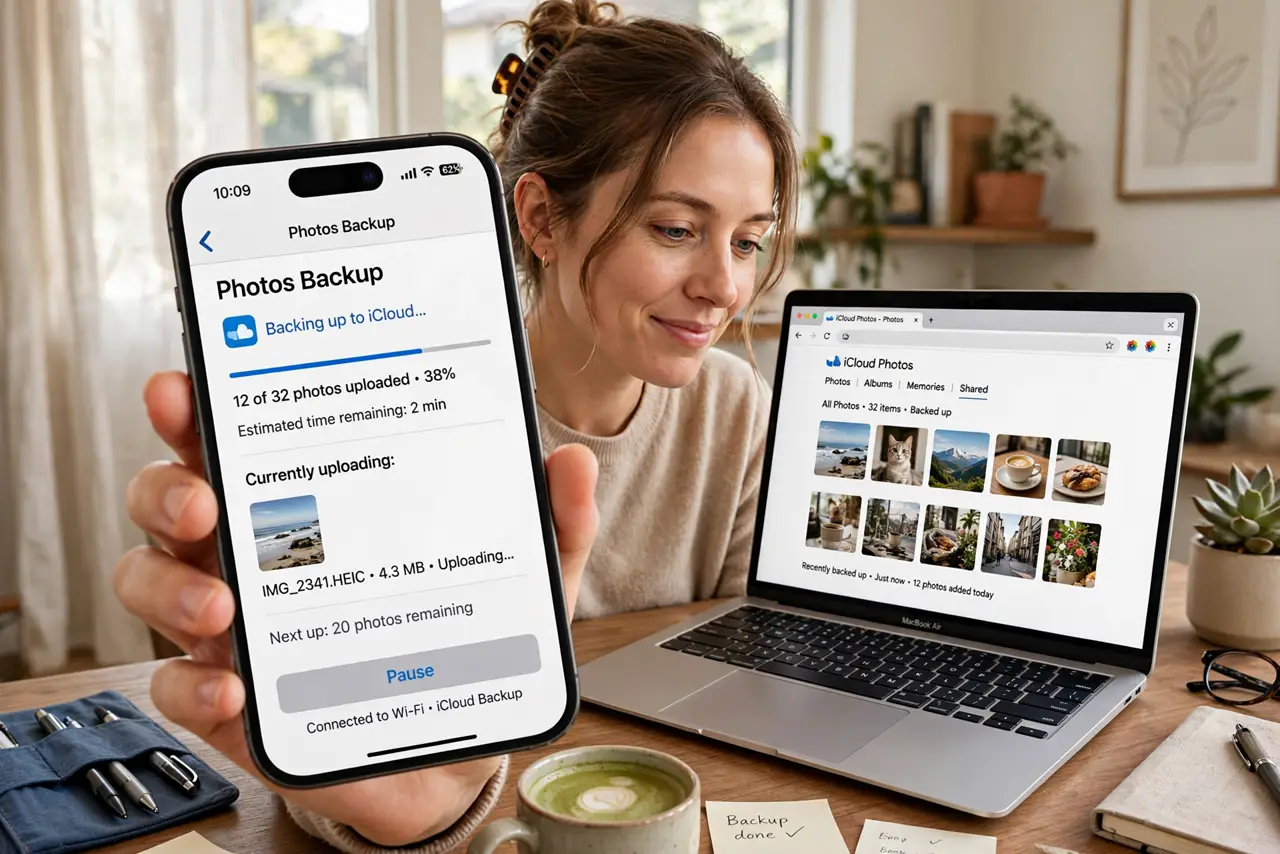
Quick fix: turn on automatic photo backup in iCloud or Google Photos so every picture uploads without thinking. Check that backup is actually running — open the app and look for the backup status. With auto-backup on, a lost phone costs you the device, not the memories.
Follow these steps
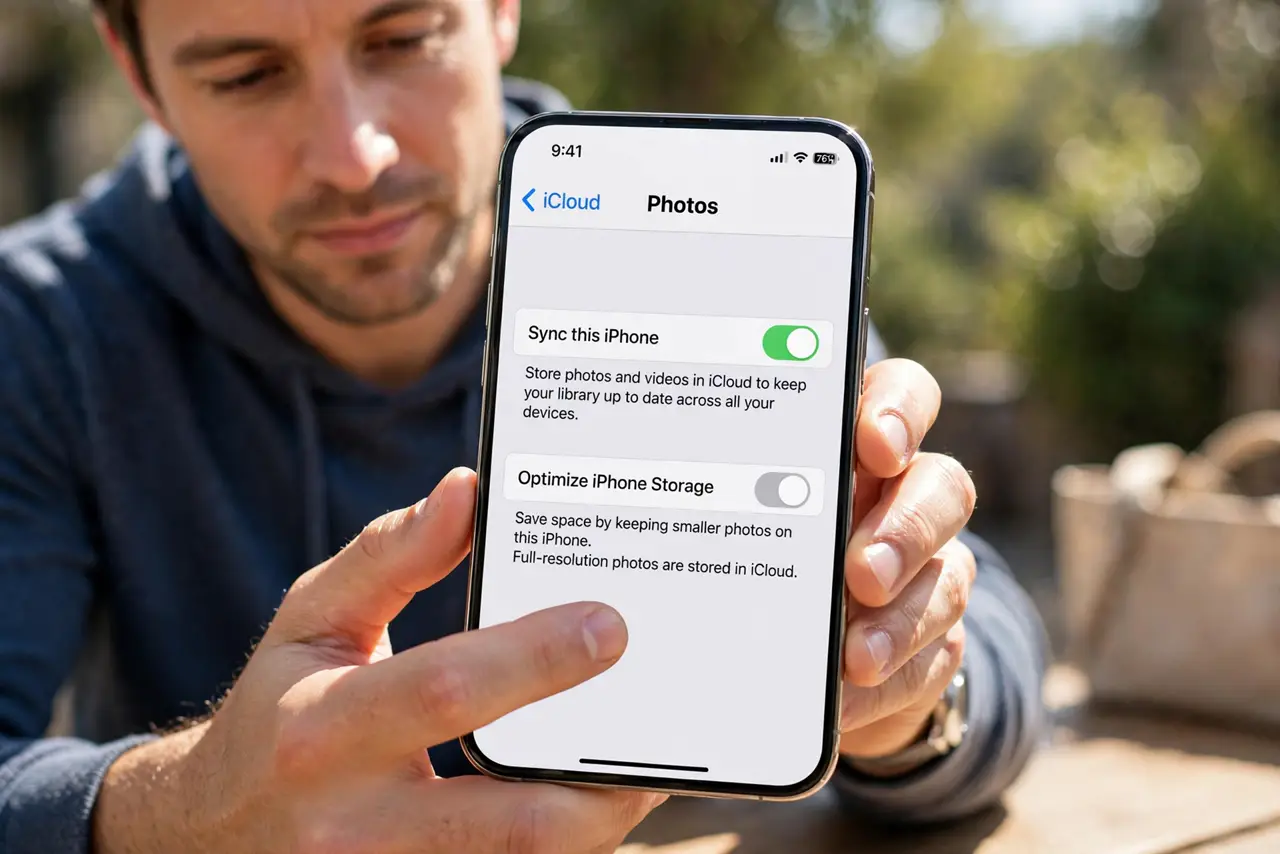
- Turn on the automatic backup. iPhone: Settings, your name, iCloud, Photos, Sync this iPhone. Android: Google Photos app, profile, Photos settings, Backup. One toggle each — see the Android backup basics for the full Android side.
- Verify it is actually running. Open the photos app and check the backup status — it should say backed up or show a recent date. A toggle that never finishes its first upload protects nothing.
- Connect to Wi-Fi for the first sync. The first backup moves gigabytes and takes hours. Do it overnight on Wi-Fi with the phone plugged in — not on mobile data.
- Watch the storage quota. Free cloud tiers fill fast with photos. When full, backups silently stop — check storage monthly and upgrade or prune before it fills.
- Keep a second copy of the best ones. Cloud plus an occasional copy to a computer or external drive covers account lockouts and service outages. The irreplaceable shots deserve two homes.
- Test a restore before you need it. Sign into your cloud photos on another device and open a few old pictures. If they are all there, the backup is real.
What NOT to do
- Do not assume the toggle means it worked. Verify the backup status shows complete — interrupted first syncs are the classic false security.
- Do not back up over mobile data by default. One first-sync on cellular can burn a whole month's data plan — use Wi-Fi.
- Do not let storage fill silently. When the quota fills, new photos stop backing up with barely a warning — check monthly.
- Do not keep the only copy on the phone. A phone in a lake is a story; a phone in a lake with cloud backup is an inconvenience.
Frequently asked questions
iCloud or Google Photos?
iPhone users get the smoothest ride with iCloud; Google Photos works great on both and offers handy search. Either beats nothing.
Are my backed-up photos private?
They are protected by your account security — use a strong password and two-factor. That lock matters more than which service you pick.
What about videos?
Videos back up too and eat storage fastest. They are usually the reason quotas fill — check video backup settings separately.