Blue Screen After a Driver Update? Roll Back Safely
A driver update later, Windows shows a blue screen instead of the desktop. The new driver is the prime suspect, and rolling it back is safer than guessing at other fixes. Get to a working desktop first.
TL;DR / Quick Fix
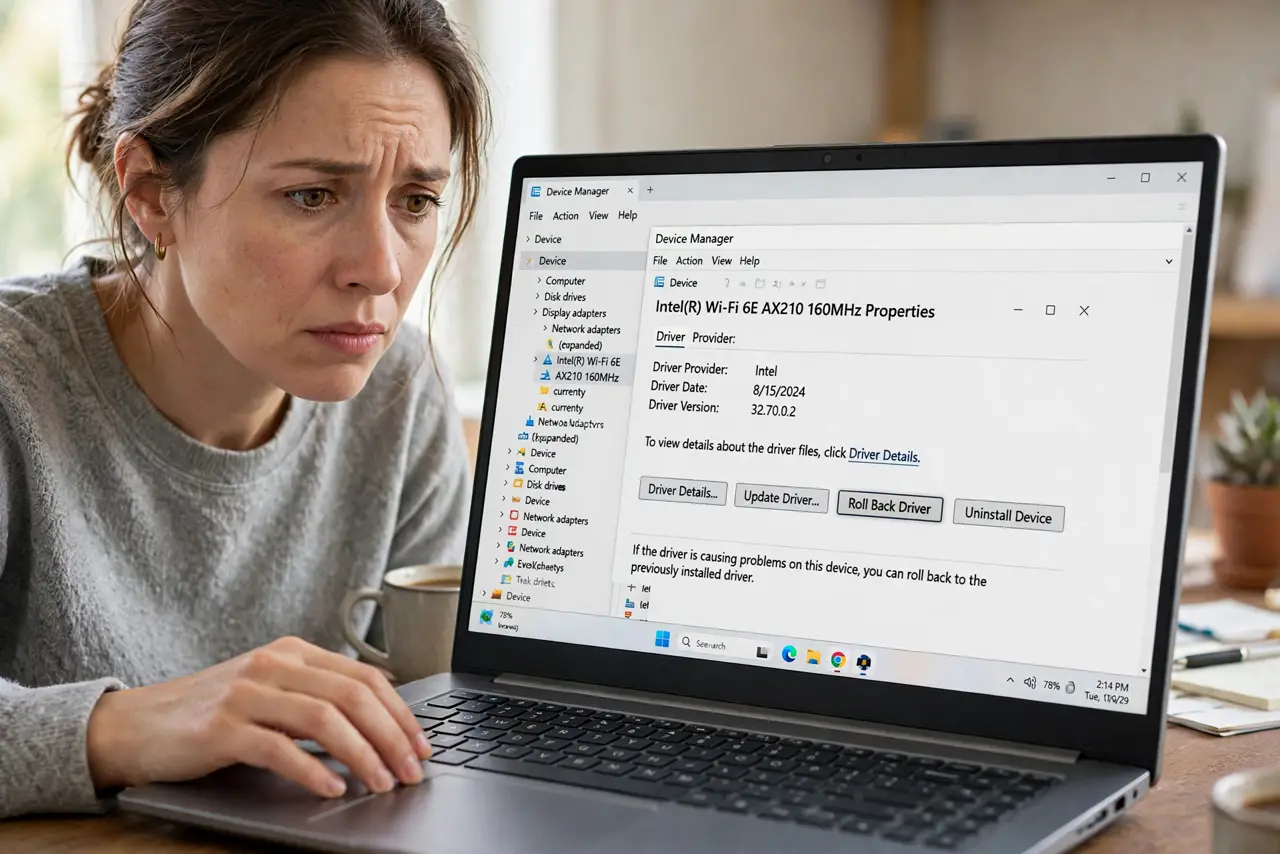
Quick fix: if Windows boots, open Device Manager, find the updated device, and roll back its driver. If Windows will not boot, use recovery options to reach Safe Mode, roll back there, then restart normally and test for a full session.
Follow these steps
- Note what changed. Think about which driver just updated: graphics, network, or audio are common. Knowing the device narrows the rollback to one entry instead of a blind search.
- Boot into Safe Mode if needed. If Windows will not reach the desktop, use the sign-in screen restart options to reach Safe Mode. Safe Mode loads basic drivers, which usually lets you work.
- Open Device Manager. Search for Device Manager, open it, and find the device whose driver updated. Expand its category if the device is not visible at first glance.
- Roll back the driver. Open the device Properties, go to the Driver tab, and choose Roll Back Driver if available. Explain briefly why you are rolling back when asked.
- Restart normally. Restart the computer and let Windows boot normally. Do not open heavy apps at first; let the desktop settle and watch for any blue screen.
- Test for a full session. Use the computer normally for a full session, including the task that crashed before. Stability across a full session is the proof the rollback worked.
What NOT to do
- Do not update the same driver again immediately. A rollback followed by the same update recreates the same blue screen, so wait before retrying it.
- Do not roll back every driver at once. Roll back only the device that updated before the crashes, so you know which change fixed it.
- Do not ignore a blue screen that returns after rollback. A returning crash points beyond the driver, at hardware or a deeper system fault.
- Do not keep using the computer through repeated blue screens. Each crash risks unsaved work, so roll back first and test before resuming normal work.
Frequently asked questions
What is a driver rollback?
It restores the previous driver version for a device, undoing the update that introduced the crash. It is reversible and safer than removing the device.
What if Roll Back is grayed out?
No previous driver is stored for that device. In that case, use System Restore to a point before the update, if one exists.
Should I ever update that driver again?
Only after checking what changed in the new version and creating a restore point first, so you can roll back cleanly if it crashes again.