Call Audio Plays on the Wrong Device
You answer a call and the audio comes from the phone speaker instead of your earbuds — or from the car instead of your headset. Bluetooth call audio routing follows rules you never set. This guide puts the sound where you want it, every time, so a misbehaving headset stops hijacking your calls.
TL;DR / Quick Fix
Quick fix: during the call, tap the audio button and choose the right device manually. In Bluetooth settings, check which device is set as the call audio default. Turn off Bluetooth on devices you don't want calls routed to. If routing is random, unpair and re-pair the headset.
Follow these steps
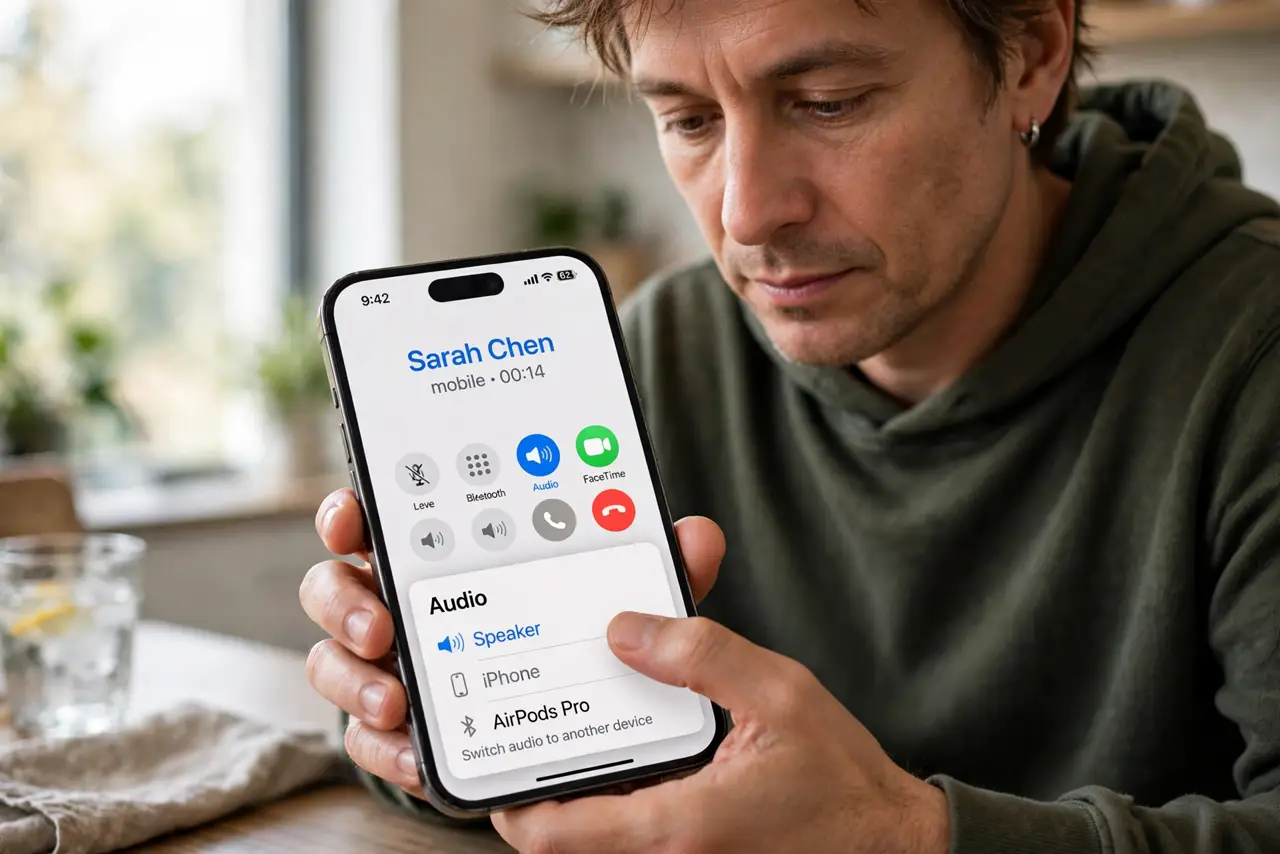
- Switch audio mid-call. Tap the audio or speaker button during the call and pick the correct device. This immediate fix works on every call while you sort the underlying cause.
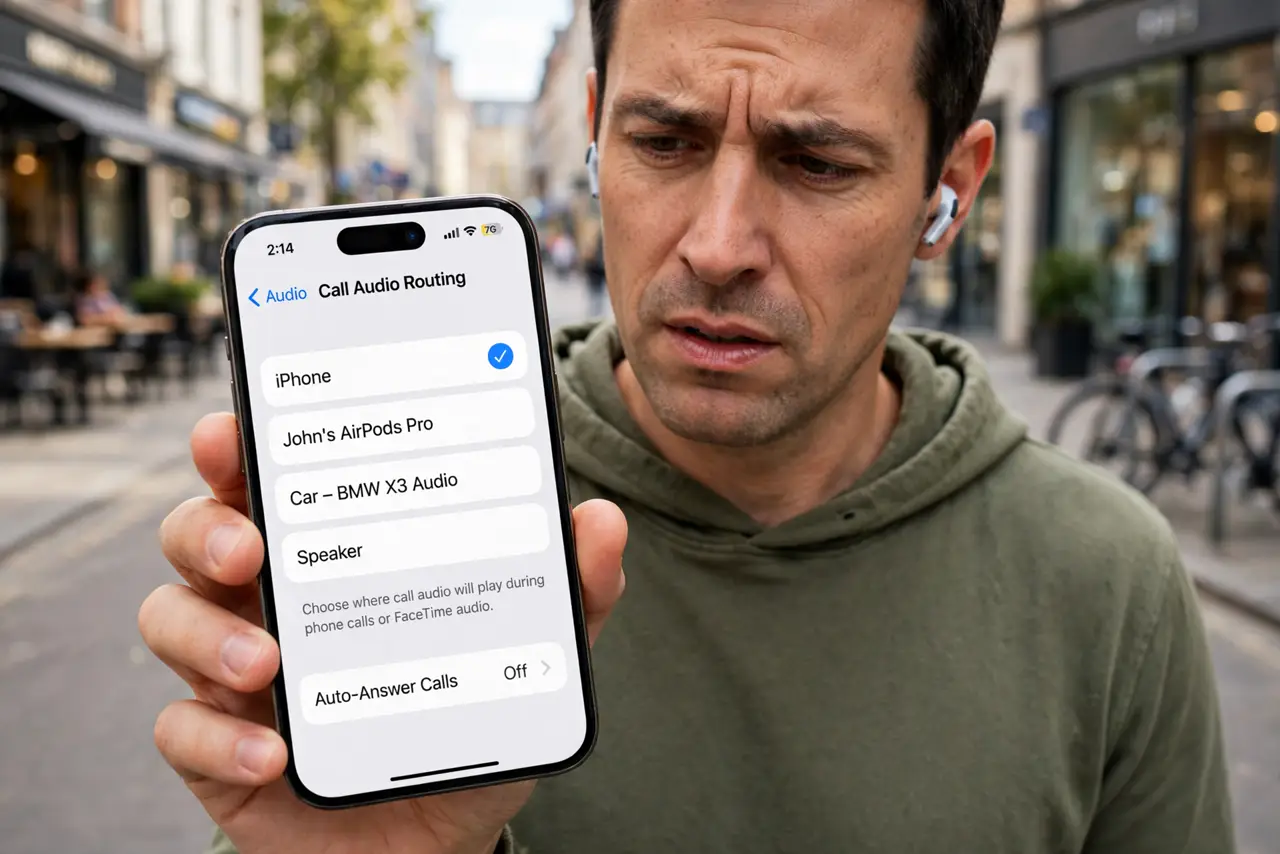
- Check the Bluetooth device roles. In Bluetooth settings, tap the device's settings and confirm call audio is enabled for the headset you want — and disabled for devices you do not want calls on.
- Set the default call audio route. On iPhone, set call audio routing in Accessibility settings; on Android, check the default calling device. The default decides where new calls go.
- Turn off Bluetooth on competing devices. A nearby laptop, car, or speaker can steal the call. Turn off Bluetooth on devices you are not actively using.
- Unpair and re-pair the headset. Remove the headset from Bluetooth settings and pair it fresh. Corrupted pairing data is a classic cause of random routing.
- Test with one device at a time. Turn off all Bluetooth devices except the one you want. If calls route correctly, add the others back one by one to find the thief.
What NOT to do
- Do not assume the headset is broken. Routing is a settings issue far more often than a hardware one.
- Do not leave Bluetooth on in the car when you are home. The car system grabs calls from the driveway.
- Do not pair the same headset to five devices and expect perfect routing. Multipoint is convenient but confuses call routing.
- Do not ignore the in-call audio button. It is the fastest fix every single time, even before you touch settings.
Frequently asked questions
Why does call audio go to the wrong Bluetooth device?
The phone routes to its default call audio device, or the last-connected one. Competing paired devices can grab the call first.
How do I make calls always use my earbuds?
Enable call audio for the earbuds in Bluetooth settings, disable it on competing devices, and set the default call route to Bluetooth.
Why does my car steal calls when I'm home?
Bluetooth range reaches through walls. Turn off the car's Bluetooth or the phone's Bluetooth when you are not driving.