Bluetooth Icon Missing? Bring It Back
When the Bluetooth icon vanishes, pairing a headset or mouse feels harder, even if Bluetooth still works. The icon is usually hidden by a taskbar setting, or Bluetooth itself is off, and both are quick to check.
TL;DR / Quick Fix
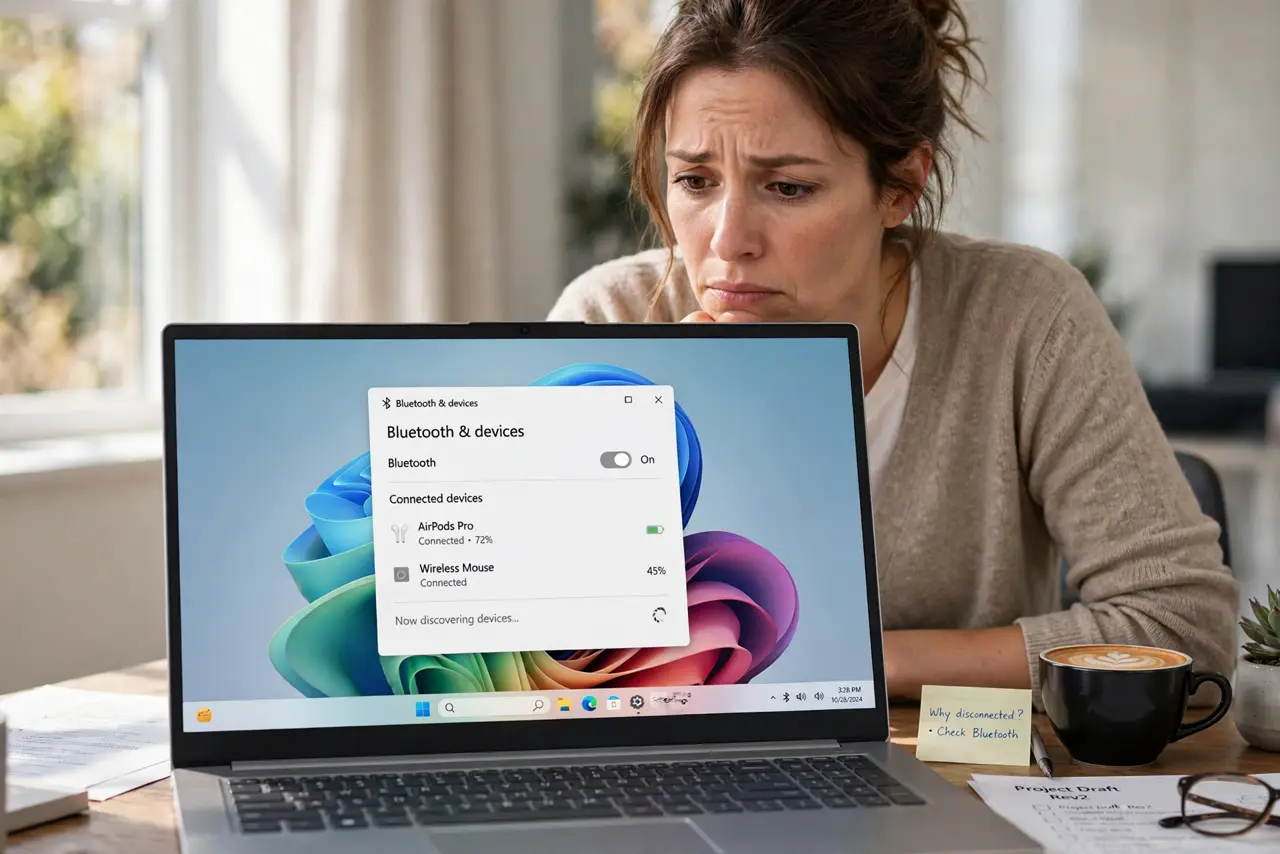
Quick fix: open Settings, then Bluetooth and devices, and confirm Bluetooth is on. Then open Settings, then Personalization, then Taskbar, and make sure the Bluetooth icon is shown. If it still hides, restart Windows Explorer once. Test it once more after a restart to confirm the fix holds.
Follow these steps
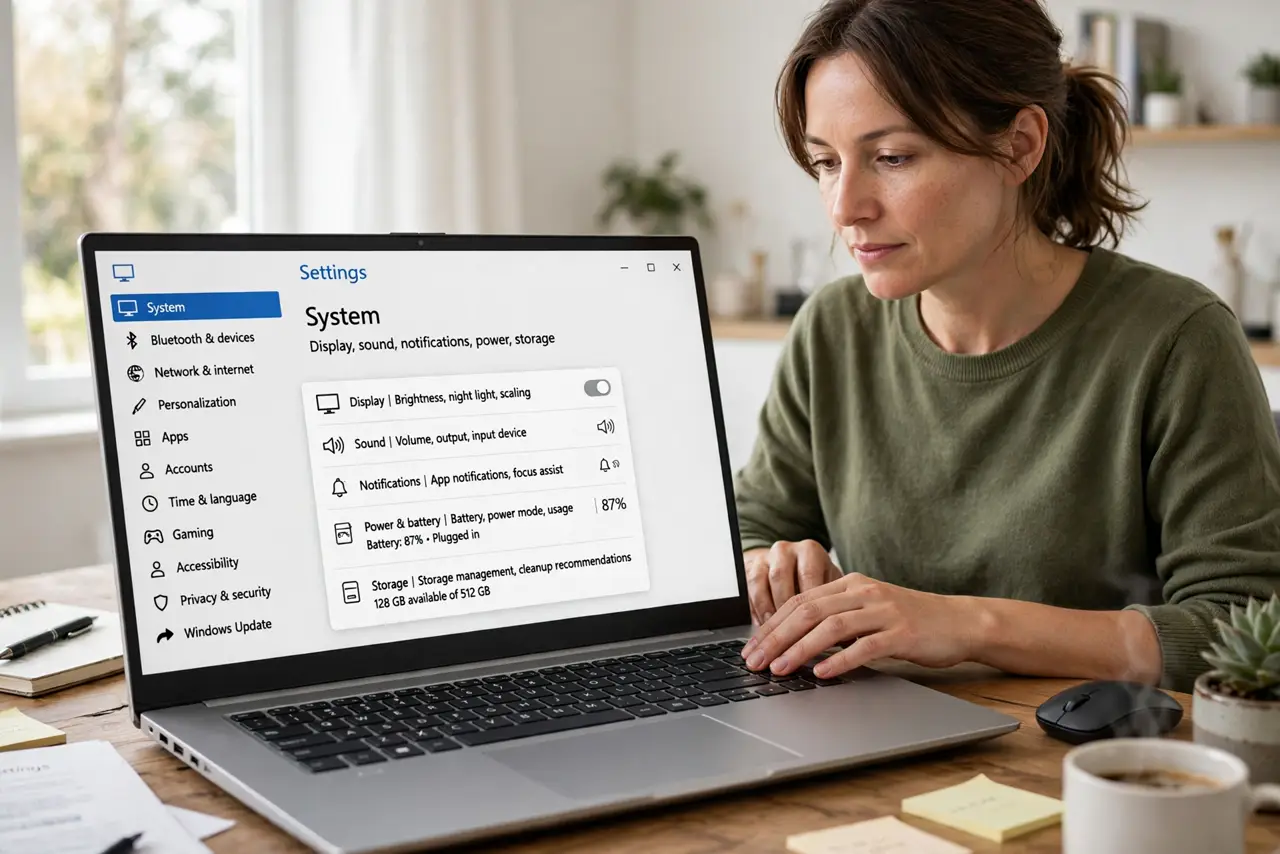
- Confirm Bluetooth is on. Open Settings, then Bluetooth and devices, and make sure Bluetooth is on. If it is off, the icon may hide because there is nothing to manage.
- Check the taskbar icon settings. Open Settings, then Personalization, then Taskbar, and look at the system tray icons. Turn on the Bluetooth icon if it is set to hidden.
- Expand the hidden icons tray. Click the small up arrow near the clock. The Bluetooth icon may be in the hidden tray, and dragging it onto the taskbar keeps it visible.
- Restart Windows Explorer. Press Ctrl, Shift, and Esc, find Windows Explorer, right-click it, and choose Restart. The taskbar refreshes and hidden icons often return.
- Check the device in Bluetooth settings. In Bluetooth and devices, confirm your headset or mouse is listed. If it shows as paired but not connected, click it and choose Connect.
- Restart the computer. Save your work and restart. A restart clears a stuck Bluetooth state and a stuck taskbar state at the same time.
What NOT to do
- Do not remove and re-pair every device at once. Remove only the device that fails to connect, because re-pairing everything wastes time and can lose settings.
- Do not turn Bluetooth off and on repeatedly in a panic. Give the device a few seconds to appear after each change before trying again.
- Do not install a Bluetooth manager from a pop-up. Windows already manages pairing, and extra tools can add ads or change settings.
- Do not assume a missing icon means broken hardware. Check the setting and the hidden tray first, because hardware failure is far less common.
Frequently asked questions
Why is Bluetooth on but the icon missing?
The icon setting is separate from Bluetooth itself. Check the taskbar system tray icons and the hidden tray before anything else.
My device is paired but will not connect. What now?
Remove that one device and pair it again, close to the computer, with the device in pairing mode.
Does the icon need to show to use Bluetooth?
No. You can pair and connect from Settings, then Bluetooth and devices, even while the tray icon is hidden.