'Managed by Your Organization' on a Home PC
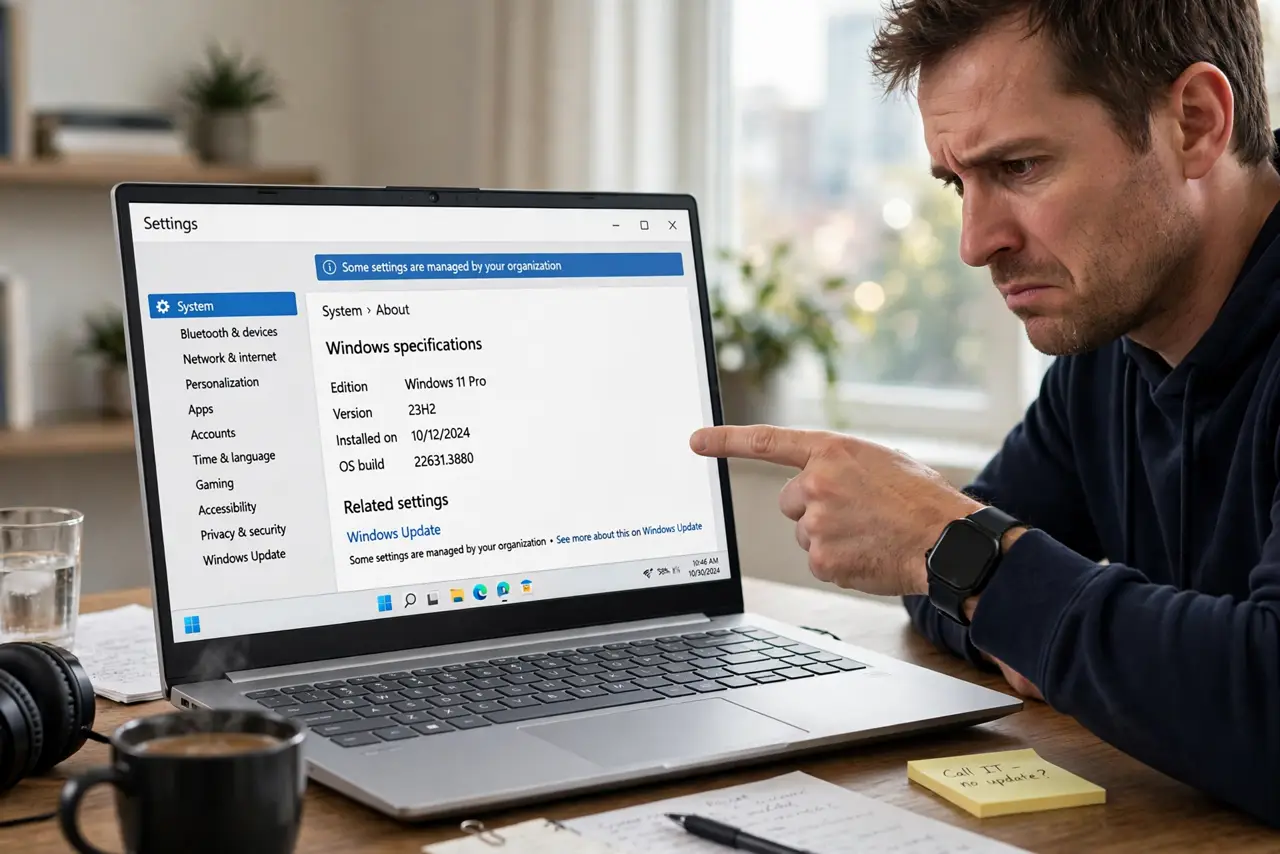
Your personal PC insists it is 'managed by your organization' and blocks settings you should control. On a home computer this message is almost always a leftover: an old school or work account, a preinstalled policy from the PC maker, or a setting synced from elsewhere. This guide shows how to track it down and take your PC back.
TL;DR / Quick Fix
Quick fix: check Settings > Accounts > Access work or school for a leftover account and disconnect it, keeping your files. Then revisit the affected settings page to confirm the message cleared. If it persists, look for the PC maker's preinstalled management tools.
Follow these steps
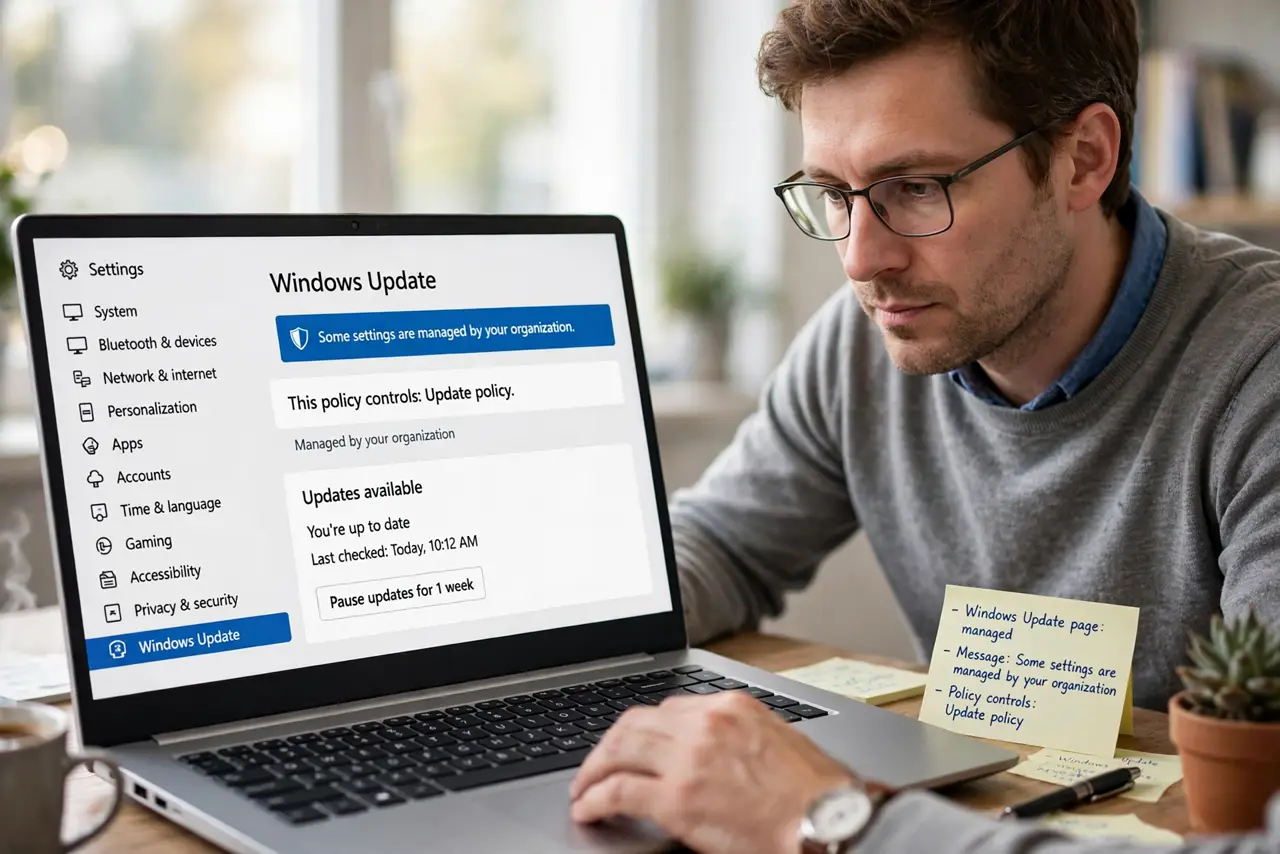
- Find where the message appears. Note exactly which Settings pages show the message. The message names the area it controls, which tells you whether it is an update policy, a browser policy, or a sign-in policy.
- Check for a work or school account. Go to Settings > Accounts > Access work or school. A leftover account from a previous job or school is the most common cause on a truly personal PC.
- Disconnect the leftover account. Select the account and choose Disconnect, keeping your personal files. Restart the PC, then revisit the Settings page to see whether the message cleared.
- Look at the policy source on the page. Some Settings pages show a 'view policies' link next to the message. Open it to see the exact policy name, which tells you whether it came from an account or the PC maker.
- Check the PC maker's preinstalled software. Some manufacturers ship management tools or trial security suites that set policies. Uninstall anything from the maker you do not use, then recheck.
- Confirm you own the Windows license. A secondhand PC may still carry the previous owner's management enrollment. If the message survives everything above, the PC may need a clean reinstall with your own license.
What NOT to do
- Do not delete registry keys you found in a forum post. A wrong deletion can break Windows worse than the phantom policy does.
- Do not ignore the message on a PC your employer gave you. If the computer belongs to work, the management is real and intentional.
- Do not run a 'debloat' script from the internet to strip policies. These scripts remove things blindly and often break updates or security.
- Do not pay for a tool that promises to remove the message. The fix is removing the account or policy, which costs nothing.
Frequently asked questions
Can a personal PC really be managed by an organization?
Yes, if a work or school account was ever connected, or the PC maker preinstalled a policy. It is common on secondhand machines.
Will disconnecting the account delete my files?
No. Disconnecting removes the organization's access and policies, not your personal files.
What if the message appears in my browser instead?
Browsers show their own managed message for browser policies. Check the browser's policy page and remove any unfamiliar extensions or profiles.