Browser Bookmarks Duplicated? Clean Them Up
Duplicated bookmarks usually come from sync merging two copies, or from importing bookmarks twice. Clean the duplicates once, then check sync, or the extras will come back.
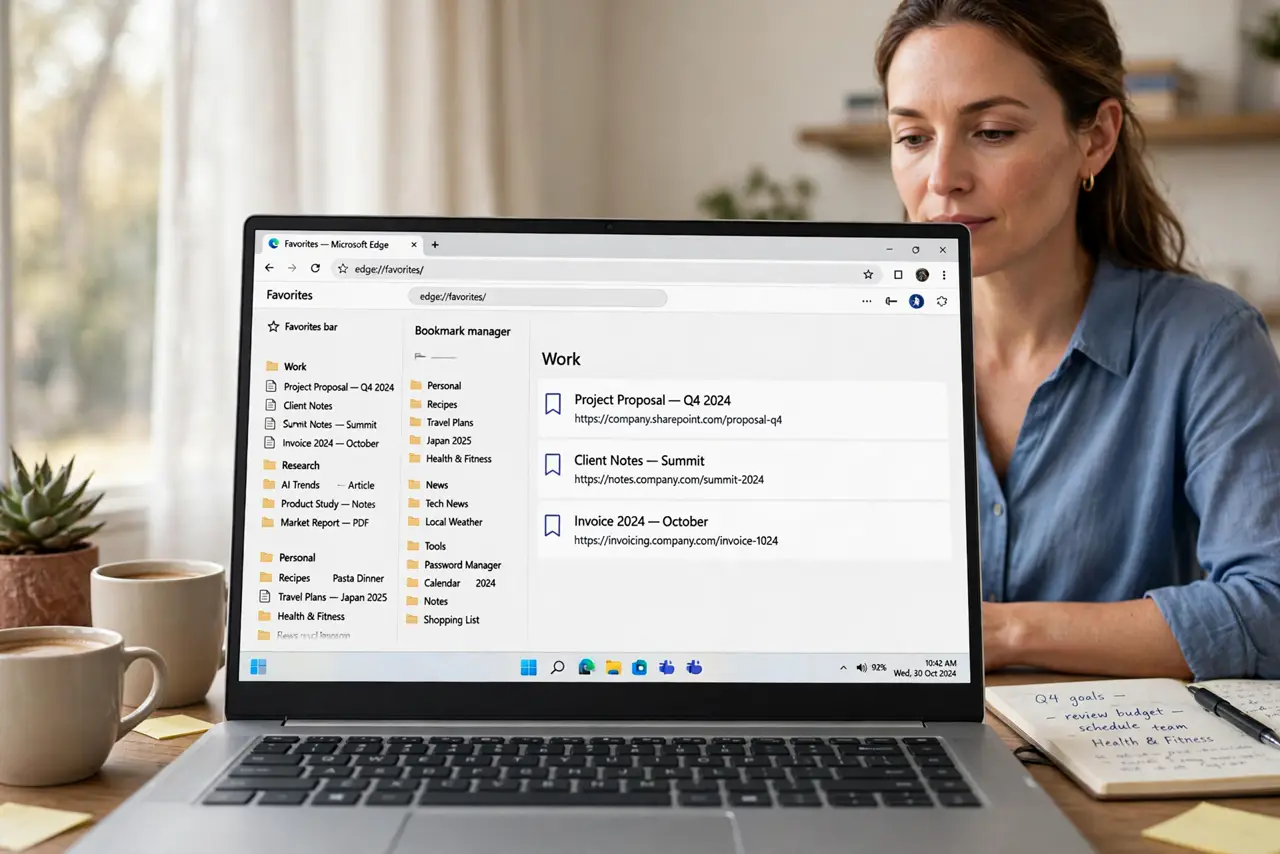
TL;DR / Quick Fix
Quick fix: open the bookmark manager, sort by name to spot duplicates, and delete the extra copies. Then check sync is signed in to one account only, and avoid importing the same bookmark file twice. Last, avoid importing the same file again to confirm it.
Follow these steps
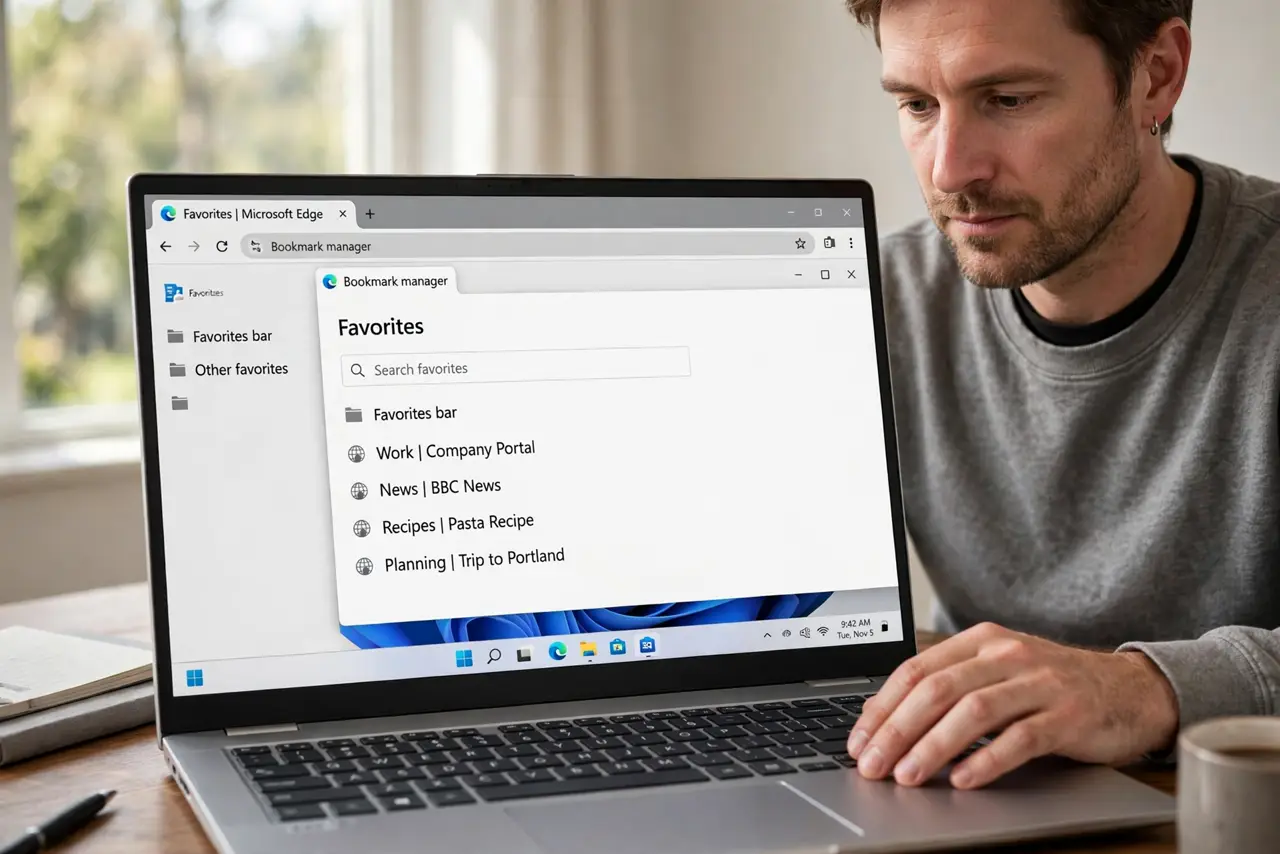
- Open the bookmark manager. Open Bookmarks, then the bookmark manager, where you can see folders and sort entries. The manager view makes duplicates far easier to spot than the toolbar.
- Sort by name to spot duplicates. Sort the list by name and look for identical titles and addresses side by side. Identical addresses with different names are duplicates too.
- Delete the extra copies, keeping one. Delete each duplicate, keeping the copy in the folder you actually use. Work folder by folder, so you do not delete a bookmark you meant to keep.
- Check for duplicate folders. Look for folders with the same name, such as two import folders. Move the bookmarks you want into one folder, then delete the empty duplicate folder.
- Confirm sync uses one account. Check that sync is signed in to one account on each device. Two accounts, or a device signed in twice, can merge and recreate duplicates.
- Avoid importing the same file again. Do not import the same bookmark file a second time to fix a gap. Importing twice creates a full second set, which is how many duplicates start.
What NOT to do
- Do not delete the whole bookmarks folder to start over. You may lose bookmarks that were never duplicated.
- Do not turn sync off and on repeatedly. Each fresh sync can merge copies again if two devices hold different sets.
- Do not install a bookmark cleaner from an unknown site. The built-in manager handles duplicates safely.
- Do not keep duplicates as a backup. Export one clean copy as a file instead, and store that file safely.
Frequently asked questions
Why did my bookmarks duplicate overnight?
Sync usually merged a set from another device, or an import ran twice, creating a second copy of each entry.
Will deleting a duplicate delete the site?
No. Deleting a bookmark only removes the shortcut. The website itself stays online.
How do I stop duplicates coming back?
Keep sync on one account per device, and import a bookmark file only once.