Browser Home Page Changed by Itself? Fix It
When the home page changes on its own, an extension or an installer usually changed it, and it can also be a sign of unwanted software. Resetting the page and checking extensions, in order, fixes it and reveals the cause.
TL;DR / Quick Fix
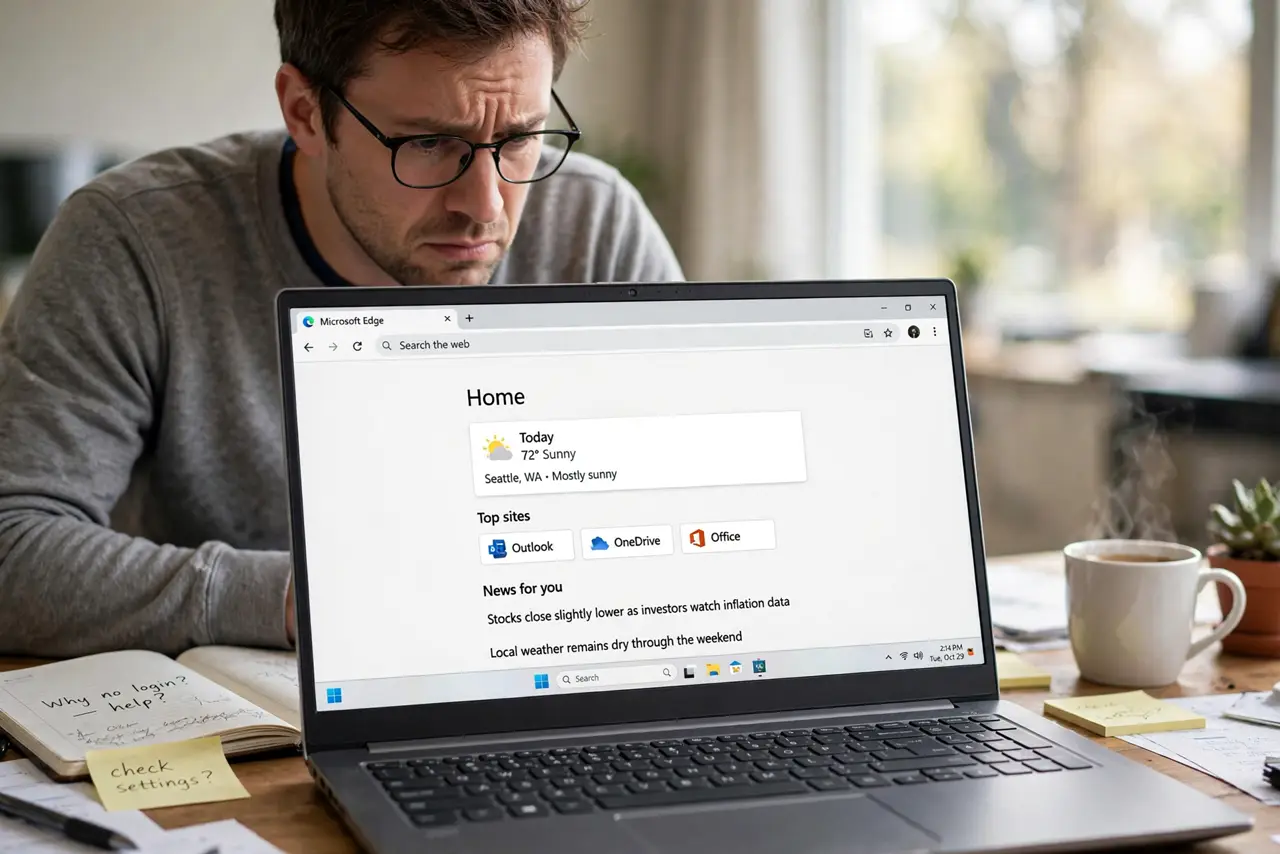
Quick fix: open browser settings, then the start-up or home page section, and set it back to the page you want, such as a blank page or your chosen search page. Then open Extensions and remove any extension you do not recognize, and restart the browser.
Follow these steps
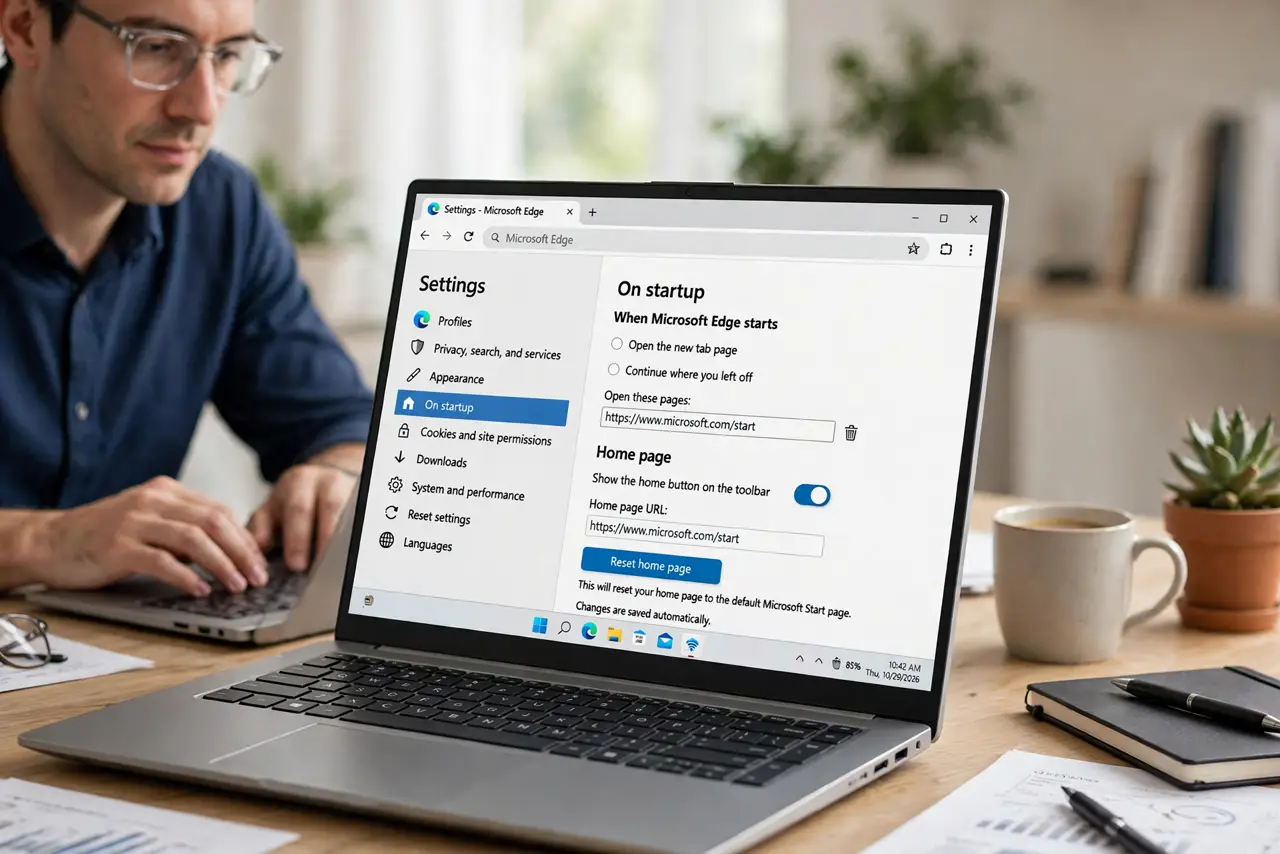
- Set the home page back. Open browser settings, find the start-up or home page section, and set it to the page you want. Choose a blank page or a page you trust, not a page you do not recognize.
- Check the start-up pages list. In the same settings section, check the list of pages that open on start-up. Remove any page you did not add, because a start-up list can override the home page.
- Review extensions you do not recognize. Open Extensions and look for extensions you did not install, or that you no longer use. Remove the unknown ones, and disable the rest one at a time if the page flips again.
- Check recently installed software. Think what you installed just before the change. An installer can bundle a home page change, so uninstall any program you do not recognize or no longer want.
- Restart the browser and test. Close the browser fully, reopen it, and check the home page. If it stays correct, the fix held. If it flips again, an extension or program is still active.
- Run a security scan if it keeps flipping. If the page flips back after removing extensions, run a full scan with your security software. Persistent home page changes can be a sign of unwanted software.
What NOT to do
- Do not keep using a changed home page because it looks harmless. An unknown page can track searches or show misleading results, so reset it even if it looks normal.
- Do not install a home page fixer from a pop-up. Extra tools can change more settings, and browser settings already include the fix.
- Do not allow every extension during setup. Read what an extension can change before adding it, because home page access is a common permission.
- Do not ignore a home page that flips back repeatedly. Repeated flips point to unwanted software, so scan the computer instead of resetting the page daily.
Frequently asked questions
Why did my home page change without me touching it?
An extension or an installer changed it, often bundled with another program. Checking extensions and recent installs usually finds the cause.
Is a changed home page a virus?
Not always. Many changes come from bundled installers, but a page that flips back repeatedly deserves a full security scan.
Should I use a blank home page?
A blank page is a safe, simple choice. It loads fast, shows nothing unexpected, and makes any future change obvious.