Browser Images Will Not Load? Fix Them
When text loads but pictures stay blank, the browser is usually blocking images, or the stored copies are damaged. The fix is a short chain of checks, starting with the setting that controls images for all sites.
TL;DR / Quick Fix
Quick fix: check that the browser is allowed to show images, then test the page in a private window. If pictures appear there, clear the site's stored data and disable content-blocking extensions one at a time. Last, reset the zoom and reload to confirm it.
Follow these steps
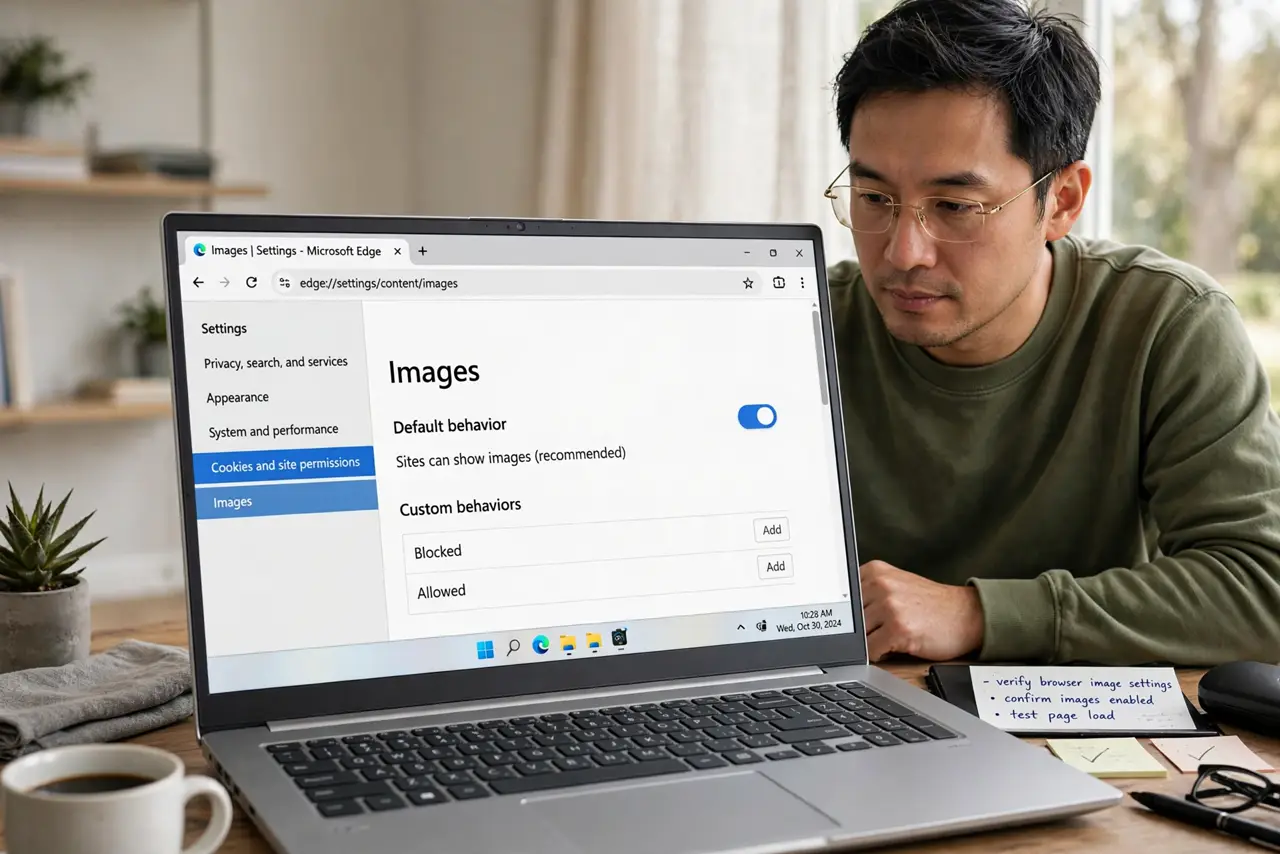
- Check the browser image setting. Open browser settings, find the site settings for images, and confirm images are allowed. A single changed setting here can hide every picture on every site.
- Test the page in a private window. Open a private window and load the same page. If images appear there, an extension or stored data in your normal window is blocking them.
- Turn off content-blocking extensions one at a time. Open Extensions and disable blockers one at a time, reloading the page after each change. When the pictures return, you have found the extension to adjust or remove.
- Clear stored data for that site only. Remove cookies and cached files for that one address, then reload. A damaged stored image file can make the browser show a blank box instead of fetching a fresh copy.
- Check the connection and the image host. Load a different site with pictures. If pictures fail everywhere, check your connection; if only one site fails, its image server may be down.
- Reset the zoom and reload. Press Ctrl + 0 to reset the zoom, then reload with Ctrl + F5. Extreme zoom or a stale page copy can both make images look missing when they are only misplaced.
What NOT to do
- Do not turn off your security software to load pictures. Images rarely need that, and the risk is not worth it.
- Do not allow all extensions on every site. Adjust or remove the one extension that blocks images instead.
- Do not clear all browsing data at once. Start with the one broken site, so you stay signed in elsewhere.
- Do not download a picture fixer from a pop-up. The browser already has the settings this fix needs.
Frequently asked questions
Why do images fail on one site only?
That site may use an image server that is down, or your stored data for that site may be damaged.
Can an ad blocker hide normal pictures?
Yes. Some blockers hide images that match a blocking rule, even when the picture is ordinary content.
Will clearing site data delete my photos?
No. It removes stored copies the browser kept for that site. Your own saved photos stay untouched.