Browser Page Loads Only Halfway? Fix It
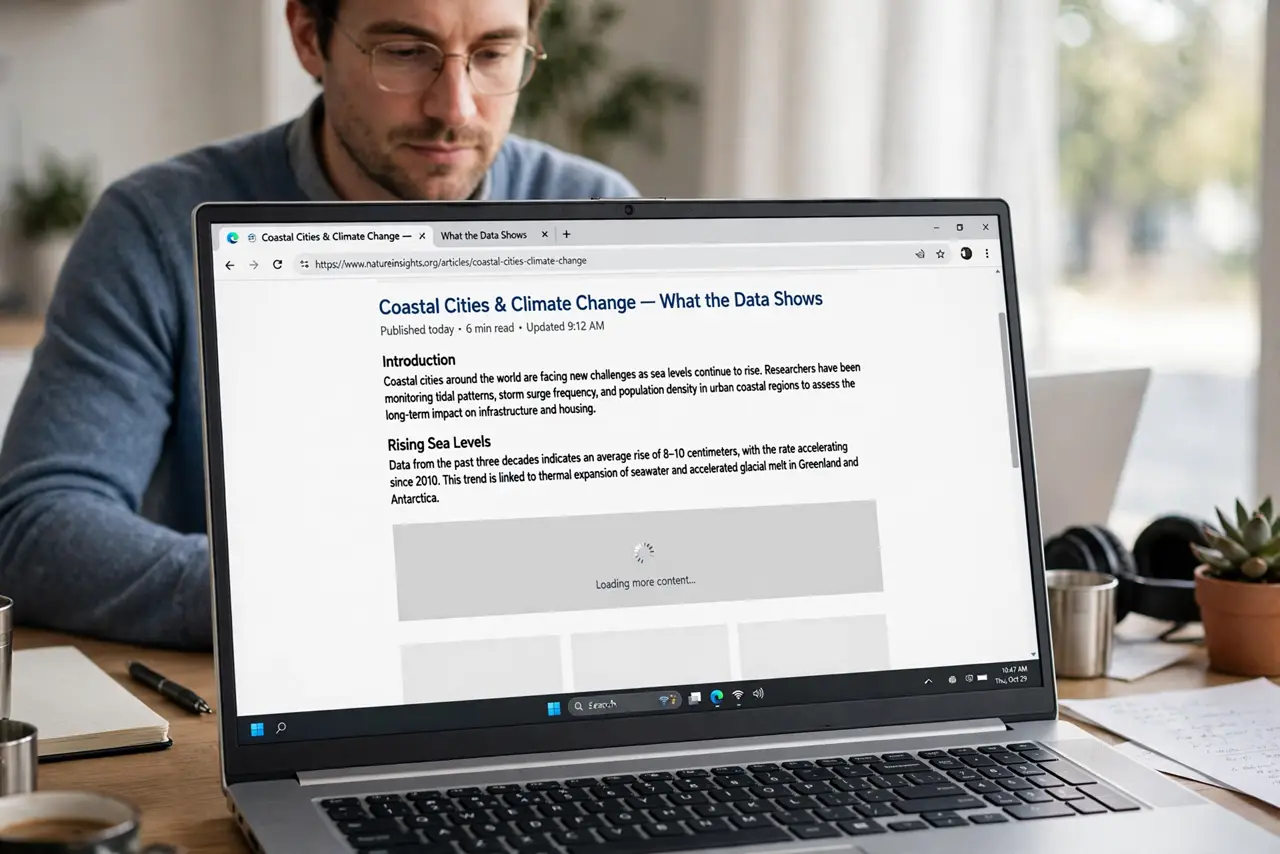
A page that stops halfway usually means one blocked resource or one stale stored file is holding up the rest. Work through the page itself first, then the browser, and you will usually find the culprit without reinstalling anything.
TL;DR / Quick Fix
Quick fix: reload the page with a hard refresh, then open it in a private window to rule out extensions and stored data. If it loads there, clear that site's stored data and disable extensions one at a time until the full page appears.
Follow these steps
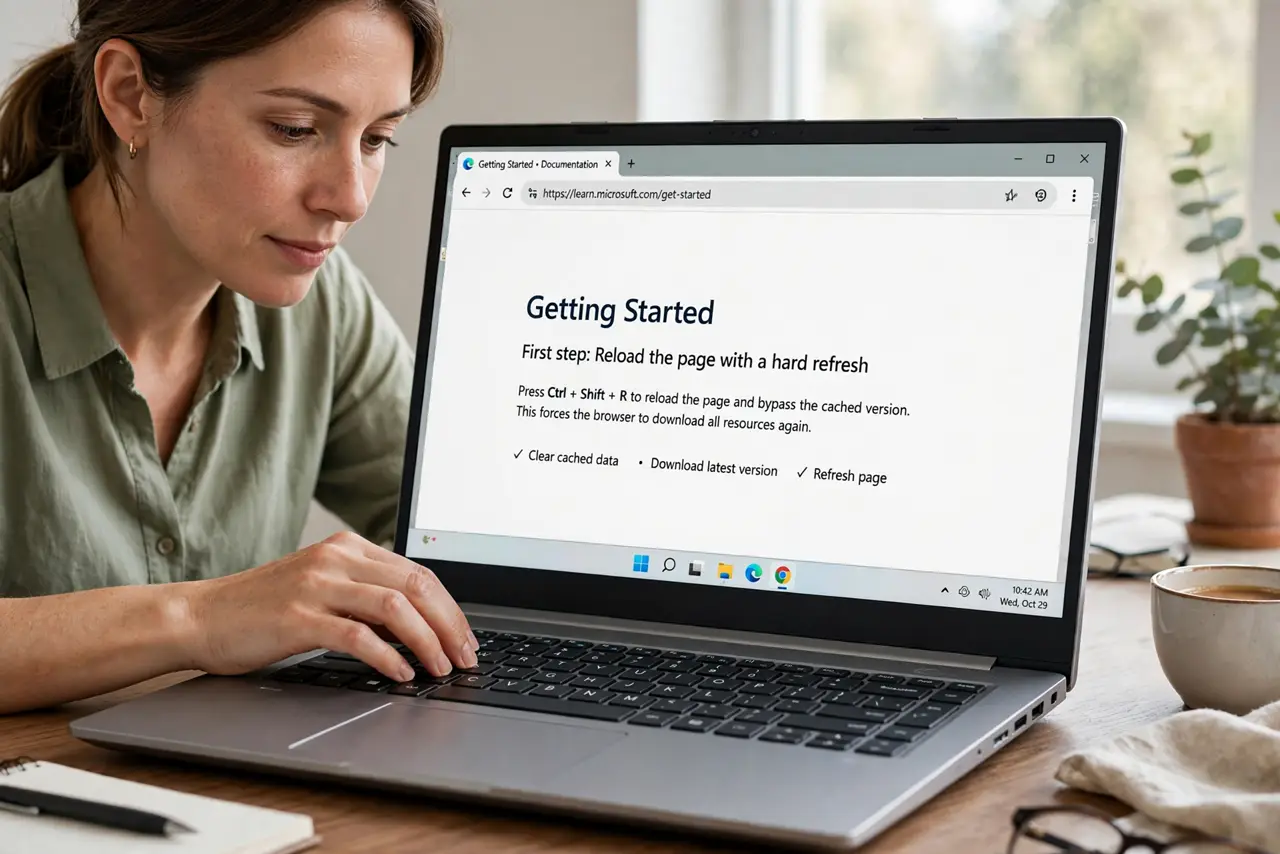
- Reload the page with a hard refresh. Press Ctrl + F5 on Windows, or Command + Shift + R on a Mac, to reload the page without its stored copy. A normal reload can reuse the same broken file, so a hard refresh is the honest first test.
- Try the page in a private window. Open a private window and load the same page. If it loads fully there, your extensions or stored site data are involved, and the page itself is probably fine.
- Clear stored data for that one site only. In browser settings, find the option to clear site data for a single site, and remove cookies and cached files for that address only. You keep your other logins while forcing this page to start fresh.
- Disable extensions one at a time. Open Extensions and turn off anything that blocks content, such as ad blockers or script blockers. Reload the page after each change, so you learn exactly which extension breaks it.
- Check your connection and the page on another device. Load the same page on your phone using mobile data. If it also stops halfway, the site itself may be having trouble, and waiting or contacting the site is the sensible next step.
- Reset the page zoom and window size. Press Ctrl + 0 to reset the zoom, then widen the window. A page can look half-loaded when a wide layout is squeezed into a narrow window or an extreme zoom level.
What NOT to do
- Do not reinstall the browser as a first step. A reinstall loses settings and rarely fixes a single half-loaded page.
- Do not allow every blocked script on an unfamiliar site. Only allow content on sites you trust, and only for that visit.
- Do not clear all browsing data for every site. Clear data for the one broken site first, so you do not sign out everywhere.
- Do not keep reloading for an hour. If the page fails the same way in a private window and on another device, the problem is likely on the site's side.
Frequently asked questions
Why does only one page load halfway?
Usually one resource on that page, such as a script or a style file, fails to load, and the rest of the page waits for it.
Does a hard refresh delete anything?
No. A hard refresh only reloads the current page without its stored copy. It does not delete passwords, bookmarks, or other sites' data.
What if every page loads halfway?
Then the cause is broader, such as a weak connection or a browser-wide extension, so test another browser and check your connection.