Add the Birthday Calendar
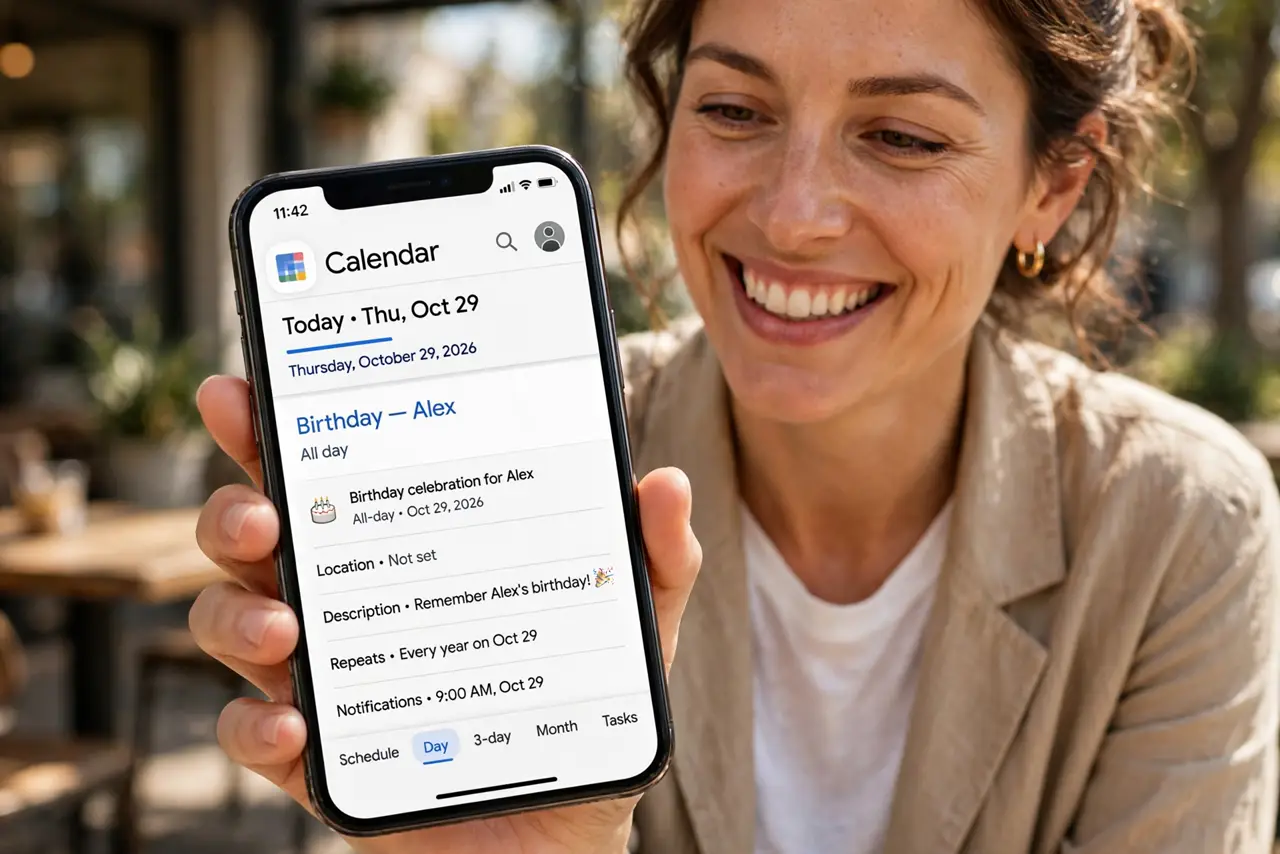
Forgetting a birthday is a small failure with outsized cost — and Google Calendar already knows most of them from your contacts. The birthday calendar surfaces them automatically as all-day events. Here is how to turn it on and keep it accurate.
TL;DR / Quick Fix
Quick fix: in Google Calendar go to Settings > Add calendar > Browse calendars of interest > Birthdays and subscribe. Birthdays from your Google contacts then appear as all-day events. Add missing birthdays in Google Contacts — the calendar only shows what contacts know.
Follow these steps
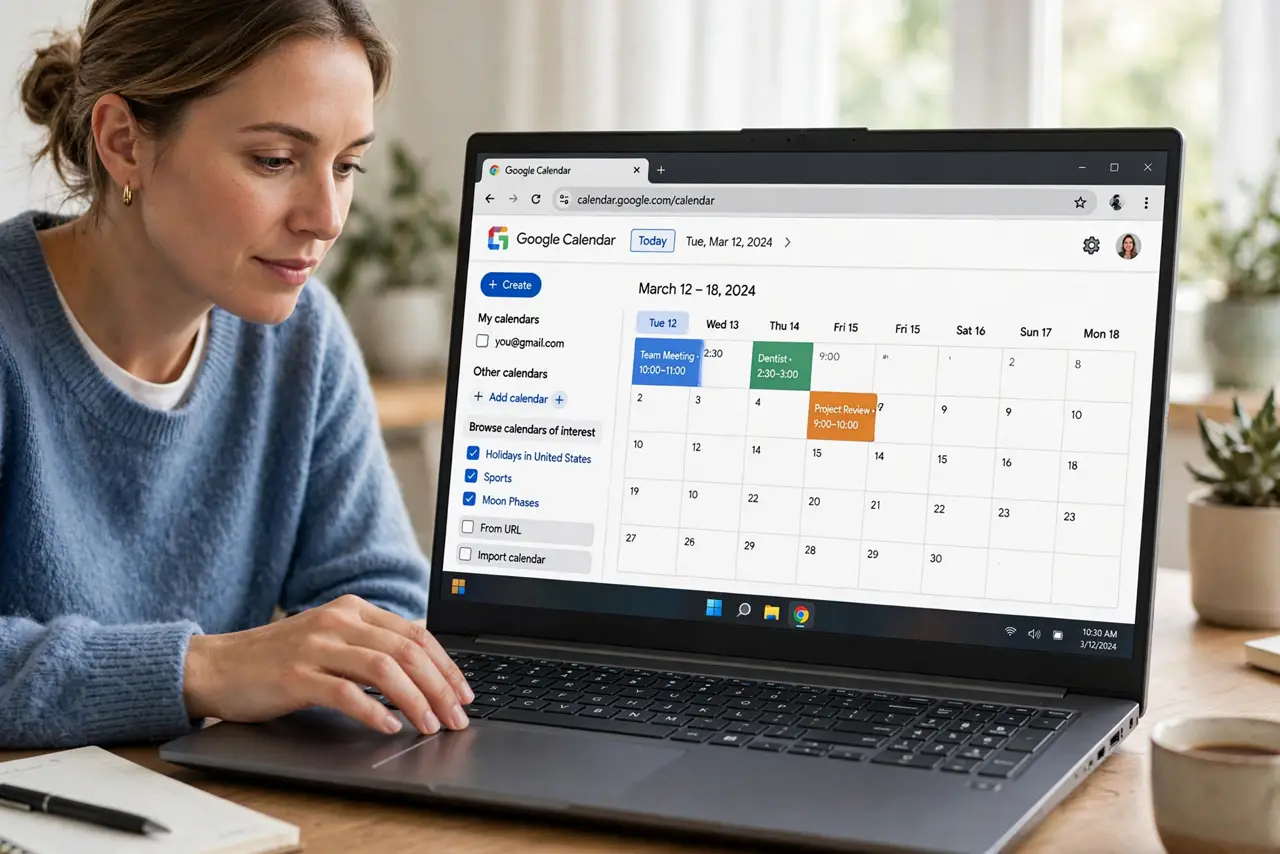
- Open the calendars of interest. In Google Calendar on desktop: Settings — the gear icon — then Add calendar > Browse calendars of interest.
- Subscribe to Birthdays. Check the Birthdays box. The calendar appears in your list and its events populate immediately.
- Check where birthdays come from. They come from Google Contacts entries with a birthday field. No contact birthday, no calendar event — simple as that.
- Add missing birthdays to contacts. Open Google Contacts, edit the person, and fill the Birthday field. The event appears on the calendar within minutes.
- Set a reminder, not just an event. All-day events are easy to miss. Add a notification a day before so you can actually buy the card.
- Hide it when it is noise. Uncheck the Birthdays calendar in the sidebar to hide it during work planning. Subscribing and displaying are separate.
What NOT to do
- Do not assume every birthday is there. The calendar mirrors contacts — audit the important ones.
- Do not rely on the all-day event alone. Without a reminder, you will see it at midnight and forget by morning.
- Do not add birthdays as regular events. They duplicate, do not repeat cleanly, and clutter.
- Do not forget contacts sync. A birthday added on the phone appears once contacts sync — check it did.
Frequently asked questions
Why is someone birthday missing?
Their contact has no birthday field filled, or you are looking at a calendar that does not include the Birthdays subscription. Check both.
Can I add birthdays for people not in my contacts?
Add them as contacts first — even a name-only contact with a birthday works.
Do birthday events sync to my phone?
Yes — once subscribed, they sync like any calendar. Make sure the Birthdays calendar is checked in the mobile app too.