Add Buffer Time Between Back-to-Back Meetings
Meetings end at 10 and the next starts at 10, so you sprint between calls with no breath. A buffer block between meetings gives you minutes to reset, and the calendar can add it almost automatically.
TL;DR / Quick Fix
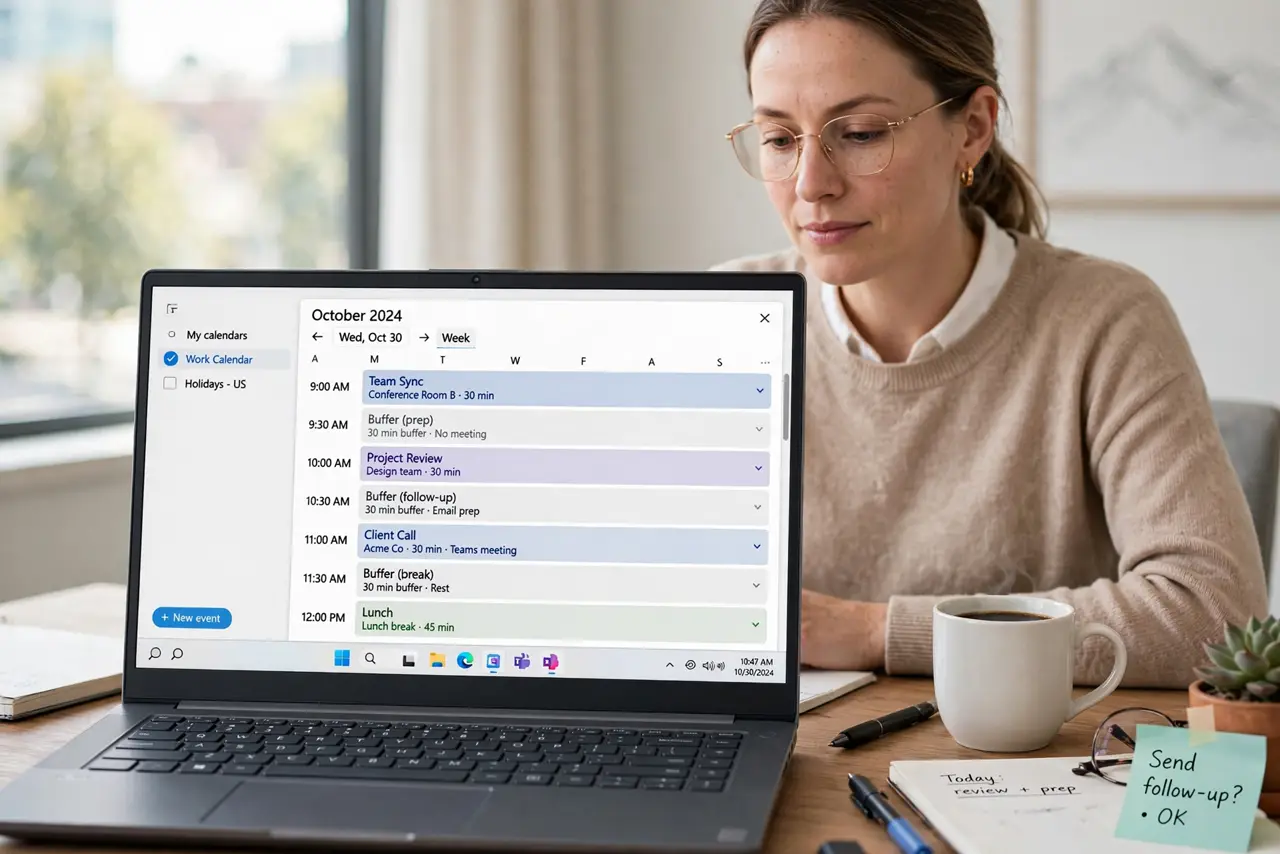
Quick fix: turn on automatic buffer time in your calendar settings if offered, or add short 10-minute blocks between meetings by hand. Then treat the buffer as busy, and enjoy arriving at each call ready instead of rushed and arrive at each call ready.
Follow these steps
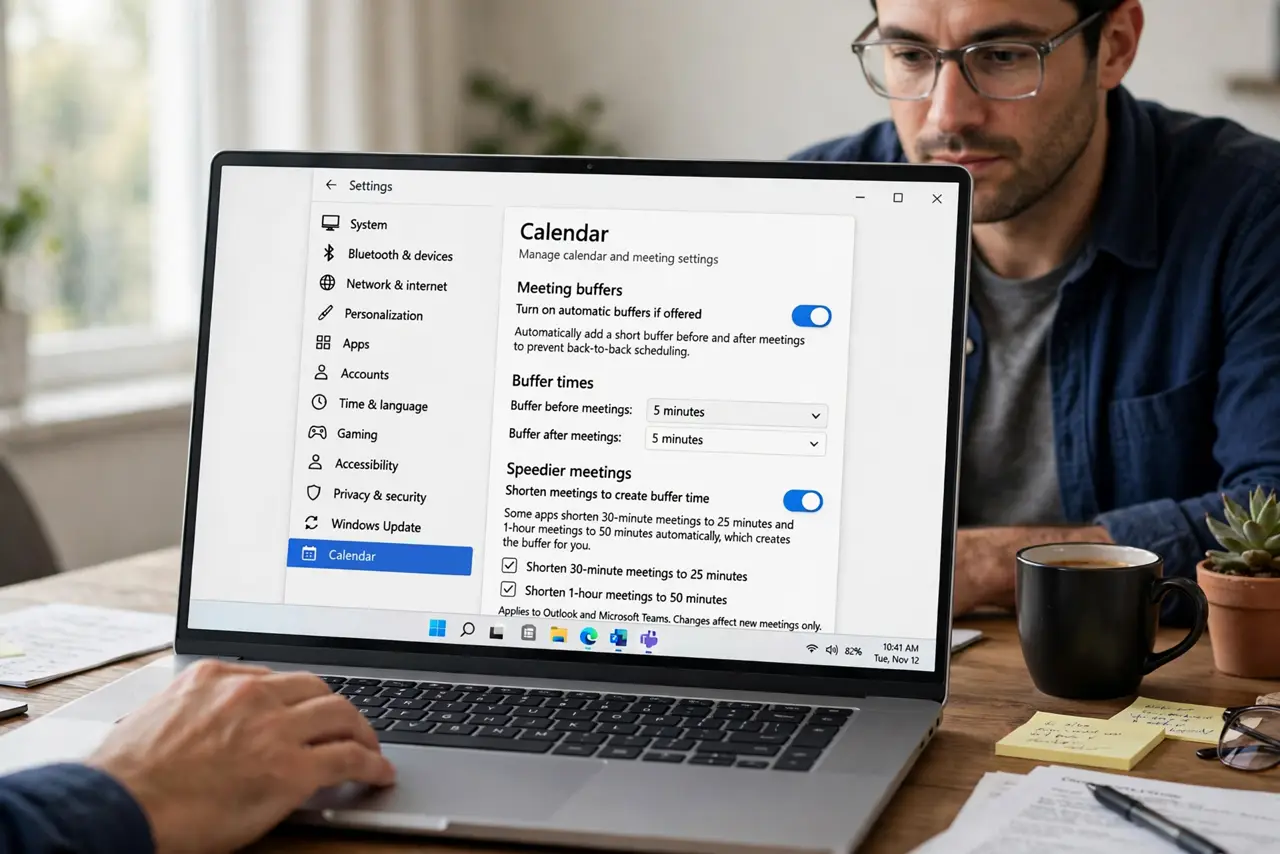
- Turn on automatic buffers if offered. Check your calendar settings for buffer time or speedier meetings. Some apps shorten 30-minute meetings to 25 automatically, which creates the buffer for you.
- Add manual buffers where automation lacks. Insert short events named Buffer between back-to-back meetings. Ten or fifteen minutes is enough to reset without wrecking the day.
- Mark buffers as busy. Set each buffer's status to busy. A free buffer gets booked over, while a busy one holds the gap.
- Shorten the meetings themselves. Try 25-minute and 50-minute meetings instead of 30 and 60. Shorter meetings end with a built-in gap, which beats adding blocks later.
- Use buffers for notes and water. Spend the gap writing down action items and standing up. A buffer used well makes the next meeting better, not just calmer.
- Review tomorrow each evening. Glance at the next day and confirm buffers sit between the heavy stretches. One evening check keeps the protection in place.
What NOT to do
- Do not stack meetings with zero gap. Back-to-back days drain you, and a small buffer costs little while helping a lot.
- Do not mark buffers as free. The gap only survives when the calendar shows you as busy.
- Do not fill buffers with quick tasks. Their job is recovery and notes, not squeezing in one more email.
- Do not expect others to add buffers for you. Your calendar is yours to protect, so set the gaps yourself.
Frequently asked questions
How much buffer time do I need?
Ten to fifteen minutes between meetings is enough for most days, with longer gaps around the hardest calls.
Can my calendar add buffers automatically?
Many can, through speedier meetings or buffer settings. Check your app, and add manual blocks where it cannot.
What should I do in the buffer?
Write action items, stand up, and breathe. Recovery now makes the next meeting sharper.