Keep Events Private on Shared Calendars
You share a calendar with family or colleagues, but not every event is everyone's business — a doctor's appointment, a job interview, a surprise party. Marking an event Private hides its details while keeping the time visibly blocked, so others see 'Busy' without seeing why. Here is how private events work on shared calendars.
TL;DR / Quick Fix
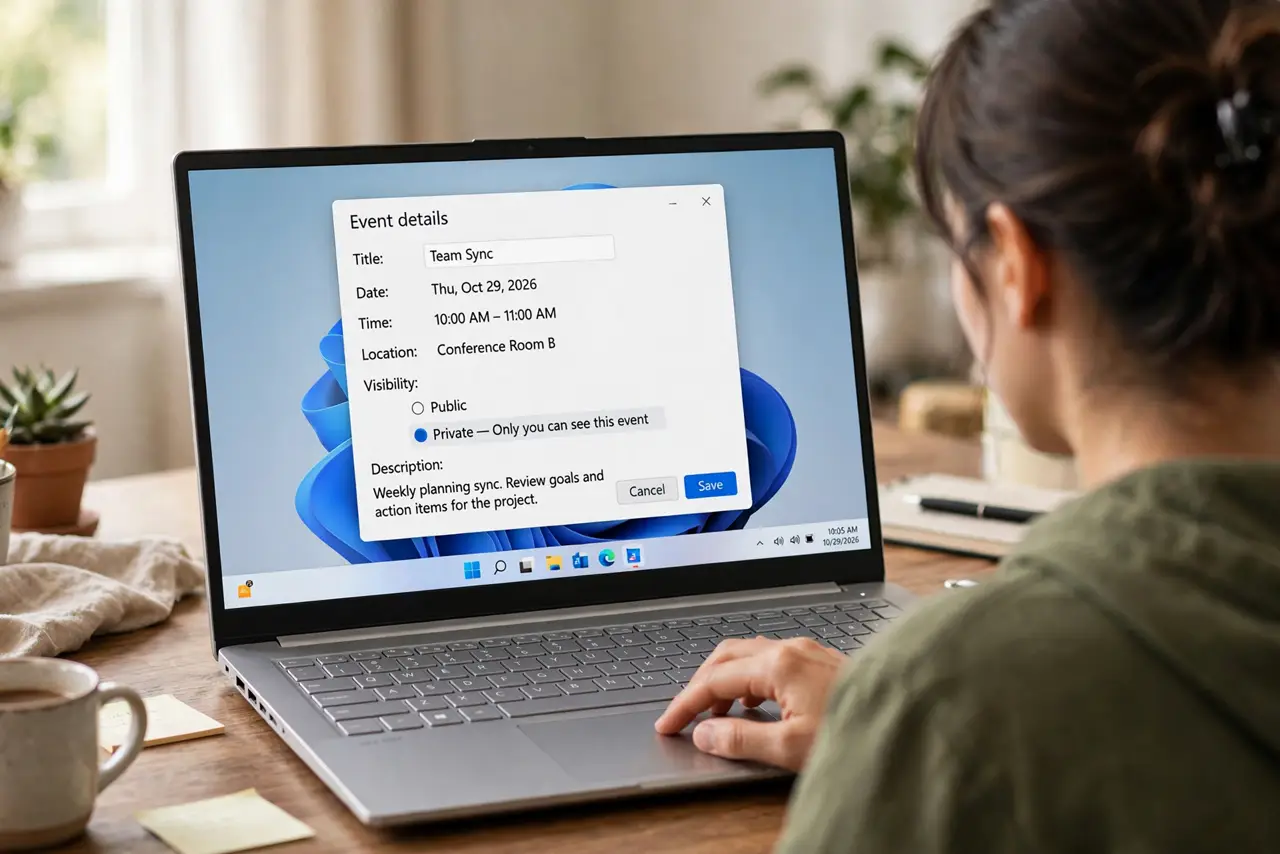
Quick fix: marking Private on a shared calendar hides its details while keeping the time blocked — others see Busy but not the title or notes. Open the event and set its visibility to Private. Note that delegates may still see details, so treat Private as discretion, not secrecy.
Follow these steps
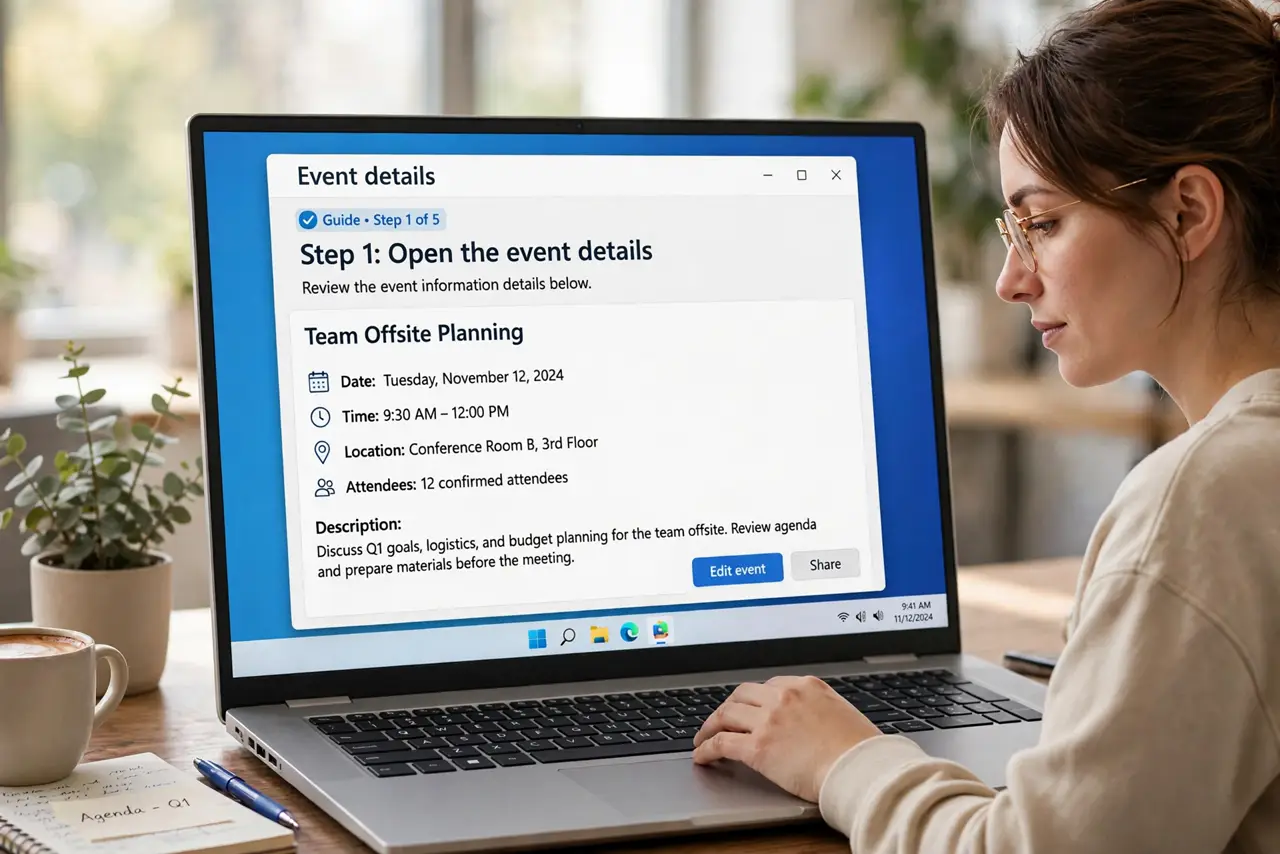
- Open the event details. Click the event on the shared calendar to open its full details — the visibility setting lives there, not in the quick view.
- Set visibility to Private. Choose Private (sometimes 'Private appointment') from the visibility or sensitivity dropdown, then save.
- Check what others see. Viewers with standard access now see only 'Busy' or 'Private Appointment' for that slot — no title, location, or notes.
- Know the limits. People with full delegate or owner access may still see details. Private hides from ordinary viewers, not from administrators or delegates.
- Use it for the right events. Medical appointments, interviews, surprises, personal errands — anything where the time matters to others but the reason does not.
- Do not overuse it. A shared calendar full of mysterious Busy blocks breeds suspicion. Reserve Private for genuinely sensitive items.
What NOT to do
- Do not treat Private as real secrecy. Admins, delegates, and sync quirks can expose details — never put truly sensitive information in the event at all.
- Do not mark everything private. A shared calendar where every block is hidden defeats the purpose of sharing.
- Do not forget private events still block time. Others cannot schedule over them — which is usually the point, but remember it cuts both ways.
- Do not rely on Private across different platforms. Visibility labels do not always translate cleanly between calendar systems — verify on the other side.
Frequently asked questions
Can my boss see my private events?
They see the Busy block, not the details — unless they have delegate access to your calendar, in which case details may show.
Does Private hide the event from meeting invites?
No — if you invite someone to the event itself, they see it normally. Private only affects viewers of the shared calendar.
What is the difference between Private and just not sharing?
Not sharing means others see free time and may book over it. Private keeps the time blocked while hiding the reason.