Calibrate Your TV Picture
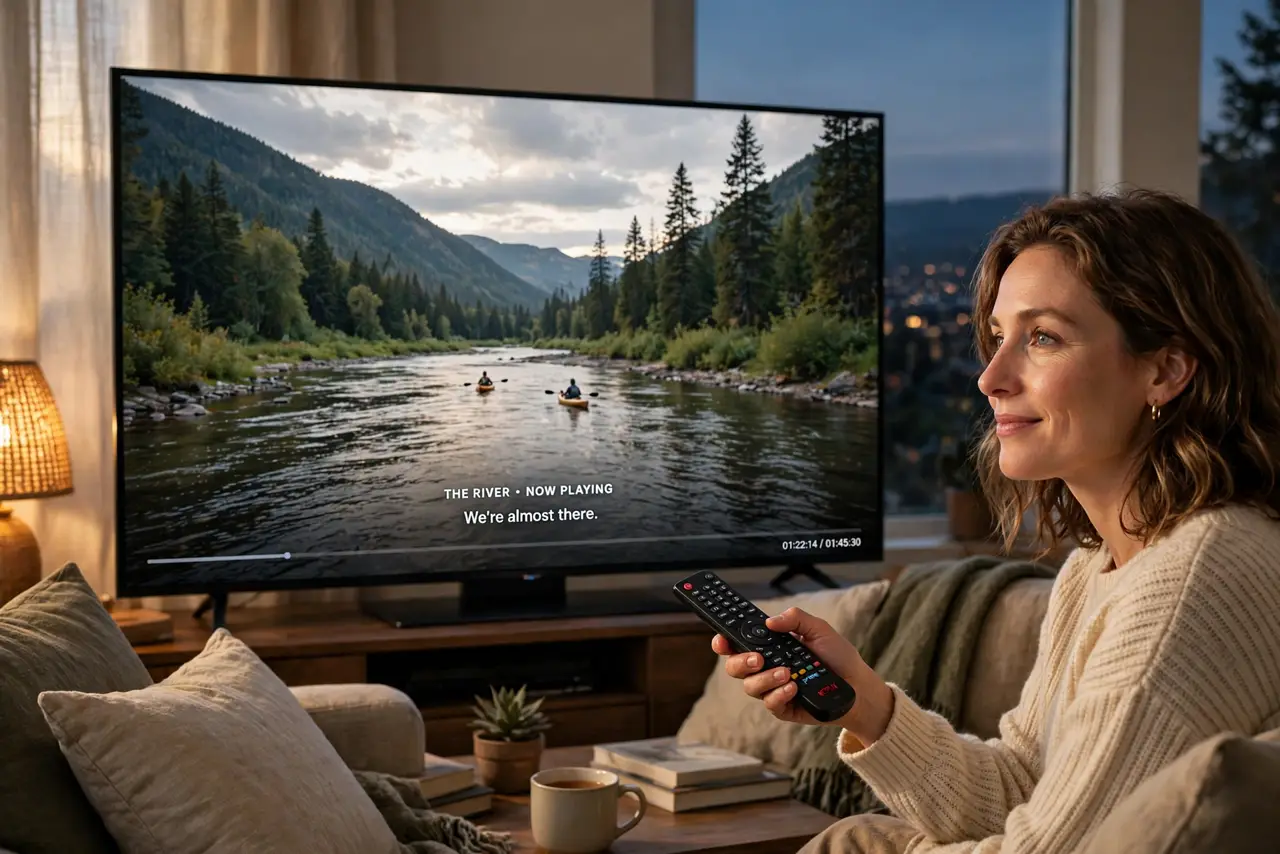
Your new TV makes movies look like cheap soap operas — hyper-smooth motion, waxy faces, colors that scream. That is the factory Vivid mode plus motion smoothing, tuned to win showroom wars under fluorescent lights, not to look right in your living room. Ten minutes with the picture settings fixes most of it; a free test-pattern video finishes the job. No professional calibrator required for the 90 percent fix.
TL;DR / Quick Fix
Quick fix: switch your TV from Vivid to Movie mode, turn off motion smoothing (the soap opera effect), and set brightness for your room — that fixes most bad pictures in two minutes. For the rest, use a free calibration pattern video. Note settings first so you can undo anything.
Follow these steps
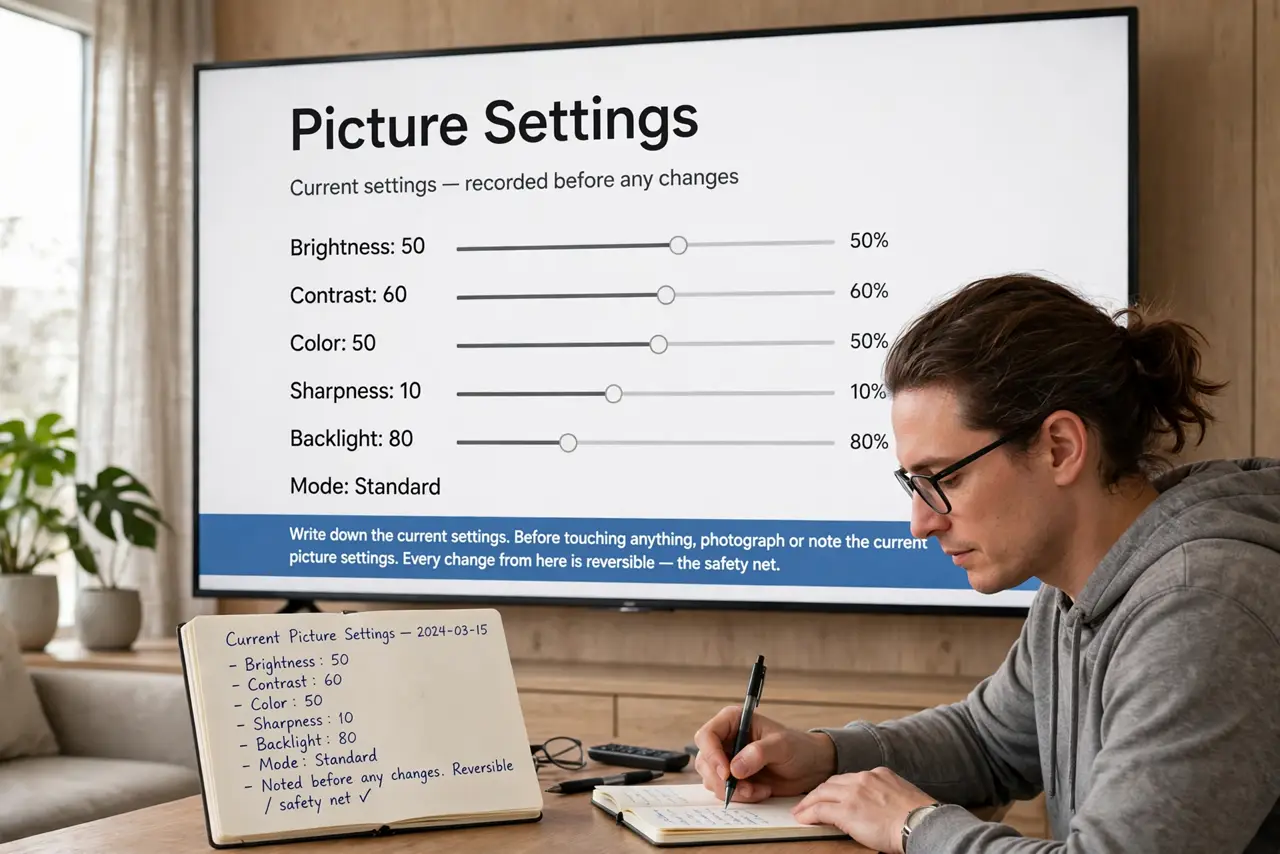
- Write down the current settings. Before touching anything, photograph or note the current picture settings. Every change from here is reversible — the safety net that makes experimenting stress-free.
- Switch out of Vivid/Dynamic. Change the picture mode to Movie, Cinema, or ISF — the accurate modes. Vivid exists to shout in showrooms; Movie aims at what directors actually mastered. This one change fixes half of all bad-picture complaints.
- Turn off motion smoothing. Find motion interpolation (TruMotion, MotionFlow, Auto Motion Plus — the name varies) and switch it off or to its cinema setting. This kills the soap opera effect: that uncanny hyper-smooth video look on films. Or simply use Filmmaker Mode, which does this plus more in one toggle.
- Set brightness for your room. In a dim room, lower backlight/brightness until blacks look black without crushing shadow detail. In a bright room, raise it enough to fight glare. Match the TV to the room, not to the showroom.
- Fix color temperature. Set color temperature to Warm or Warm2 — the closest to the cinema standard. Cool looks crisp in the store and blue-tinted at home; Warm looks yellowish for a day, then your eyes adjust and everything looks right.
- Use a test pattern for the fine tune. Play a free calibration-pattern video and adjust contrast, sharpness (usually down — factory sharpness adds halos), and color until the patterns look right. If HDR content looks off afterward, check Dolby Vision basics before assuming the calibration failed.
What NOT to do
- Do not leave motion smoothing on for movies. The soap opera effect is the single most common why does my TV look weird complaint — off is the fix.
- Do not crank sharpness to maximum. Factory sharpness adds edge halos and noise; the correct setting is usually near zero on modern TVs.
- Do not calibrate in a bright room for night viewing. Settings are room-dependent — use separate day and night picture modes if your TV offers them.
- Do not pay for calibration before trying this. Professional calibration is lovely, but the free ten-minute version captures most of the improvement.
Frequently asked questions
What is the soap opera effect?
Motion smoothing interpolates extra frames, making 24fps film look like 60fps video — hyper-real and cheap-looking. Directors hate it; turning it off restores the cinematic look.
Movie mode looks dim and yellow — is that right?
Yes, at first. Your eyes are adapted to torch mode; give Warm color temperature a day. What looked yellow becomes natural, and Vivid starts looking neon.
Should different inputs have different settings?
Ideally yes — most TVs store picture settings per input. Calibrate the movie input for cinema, the console input for game mode, the sports input brighter.