'No Cable Connected' but It's Plugged In?
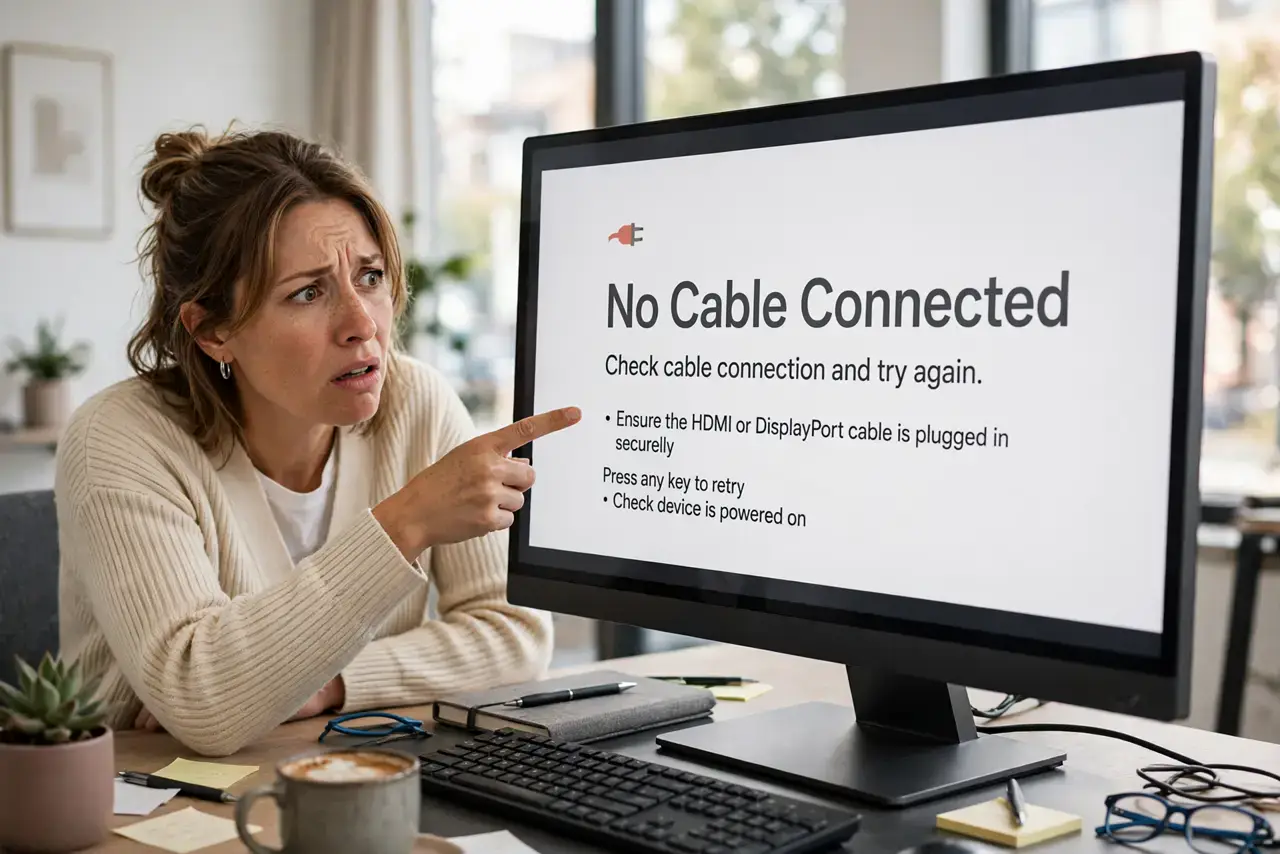
Your monitor insists 'No Cable Connected' while the cable sits firmly plugged in — infuriating, but the message only means the monitor detects no valid signal, not that the cable is physically absent. The fix is a systematic hunt through input source, cable, and port, much like chasing no-signal ghosts.
TL;DR / Quick Fix
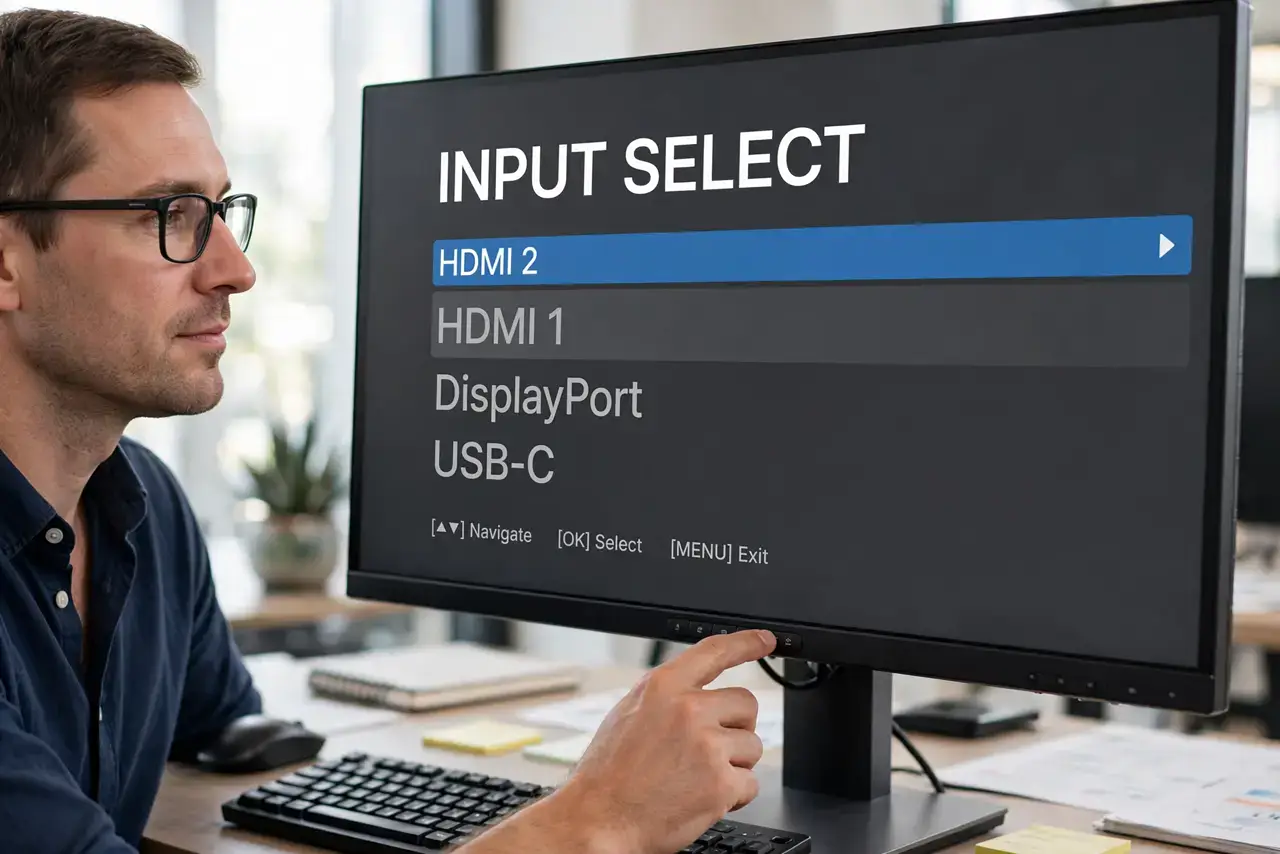
Quick fix: press the monitor's input button and manually select the correct input — auto-detect often picks wrong. Then unplug and firmly reseat both cable ends, and try a different cable. If the message persists, test another monitor to find whether the computer or display is at fault.
Follow these steps
- Select the input manually. Use the monitor's buttons to open the input menu and choose the right port (HDMI 1, DisplayPort, etc.). Auto-source detection fails more often than makers admit.
- Reseat both cable ends. Unplug the cable completely at both ends, check for bent pins or debris, then plug back in firmly until it seats fully.
- Try a different cable. Cables fail invisibly — a broken wire inside looks identical to a good one. A known-good spare cable rules this out in seconds.
- Try a different port on each end. Move to another port on the monitor and another output on the computer. One bad port on either side produces exactly this message.
- Power-cycle the monitor. Unplug the monitor's power for 30 seconds, then plug back in. A confused input controller sometimes needs a full reset to detect signals again.
- Test with another display. Connect the computer to a TV or borrow a monitor. A picture there proves the computer is fine and your monitor's input board is the problem.
What NOT to do
- Do not force a stiff connector. Forcing a DisplayPort or HDMI plug can bend pins or crack the port — if it resists, check the orientation.
- Do not trust the message literally. 'No Cable Connected' means 'no valid signal detected,' which includes wrong input, dead ports, and sleeping computers.
- Do not buy an expensive cable as the first fix. A basic certified cable from a reputable brand beats a pricey exotic one for troubleshooting.
- Do not overlook the computer being asleep. A deeply sleeping computer sends no signal, and the monitor truthfully reports none — wake the PC first.
Frequently asked questions
The cable is new — can it still be bad?
Yes. New cables can be defective, and 'new' from a bargain bin is no guarantee. Test with a different known-good cable regardless.
Why does the wrong input get selected?
Monitors with multiple ports guess which has a signal, and they guess wrong — especially after the computer sleeps or reboots.
Could my graphics card be dead?
Possible but uncommon. The another-display test answers it definitively: no picture anywhere means the computer's output is the problem.