Fix a Missing Camera Permission for One App
When your camera works in one app but not another, the app itself is rarely broken. Windows usually has the camera blocked for that one app, or another app is already using it. Check permissions before you reinstall anything.
TL;DR / Quick Fix
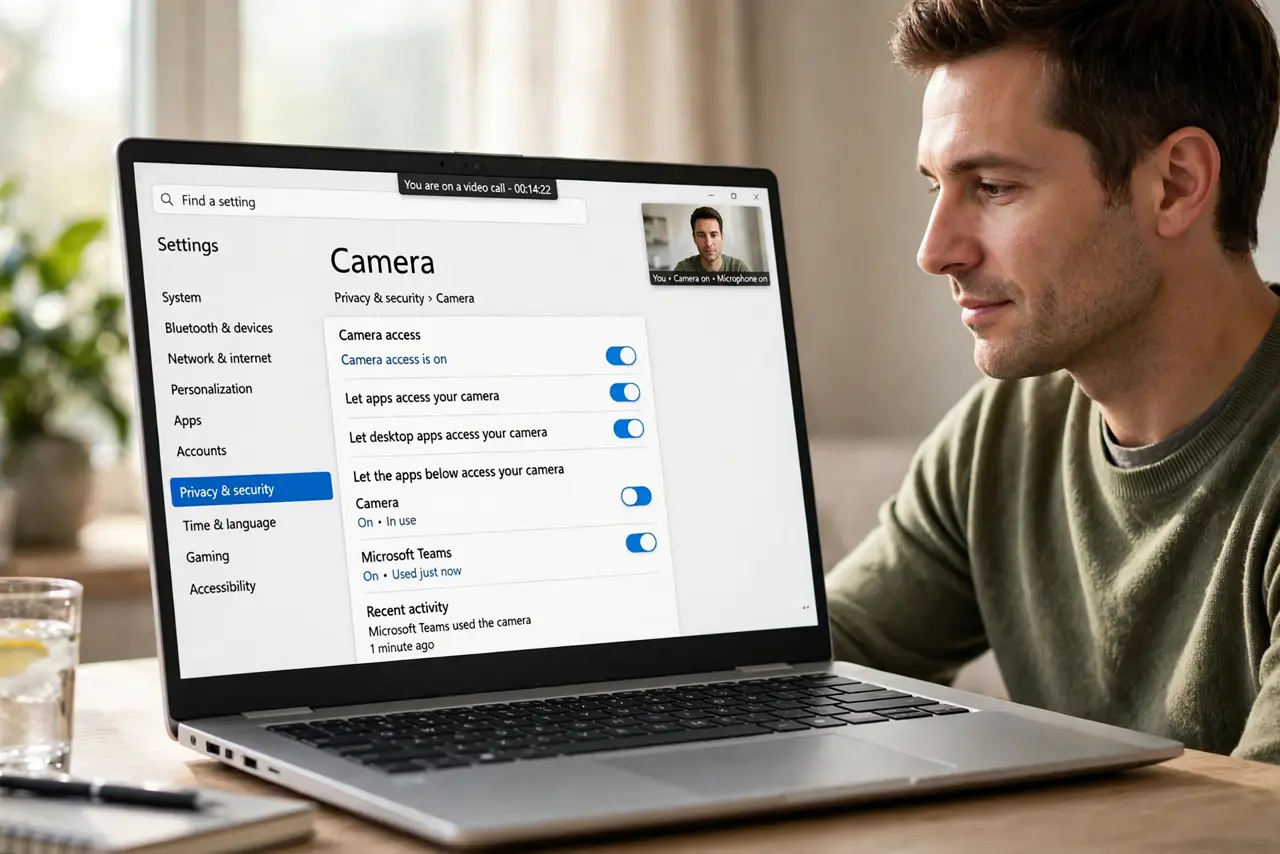
Quick fix: open Settings, then Privacy and security, then Camera, and make sure camera access and the app switch are both on. Then close other apps that might use the camera, restart the problem app, and test the camera again before reinstalling anything.
Follow these steps
- Check camera access in Settings. Open Settings, then Privacy and security, then Camera. Make sure camera access is on at the top, or no app will be able to use the camera at all.
- Turn on the switch for that one app. On the same Camera page, scroll to the app list and turn on the switch for the app that cannot see the camera. Some apps only appear here after you first try to use the camera in them.
- Close other apps using the camera. Close video calling apps, camera apps, and browser tabs that may hold the camera open. Windows usually gives the camera to one app at a time.
- Restart the problem app. Fully close the app, not just its window, then open it again and allow camera access if it asks. A restart makes the app re-check the permission it was denied earlier.
- Test the camera in the built-in Camera app. Open the Windows Camera app and check whether it shows a picture. If it does, the camera hardware works and the problem is the app permission, not the camera.
- Restart the computer if the switch is missing. If the app never appears in the permission list, restart the computer, open the app, and try the camera again so Windows registers the app's request.
What NOT to do
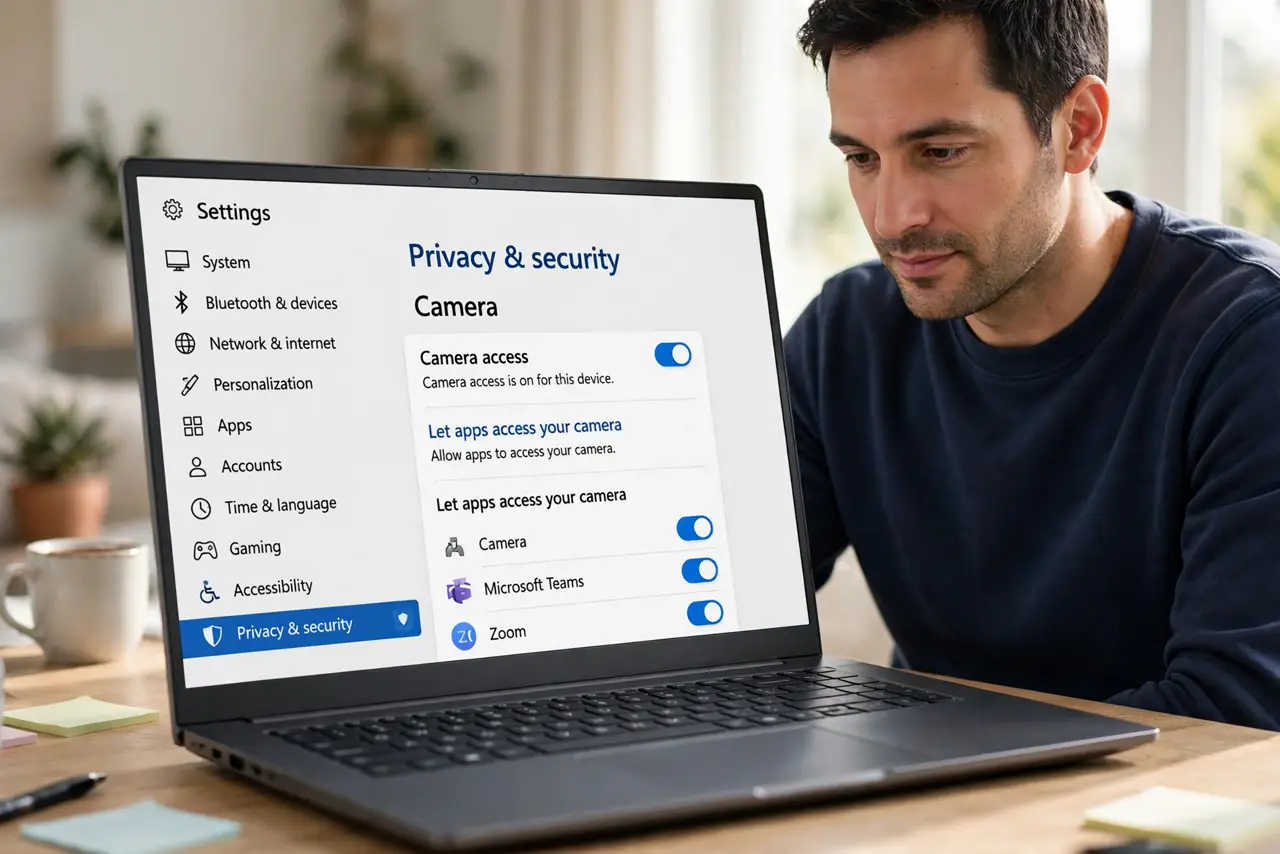
- Do not reinstall the app first. Reinstalling rarely restores a Windows permission, and you may lose the app's settings for no benefit.
- Do not turn camera access on for every app. Turn it on only for the apps you actually want to use the camera, and leave the rest off.
- Do not change registry settings or install a camera fixer tool. Camera permissions are a Settings change, and extra tools can cause new problems.
- Do not assume the camera is broken. Test it in the built-in Camera app first, since a working picture there rules out a hardware fault.
Frequently asked questions
Why does the camera work in one app but not another?
Windows lets you allow the camera app by app, so one app can be blocked while another is allowed.
What if the app never appears in the permission list?
Open the app and try to use the camera, then check Settings again. Windows often lists an app only after it first asks for the camera.
Can two apps use the camera at the same time?
Usually not on Windows. Close the first app fully before opening the second one.