Fix Location Permission Stuck Off on Windows
When maps, weather, or another app cannot find where you are, Windows location may be off at a level above the app. There are two switches to check: one for the whole device and one for each app. Check them in order.
TL;DR / Quick Fix
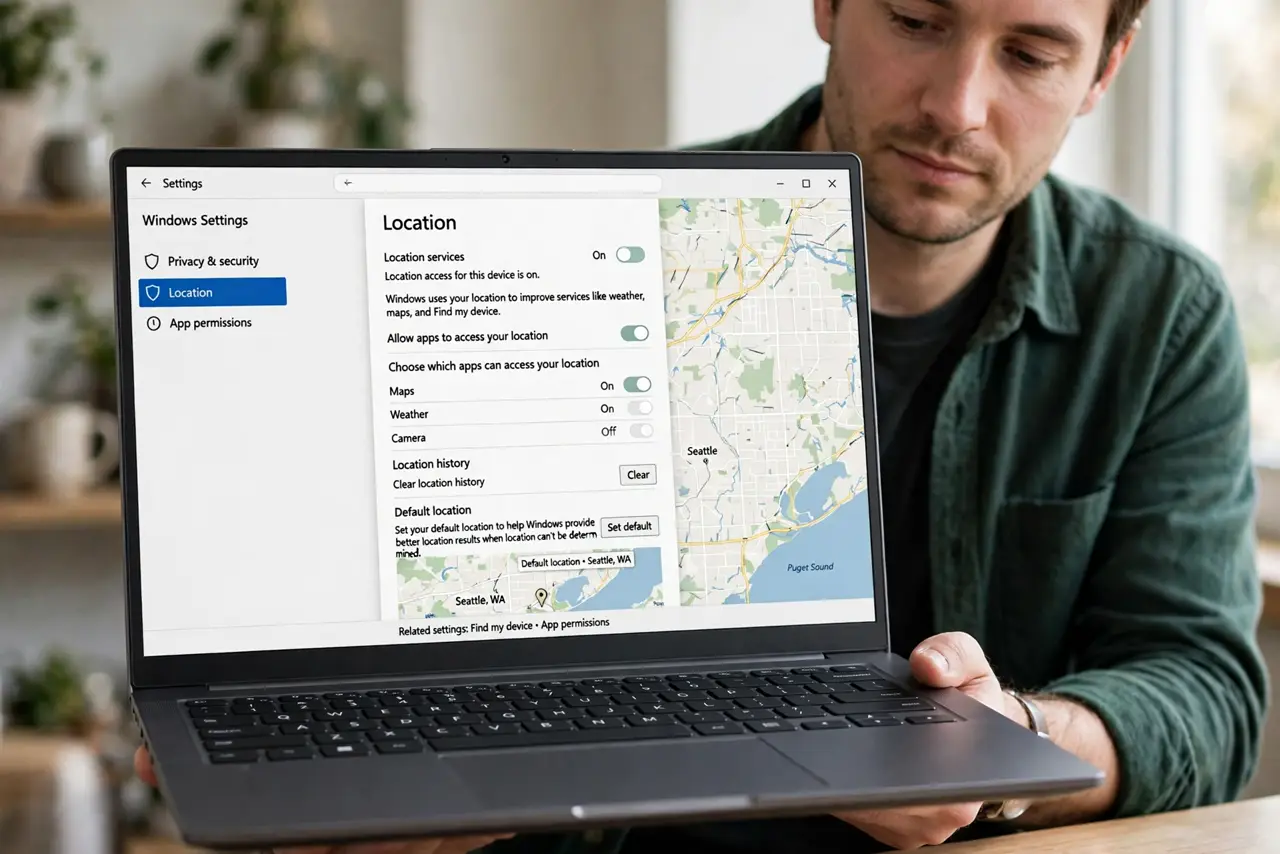
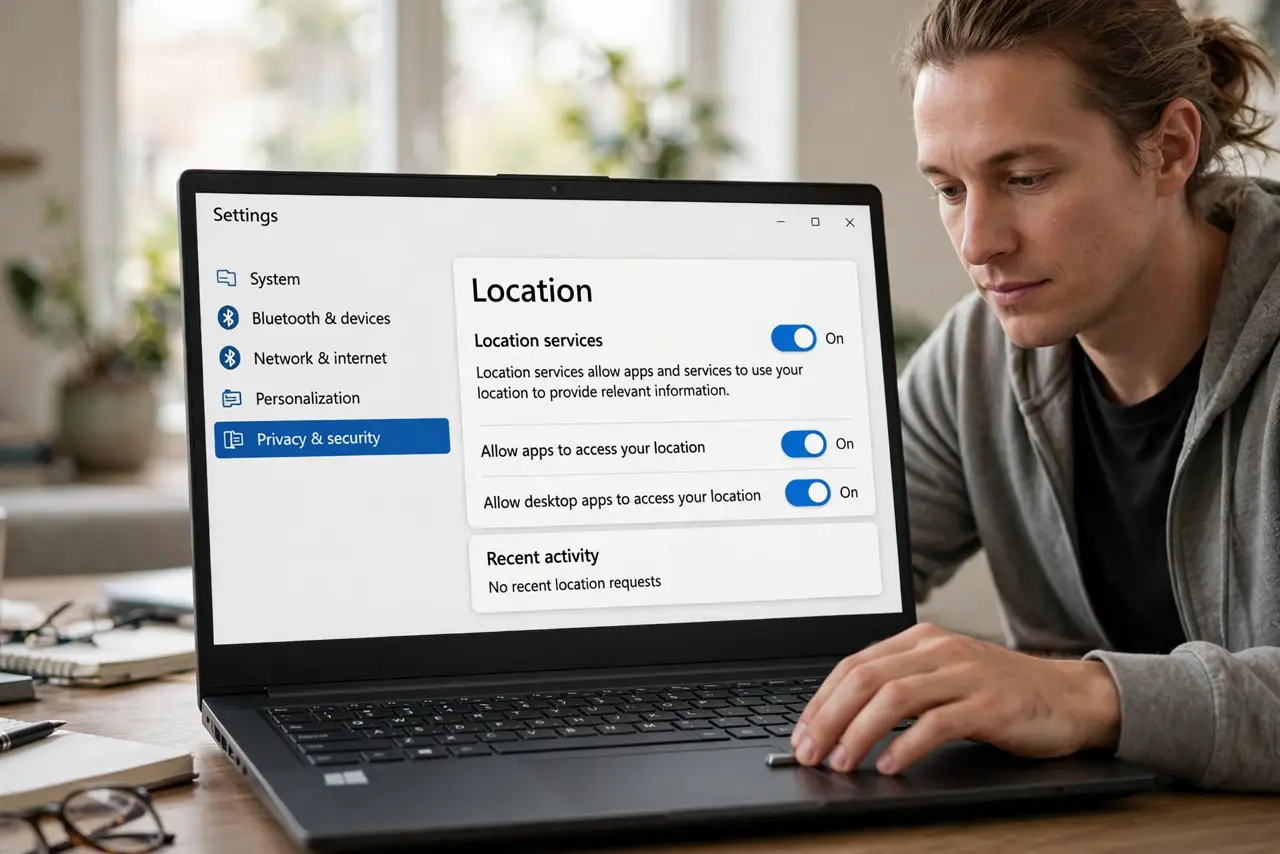
Quick fix: open Settings, then Privacy and security, then Location, and turn on Location services. Then turn on location for the app you need, restart that app, and test again. If the switch is grayed out, check whether an administrator or work policy controls it.
Follow these steps
- Turn on Location services. Open Settings, then Privacy and security, then Location, and turn on Location services at the top. Without this main switch, no app can use location.
- Allow location for the specific app. On the same Location page, find the app in the list and turn its switch on. An app with its own switch off will still show no location even when Location services are on.
- Check the default location setting. If Windows offers a default location option, make sure it is set sensibly for your area. A wrong default can place you in the wrong city in apps that use it.
- Restart the app that needs location. Fully close the app, then open it again and allow location if it asks. Apps check permission when they start, so a change made while the app is open may not register.
- Test with the Maps app. Open the Maps app and check whether it finds your area. If Maps works, the device location works and the problem is the first app's own setting.
- Check for a work or school policy. If the Location switch is grayed out, the computer may be managed by a workplace or school. In that case, ask your administrator, since you may not be able to change it yourself.
What NOT to do
- Do not turn location on for every app. Allow it only for apps that genuinely need to know where you are, and keep the rest off.
- Do not reinstall the app first. A stuck location permission is a Windows privacy setting, and reinstalling will not change it.
- Do not change system policies or registry settings to force location on. That can break other settings and will not help if a workplace policy controls the device.
- Do not share your exact location in public apps to test it. Test with Maps on your own screen instead.
Frequently asked questions
Why is location off even though I allowed it in the app?
The app switch cannot work if the main Location services switch above it is off, so check that first.
Does turning location on drain the battery?
Location can use extra power when apps track it constantly, so allow it only for apps that need it and close them when done.
What if the switch is grayed out?
The device may be managed by a workplace or school policy. Ask your administrator rather than forcing the setting.