Charger Plugged In but Not Charging? Fix It
When the charger is plugged in but the battery does not charge, the cause is often the outlet, the cable, or a loose port, and each is easy to test. Work through them in order, and do not buy a new battery first.
TL;DR / Quick Fix
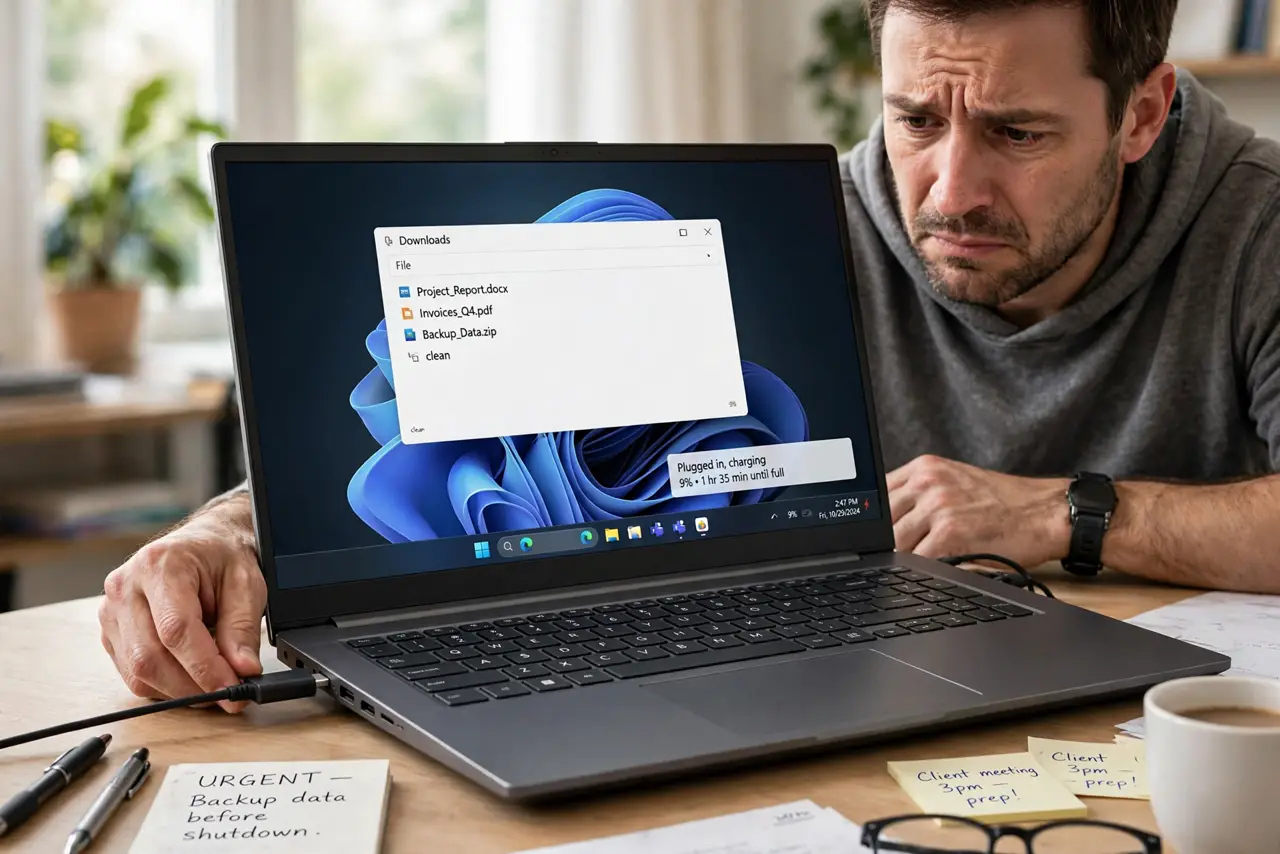
Quick fix: unplug the charger from the wall and the laptop, wait a few seconds, and plug it back in firmly at both ends. Try a different wall outlet, then check the battery icon. If it still says plugged in but not charging, try another charger that matches the laptop.
Follow these steps
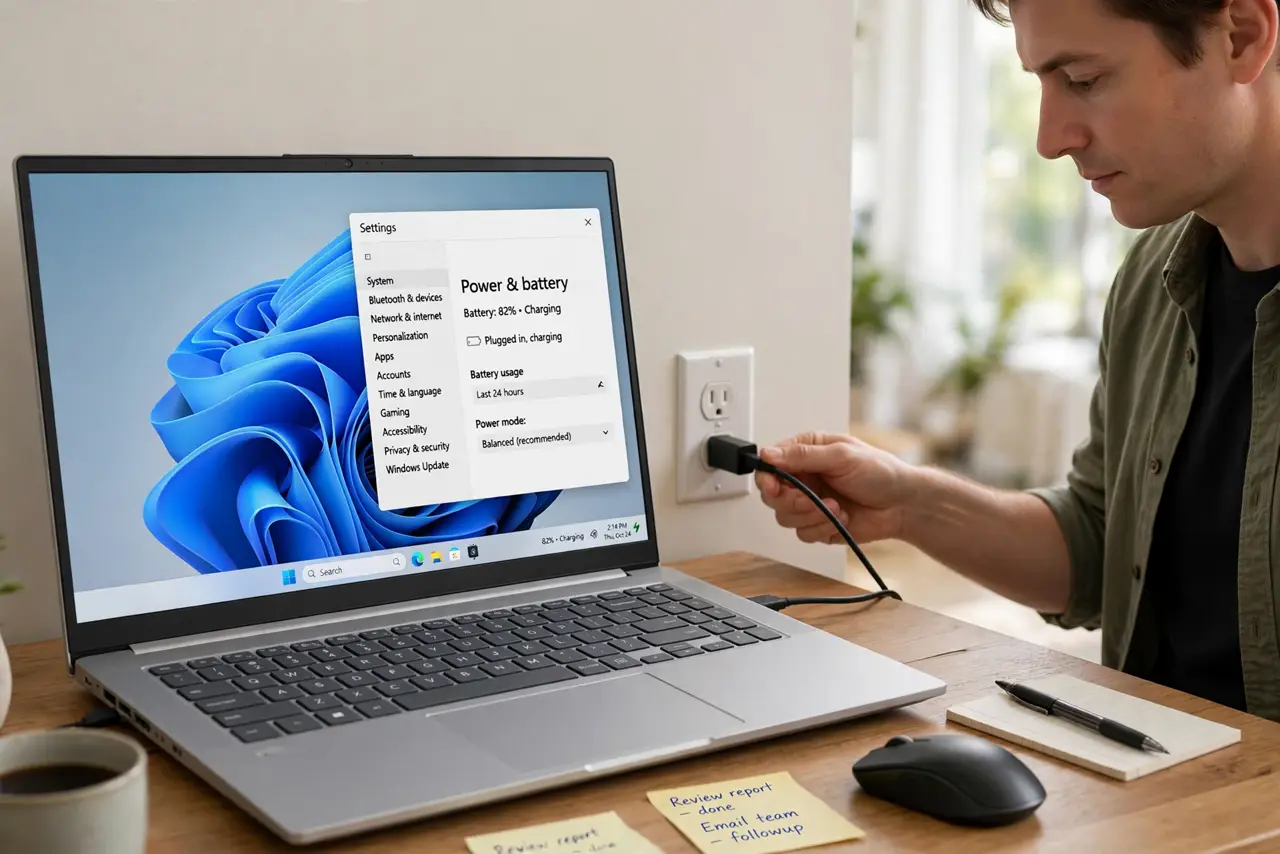
- Try a different wall outlet. Plug the charger into a different outlet that you know works, such as one a lamp uses. A dead outlet or a switched-off power strip is a common cause.
- Reseat both ends of the charger. Unplug the charger from the wall and from the laptop, then plug both ends back in firmly. A half-seated connector can power the laptop without charging the battery.
- Inspect the cable and port gently. Look for a frayed cable, a bent connector, or dust in the charging port. Clean dust gently with the laptop off, and stop using a frayed cable.
- Try another matching charger. Borrow a charger made for the same laptop model. If it charges, your charger is the fault. If it does not, the laptop port or battery needs checking.
- Restart and check the battery icon. Restart the laptop with the charger plugged in, then hover over the battery icon. Note whether it says charging, plugged in, or nothing at all.
- Check battery health in a report. Generate a battery report and check full charge capacity. If the battery is heavily worn, it may refuse to charge even with a good charger.
What NOT to do
- Do not use a frayed or damaged charger. A damaged cable can overheat or short, and it is not worth the risk to save a replacement.
- Do not force a charger into a loose port. Forcing it can damage the port further and turn a simple repair into a bigger one.
- Do not buy a new battery before testing the charger. A charger fault is cheaper and more common, and a new battery will not fix a dead charger.
- Do not open the laptop to reseat the battery unless you know the model and safe steps. Sealed laptops need a repair shop for internal battery work.
Frequently asked questions
It says plugged in, not charging. What does that mean?
The laptop sees power but is not charging the battery. Check the charger, the outlet, and the battery health in that order.
Can a power strip cause this?
Yes. A switched-off strip, a tripped strip, or a weak strip can cut power. Plug the charger directly into a wall outlet to test.
Should the laptop work with the charger but no battery?
Many laptops run on charger power alone, but not all. If yours does not, do not judge the charger by that test alone.