ChromeOS vs Windows?
You need a simple, cheap laptop for everyday life — browsing, email, documents, video calls — and two options compete: a Chromebook running ChromeOS or a budget Windows laptop. One is simpler, faster, and more limited; the other does everything but demands more care. For simple needs the choice is closer than the price gap suggests.
TL;DR / Quick Fix
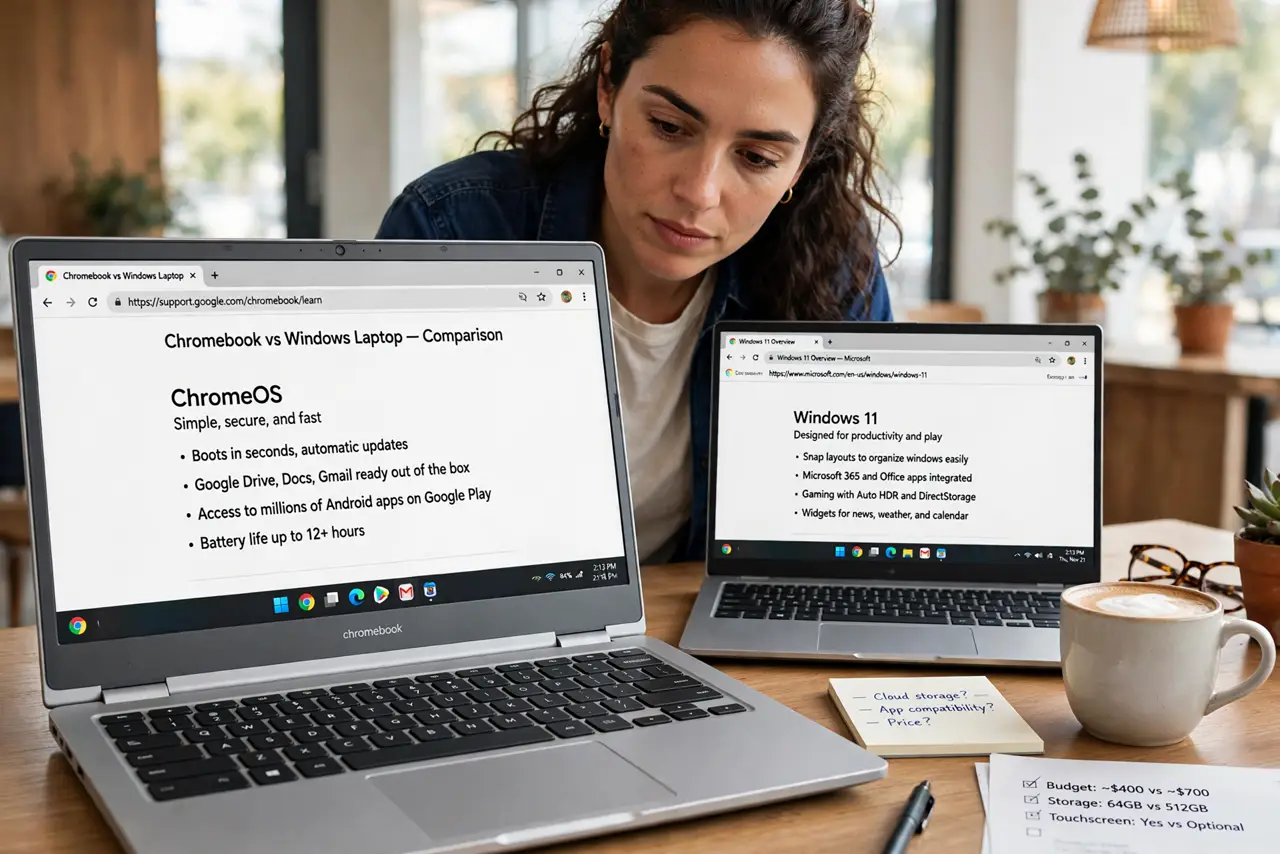
Quick fix: pick ChromeOS if your needs are browser-based — email, docs, streaming, calls — and you value speed, simplicity, and low maintenance. Pick Windows if you need specific desktop software, even occasionally. For truly simple needs, the Chromebook usually wins on ease.
Follow these steps
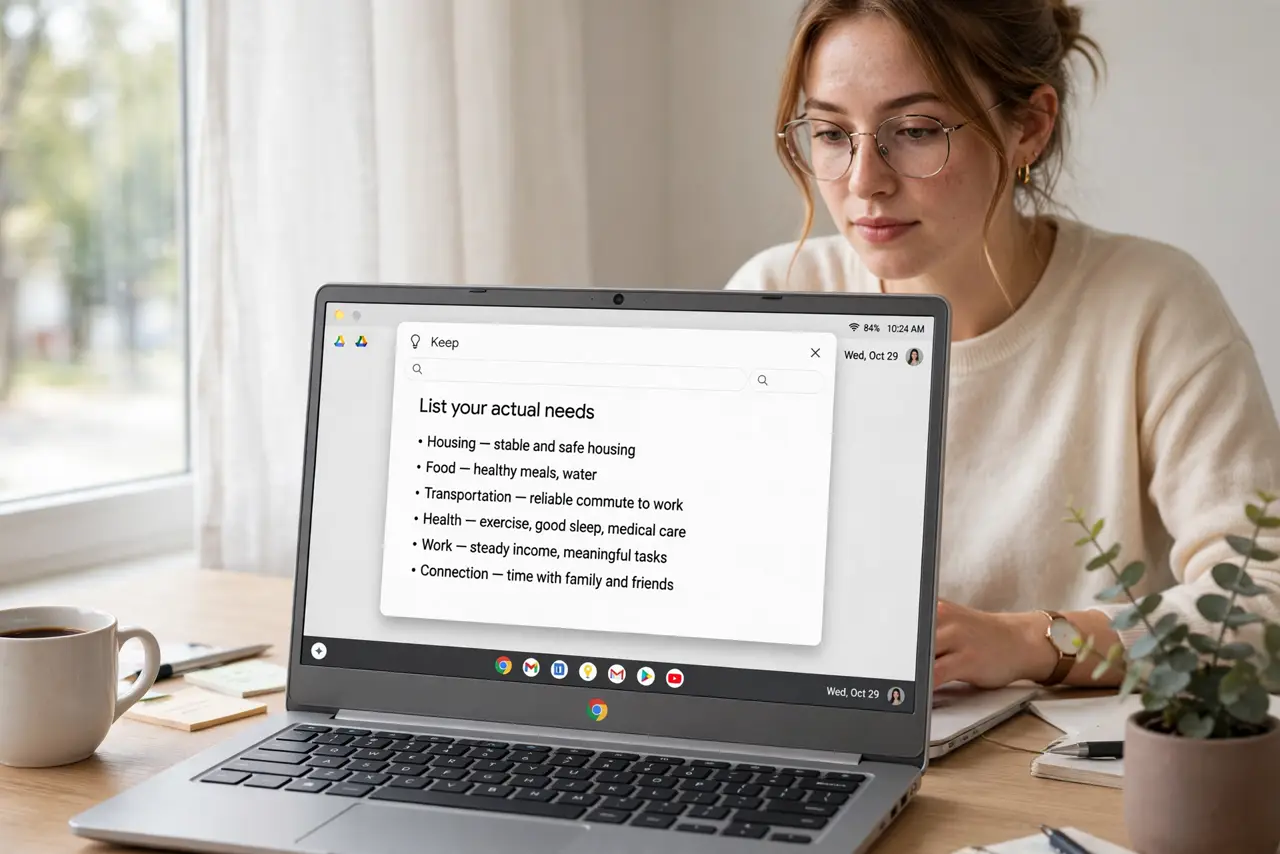
- List your actual needs. Write down everything the laptop must do. If the list is browser, email, documents, streaming, and video calls, both options qualify — and simplicity becomes the tiebreaker.
- Check for dealbreaker software. One Windows-only program — tax software, a work VPN client, a specific app — settles it instantly. ChromeOS cannot run Windows desktop software, full stop.
- Compare the maintenance burden. ChromeOS updates silently, resists malware by design, and never needs driver hunts. Windows needs active maintenance: updates, antivirus attention, and occasional troubleshooting.
- Weigh the price honestly. Chromebooks cost less upfront and hold their speed longer on weak hardware. Budget Windows laptops start cheap but can feel sluggish sooner — compare real-world speed, not specs.
- Consider who will use it. For kids, grandparents, and the tech-averse, ChromeOS's simplicity is a feature, not a limitation. For tinkerers and students needing specific tools, Windows's flexibility wins.
- Test-drive before committing. Borrow or demo both for your actual tasks. Thirty minutes of real use reveals more than any comparison — especially how each handles your must-have websites.
What NOT to do
- Do not buy Windows for needs ChromeOS covers. Paying more for capability you will never use is not future-proofing — it is overspending.
- Do not buy ChromeOS hoping Windows software will work. Compatibility workarounds are for emergencies, not daily workflows.
- Do not ignore the update expiry on Chromebooks. Check the Auto Update Expiration date — a cheap Chromebook near expiry is no bargain.
- Do not judge by specs alone. A modest Chromebook often feels faster than a higher-spec budget Windows machine for web tasks.
Frequently asked questions
Can I try ChromeOS on my Windows laptop?
There are ways to run ChromeOS-like systems on old hardware, but for a buying decision, testing a real Chromebook is more representative.
Which is better for students?
Depends on the school: if coursework is web-based, Chromebooks dominate classrooms. If specific software is required, Windows.
Do Chromebooks work offline?
Google's apps cache for offline use, and Android apps help — but ChromeOS is fundamentally an online system. Constant travelers should weigh that.