Clipboard History Empty? Turn It Back On
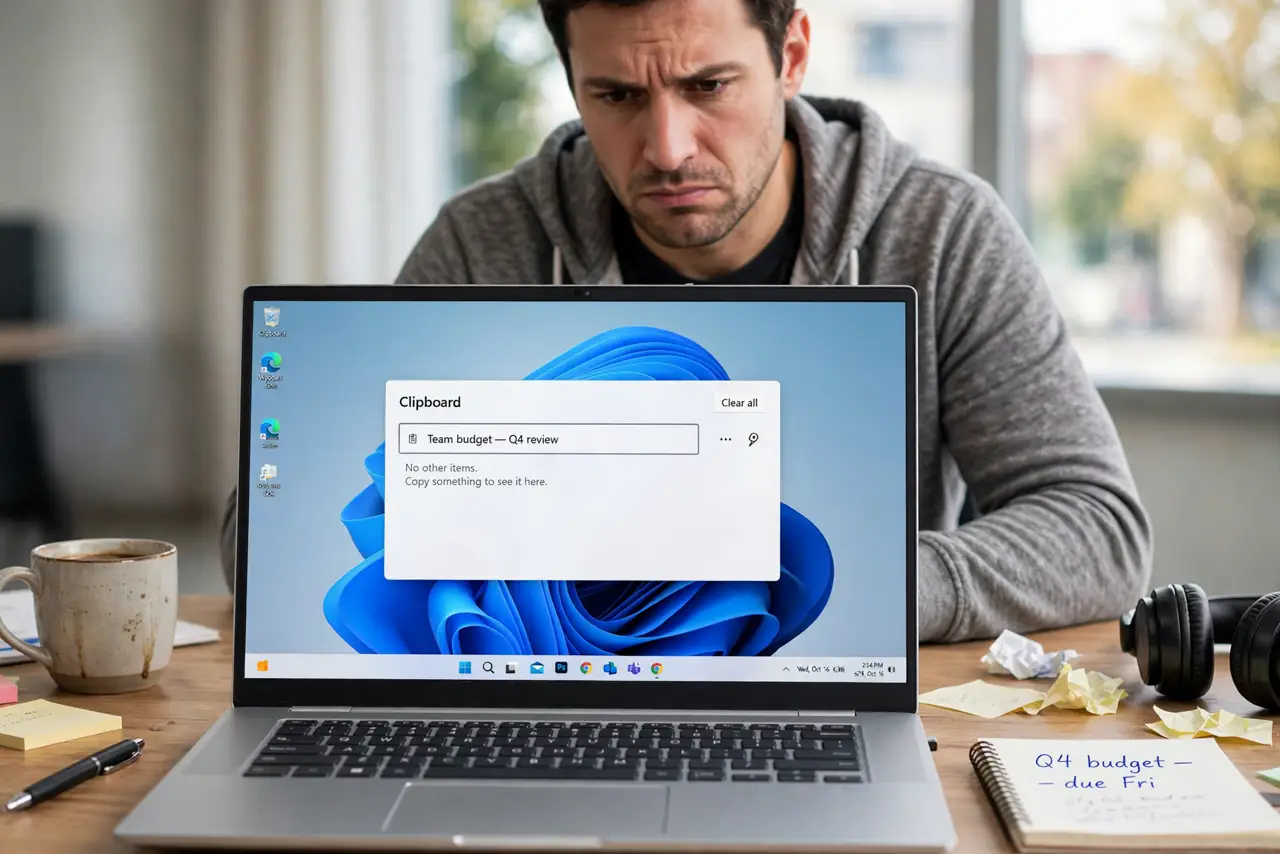
Clipboard history saves the last things you copied so you can paste them again later. When it is off, pressing Windows and V shows nothing. The fix is usually one setting, plus a quick test copy.
TL;DR / Quick Fix
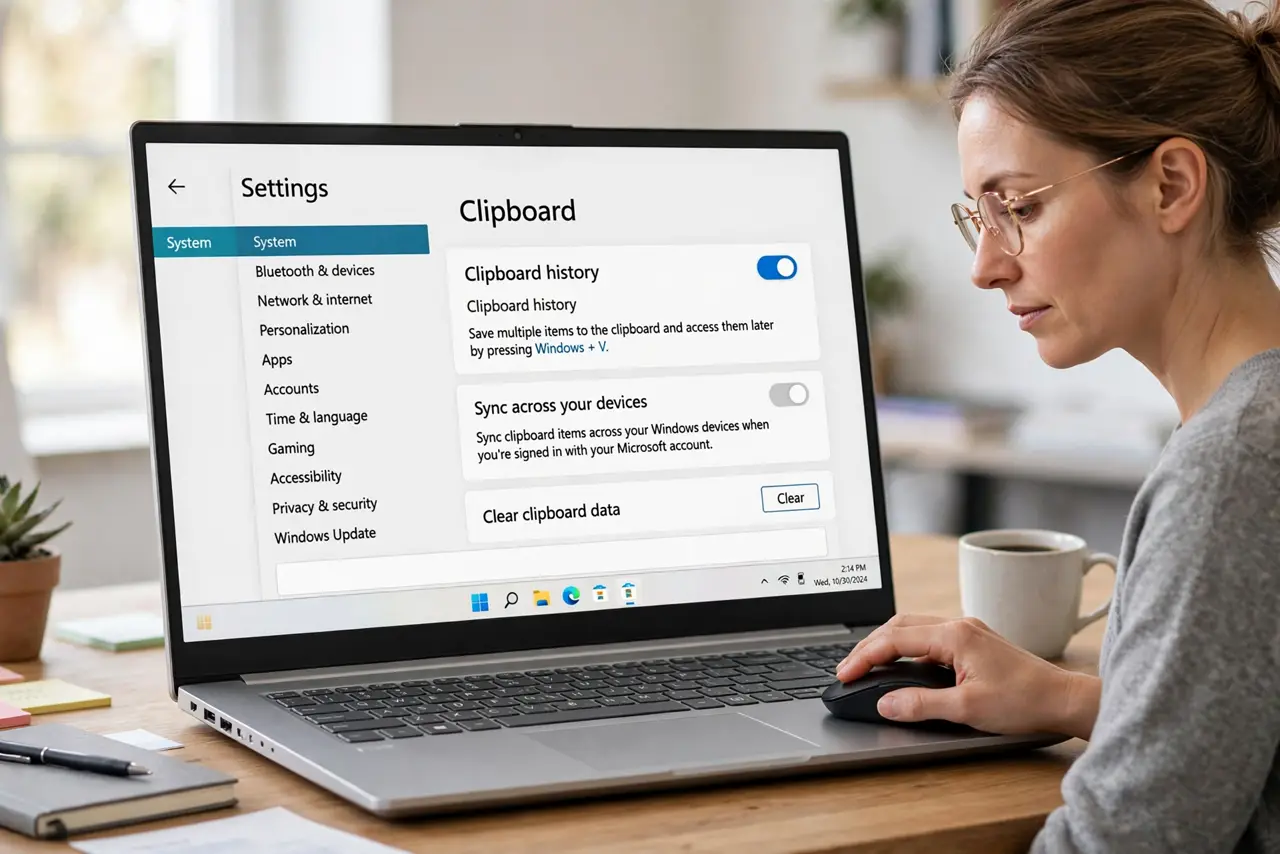
Quick fix: open Settings, then System, then Clipboard, and turn on Clipboard history. Copy a short test phrase, press Windows and V, and pick it from the list. If the list stays empty, restart the computer once, then copy again and check the list.
Follow these steps
- Turn on Clipboard history. Open Settings, then System, then Clipboard, and turn on Clipboard history. If the switch is already on, turn it off, wait a few seconds, and turn it back on to reset it.
- Copy a short test phrase. Open a document, select a short phrase, and copy it with Ctrl and C. Keep the phrase simple, such as a single word, so you can spot it easily in the list.
- Open the history panel. Press Windows and V together. The Clipboard panel should appear with your test phrase at the top. Click the phrase to paste it where you need it.
- Pin the items you reuse. In the Clipboard panel, find an item you use often and pin it. Pinned items stay in the list even after you restart, while unpinned items clear on restart.
- Clear the history once if it looks stuck. In Settings, then System, then Clipboard, use Clear clipboard data. Then copy a fresh test phrase and check again, because a stuck old entry can block new ones.
- Check that another app is not clearing it. Some cleanup tools clear the clipboard on a schedule. If the list empties again on its own, check any cleanup tool you run and turn off its clipboard clearing option.
What NOT to do
- Do not paste passwords or private codes and leave them pinned. Clear sensitive items right after you use them, so they are not sitting in the list.
- Do not install a random clipboard manager from a pop-up ad. Windows already includes clipboard history, and extra tools can collect what you copy.
- Do not turn on clipboard sync to other devices unless you want copied text shared across them. Keep sync off if you only use one computer.
- Do not keep copying the same thing in a loop hoping it appears. If the panel stays empty, check the setting first instead of repeating the copy.
Frequently asked questions
Why is Windows + V showing nothing?
Usually Clipboard history is turned off in Settings, so Windows never saved the copied items in the first place.
Does clipboard history survive a restart?
Unpinned items clear when you restart. Pinned items stay, so pin anything you need to keep.
Is it safe to keep sensitive text in clipboard history?
No. Clear passwords, codes, and private details right after pasting them, and do not pin them.