Cloud File Shows an Old Version? Fix It
An old version usually means the newest copy has not synced yet, or you opened a local copy instead of the cloud copy. Check the sync state before editing, or you can overwrite the newer version by accident.
TL;DR / Quick Fix
Quick fix: check the cloud sync status, open the file from the cloud app or website rather than a local copy, and wait for sync to finish. If two versions exist, compare them before editing either one. Last, restore the newer version carefully to confirm it.
Follow these steps
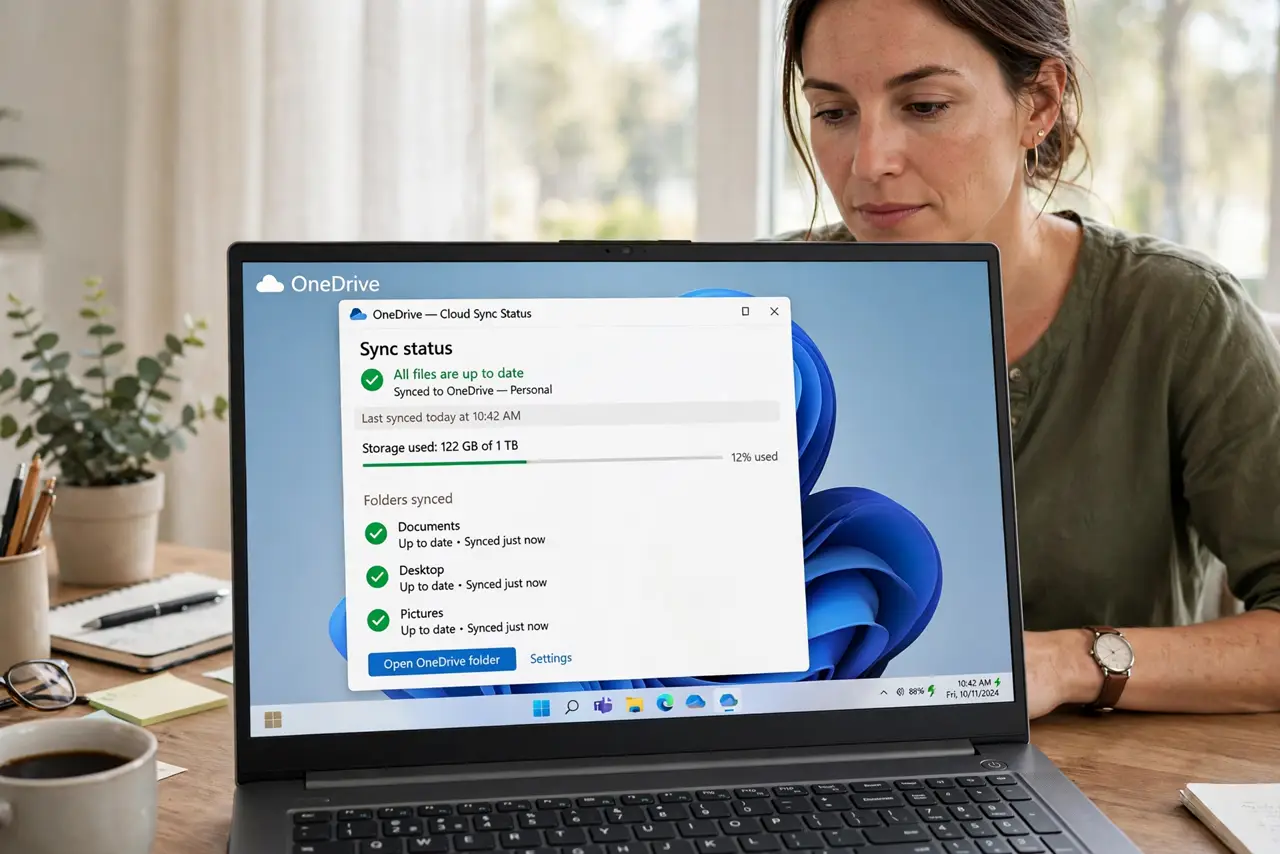
- Check the cloud sync status. Open the cloud app and look for a syncing, paused, or error state. A paused sync is a common reason the newest version never arrives.
- Open the file from the cloud, not a local copy. Open the file through the cloud app or website. A local copy on the device can be older than the cloud version, especially after editing on another device.
- Wait for sync to finish. Give the sync time to complete, especially on a slow connection or with a large file. Opening the file mid-sync can show a partial or older version.
- Check you are in the right account. Confirm the cloud app is signed in to the account that holds the newest version. A second account can hold an older copy of a similar file.
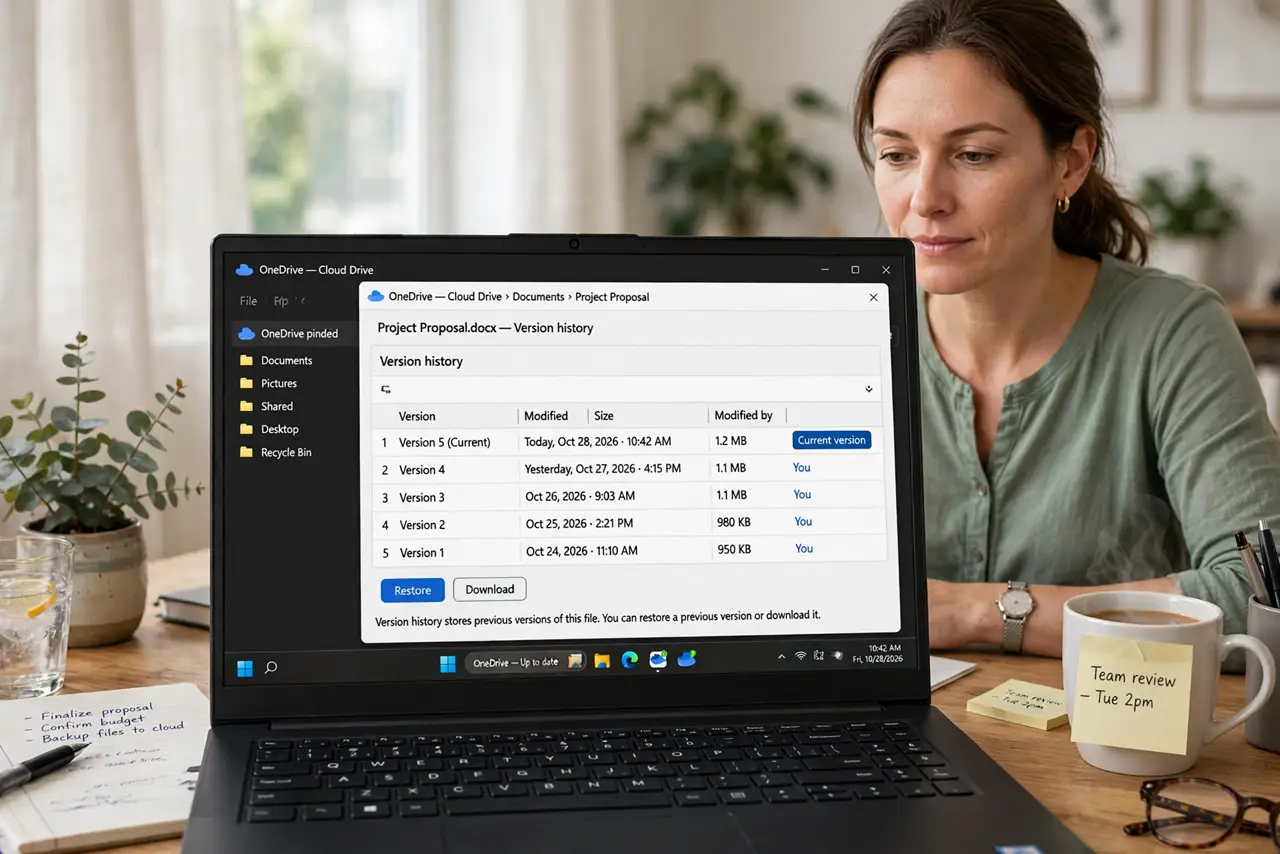
- Check the version history. Open the file's version history on the cloud website and look for a newer version with a recent time. You can view it there without overwriting anything.
- Restore the newer version carefully. If version history shows a newer copy, restore or open that version, then check its contents before editing. Never edit two versions at once.
What NOT to do
- Do not edit the old version to catch it up. You may overwrite newer changes made on another device.
- Do not delete the file to force a fresh download. Deletion can sync too, and remove the cloud copy as well.
- Do not turn sync off to freeze a version. That creates diverging copies that are harder to merge later.
- Do not rename the old file as the new version. A renamed old file is still old, and it confuses version history.
Frequently asked questions
Why does the cloud show an old version?
Sync may be paused, slow, or signed in to a different account, or you may have opened a local copy.
Can I recover a newer version?
Often yes, through version history on the cloud website, which keeps earlier and newer saves.
How do I avoid this next time?
Always open shared files from the cloud app, and wait for sync to finish before switching devices.