Screen Looks Yellow on Windows? Fix the Tint Fast
Your screen suddenly looks yellow, as if someone put a warm filter over everything. Night light is the usual cause, but a monitor warm mode can do the same thing. These steps find which one it is.
TL;DR / Quick Fix
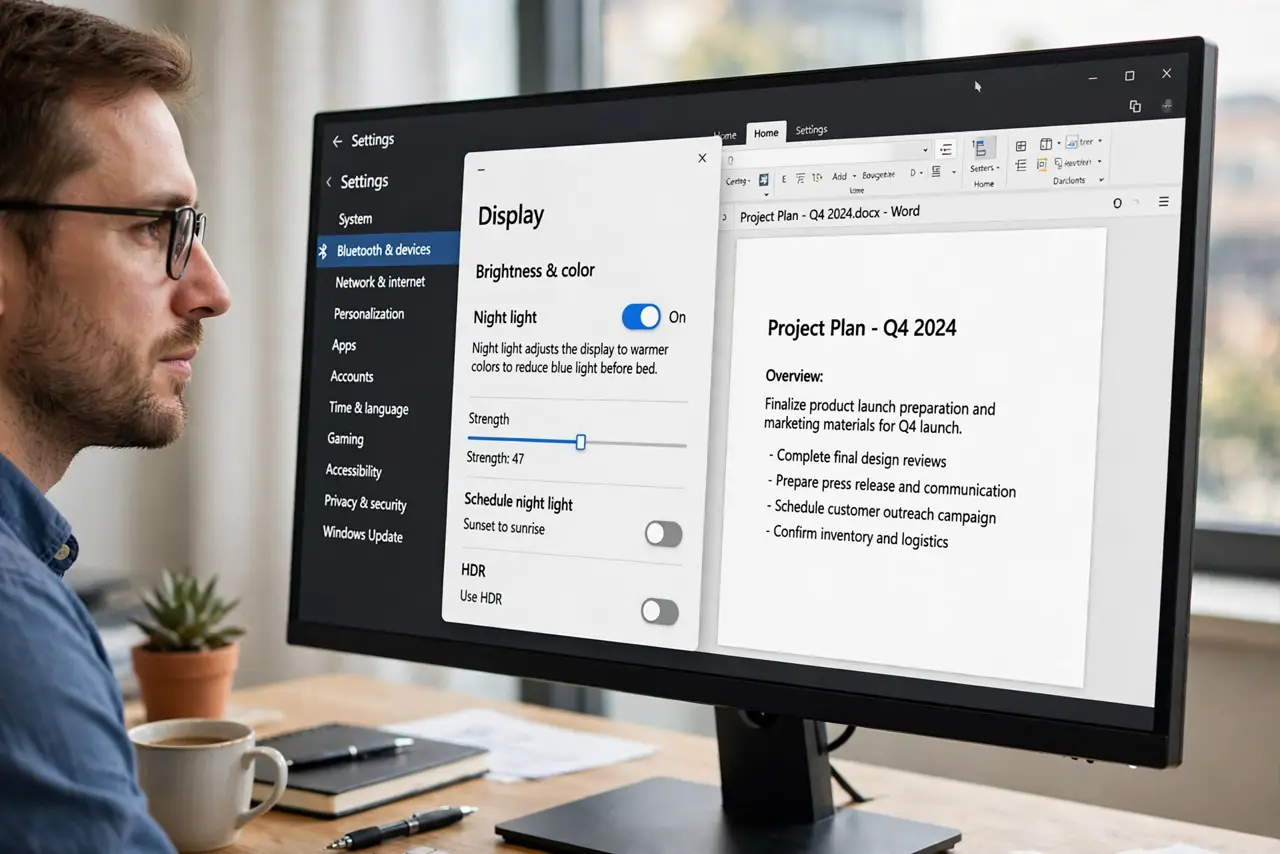
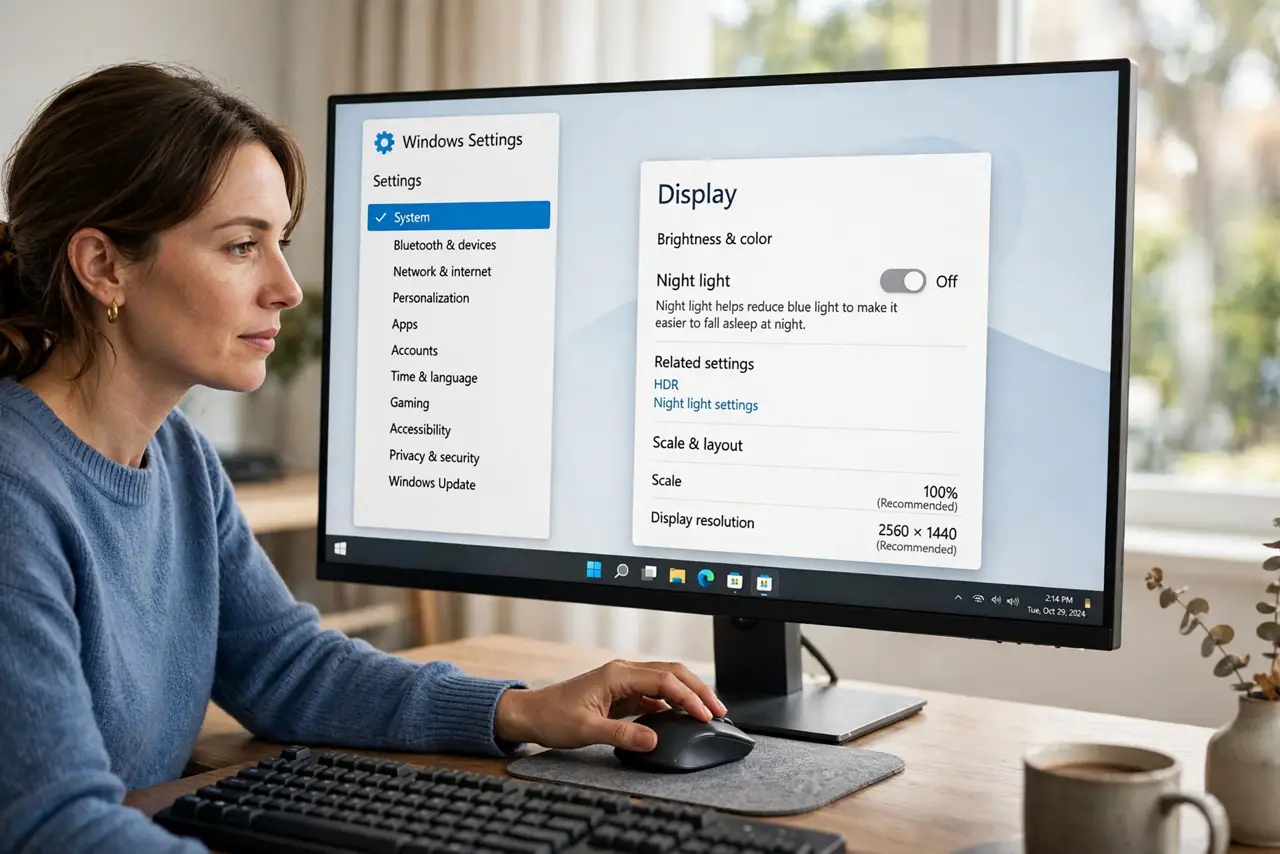
Quick fix: open Settings, then System, then Display, and turn Night light off. If the tint stays, check the Night light schedule and the monitor menu for a warm or reading mode. Test with a white page: if white looks white again, you found the cause.
Follow these steps
- Turn Night light off. Open Settings, then System, then Display, and switch Night light off. If the yellow tint vanishes at once, Night light was the cause, and you can decide later whether to keep it.
- Check the Night light schedule. In the same Night light settings, look at the schedule. A schedule that starts early can tint the screen long before bedtime, which feels like a sudden fault.
- Check the monitor color mode. Open the monitor on-screen menu and look for a warm, reading, or eye-care mode. Turn it back to a standard mode and compare the same white page again.
- Compare with another screen. Open the same white page on a phone or another monitor. If only the first screen looks yellow, the cause is local to that screen or its settings.
- Reseat the video cable. Turn the monitor off, unplug the video cable at both ends, plug it back firmly, and check the tint again. A loose cable can shift color, though it usually causes more obvious picture faults too.
- Restart and recheck. Restart the computer and look at a white page before opening any app that changes color. If the tint returns only after an app opens, that app holds its own color setting.
What NOT to do
- Do not replace the monitor because the screen looks warm. Night light and monitor warm modes explain most yellow tints, and both are one switch away.
- Do not crank the blue channel up to fight the tint. That hides the cause and leaves every other color wrong once the real setting is fixed.
- Do not assume the tint means the panel is dying. A tint that switches off instantly with Night light is a setting, not hardware damage.
- Do not change Windows color settings and monitor settings together. Turn one off, test, and then move to the other, so you know which one mattered.
Frequently asked questions
What is Night light?
It is a Windows feature that warms screen colors in the evening to reduce blue light. It is helpful at night, but it looks like a yellow fault when it starts early.
Why did the tint appear suddenly?
A schedule change, a sunset-based schedule, or a monitor mode switch can all start the tint without any warning on screen.
Is a yellow screen harmful?
No. A warm tint from Night light or a monitor mode does not damage the screen. It is a color setting, and it reverses as soon as you turn it off.