Brightness Keys Do Nothing? Fix Them on Windows
You press the brightness keys and nothing changes, while the screen stays too dim or too bright. The keys, the Fn lock, or an external monitor can each block them. Start with the slider to separate a key problem from a display problem.
TL;DR / Quick Fix
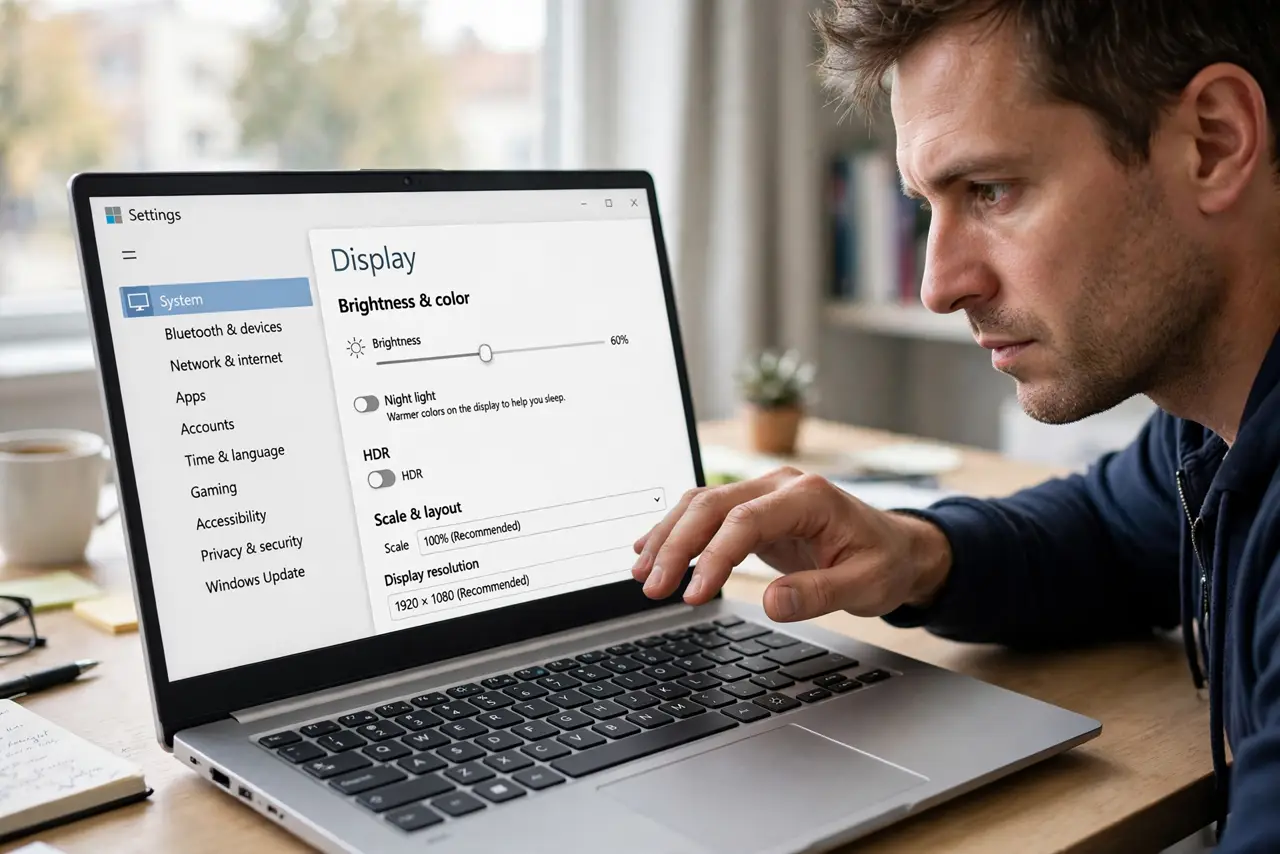
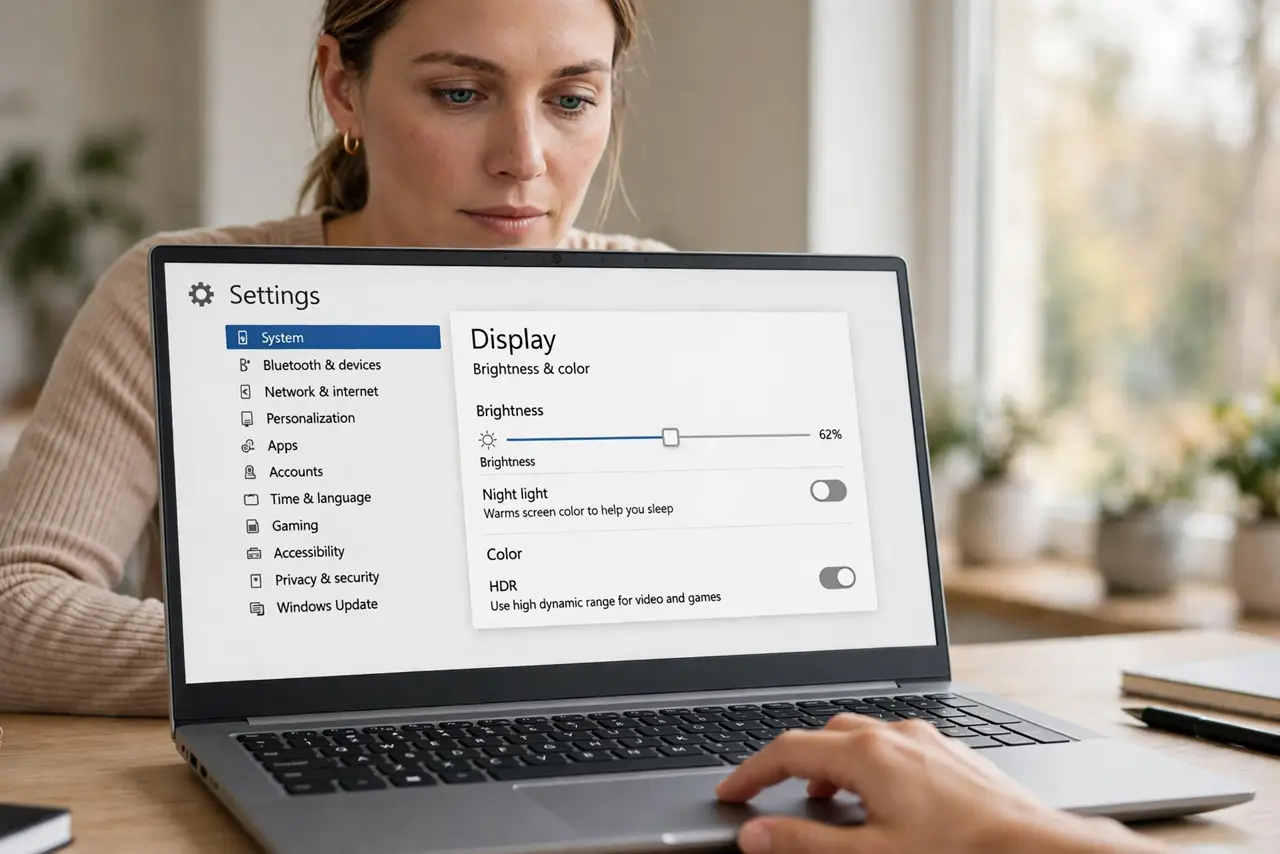
Quick fix: open Settings, then System, then Display, and move the brightness slider. If the slider works, the keys or Fn lock are the problem. If the slider also fails, check whether you are on an external monitor, then restart and test again.
Follow these steps
- Test the Settings slider first. Open Settings, then System, then Display, and drag the brightness slider. If the screen responds, Windows can control brightness, and the keys are the only broken link.
- Toggle Fn lock and try again. Press the Fn lock key, or Fn plus Escape on many laptops, then try the brightness keys again. With Fn lock in the wrong state, the keys act as function keys instead of brightness controls.
- Try Fn plus the brightness key. Hold Fn and press the brightness key together, even if you normally press the key alone. On some laptops the combination is required, and on others it is the opposite.
- Check for an external monitor. If you use an external monitor, Windows brightness keys often do nothing for it. Use the buttons on the monitor itself, and test the keys again with only the laptop screen active.
- Restart the computer. Save your work and restart, then test the slider and the keys before opening other apps. A stuck display process can block both until a restart clears it.
- Check for a pending update. Open Settings, then Windows Update, and install any pending update, then restart and test again. Display control problems are sometimes fixed by an update rather than a setting.
What NOT to do
- Do not assume the keys are broken before testing the slider. The slider tells you whether Windows or the keys are at fault, and that changes the whole fix.
- Do not press harder or hold the keys down for a long time. Brightness keys either register or they do not, and force will not repair a Fn lock problem.
- Do not expect laptop keys to control an external monitor. Most external monitors need their own buttons, and no Windows setting changes that.
- Do not install a brightness app before checking Fn lock and the slider. Extra apps add another layer that can conflict with the built-in control.
Frequently asked questions
Why do brightness keys fail but the slider works?
The keys depend on Fn lock and laptop keyboard handling, while the slider talks to Windows directly. That split is why one can work while the other does not.
Do brightness keys work on external monitors?
Usually not. Laptop brightness keys control the built-in screen, so use the monitor buttons for an external display.
What if neither keys nor slider work?
Restart, check for Windows updates, and test with only the laptop screen. If both still fail, the display driver or hardware needs a closer look.