Computer Overheats After Dust Builds Up? Fix It
Dust builds slowly on vents, fans, and heatsinks until air can no longer carry heat away, so the PC runs hot, fans roar, and performance drops. Cleaning restores airflow, but only if you clean safely: power off, hold fans still, and never use liquids inside. A laptop that overheats on a bed needs the soft bed airflow fix first, because blocked vents and dust often combine.
TL;DR / Quick Fix
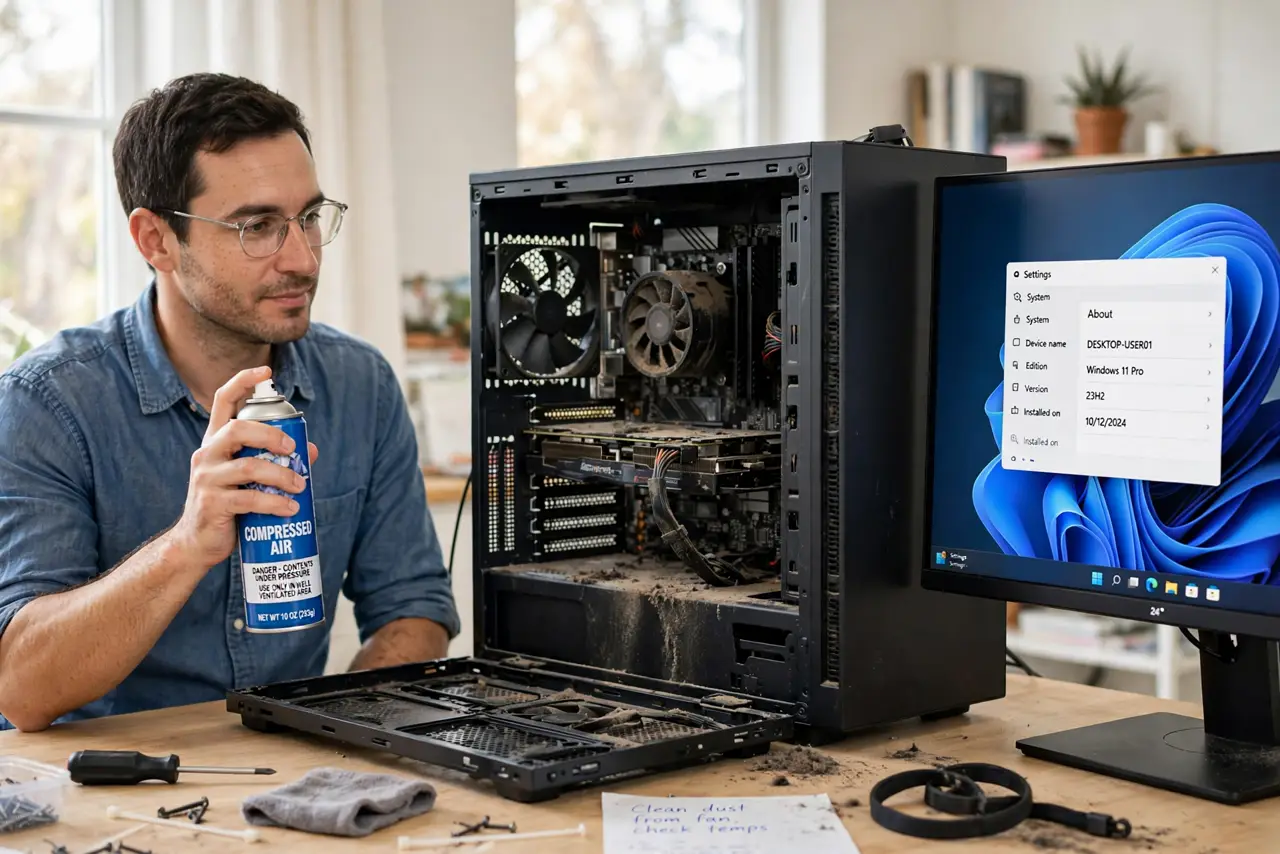
Quick fix: Confirm heat is the problem. Shut down and unplug before cleaning. Then work through the remaining steps in order, checking one change at a time, and stop for a technician if you see damage, swelling, or a burning smell.
Follow these steps
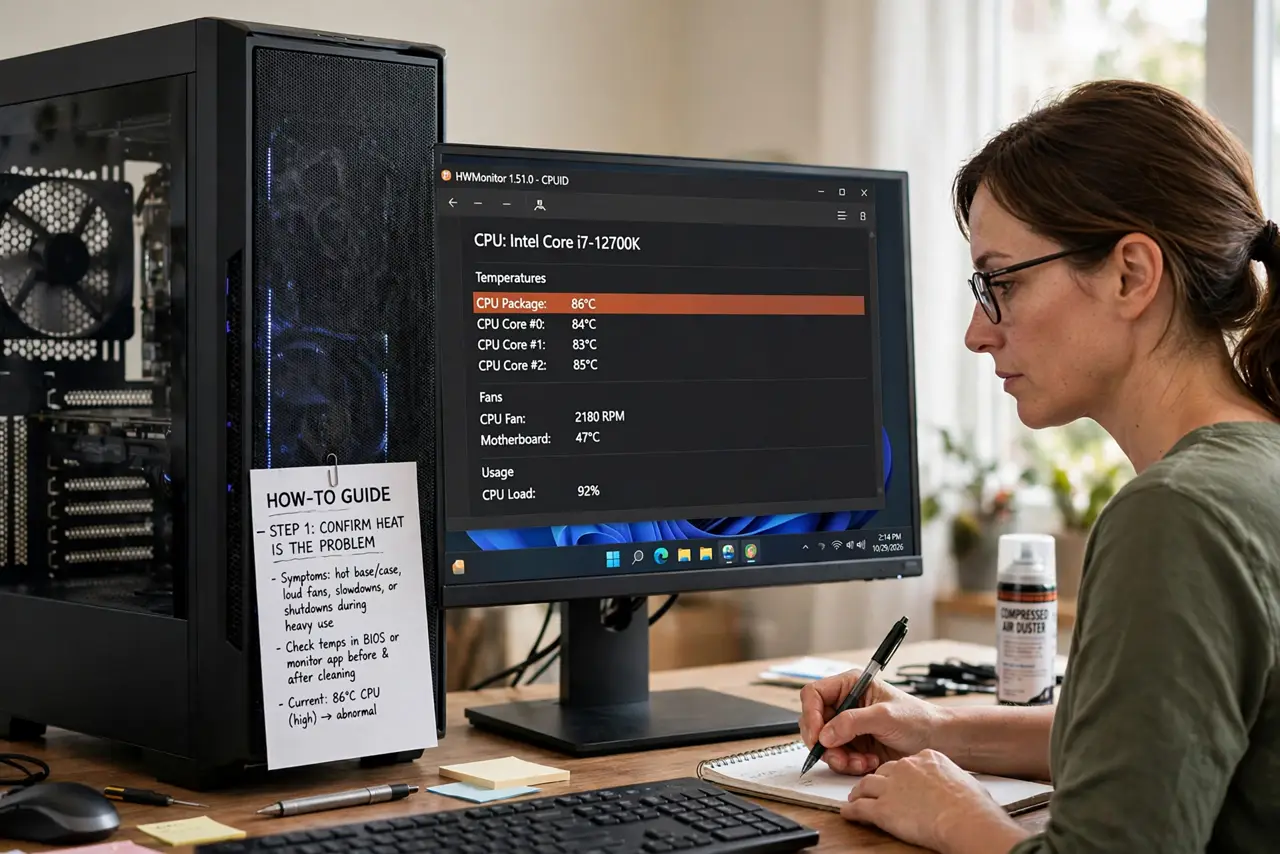
- Confirm heat is the problem. Note the symptoms: hot base or case, loud fans, slowdowns, or shutdowns during heavy use. Check temperatures in BIOS setup or a monitor app if you can, before and after cleaning.
- Shut down and unplug before cleaning. Shut the computer down fully and unplug the power cable. Cleaning a running PC risks injury from fans and damage from static or a slip.
- Clean vents from the outside first. Use short bursts of compressed air held upright to clear dust from outside vents, blowing dust out, not deeper in. Work in a ventilated area, because the dust cloud is unpleasant.
- Open the side panel on a desktop and clean fans. On a desktop, open the side panel, hold each fan still, and clear dust from blades, heatsinks, and vents with short air bursts. Do not let fans spin wildly under air pressure.
- Improve airflow around the computer. Move the PC away from walls and blankets, keep vents clear on all sides, and tidy cables so air flows through the case. Good placement keeps dust from building as fast again.
- Test temperatures and fan noise after cleaning. Plug in, boot, and check temperatures and fan noise during normal use. If heat remains high after a clean, the thermal paste, a failing fan, or a blocked heatsink may need a technician.
What NOT to do
- Do not vacuum inside a computer case. A vacuum builds static, can pull small parts loose, and can damage fans and boards.
- Do not use liquids or wet cloths inside a PC. Liquid on boards and fans causes shorts and corrosion, so clean dry, with air only.
- Do not let compressed air spin fans wildly. Overspinning damages fan bearings, so hold each fan still while you clean it.
- Do not spray compressed air upside down. Liquid propellant can come out and damage parts, so keep the can upright and use short bursts.
Frequently asked questions
How often should I clean dust out?
It depends on pets, carpets, and floor placement. Check vents every few months, and clean when dust visibly blocks them, not on a fixed date.
Can dust really cause shutdowns?
Yes. Dust on heatsinks traps heat until the PC shuts off to protect itself. Cleaning often stops those shutdowns entirely.
What if cleaning does not lower temperatures?
The heatsink contact, thermal paste, or a fan may be at fault. Those need a technician, because they involve removing the cooler from the processor.