Connect with the WPS Button
The Wi-Fi password is twenty random characters on a sticker behind the router, and typing it on a TV remote is misery. The WPS button connects devices with a press instead of a password — handy, but with a security footnote you should know. Here is how to use it right.
TL;DR / Quick Fix
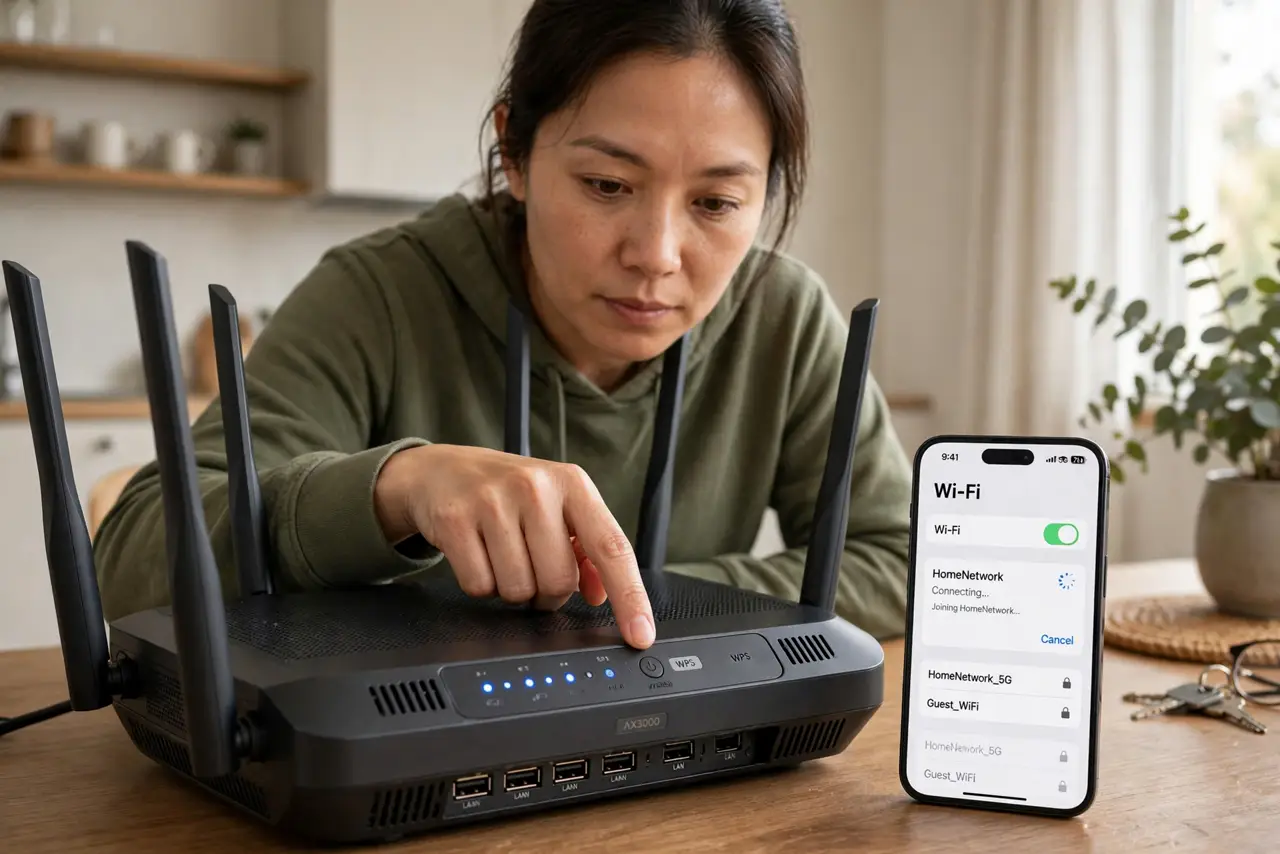
Quick fix: press the WPS button on your router, then choose the WPS option on your device within two minutes — they connect with no password typing. Disable the WPS PIN method afterward, since the PIN is the insecure part. Use the button only, never the PIN.
Follow these steps
- Find the WPS button. It is on the router — often labeled WPS with a circular-arrows icon. Some routers put it in the admin page instead of a physical button.
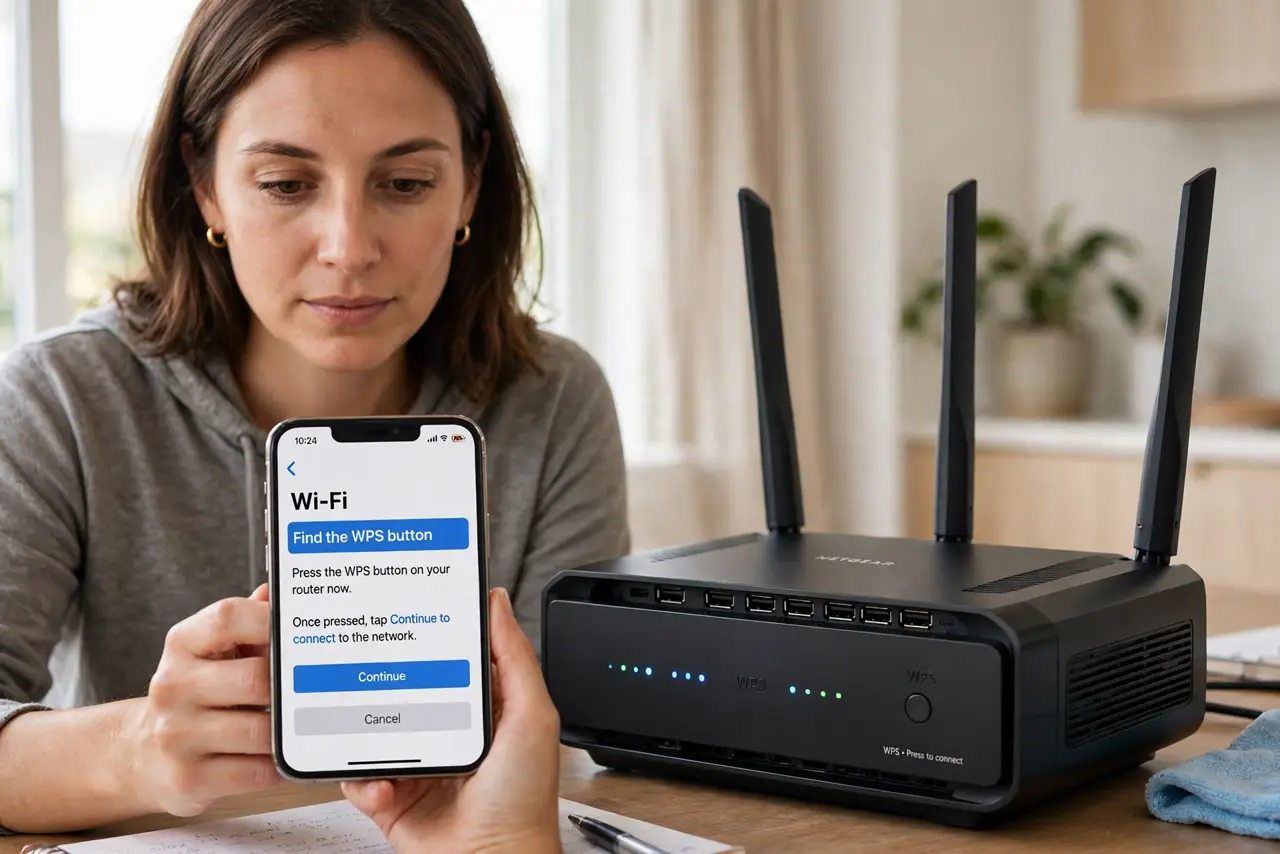
- Start WPS on the device first. On the device, open Wi-Fi settings and choose the WPS or push-button option. It will wait for the router — you usually get two minutes.
- Press the router's button. A short press starts pairing; the router's light blinks while it works. The device connects without any password typing.
- Confirm the connection. Check the device shows connected with internet access. If it fails, the timing window likely lapsed — start over.
- Disable the WPS PIN method. The button is reasonably safe; the eight-digit WPS PIN is crackable. Turn the PIN method off in the router settings — see why.
- Consider turning WPS off entirely. If every device is already connected, you can disable WPS completely. Nothing to attack is the safest setting.
What NOT to do
- Do not use the WPS PIN. The PIN method is the vulnerable part — button-only or nothing.
- Do not leave WPS on forever 'just in case.' Disable it once everything is connected.
- Do not press and hold randomly. A long press can factory-reset some routers — short press for WPS.
- Do not assume WPS works on every device. Some newer devices dropped WPS support — check before relying on it.
Frequently asked questions
Is WPS safe?
The push-button method is reasonably safe for home use; the PIN method is not. Disable the PIN.
Where is the WPS button?
On the router's front, back, or side — look for the circular-arrows icon or 'WPS' label.
My device has no WPS option?
Many newer phones and laptops removed it. Type the password once — you will only do it once per device.