Controller Won't Pair to Your PC? Fix It
Your controller pairs fine with the console but the PC will not see it — or it connects and immediately drops. PC pairing fails on Bluetooth quirks, driver gaps, and mode confusion more than on broken hardware. This guide gets it connected.
TL;DR / Quick Fix
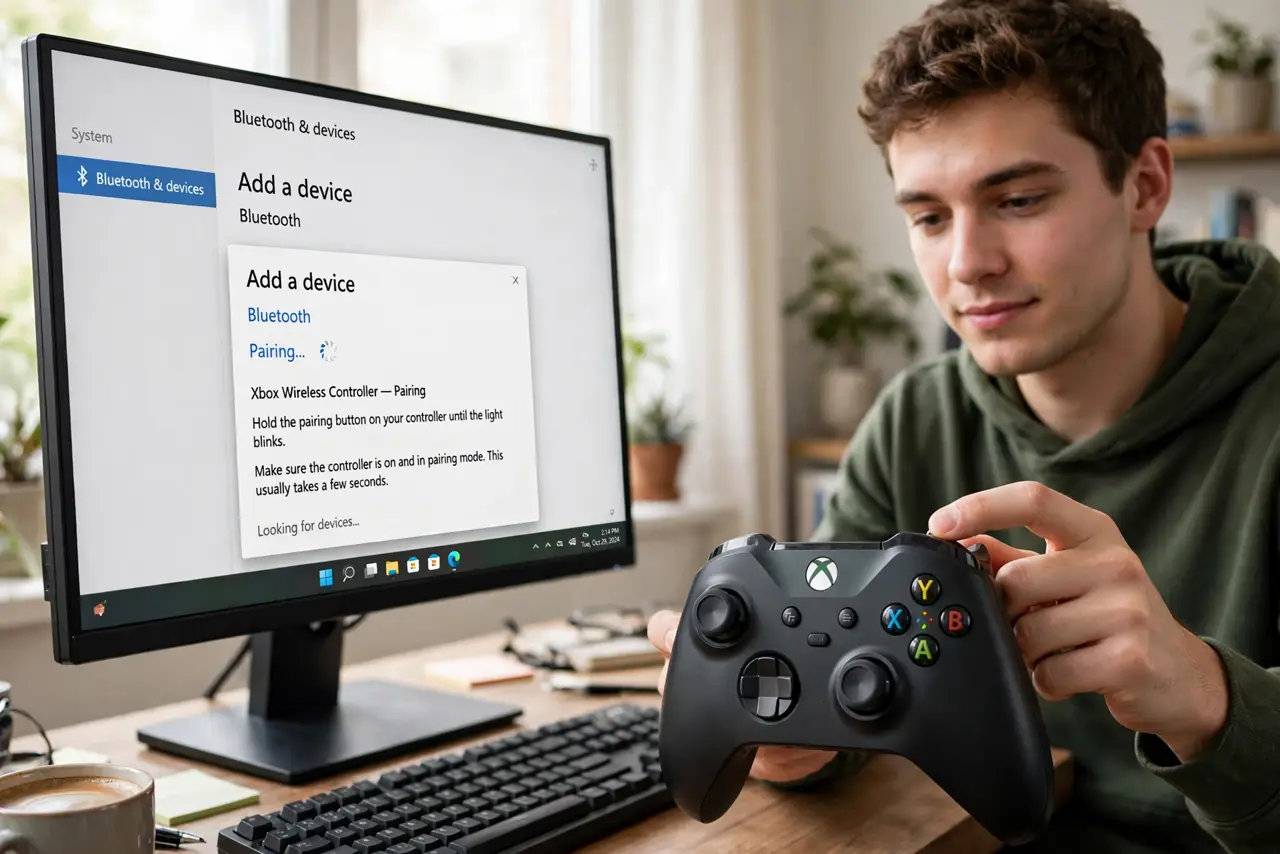
Quick fix: put the controller in pairing mode correctly — most need a long-press on a specific button, not just powering on. Remove old pairings from the PC's Bluetooth list first. If Bluetooth stays flaky, a USB cable connection works instantly and charges while you play.
Follow these steps
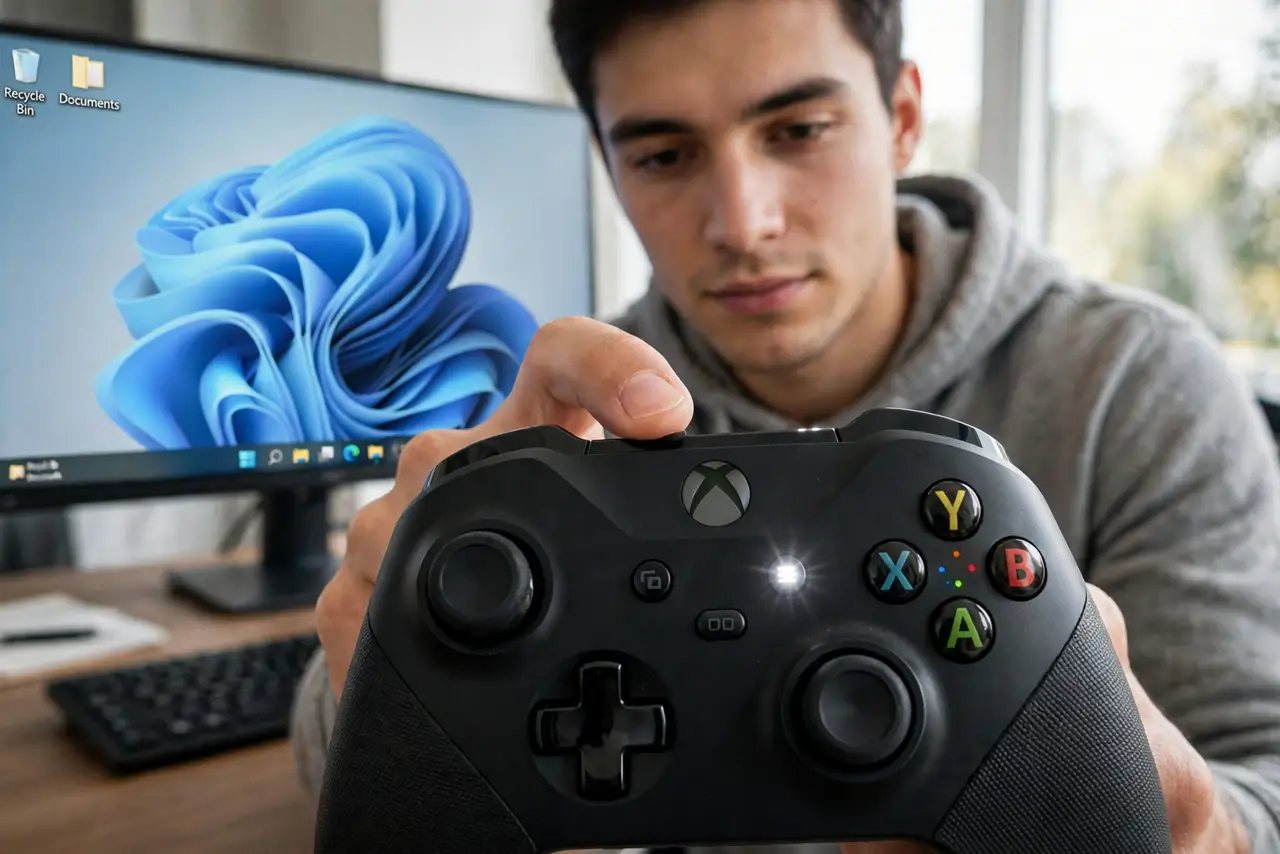
- Enter pairing mode properly. Hold the designated pairing button until the light flashes rapidly. Simply turning the controller on resumes its last connection instead of pairing anew.
- Remove stale pairings. Delete the controller from the PC's Bluetooth device list and re-pair fresh. A corrupted pairing entry blocks new attempts silently.
- Check Bluetooth support mode. Some controllers need a specific mode for PC — check the manual. The wrong mode pairs with nothing or drops constantly.
- Update Bluetooth drivers. Open device manager and update the PC's Bluetooth driver. Ancient Bluetooth stacks are a classic cause of pairing failures.
- Try a wired connection. Plug in with a USB cable. Wired mode bypasses every Bluetooth quirk, confirms the controller works, and charges it — the same fallback as with a USB headset.
- Test the controller elsewhere. Pair it to a phone or console. If it pairs there, the PC's Bluetooth is the problem; if nowhere, the controller's radio may be at fault.
What NOT to do
- Do not assume the controller is broken. PC pairing issues are overwhelmingly settings and drivers, not dead hardware.
- Do not pair through third-party Bluetooth dongle software. Use the system's native Bluetooth stack for the most reliable pairing.
- Do not ignore the cable option out of pride. Wired play has less latency anyway — many competitive players prefer it.
- Do not update controller firmware mid-troubleshooting from an unreliable connection. A failed firmware flash can brick the controller.
Frequently asked questions
Why won't my controller connect to my PC?
Usually it is not in true pairing mode, a stale pairing blocks it, or the PC's Bluetooth driver is outdated.
Is wired better than Bluetooth for controllers?
For reliability and latency, yes. Bluetooth is convenient; a cable is dependable and charges simultaneously.
Do I need special software for my controller on PC?
Sometimes — certain controllers need the manufacturer's app or a platform client for full features, but basic input usually works natively.