Cookie Settings Reset After Update? Restore Them
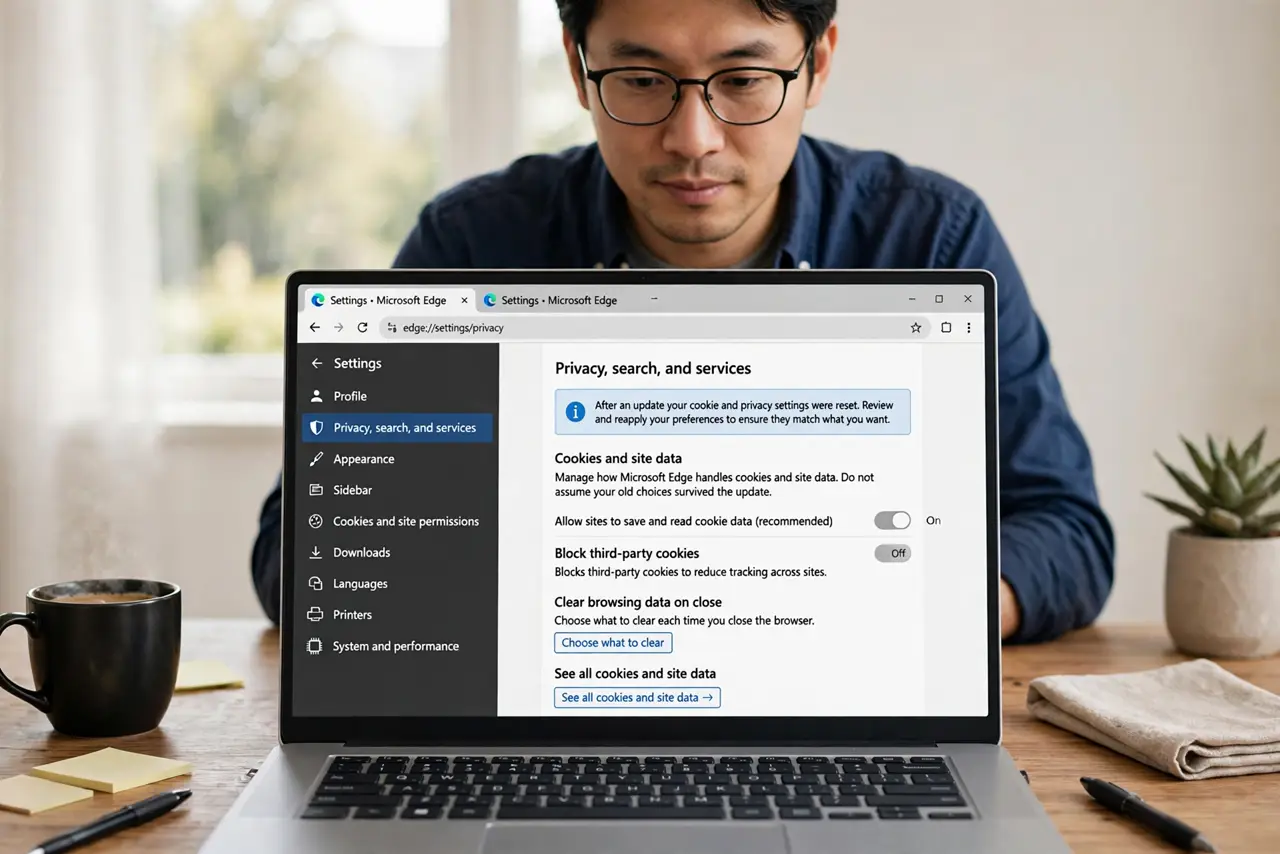
Browser updates sometimes restore default cookie and privacy settings, undoing choices you made months ago. After an update, a short settings check restores your preferences before weeks of wider tracking accumulate.
TL;DR / Quick Fix
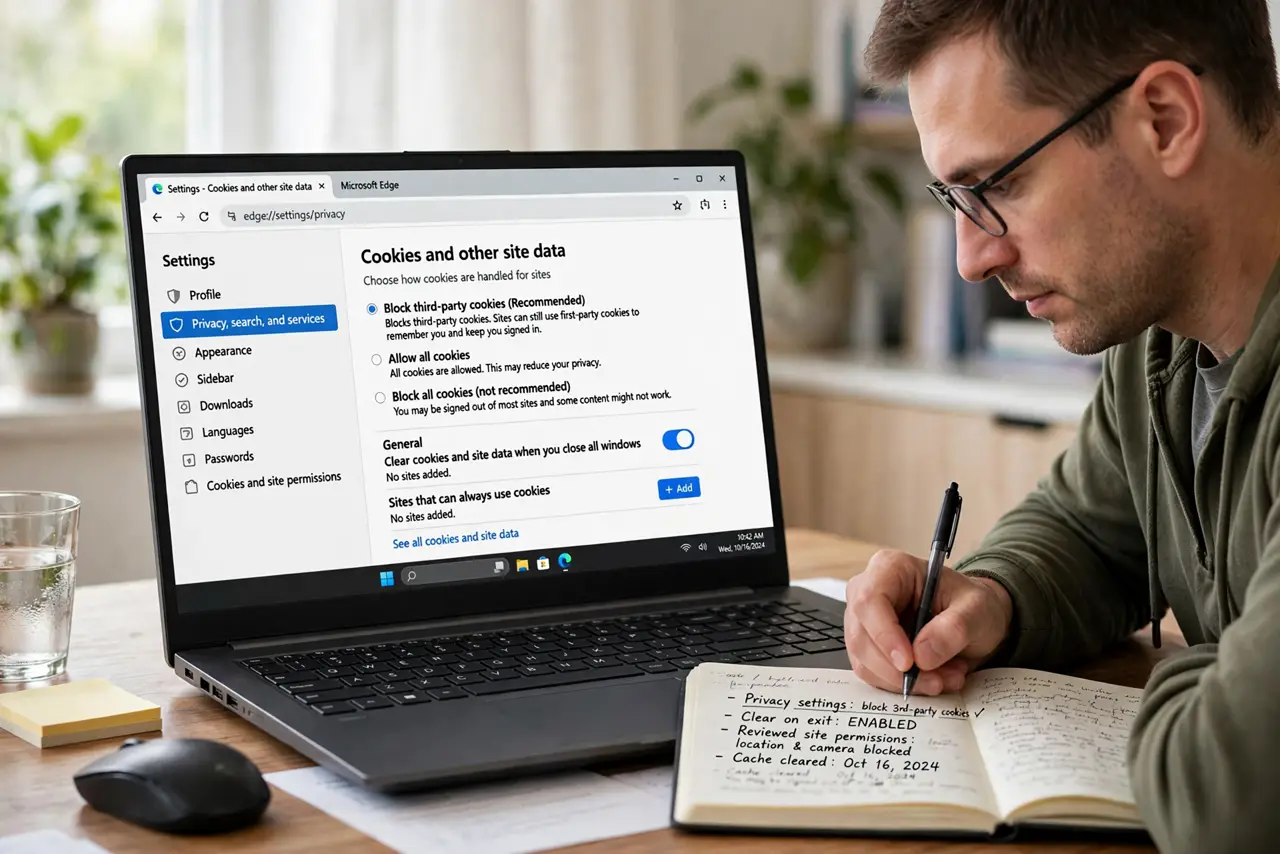
Quick fix: after a browser update, open privacy settings and recheck cookie handling, third-party cookies, and clear-on-exit choices. Restore your previous settings, save them, and note them down for the next update check. A two-minute check keeps your choices intact after every update.
Follow these steps
- Open privacy and cookie settings. After an update, go to browser settings, then privacy, and find the cookies section. Do not assume your old choices survived the update.
- Recheck third-party cookies. Confirm third-party cookies are blocked, or set as you had them. Third-party cookies are the main tool for tracking across different sites.
- Recheck clear-on-exit if you used it. If you cleared cookies on exit before, confirm that option is still on. Updates can turn it off without a clear notice.
- Recheck site permissions. Look at site permissions for location, camera, microphone, and notifications. Restore any permission you had previously denied.
- Clear cookies set since the update. Clear cookies and site data set since the update, so tracking from the reset period does not linger after you restore settings.
- Note your settings for next time. Write down your cookie and privacy choices in a short note. Next update, you can compare in a minute instead of rediscovering them.
What NOT to do
- Do not assume an update preserves every privacy choice. Updates change defaults, and defaults usually favor more data, not less.
- Do not accept all cookie banners during the reset period without checking. Your browser settings and banner choices work together.
- Do not skip the check because the browser looks the same. Settings can change invisibly while the interface stays familiar.
- Do not leave site permissions at defaults after an update. Recheck the ones that matter most: location, camera, and microphone.
Frequently asked questions
Why would an update reset settings?
Major updates can replace settings files, introduce new defaults, or migrate options to new screens, and older choices do not always carry over.
How often should I check?
After every major browser update, and whenever the browser mentions new privacy features. A two-minute check is enough.
Will restoring settings log me out?
Clearing cookies can log you out of sites. That is a minor inconvenience, and signing in again is quick compared with weeks of unwanted tracking.