Delete Voice Assistant Recordings
Every “Hey Siri” and “Alexa” leaves a trace: voice clips stored on company servers, sometimes with transcripts, sometimes reviewed by humans. You cannot use a voice assistant with zero footprint, but you can shrink it dramatically — delete the history, set auto-delete, and stop feeding the archive. Part of broader smart home privacy hygiene.
TL;DR / Quick Fix
Quick fix: in the Alexa app, go to Activity & Privacy and delete your voice history, then turn on auto-delete. For Google, use My Activity with the same auto-delete setting; for Siri, delete dictation history and switch off Improve Siri. Set it once and old recordings expire on their own.
Follow these steps
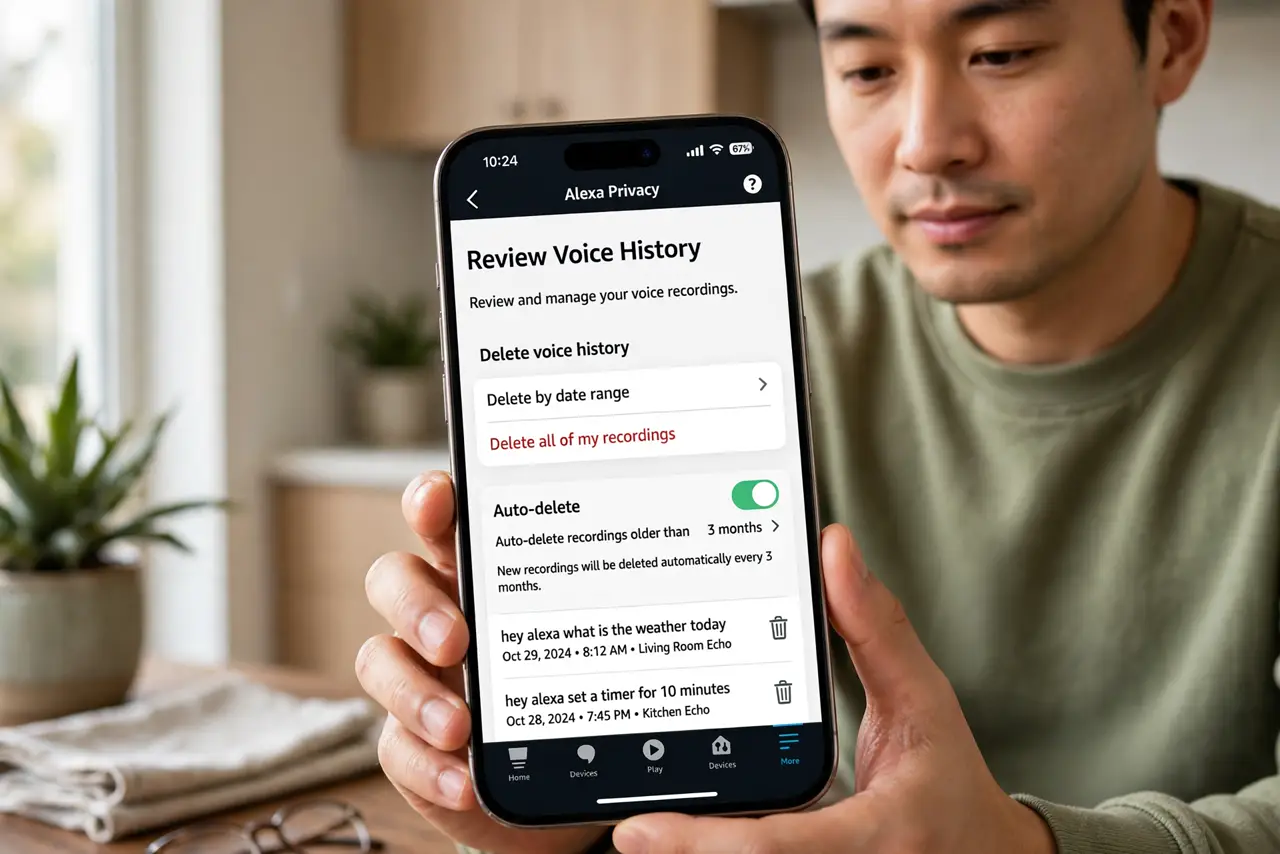
- Delete Alexa voice history. Open the Alexa app > More > Activity & Privacy > Review Voice History. Delete by date range or all history, then enable auto-delete so new recordings expire on a schedule.
- Delete Google Assistant activity. Go to myactivity.google.com, filter by Assistant, and delete. Then set auto-delete to 3 or 18 months — the shortest you can tolerate.
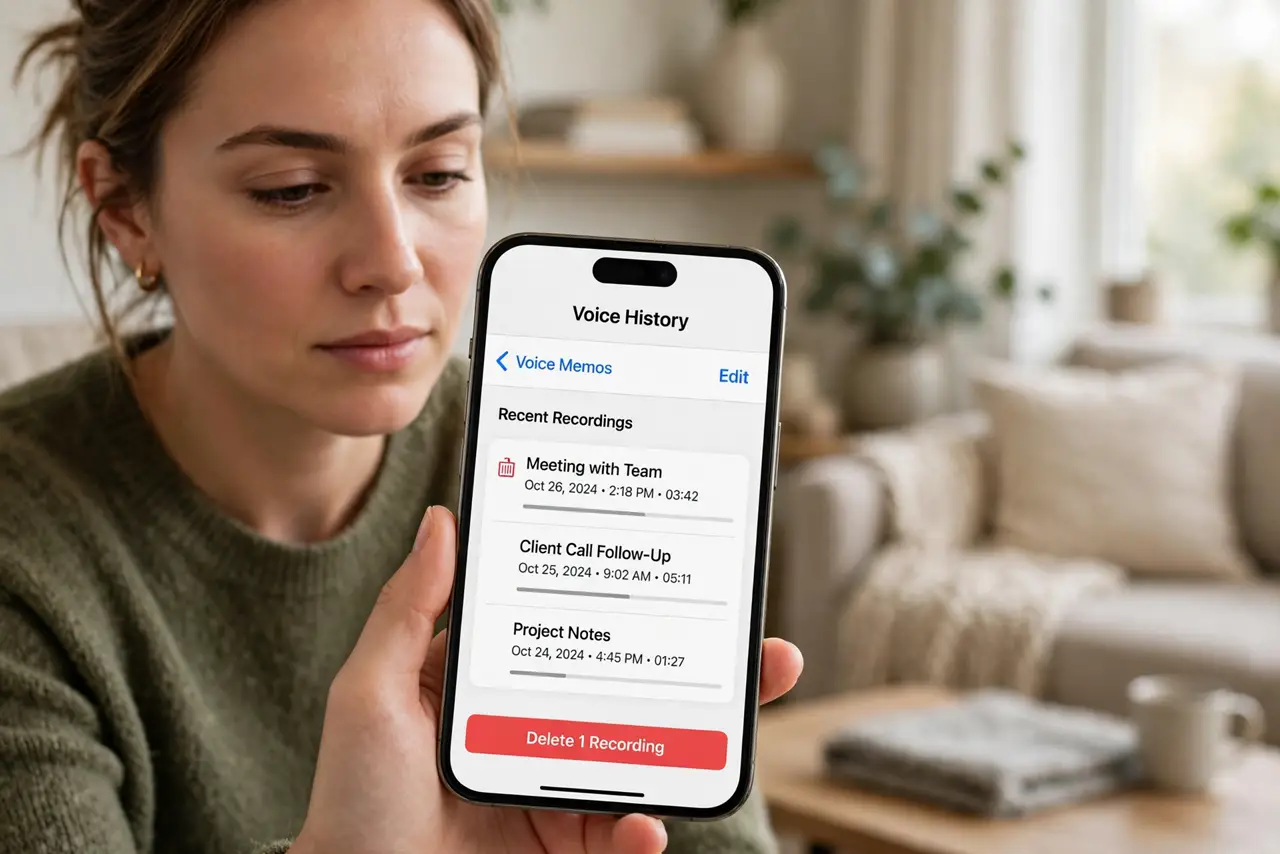
- Delete Siri and dictation history. On iPhone go to Settings > Siri > Siri & Dictation History and delete it. Then switch off “Improve Siri & Dictation” so Apple stops keeping clips for training.
- Set auto-delete everywhere. One-time deletion is a snapshot; auto-delete is a policy. Turn it on for every assistant you use so the archive never rebuilds silently.
- Review every few months. Settings drift after app updates. A quarterly two-minute check that auto-delete is still on catches silent resets.
- Use the mute button daily. The strongest privacy setting is hardware: mute the speaker when not in use. No recording exists if the microphones never heard it.
What NOT to do
- Do not assume deleting history deletes everything. Transcripts and derived data may persist separately — auto-delete plus minimal use is the realistic goal.
- Do not forget each assistant and device. Alexa, Google, and Siri each keep their own archive; clearing one clears only one.
- Do not disable the assistant entirely if you rely on it. Manage the data instead — privacy is a dial, not a switch.
- Do not skip auto-delete setup. Manual deletion once is theater; automatic expiry is protection.
Frequently asked questions
Does deleting hurt how well it works?
Slightly for personalization, barely for core commands. Most people notice no difference after clearing history.
Are my recordings used for ads?
Voice data can feed ad personalization depending on settings — which is exactly why those toggles deserve your attention.
What about my Fire TV?
It has its own tracking — see the Fire TV privacy settings to lock that down too.