Desktop Background Turns Black? Restore Your Picture
Your wallpaper vanished and the desktop is plain black, even though everything else works. A background setting, a moved picture file, or a slideshow pointing at an empty folder can each cause it. Restore the picture setting first.
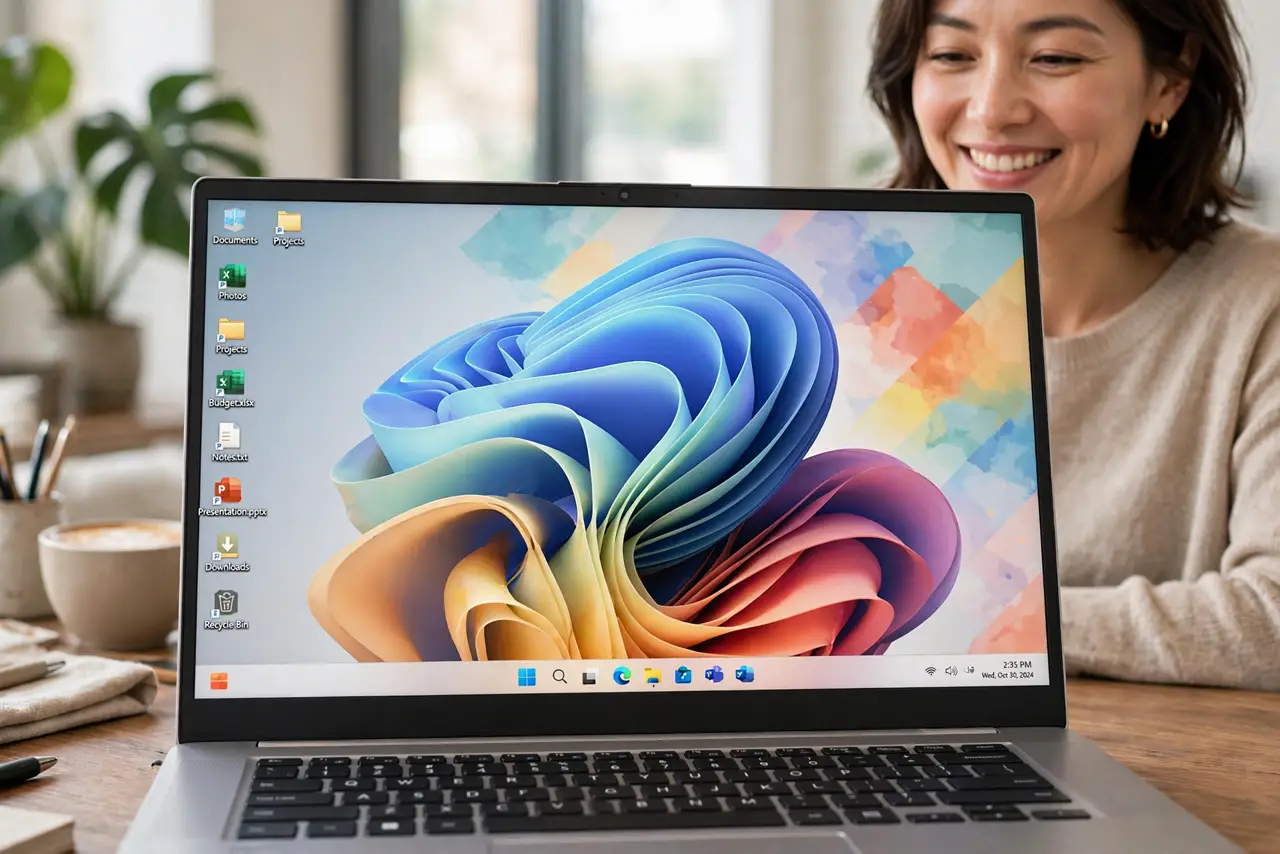
TL;DR / Quick Fix
Quick fix: right-click the desktop, choose Personalize, then Background, and pick a picture again. If your picture is missing from the list, check that its file still exists, then set it as background directly from File Explorer instead, and restart Explorer if needed.
Follow these steps
- Open Background settings. Right-click an empty part of the desktop, choose Personalize, then Background. This page shows whether Windows is set to Picture, Solid color, or Slideshow.
- Pick a picture again. Choose Picture, then pick a built-in picture or browse to your own. If the desktop returns at once, the setting had simply changed or reset.
- Check that your picture file exists. If your own picture is missing, open File Explorer and navigate to where it lived. A moved, renamed, or deleted file leaves Windows with nothing to show, so it falls back to black.
- Set the picture from File Explorer. Right-click the picture file in File Explorer and choose Set as desktop background. This sets it directly, even if the Personalize list lost track of it.
- Check Slideshow folders. If Background is set to Slideshow, confirm the chosen folder still exists and still holds pictures. An empty or moved slideshow folder produces a black desktop.
- Restart File Explorer if it sticks. If the setting looks right but the desktop stays black, restart Windows Explorer from Task Manager, then check the desktop again.
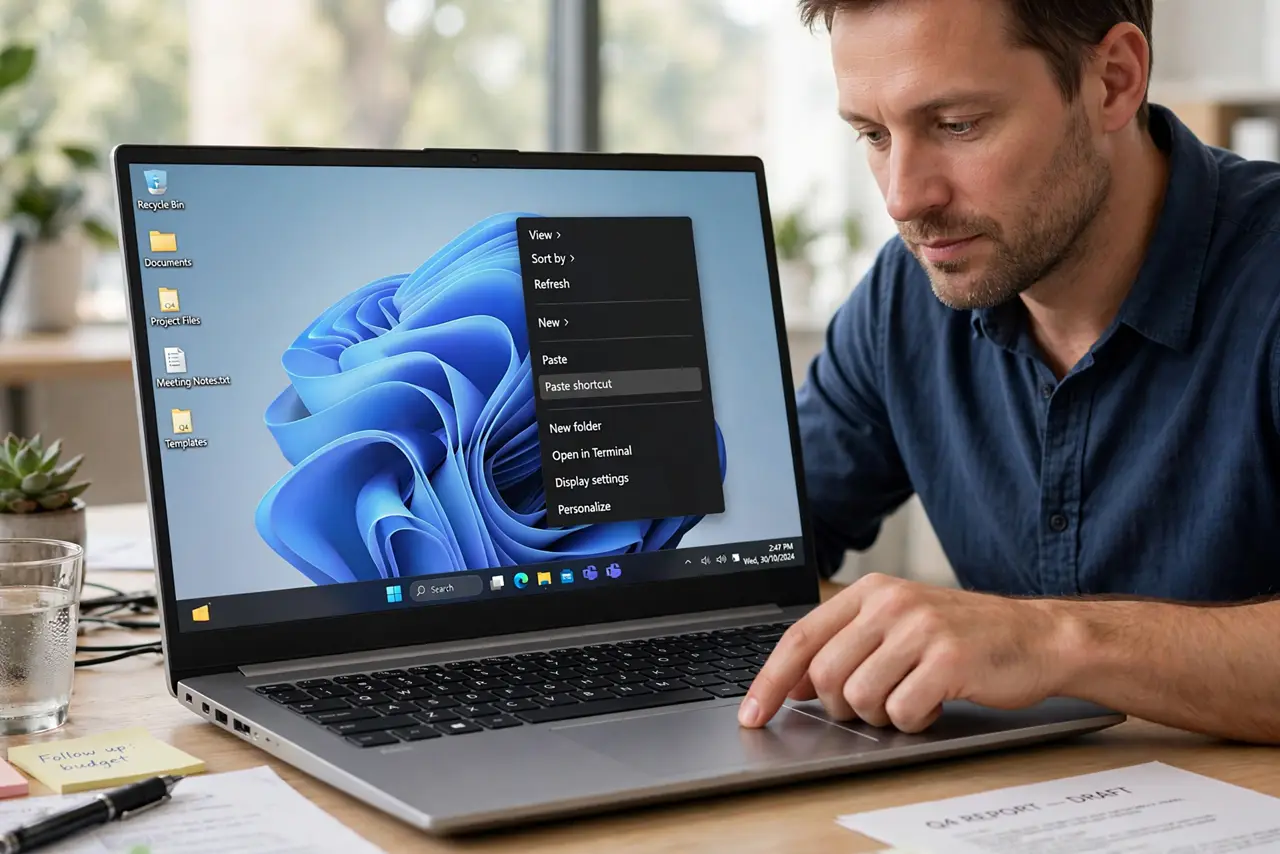
What NOT to do
- Do not assume a black desktop means a broken screen. Icons and taskbar still working prove the display is fine, and the background is only a picture setting.
- Do not reinstall Windows to restore wallpaper. A background setting and a picture file check cover the normal causes without a reinstall.
- Do not set a slideshow to a folder you plan to move. Moving the folder breaks the slideshow source and returns the desktop to black.
- Do not ignore a picture file that moved. If the file moved, no setting change will restore it until you point Windows at the file again.
Frequently asked questions
Why did my wallpaper turn black suddenly?
The background setting changed, the picture file moved or was deleted, or a slideshow folder went empty. All three leave Windows with nothing to display.
Will my files be affected?
No. A black desktop background affects only the wallpaper picture. Your files, icons, and apps remain untouched.
What if no picture works?
Restart Windows Explorer and try a built-in picture. If even built-in pictures fail, the desktop process needs a closer look after restart.