Welcome Screen Takes Too Long? Speed Up Login
The welcome screen spins far longer than it used to before the desktop appears. Startup apps, low disk space, or a stuck sign-in process can each stretch login. Trim the startup load and time the next login.
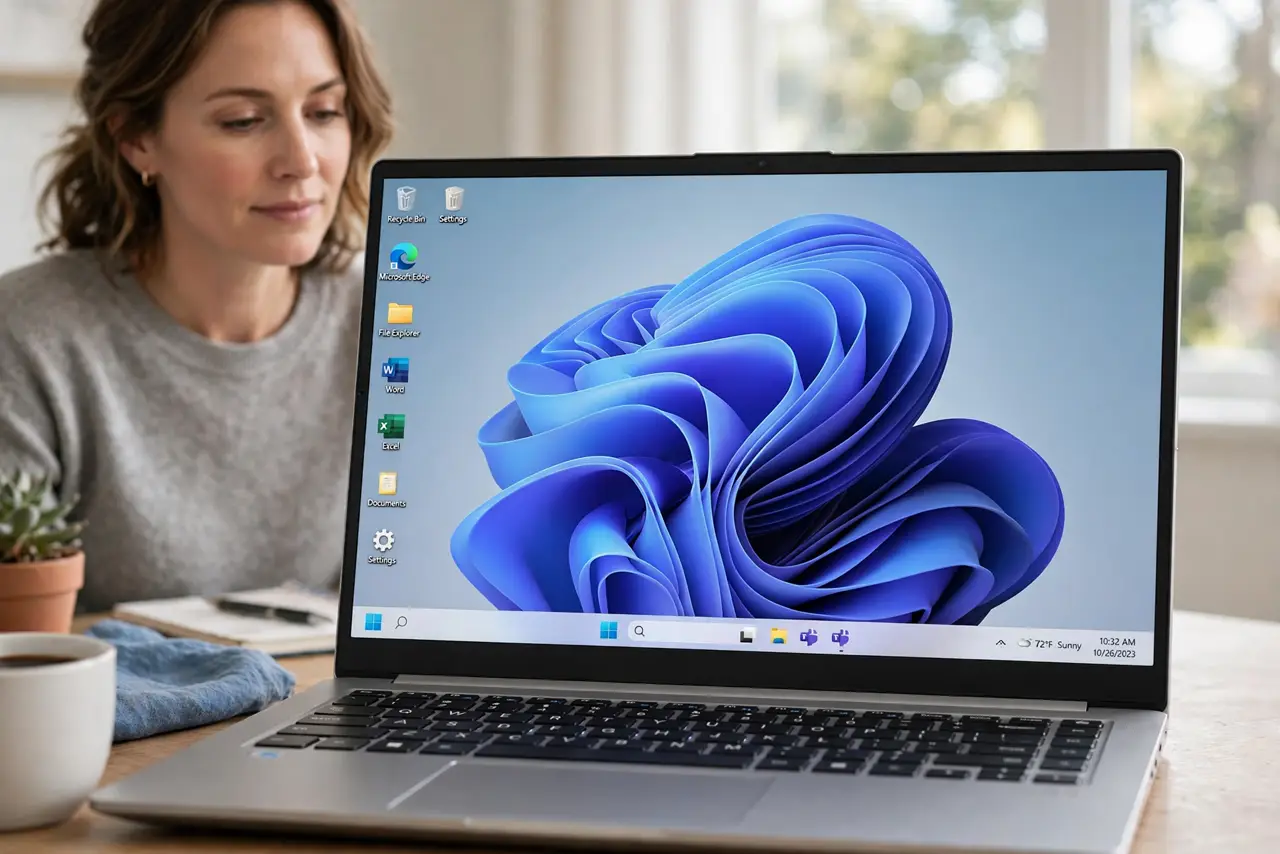
TL;DR / Quick Fix
Quick fix: wait through one full login without interrupting it, then open Task Manager, then Startup apps, and disable apps you do not need at login. Restart, time the welcome screen, and confirm the desktop appears faster than before on the next login.
Follow these steps
- Wait through one full login. Let the welcome screen finish once without forcing a restart. Interrupting login can corrupt the sign-in state and make the next login even slower.
- Open Startup apps. After login, open Task Manager, go to Startup apps, and look at the list. Every enabled app adds time before the desktop becomes usable.
- Disable apps you do not need at login. Disable chat, updater, and helper apps you rarely use at startup. Keep security and essential tools enabled, and disable only apps you recognize as optional.
- Check free disk space. Open Settings, then System, then Storage, and check free space on the system drive. A nearly full system drive slows login noticeably.
- Restart and time the login. Restart the computer, sign in, and time the welcome screen with a clock. Compare it with the slow login you started from, rather than guessing whether it improved.
- Check for a pending update. Open Settings, then Windows Update, and install any pending update, then restart and time login again. Updates can fix a stuck sign-in process.
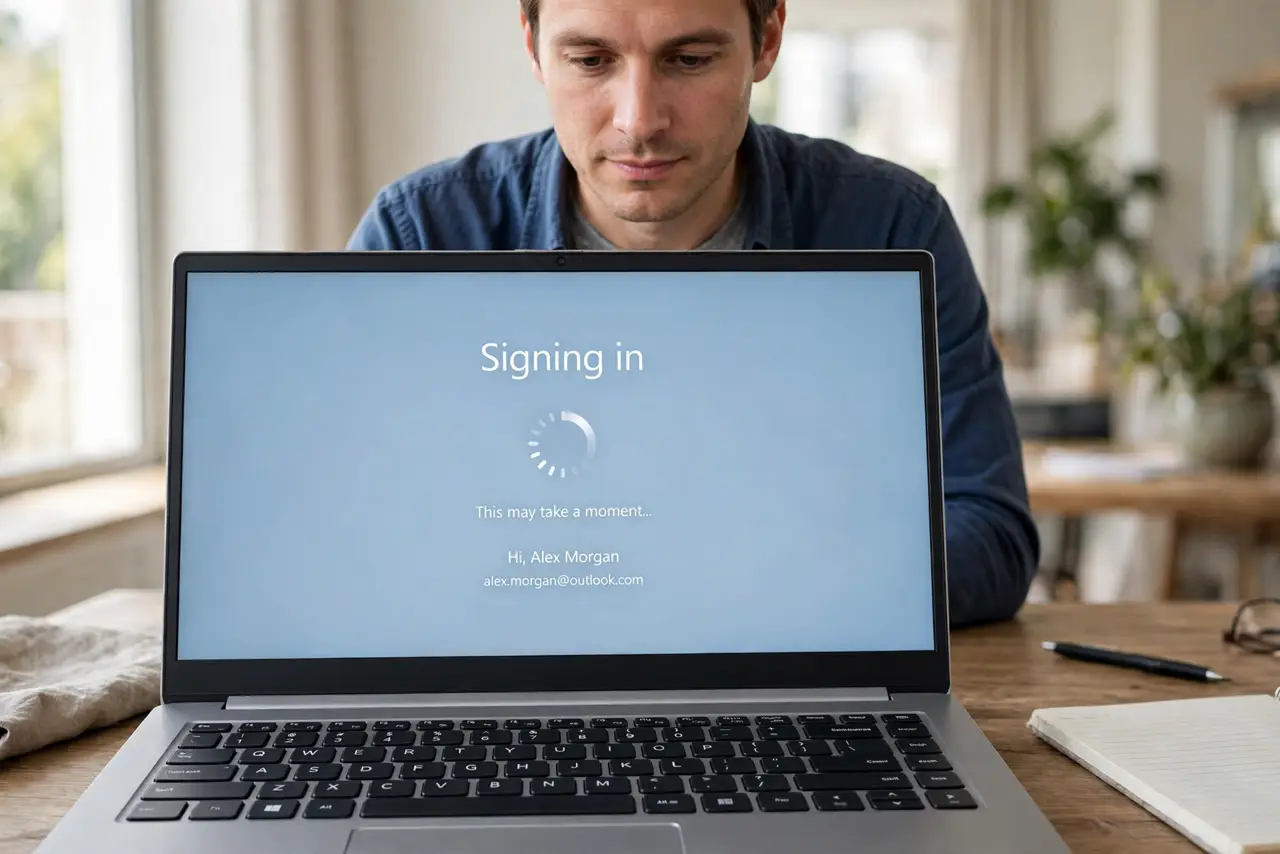
What NOT to do
- Do not disable every startup app at once. Disable optional apps one group at a time, so you know which change actually sped up login.
- Do not force restarts during a slow welcome screen. A forced restart during login risks a corrupted sign-in state and a longer delay next time.
- Do not disable security tools at startup to save time. Login speed is not worth losing protection that should run from the first moment.
- Do not judge login speed from a single rushed test. Time two clean logins, because the first login after changes can still be slow.
Frequently asked questions
How long should the welcome screen take?
It varies by computer, but a sudden change from your normal time matters more than any single number. Compare with your own usual login.
Will disabling startup apps speed up login?
Yes, if startup apps are the cause. Each disabled optional app removes work Windows must finish before the desktop feels ready.
What if login stays slow after trimming startup?
Check disk space and pending updates. A full system drive or a stuck update can slow login even with a clean startup list.